1. Киришүү
The Phomemo PM246S is a high-performance thermal label printer designed for efficiency and versatility. It offers inkless printing, making it a cost-effective solution for various labeling needs, from shipping labels to product barcodes. This manual provides detailed instructions for setting up, operating, maintaining, and troubleshooting your PM246S printer.

Image: Phomemo PM246S Label Printer in use, printing a round label.
2. Пакеттин мазмуну
Пакетиңизде бардык буюмдар бар экенин текшериңиз:
- Phomemo PM246S Desktop Label Printer
- USB кабели
- Power Cable + Adapter
- PM-246S Quick Start Guide
- Белги Сample (20 pieces/pack)
3. Коопсуздук маалыматы
To ensure safe operation and prolong the life of your printer, please observe the following:
- Берилген кубат адаптерин жана кабелдерин гана колдонуңуз.
- Принтерди сууга же ашыкча нымдуулукка дуушар кылбаңыз.
- Принтерди күн тийген жерге же жылуулук булактарынын жанына коюудан алыс болуңуз.
- Принтерди чаңдан жана таштандыдан алыс кармаңыз.
- Принтерди өзүңүз чечүүгө же оңдоого аракет кылбаңыз. Жардам алуу үчүн кардарларды колдоо бөлүмүнө кайрылыңыз.
4. Орнотуу
4.1 Аппараттык орнотуу
- Туташуу кубаты: Кубат адаптерин принтердин кубат портуна, андан кийин розеткага сайыңыз.
- USB туташтыруу: Connect the USB cable from the printer to your computer. For Mac users, a Type-C converter is included if needed.
- Энбелгилерди жүктөө: Open the printer cover and insert your thermal labels. Ensure the labels are facing up and aligned correctly with the feeder. Close the cover.
Image: Phomemo PM246S Label Printer with a label roll inserted.
4.2 Программалык камсыздоону орнотуу
The PM246S printer is compatible with Windows, Mac, Linux, and Chrome OS.
- Windows/Mac/Linux: Drivers and video tutorials are available to guide you through the setup process. Please visit the official Phomemo webакыркы айдоочулар үчүн сайт.
- Chrome OS: Users can install the "Labelife" extension from the Chrome Web Store to connect to the printer and print.

Image: Screenshot illustrating the installation of the Labelife Chrome extension for printer connectivity.
5. Иштөө нускамалары
5.1 Automatic Label Detection
The printer features automatic label detection to prevent wasting the first label:
- Insert the labels directly into the printer's feeder.
- Бипти укканча кубат баскычын басып, кармап туруңуз.
- The printer will automatically detect the label size and retract it to the correct starting position.

Image: The Phomemo PM246S printer performing automatic label detection.
5.2 Этикеткаларды басып чыгаруу
The PM246S is compatible with major e-commerce platforms and shipping carriers, supporting label widths from 25.4 mm (1 inch) to 116 mm (4.6 inches).
- Колдоого алынган платформалар: Shopify, Etsy, eBay, Amazon, Hermes, Royal Mail Click & Drop, Parcelforce, DPD, UPS, DHL, FedEx, and more.
- Энбелгилердин түрлөрү: Primarily used for 4x6 inch shipping labels, address labels, FBA labels, barcode labels, price tags, and custom labels.
- Labelife Software: Utilize the free "Labelife" label editing software to easily create and customize any label you wish to print.
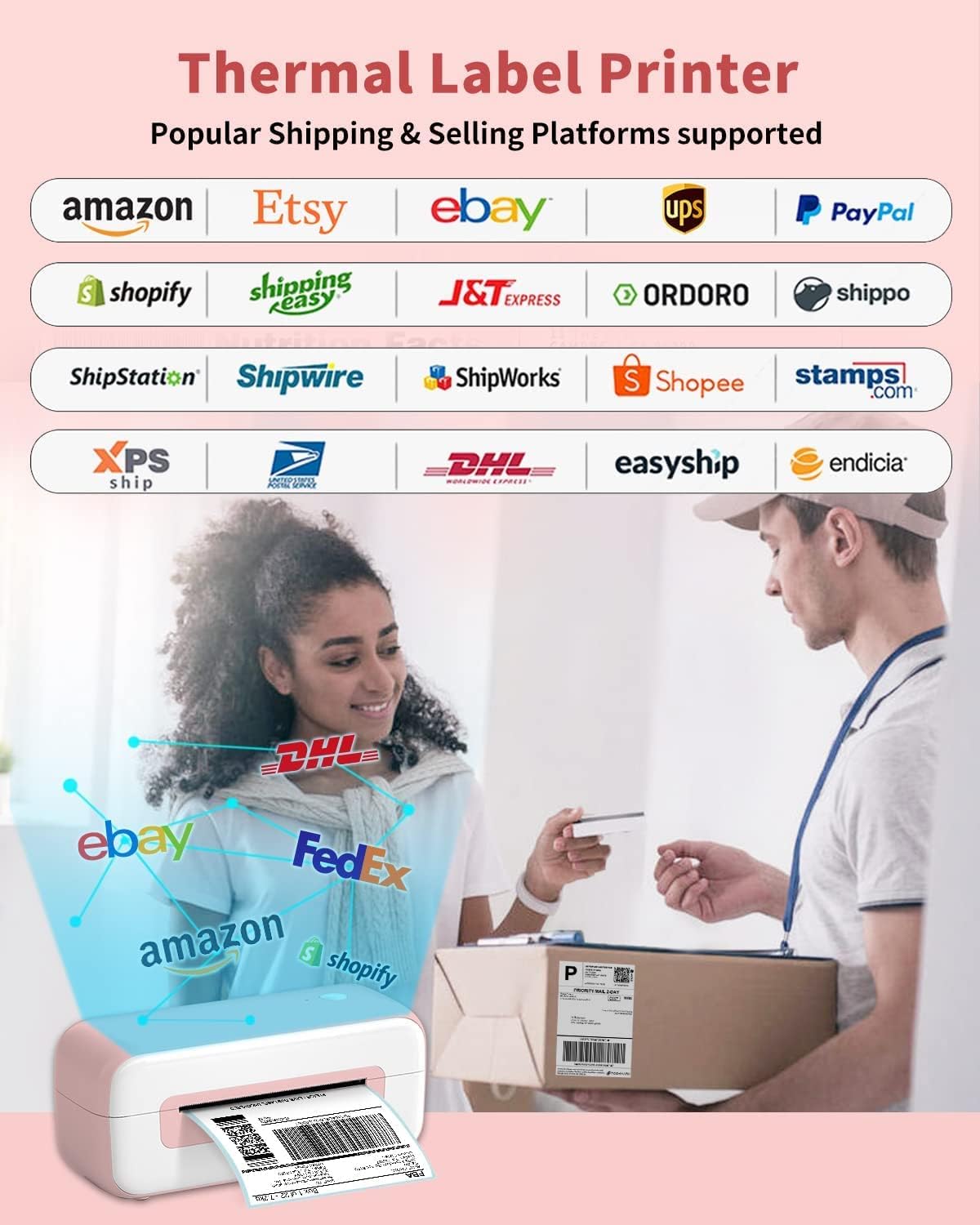
Image: Visual representation of various e-commerce and shipping platforms supported by the Phomemo PM246S printer.

Сүрөт: Мисamples of different label sizes and types, including shipping, address, and round labels, printable with the Phomemo PM246S.

Image: The compact Phomemo PM246S printer positioned on a desk, demonstrating its small footprint.
6. Техникалык тейлөө
6.1 Принтерди тазалоо
Regular cleaning ensures optimal print quality and extends the printer's lifespan:
- Басма башчысы: Use an alcohol swab or a specialized thermal print head cleaning pen to gently wipe the print head. Ensure the printer is off and cooled down before cleaning.
- Сырткы: Принтердин сыртын жумшак менен сүртүңүз, damp кездеме. Абразивдүү тазалагычтарды же эриткичтерди колдонбоңуз.
- Чаң: Use a soft brush or compressed air to remove any dust or paper debris from inside the printer.
6.2 Storing the Printer
When not in use for extended periods, store the printer in a cool, dry place, away from direct sunlight and extreme temperatures. Keep the printer covered to prevent dust accumulation.
7. Кыйынчылыктарды
7.1 Жалпы маселелер жана чечимдер
| Маселе | Мүмкүн себеп | Чечим |
|---|---|---|
| Принтер жооп бербей жатат | Кубат кабели бошоп калган, USB кабели ажыратылган, принтер өчүрүлгөн. | Check all cable connections. Ensure printer is powered on. Restart printer and computer. |
| Басып чыгаруунун сапаты начар (өчүп кеткен, сызыктар) | Кир басып чыгаруу башы, сапатсыз этикеткалар, туура эмес басып чыгаруу жөндөөлөрү. | Clean the print head. Use high-quality thermal labels. Adjust print density settings in your software. |
| Энбелгилер туура эмес азыктандырылган | Labels loaded incorrectly, label path obstructed, automatic detection failed. | Reload labels correctly, ensuring they are aligned. Clear any obstructions. Perform automatic label detection again. |
| Принтер оффлайн режиминде | Driver issue, incorrect port selection. | Reinstall printer drivers. Verify the correct USB port is selected in printer settings. |
8. Техникалык шарттар
| Өзгөчөлүк | Деталь |
|---|---|
| Модель номери | PM246S |
| Басма технологиясы | Термикалык |
| Байланыш | USB |
| Print Resolution | 203 dpi |
| Макс басып чыгаруу ылдамдыгы | 150 мм/с |
| Max Label Width | 116 мм (4.6 дюйм) |
| Min Label Width | 25.4 мм (1 дюйм) |
| Операциялык системанын шайкештиги | Windows, Mac, Linux, Chrome OS |
| Өлчөмдөрү (L x W x Y) | 23 x 8 x 10 см (болжол менен) |
| Салмагы | 1050 грамм |
| Өзгөчөлүктөр | Inkless printing, Automatic label detection |
9. Кепилдик жана колдоо
Phomemo is committed to providing excellent customer service:
- Кардарларды тейлөө: Strong 24-hour customer service is available to help resolve any issues you may encounter.
- Кайтаруулар: We support free returns for 30 days. Please do not hesitate to contact us if you have any questions or concerns.
- Расмий дүкөн: Көбүрөөк маалымат алуу жана өнүмдөр үчүн, төмөнкү дарекке кириңиз Phomemo Store.


