Продукт бүттүview
The URANT UMS16 Triple Band Mesh WiFi System is designed to provide seamless, whole-home wireless coverage, effectively replacing traditional WiFi routers and range extenders. This system utilizes advanced tri-band technology to ensure stable and high-speed internet access across large areas, up to 4400 sq ft.
Негизги өзгөчөлүктөр төмөнкүлөрдү камтыйт:
- Tri-Band AC2100 Mesh: Features three dedicated bands (2.4GHz, 5GHz-1, 5GHz-2), with one 5GHz band serving as a dedicated backhaul to minimize lag and maximize speed for multiple devices.
- Brand-New 6 GHz Band: Offers a dedicated 6 GHz band that can function as a powerful backhaul for stable node connections or as a Wi-Fi network for Wi-Fi 6E compatible devices, reducing interference.
- Оңой орнотуу жана башкаруу: Simplifies network setup and control through a dedicated mobile application, allowing for quick configuration and remote management. Compatible with voice commands via Alexa.
- Жасалма интеллект менен башкарылуучу тор: Intelligently adapts to your network environment, client quality, and user behavior to provide uninterrupted WiFi coverage.
- Broad ISP Compatibility: Works with major internet service providers (e.g., AT&T, Verizon, Xfinity) and supports internet plans up to 1 Gbps (requires a modem).

Image: The URANT UMS16 mesh WiFi system, featuring three compact, white units designed for whole-home coverage. One unit is shown from the rear, displaying its Ethernet ports and power input.
Пакеттин мазмуну
Пакетти ачкандан кийин бардык буюмдар бар экенин жана жакшы абалда экендигин текшериңиз:
- 3 x URANT UMS16 Mesh WiFi Units
- 3 х Power адаптерлери
- 1 х Ethernet кабели
- 1 х Колдонуучунун колдонмосу (бул документ)
Физикалык компоненттер жана индикаторлор
Each URANT UMS16 mesh unit features a simple and functional design. Understanding its components will assist in setup and operation.

Image: A detailed diagram illustrating the physical layout of the URANT UMS16 mesh unit. It highlights the dimensions (95mm x 95mm x 70mm), the front-facing mesh button and state lights, and the rear panel with LED light, power input, and WAN/LAN/Reset ports.
Бирдиктин өзгөчөлүктөрү:
- Mesh Button: Located on the front, used for pairing additional mesh units.
- State Lights (LEDs): Indicate the operational status of the unit.
- WAN/LAN порттору: Multiple Ethernet ports on the rear for connecting to your modem or wired devices.
- Калыбына келтирүү баскычы: A small button for factory resetting the device.
- Киргизүү: Кубат адаптерин туташтыруу үчүн порт.
Орнотуу колдонмосу
Initial Setup (Main Unit)
Follow these steps to set up your primary URANT UMS16 mesh unit:
- Connect the Main Unit: Place one URANT UMS16 unit near your modem. Connect one end of the provided Ethernet cable to the WAN/LAN port on the mesh unit and the other end to your modem's LAN port.
- Күйгүзүү: Connect the power adapter to the mesh unit's power input and plug it into an electrical outlet. Wait for the unit's indicator lights to stabilize, indicating it's ready.
- Колдонмону жүктөп алыңыз: Издөө the "Deco" app (or specified URANT app if different) on your smartphone's app store (iOS or Android). Install and open the app.
- Колдонмодогу нускамаларды аткарыңыз: The app will guide you through creating your new mesh network, including setting up a WiFi name (SSID) and password. It may also prompt you to update firmware.
Expanding Coverage (Adding Additional Units)
To extend your WiFi coverage, add the remaining URANT UMS16 units to your mesh network:
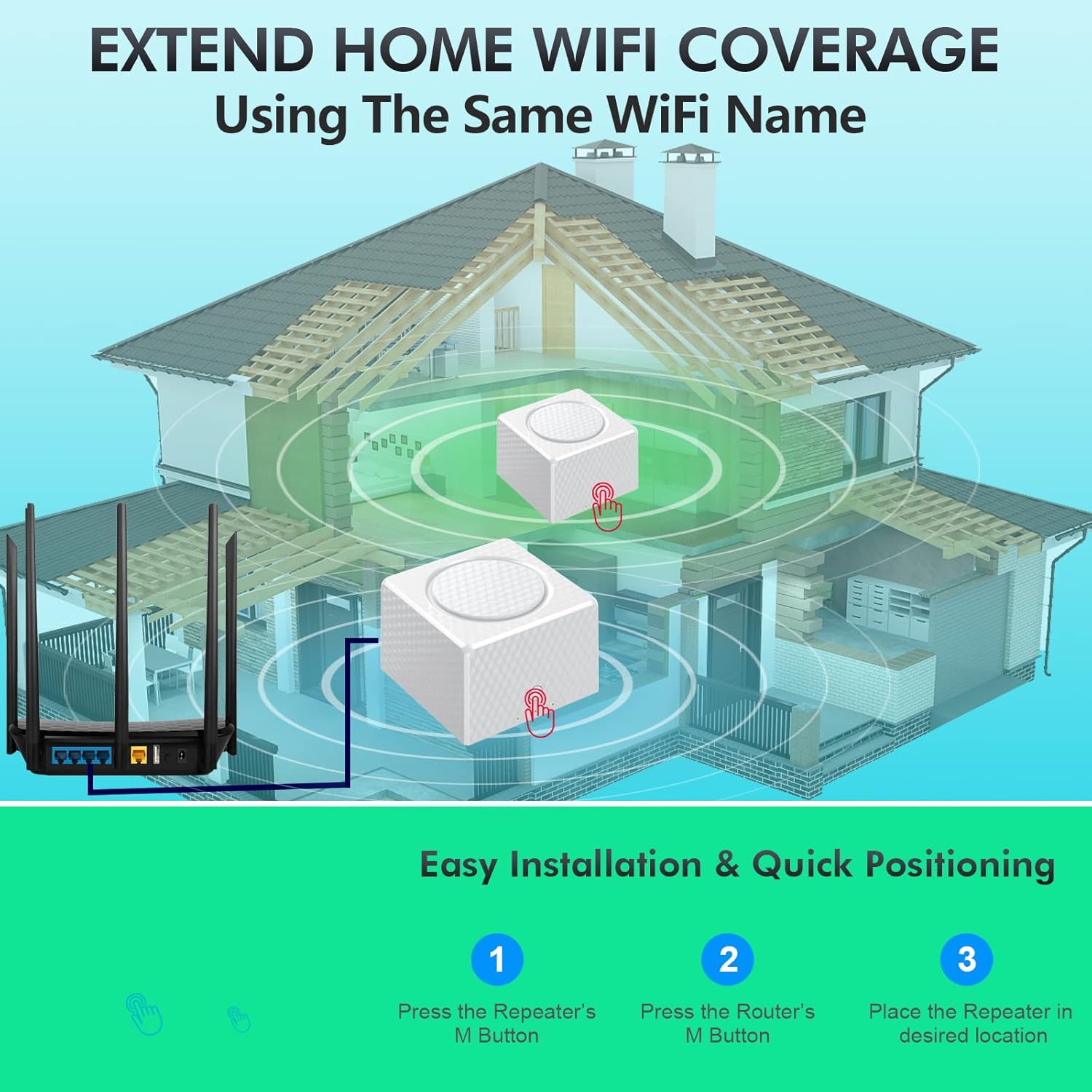
Image: A visual guide demonstrating how to expand your home WiFi coverage. It shows a main router connected to one mesh unit, and another mesh unit being added. The steps involve pressing the 'M' button on the repeater, then on the router, and finally placing the repeater in its optimal location.
- Power On Additional Units: Place the second and third URANT UMS16 units in desired locations within your home, ensuring they are within range of the main unit or another connected mesh unit. Plug them into power outlets.
- Жупташтыруу: On one of the new units (repeater), press its Mesh Button (often labeled 'M' or a circular button on the front). The indicator light will typically start blinking.
- Pair with Main Unit: Within a short timeframe (usually 2 minutes), press the Mesh Button on your main URANT UMS16 unit. The units will attempt to pair automatically.
- Байланышты текшерүү: Once successfully paired, the indicator light on the new unit will turn solid, indicating a stable connection to the mesh network. Repeat for any remaining units.

Сүрөт: жакын план view of a hand pressing the central button on the URANT UMS16 mesh unit, labeled "One Key Network Automatically." This button facilitates quick and automatic network setup and expansion.
Иштөө нускамалары
Network Management
Your URANT UMS16 mesh system can be managed conveniently through the dedicated mobile application. This app allows you to:
- View туташкан түзмөктөр жана алардын абалы.
- Set up parental controls and guest networks.
- Prioritize devices for optimal performance.
- Микропрограмма жаңыртууларын аткарыңыз.
- Integrate with voice assistants like Alexa for simple commands (e.g., turning guest WiFi on/off).
Кемчиликсиз роуминг
The URANT UMS16 system creates a single, unified WiFi network name (SSID) throughout your home. This means your devices will automatically switch to the strongest signal as you move from room to room, without requiring manual reconnection or experiencing drops.

Image: A comparative diagram illustrating the benefit of seamless roaming. The top half shows a single, unified WiFi network (e.g., "MayWiFi") providing consistent coverage across an entire floor. The bottom half depicts a traditional setup with multiple WiFi networks (e.g., "Home WiFi" and "WiFi 2"), highlighting potential dead zones and the need for manual switching.

Image: An architectural rendering of a multi-story house, demonstrating how three URANT mesh WiFi units are strategically positioned to create an expandable whole-home mesh network. Arrows indicate seamless roaming between units, ensuring consistent internet service throughout the residence.
Техникалык тейлөө
To ensure optimal performance and longevity of your URANT UMS16 Mesh WiFi System, consider the following maintenance tips:
- Программалык камсыздоонун жаңыртуулары: Regularly check for and install firmware updates via the mobile app. Updates often include performance improvements, security patches, and new features.
- Жайгашкан жери: Ensure units are placed in open areas, away from obstructions like large metal objects, thick walls, or other electronic devices that may cause interference.
- Тазалоо: Periodically clean the exterior of the units with a soft, dry cloth. Avoid using liquid cleaners or abrasive materials. Ensure ventilation slots are clear of dust.
- Power Cycle: If you experience minor network issues, try power cycling your mesh units (unplug them from power for 10 seconds, then plug them back in).
Проблемаларды чечүү
If you encounter issues with your URANT UMS16 Mesh WiFi System, refer to the following common troubleshooting steps:
| Көйгөй | Мүмкүн чечим |
|---|---|
| Интернет байланышы жок |
|
| Poor WiFi Signal / Dead Zones |
|
| Unable to Pair Additional Units |
|
| Login/Password Issues |
|
If these steps do not resolve your issue, please contact URANT customer support for further assistance.
Техникалык мүнөздөмөлөр
| Өзгөчөлүк | Деталь |
|---|---|
| Модель номери | UMS16 |
| Өлчөмдөрү (бирдик үчүн) | 3.74 x 3.74 x 2.76 дюйм (95 x 95 x 70 мм) |
| Салмагы (бирдик үчүн) | 11.9 унция (338 грамм) |
| Жыштык тилкесинин классы | Tri-Band (2.4 GHz, 5 GHz-1, 5 GHz-2, 6 GHz) |
| Зымсыз стандарт | IEEE 802.11ax/ac/n/a (5 GHz), IEEE 802.11n/b/g (2.4 GHz), IEEE 802.11ax (6 GHz) |
| Байланыш технологиясы | Wi-Fi, Ethernet |
| Порттар | WAN/LAN Gigabit Ethernet Ports |
| Өзгөчөлүктөр | WPS, AI-Driven Mesh, Parental Controls, Guest Network, Alexa Compatibility |
| Сунушталган колдонуу | Үй тармагынын камтуусу |
| Өндүрүүчү | shenzhenyoulanteerkeji |
| Биринчи жеткиликтүү | 17-апрель, 2023-жыл |
Кепилдик жана колдоо
URANT products are designed for reliability and performance. This product comes with a standard manufacturer's warranty against defects in materials and workmanship. Please refer to the warranty card included in your package for specific terms and conditions, including the warranty period.
For technical support, troubleshooting assistance, or warranty claims, please contact URANT customer service through the following channels:
- Webсайт: Visit the official URANT webКөп берилүүчү суроолор, колдоо булактары жана байланыш формалары үчүн сайт.
- Электрондук почта: Refer to your product packaging or the URANT website for customer support email addresses.
- Телефон: Check the URANT webаймактык колдоо телефон номерлери үчүн сайт.
When contacting support, please have your product model (UMS16) and purchase information ready.


