1. Киришүү
The TP-Link ER707-M2 Omada Multi-Gigabit VPN Router is designed for robust and secure network solutions, offering high-speed connectivity and advanced management capabilities. This manual provides detailed instructions for setting up, operating, maintaining, and troubleshooting your device.
2. Негизги өзгөчөлүктөрү
- Multi-Gigabit Connectivity: Equipped with 2.5G WAN ports, Gigabit WAN/LAN ports, and an SFP port for flexible high-speed connections.
- Omada Centralized Management: Seamless integration with the Omada SDN platform for cloud access and convenient management via the Omada app.
- Өркүндөтүлгөн коопсуздук: Comprehensive security features including advanced firewall policies, Denial of Service (DoS) defense, IP/MAC/URL filtering, IP-MAC binding, and One-Click ALG activation.
- VPN колдоо: Supports IPSec VPN for secure remote access and site-to-site connections.
3. Пакеттин мазмуну
Пакетиңизде төмөнкү заттар бар экенин текшериңиз:
- TP-Link ER707-M2 Router
- Кубаттуу адаптер
- Ethernet кабели
- Ыкчам орнотуу колдонмосу
4. Техникалык жабдыктар бүттүview
4.1 алдыңкы панели

Figure 1: Front Panel of the ER707-M2 Router. This image displays the front of the router, showing the LED indicators for Power (PWR), System (SYS), and USB, along with the USB port, two 2.5G WAN ports, five Gigabit WAN/LAN ports, one SFP port, and the Reset button.
The front panel includes LED indicators, various network ports, a USB port, and a reset button. Refer to Figure 1 for a visual representation.
- LED көрсөткүчтөрү: PWR (Power), SYS (System), USB.
- USB порт: USB түзмөктөрүн туташтыруу үчүн.
- WAN порттору (1-2): Two 2.5G Ethernet ports for Wide Area Network connections.
- WAN/LAN Ports (3-6): Four Gigabit Ethernet ports configurable as either WAN or LAN.
- SFP Port (7): One SFP port for fiber optic connections.
- Калыбына келтирүү баскычы: Заводдун демейки жөндөөлөрүн калыбына келтирүү үчүн колдонулат.
4.2 Арткы панель
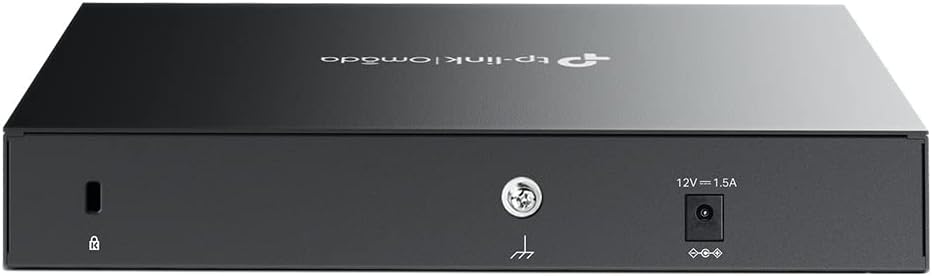
Figure 2: Rear Panel of the ER707-M2 Router. This image shows the rear of the router, featuring the Kensington security slot, a grounding terminal, and the 12V DC power input.
The rear panel contains the power input, a grounding terminal, and a security slot. Refer to Figure 2 for a visual representation.
- Кубат киргизүү: Connects to the provided power adapter (12V = 1.5A).
- Жерге туташтыруу терминалы: For grounding the device.
- Кенсингтон коопсуздук уячасы: Коопсуздук кабелин бекитүү үчүн.
5. Орнотуу
5.1 Физикалык орнотуу
- Кубат туташуу: Кубат адаптерин роутердин кубат киргизүү булагына, андан кийин розеткага туташтырыңыз.
- WAN туташуу: Connect your modem or internet service provider's (ISP) device to one of the 2.5G WAN ports (Port 1 or 2) or a Gigabit WAN/LAN port (Port 3-6) using an Ethernet cable.
- LAN туташуу: Connect your local network devices (e.g., computer, switch) to the remaining LAN ports (Port 3-6) using Ethernet cables.
- SFP Connection (Optional): If using a fiber optic connection, insert an SFP module into the SFP port (Port 7) and connect the fiber cable.
5.2 Баштапкы конфигурация
The ER707-M2 can be configured via its web-based management interface or through the Omada SDN Controller.
- Web Интерфейс:
- Компьютериңиз роутердин LAN портуна туташкандыгын текшериңиз.
- ачуу а web браузер жана демейки IP дарегин киргизиңиз (адатта
192.168.0.1or192.168.1.1) in the address bar. Refer to the Quick Installation Guide for the exact default IP. - Log in using the default username and password (typically
adminэкөө үчүн тең). Коопсуздук максатында сизден буларды өзгөртүү суралат. - Follow the on-screen wizard for initial setup, including WAN connection type and basic network settings.
- Omada SDN Controller:
- For centralized management, integrate the router with an Omada SDN Controller (hardware controller, software controller, or cloud-based controller).
- Ensure the controller is running and accessible on your network.
- Adopt the ER707-M2 router within the Omada Controller interface.
- Configure network settings, VPNs, and security policies through the Omada Controller.
6. Операция
6.1 Тармактын конфигурациясы
Маршрутизаторго кириңиз web interface or Omada Controller to configure various network settings:
- WAN жөндөөлөрү: Configure your internet connection type (e.g., Dynamic IP, Static IP, PPPoE).
- LAN Орнотуулары: Adjust the local IP address range, DHCP server settings, and VLAN configurations.
- Порт конфигурациясы: Reconfigure WAN/LAN ports as needed for specific network requirements.
6.2 VPN конфигурациясы
The ER707-M2 supports IPSec VPN for secure communication. This allows for site-to-site connections between offices or remote access for individual users.

Figure 3: IPSec VPN Diagram. This image illustrates how IPSec VPN can establish a secure connection between a headquarters and a subsidiary, managed via an Omada Controller in the cloud.
Detailed VPN setup instructions are available in the router's online help or the Omada Controller documentation. Key steps typically include:
- Defining VPN policies (e.g., Site-to-Site VPN, Client-to-Site VPN).
- Configuring IP addresses, authentication methods, and encryption protocols.
- Enabling the VPN connection.
6.3 Коопсуздук өзгөчөлүктөрү
The router provides extensive security functionalities to protect your network:
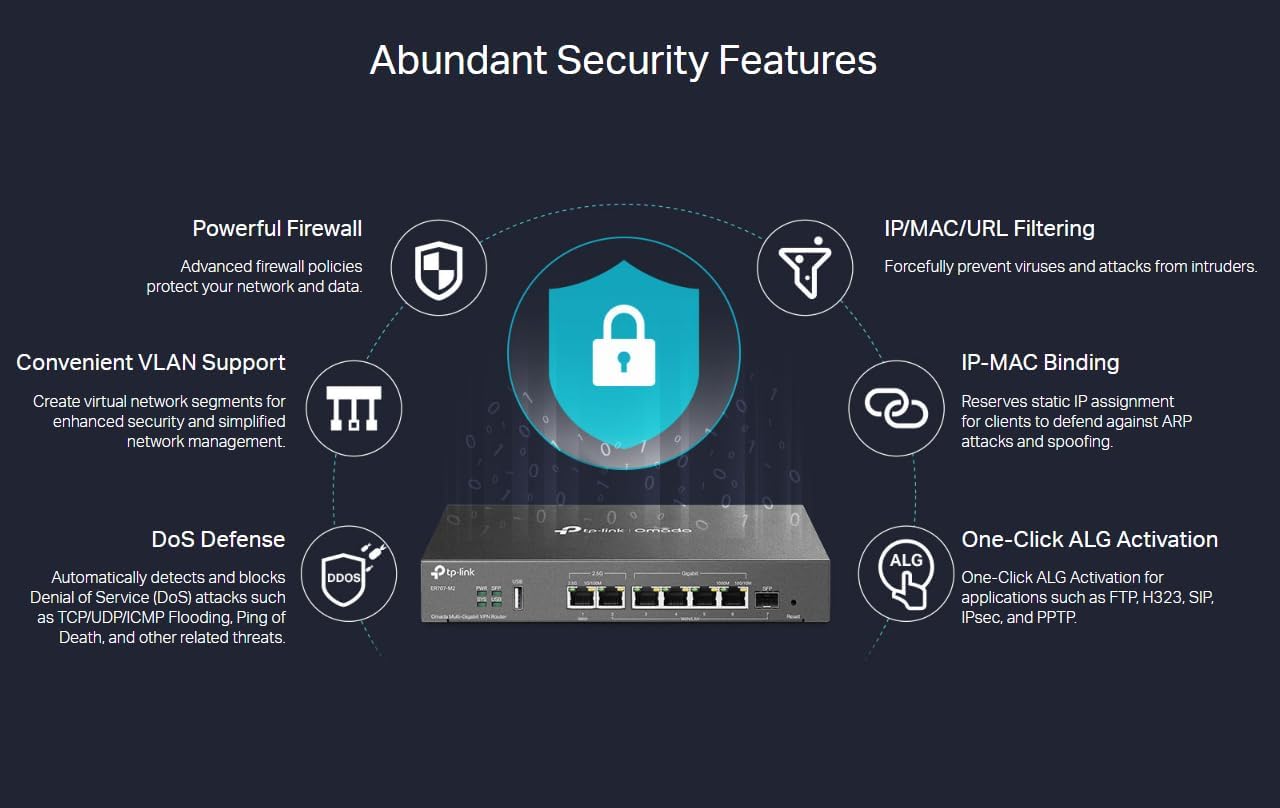
Figure 4: Abundant Security Features. This diagram highlights various security functions of the router, including Powerful Firewall, IP/MAC/URL Filtering, IP-MAC Binding, One-Click ALG Activation, DoS Defense, and Convenient VLAN Support.
- Powerful Firewall: Configure advanced firewall policies to control network traffic and protect against unauthorized access.
- DoS коргонуусу: Automatic detection and blocking of Denial of Service attacks such as TCP/UDP/ICMP Flooding and Ping of Death.
- IP/MAC/URL Чыпкалоо: Prevent unwanted access by filtering based on IP addresses, MAC addresses, or specific URLs.
- IP-MAC Binding: Reserve static IP assignments for clients to defend against ARP attacks and spoofing.
- One-Click ALG Activation: Enable Application Layer Gateway (ALG) for applications like FTP, H323, SIP, IPSec, and PPTP with a single click.
- VLAN колдоо: Create virtual network segments for enhanced security and simplified network management.
7. Техникалык тейлөө
- Программалык камсыздоонун жаңыртуулары: Дайыма TP-Link кызматкерин текшерип туруңуз website for the latest firmware versions. Updating firmware can improve performance, add new features, and enhance security.
- Камдык көчүрмөнү сактоо жана калыбына келтирүү: It is recommended to back up your router's configuration settings before making significant changes or performing firmware updates. This allows you to restore settings if needed.
- Заводдун баштапкы абалга келтирүү: If the router is not functioning correctly or you forget the login credentials, you can perform a factory reset by pressing and holding the Reset button on the front panel for approximately 5-10 seconds until the SYS LED blinks rapidly. This will erase all custom configurations.
8. Кыйынчылыктарды
- Интернетке кирүү жок:
- Check all cable connections (WAN, LAN).
- Verify the status of the WAN LED indicator.
- Ensure your WAN settings are correctly configured in the router's interface.
- Модемди жана роутерди өчүрүп күйгүзүңүз.
- Кирүү мүмкүн эмес Web Башкаруу баракчасы:
- Ensure your computer is connected to a LAN port and has an IP address from the router's DHCP server.
- Verify the router's IP address and ensure you are entering it correctly in the browser.
- Браузериңиздин кэшин тазалап көрүңүз же башка браузерди колдонуп көрүңүз.
- Эгерде бардыгы ишке ашпаса, заводдук баштапкы абалга кайтарууну аткарыңыз (Тейлөө бөлүмүн караңыз).
- Жай тармак ылдамдыгы:
- Интернет провайдериңиздин ылдамдыгын текшериңиз.
- Бардык кабелдердин жакшы абалда экенин жана туура туташтырылганын текшериңиз.
- Monitor network traffic to identify any bandwidth-intensive applications.
- Роутердин микропрограммасын жаңыртууну карап көрүңүз.
9. Техникалык шарттар
| Өзгөчөлүк | Деталь |
|---|---|
| Бренд | TP-Link |
| Модель номери | ER707-M2 |
| Порттар | 2x 2.5G WAN, 4x Gigabit WAN/LAN, 1x SFP Port, 1x USB Port |
| Өлчөмдөрү (L x W x Y) | 32.5 x 24.5 x 7 см |
| Операция системасы | OpenWRT (underlying system, user interacts with Omada/TP-Link firmware) |
| Зымсыз технология түрү | 802.11a (Note: This router is primarily wired; this spec may refer to compatibility or internal components.) |
| Байланыш технологиясы | Wi-Fi (This is a wired router, but it's listed in specs, likely for compatibility with Wi-Fi networks it connects to) |
| Өзгөчө өзгөчөлүк | QoS (Кызматтын сапаты) |
| Шайкеш түзмөктөр | Ноутбук, персоналдык компьютер, смартфон, планшет |
| Түс | Боз |
10. Кепилдик жана техникалык колдоо
TP-Link provides industry-leading support for its products:
- Кепилдик: The TP-Link ER707-M2 router comes with a 5-year warranty.
- Техникалык колдоо: 24/7 technical support is available. For assistance, please visit the official TP-Link support webсайтка же кардарларды тейлөөгө кайрылыңыз.


