1. Киришүү
This manual provides comprehensive instructions for the iClever MD179 Multi-Device Wireless Mouse. It covers setup, operation, maintenance, and troubleshooting to ensure optimal performance and a seamless user experience. Please read this manual thoroughly before using the product.
2. Пакеттин мазмуну
Пакетиңизде бардык буюмдар бар экенин текшериңиз:
- iClever MD179 Wireless Mouse
- USB 2.4GHz Receiver (stored inside the mouse)
- USB-C заряддоо кабели
- Колдонуучунун Колдонмосу (бул документ)
3. Продукт бүтүп калдыview
Familiarize yourself with the mouse's components and controls:

1-сүрөт: iClever MD179 Mouse Button Layout
- Оң баскычты чыкылдатуу: Standard right-click functionality.
- Сол чыкылдатуу баскычы: Standard left-click functionality.
- Scroll Wheel / Middle Click Button: For scrolling and middle-click actions.
- Алга баскычы: Алга карай жылдырат web браузерлер же file explorers (Windows only).
- Артка баскычы: Артка карай багыт алат web браузерлер же file explorers (Windows only).
- DPI которуу баскычы: Курсордун сезгичтигин (DPI) тууралайт.
- Кубатты күйгүзүү / өчүрүү Чычканды күйгүзүү же өчүрүү үчүн анын астыңкы жагында жайгашкан.
- 2.4GHz / Bluetooth 1 / Bluetooth 2 Channel Indicator: Displays the active connection mode.
4. Орнотуу
4.1 Чычканды заряддоо
Before initial use, fully charge the mouse.
- Connect the provided USB-C cable to the charging port on the front of the mouse and to a USB power source (e.g., computer USB port, USB wall adapter).
- Заряддоо индикатору кубаттоо учурунда күйөт жана толук заряддалганда өчөт.
- A full charge typically provides up to 2 months of use, depending on usage.
- The mouse can be used wirelessly while it is charging.
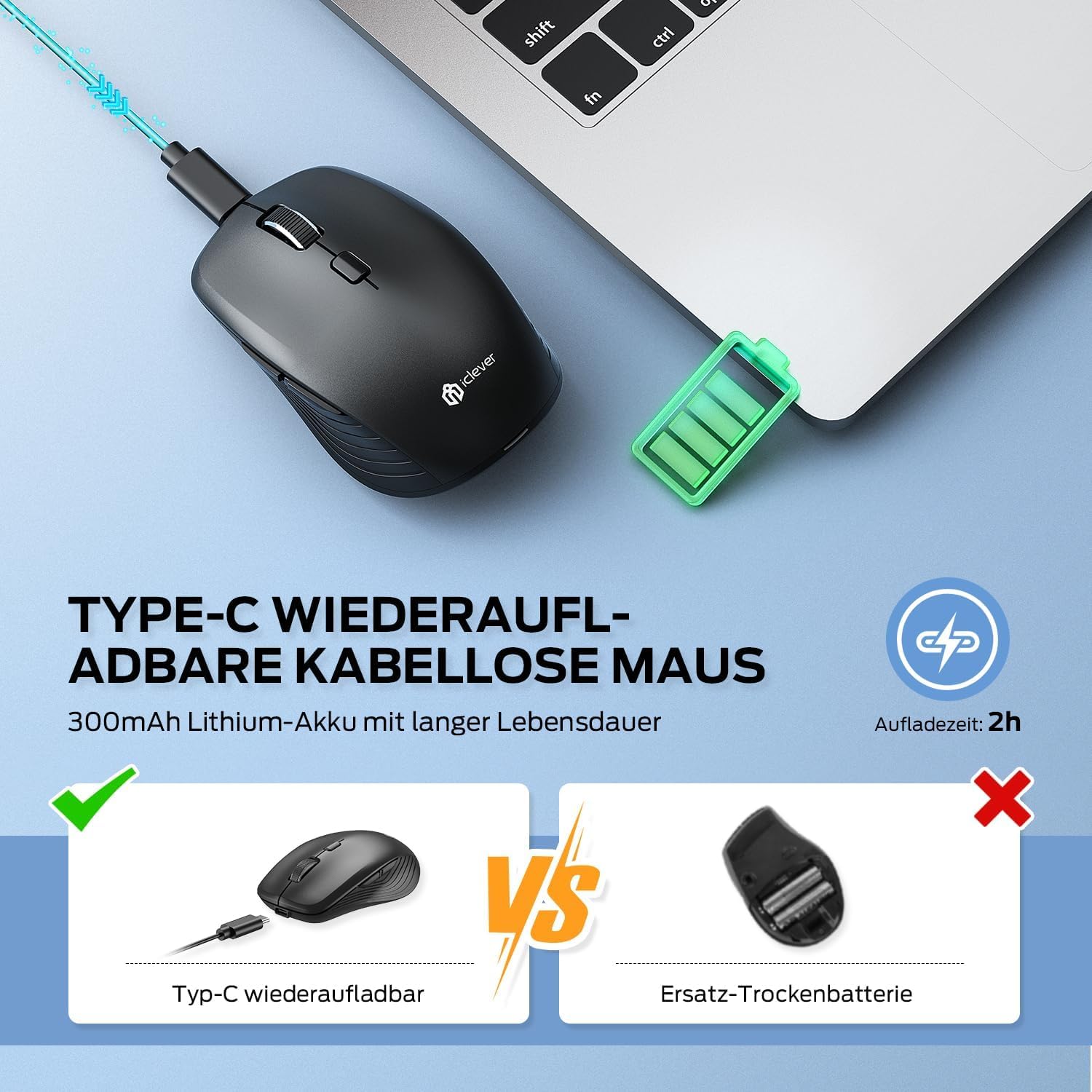
2-сүрөт: USB-C Rechargeable Feature
4.2 2.4 ГГц зымсыз байланыш аркылуу туташуу
For a stable and quick connection:
- Locate the USB 2.4GHz receiver. It is stored in a compartment under the magnetic top cover of the mouse. Gently lift the top cover to access it.
- USB ресиверди компьютериңиздеги жеткиликтүү USB портуна салыңыз.
- Turn on the mouse using the ON/OFF switch on the bottom.
- Switch the connection mode to 2.4GHz (refer to the channel indicator on the bottom).
- Чычкан автоматтык түрдө туташышы керек.

3-сүрөт: Туташуу параметрлери
4.3 Connecting via Bluetooth (BT1 / BT2)
The mouse supports two Bluetooth connections:
- Turn on the mouse using the ON/OFF switch on the bottom.
- Switch the connection mode to either Bluetooth 1 (BT1) or Bluetooth 2 (BT2) using the channel switch button on the bottom. The indicator light will confirm the selected channel.
- Press and hold the channel switch button for 3-5 seconds until the indicator light flashes rapidly. This indicates the mouse is in pairing mode.
- On your device (PC, Mac, laptop, tablet), go to Bluetooth settings.
- Издөө "iClever MD179" or a similar name in the list of available devices and select it to pair.
- Repeat these steps for a second Bluetooth device using the other Bluetooth channel (BT2).

4-сүрөт: Көп түзмөк байланышы
4.4 Түзмөктөрдүн ортосунда которулуу
Туташкан түзмөктөр арасында которулуу үчүн:
- Use the channel switch button on the bottom of the mouse to cycle between the 2.4GHz, Bluetooth 1, and Bluetooth 2 connections.
- The indicator light will confirm the currently active channel.
5. Иштөө нускамалары

5-сүрөт: Mouse in Use with Multiple Devices
5.1 DPI жөндөө
Adjust the cursor sensitivity to match your preference or task:
- Press the DPI switch button (button 6 in Product Overview) to cycle through the available DPI settings: 800, 1200, 1600, and 2400 DPI.
- The indicator light may flash briefly to confirm the DPI change.
- Higher DPI settings result in faster cursor movement across the screen.
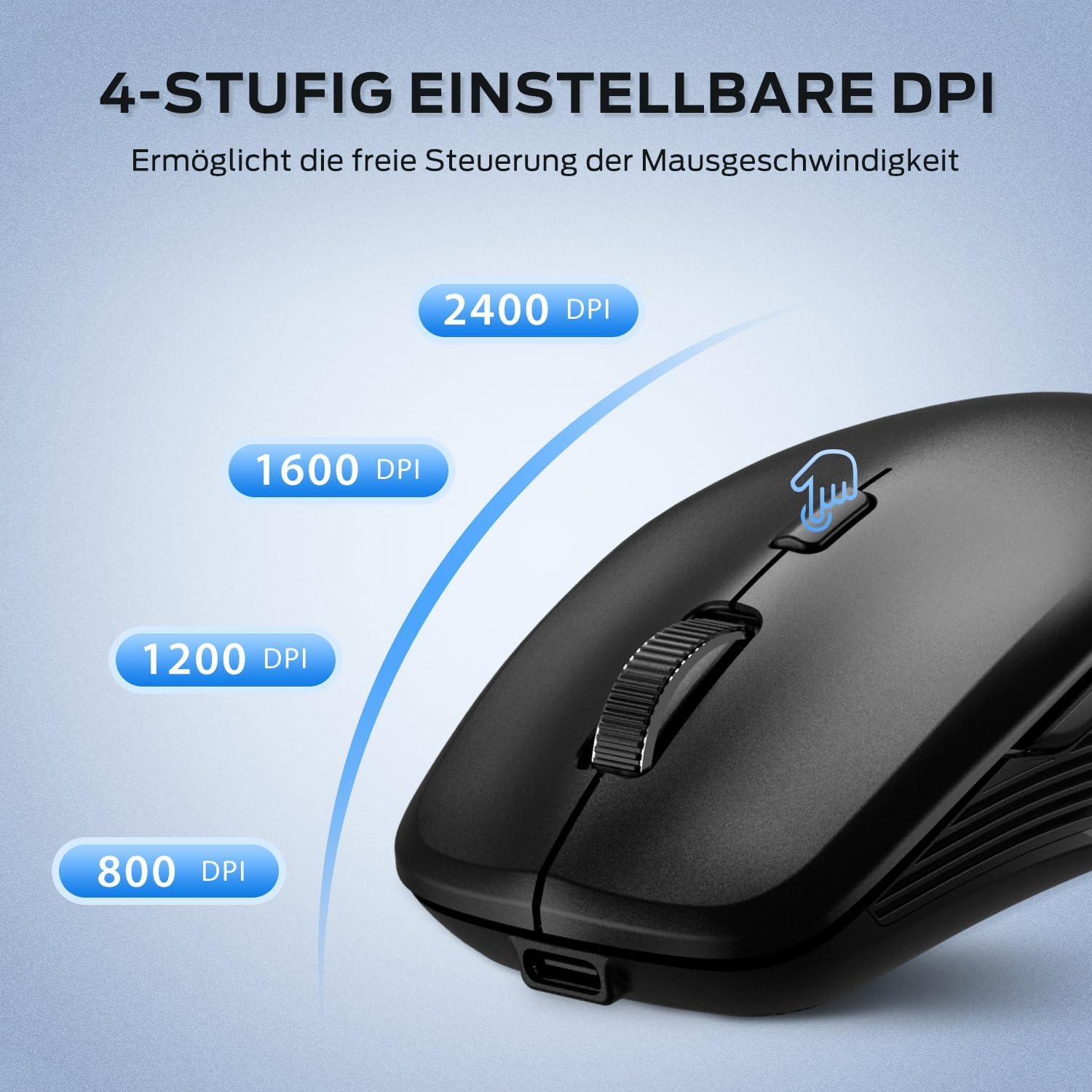
6-сүрөт: Жөнгө салынуучу DPI жөндөөлөрү
5.2 Унчукпай чыкылдатуу функциясы
The iClever MD179 mouse is designed with silent left and right click buttons to minimize noise, making it ideal for quiet environments such as libraries, offices, or late-night use at home.

7-сүрөт: Silent Click Benefits
5.3 Side Buttons (Forward/Back)
The forward and back buttons (buttons 4 and 5 in Product Overview) provide convenient navigation in web браузерлер жана file explorers. Please note that these buttons are primarily functional on Windows operating systems. Their functionality may vary or require specific software configuration on macOS or other operating systems.
5.4 Электр энергиясын башкаруу
The mouse incorporates features to optimize battery life:
- Автоматтык уйку режими: The mouse will enter an automatic sleep mode after a period of inactivity to conserve power. Move the mouse or click any button to wake it up.
- ON/OFF которуу: For extended periods of non-use, it is recommended to turn off the mouse completely using the ON/OFF switch (button 7 in Product Overview) located on the bottom.
6. Техникалык тейлөө
6.1 Тазалоо
To keep your mouse in optimal condition:
- Gently wipe the mouse surface with a soft, slightly damp кездеме.
- Катуу химиялык заттарды, абразивдүү тазалоочу каражаттарды же эриткичтерди колдонуудан алыс болуңуз, анткени алар бетке зыян келтириши мүмкүн.
- Чычкандын ички бөлүктөрүнө суюктук кирбесин текшериңиз.
- Periodically clean the optical sensor on the bottom of the mouse with a dry cotton swab to ensure accurate tracking.
6.2 Батареяга кам көрүү
Proper battery care extends the lifespan of your mouse:
- Charge the mouse regularly and avoid letting the battery fully deplete frequently.
- If storing the mouse for an extended period, charge it to approximately 50% and turn it off using the power switch.
- Avoid exposing the mouse to extreme temperatures, which can affect battery performance.

8-сүрөт: USB Receiver Storage
7. Кыйынчылыктарды
If you encounter issues with your iClever MD179 mouse, refer to the following common solutions:
- Чычкан жооп бербей жатат:
- Ensure the mouse is powered on using the ON/OFF switch.
- Батареянын деңгээлин текшерип, керек болсо чычканды заряддаңыз.
- For 2.4GHz connection: Verify the USB receiver is securely plugged into a working USB port and the mouse is set to 2.4GHz mode. Try a different USB port.
- For Bluetooth connection: Ensure Bluetooth is enabled on your device, the mouse is in the correct Bluetooth mode (BT1/BT2), and it is paired correctly. Try removing the mouse from your device's Bluetooth list and re-pairing it.
- Компьютериңизди же түзмөгүңүздү өчүрүп күйгүзүңүз.
- Курсордун кыймылы туруксуз же жай:
- Чычкандын түбүндөгү оптикалык сенсорду тазалаңыз.
- Чычканды ылайыктуу жерде (чагылтпаган, тунук эмес) колдонуп жатканыңызды текшериңиз.
- Adjust the DPI setting to a higher value using the DPI switch button if the cursor is too slow.
- Түзмөктөрдүн ортосунда которулуу мүмкүн эмес:
- Ensure the channel switch button on the bottom of the mouse is pressed firmly.
- Verify that each device is correctly connected to its respective channel (2.4GHz, BT1, BT2).
8. Техникалык шарттар
| Өзгөчөлүк | Description |
|---|---|
| Бренд | iClever |
| Модел | MD179 Bluetooth Mouse |
| Продукциянын өлчөмдөрү | 10.1 x 6.1 x 3.4 см |
| Элемент Салмагы | 70 грамм |
| Операциялык системанын шайкештиги | Windows, macOS, ChromeOS |
| Аппараттык платформа | Linux, Mac, PC |
| Шайкеш түзмөктөр | Компьютер, планшет |
| Өзгөчөлүктөр | Wireless, Silent Click, Multi-Device Connectivity |
| Power Source | Батарея менен иштейт (USB-C аркылуу кайра заряддоого болот) |
| Байланыш технологиясы | Bluetooth, 2.4 ГГц зымсыз байланыш |
| Motion Sensor Technology | Оптикалык |
| Колдун багыты | Эки тараптуу |
| DPI орнотуулары | 800 / 1200 / 1600 / 2400 DPI |
| Батарея сыйымдуулугу | 300 mAh Lithium |
9. Кепилдик жана колдоо
iClever products are designed for reliability and performance. For detailed warranty information, technical support, or service inquiries, please visit the official iClever webсайтка же түздөн-түз кардарларды колдоо менен байланышыңыз. Кепилдик дооматтар үчүн сатып алуу дүмүрчөгүңүздү сактаңыз.


