1. Киришүү
This user manual provides detailed instructions for the installation, operation, and maintenance of your Leadfan Double Din Car Stereo with Dash Cam. Please read this manual thoroughly before using the product to ensure proper functionality and safety.
Пакеттин мазмуну
- Double Din Car Stereo with Dash Cam
- Арткы View Кабелдүү камера
- Жабдуулар жана пульт
- Кронштейндер жана буроолор
- User Manual

Figure 1.1: Leadfan Double Din Car Stereo with Dash Cam and included accessories.
2. Орнотуу жана орнотуу
Туура орнотуу оптималдуу аткаруу үчүн абдан маанилүү болуп саналат. Агрегатты квалификациялуу адис орнотушу сунушталат.
2.1 Физикалык орнотуу
The car stereo is a universal double DIN standard size (173mm L x 98mm W x 65mm H). Ensure your vehicle's mounting slots match these dimensions. Use the provided brackets and screws for secure installation.

Figure 2.1: Dimensions and wiring diagram for the car stereo unit.
Зымдарды туташтыруу:
- Red wire (ACC): Connect to the vehicle's ignition switch (ACC line) for power control.
- Yellow wire (B+): Connect to the battery's constant current positive for memory function. If connected reversely, the unit may lose settings after power off.
- Кара зым: Connect to the negative power supply (ground).
- Rear Camera Wire: Connect the red wire from the camera cable to the vehicle's reverse light wire to enable automatic display when reversing.
2.2 Dash Cam Connection
The dash cam connects via USB. Ensure a firm connection for proper operation. The dash cam supports loop recording and night vision.
Video 2.2.1: Instructions on how to connect the dash cam to the car stereo unit.

Figure 2.2: ашыкview of Dash Cam and Backup Camera features.
2.3 Баштапкы орнотуулар
Upon first use or after a reset, you may need to configure basic settings such as radio area, language, time, and display preferences.
Video 2.3.1: Guide on how to access and adjust various settings on the car stereo, including radio area, steering wheel control, EQ, brightness, background, language, and time.
Customizing Startup Logo
You can personalize the startup logo of your car stereo. The optimal resolution for custom images is 1024x600 pixels. Create a folder named "LOGO" on a USB disk and place your desired images inside. Insert the USB disk into the radio, navigate to the Logo Settings, select the logo card, and choose your preferred logo picture.
Video 2.3.2: Step-by-step guide on how to set a customized startup logo for the car stereo.
3. Иштөө нускамалары
3.1 Apple CarPlay жана Android Auto
Connect your smartphone via a data cable to access navigation, contacts, email, and make calls using Siri or Google voice assistants. This feature allows you to focus on driving safely while accessing essential phone functions.

Figure 3.1: Apple CarPlay and Android Auto in operation.
Video 3.1.1: Demonstration of Apple CarPlay, Android Auto, Bluetooth call, and Mirror Link functionalities.
3.2 Bluetooth байланышы
The unit features Bluetooth 5.1 for clear voice capture during calls and seamless music streaming. You can pair your phone to make/receive calls and access contacts.
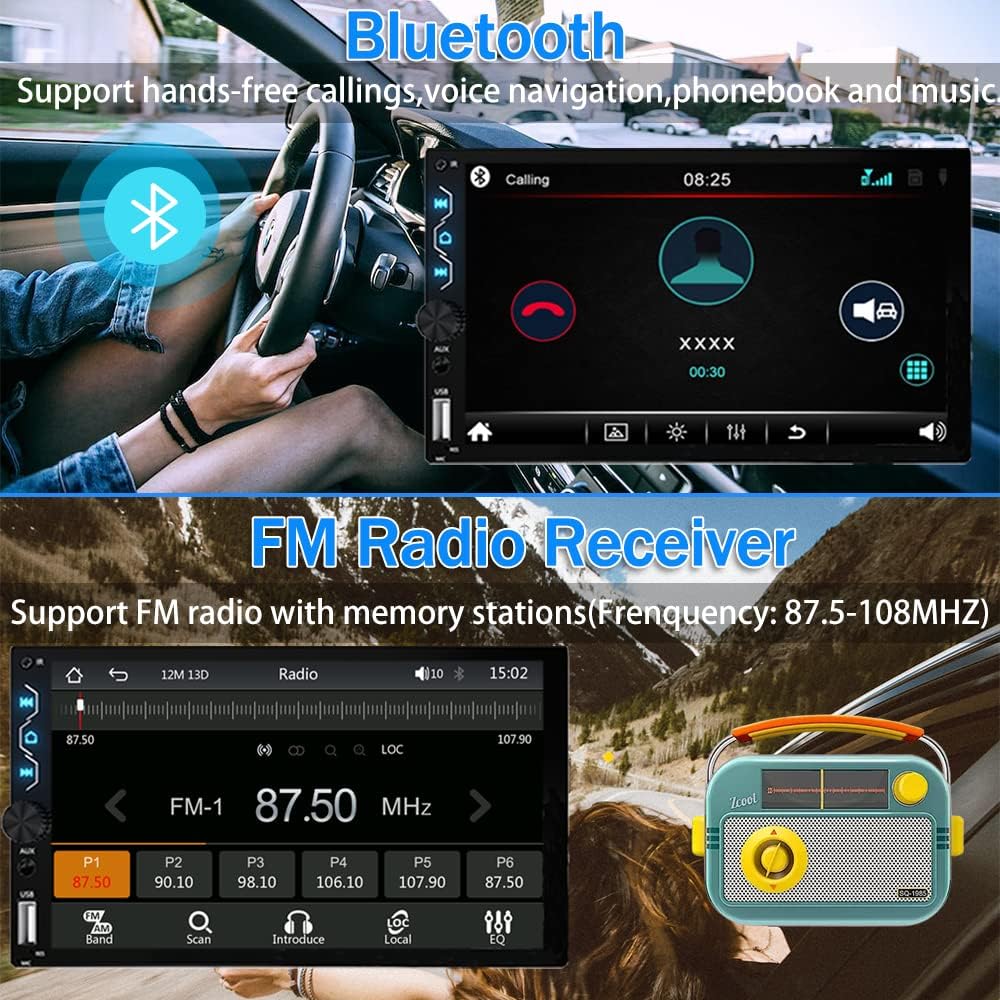
Figure 3.2: Bluetooth calling and FM radio interface.
3.3 Mirror Link функциясы
Mirror Link allows you to cast your phone's screen content (maps, movies, games) to the car stereo display via the original USB cable. This provides synchronized control between your phone and the stereo.

Figure 3.3: Mirror Link displaying phone content on the car stereo.
3.4 FM Radio Receiver
The unit supports FM radio with memory stations (frequency: 87.5-108MHz), allowing you to save your favorite channels.
3.5 Камера
The included HD 170° viewing angle waterproof backup camera with 12 LED lights provides enhanced night vision. When properly connected, the screen automatically displays the rearview image upon shifting into reverse, aiding in safer parking and reversing maneuvers. Note: Other functions like calls or music are temporarily unavailable in reverse mode.

Figure 3.5: Enhanced view provided by the 1280P HD Backup Camera.
3.6 HD Touch Screen
The 7-inch HD capacitive touch screen offers sensitive and accurate control, supporting 1080P video playback for an enhanced visual experience.

Figure 3.6: The 7-inch HD capacitive touch screen in use.
3.7 Рулду башкаруу
The unit supports steering wheel control, allowing you to manage various functions directly from your steering wheel for convenience and safety. This feature can be configured in the settings menu.

3.7-сүрөт: Рулду башкарууну орнотуу интерфейси.
4. Техникалык тейлөө
To ensure the longevity and optimal performance of your Leadfan car stereo, follow these maintenance guidelines:
- Экранды жумшак, түксүз чүпүрөк менен таза кармаңыз. Абразивдүү тазалагычтардан алыс болуңуз.
- Ашыкча ысып кетүүнүн алдын алуу үчүн аппараттын айланасында туура желдетүүнү камсыз кылыңыз.
- Аппаратты экстремалдык температурага же түз күн нуруна узак убакытка калтыруудан сактаңыз.
- Зымдардын туташууларынын бошоп калганын же бузулганын дайыма текшерип туруңуз.
5. Кыйынчылыктарды
If you encounter issues with your Leadfan car stereo, refer to the following common problems and solutions:
| Көйгөй | Мүмкүн себеп | Чечим |
|---|---|---|
| Unit does not power on or loses settings. | Incorrect wiring of ACC (red) and B+ (yellow) wires. Voltage 16Vдан жогору. | Ensure the yellow wire is connected to constant positive battery current and the red wire to the ignition switch. Verify vehicle voltage is 12V (not for 24V trucks). |
| Backup camera or dash cam not working. | Loose connection, incorrect wiring, or faulty camera. | Ensure all camera connections are firm, especially the USB for the dash cam. Verify the rear camera's red wire is connected to the reverse light. |
| Bluetooth audio cuts out or has poor quality. | Interference, phone compatibility, or unit settings. | Ensure phone is within range. Check Bluetooth settings on both devices. Try adjusting EQ settings on the stereo. |
| Чалуу учурунда микрофондун сапаты начар. | Internal microphone limitation. | No direct solution for internal microphone. Consider using phone's microphone if possible or an external microphone if supported by the unit (not specified). |
| Volume is too loud at low settings, or subwoofer doesn't activate until high volume. | Audio output settings or ampкөтөрүүчү пайда. | Adjust the EQ sound settings and loudness options within the stereo's audio setup. Check external amplifier gain settings if applicable. |
6. Техникалык шарттар
| Өзгөчөлүк | Деталь |
|---|---|
| Бренд | Leadfan |
| Модель номери | X5+DVR (US02-2305--X5DVR) |
| Screen Size | 7 дюймдук HD сыйымдуулуктагы сенсордук экран |
| Screen Resolution | 1024x600P |
| Байланыш технологиясы | Bluetooth 5.1, USB, AUX |
| Өзгөчөлүктөр | Apple CarPlay, Android Auto, Mirror Link, Dash Cam, Backup Camera, FM Radio, Steering Wheel Control |
| Аудио чыгаруу режими | Стерео |
| Айланадагы үн каналдары | 4 |
| Ватtage | 240 ватт |
| Продукциянын өлчөмдөрү | 3.94 x 2.56 x 7.01 дюйм (178 мм узундугу x 100 мм туурасы x 65 мм бийиктиги) |
| Элемент Салмагы | 2.25 фунт |
| Келип чыккан өлкө | Кытай |
7. Кепилдик жана колдоо
Leadfan provides comprehensive support for its products:
- After-Sales Technical Support: 24-hour technical support is available to assist with installation and operation problems.
- Money Back Service: 30 күндүк акчаны кайтаруу кепилдиги.
- Сатуудан кийинки колдоо: 12 months of after-sales support.
For any questions or assistance, please click "sold by Leadfan" and "ask a question" on the product page.


