Introduction
This manual provides essential information for setting up, operating, and maintaining your Microsoft Surface Studio 2+ All-In-One Desktop Computer. The Surface Studio 2+ is designed for productivity and creativity, featuring a versatile 28-inch PixelSense™ touchscreen display.
Please read this manual thoroughly to ensure proper use and to maximize the lifespan of your device.
Кутуда эмне бар
Таңгакта бардык буюмдар бар экенин текшериңиз:
- Surface Studio 2+ All-in-One Computer
- Surface Pen
- беттик клавиатура
- Чычкан
- Power Cord with Grip-Release Cable
- Quick Start Guide
- Коопсуздук жана кепилдик боюнча колдонмо
Жайгашуу
- Пакеттен чыгаруу: Carefully remove the Surface Studio 2+ and its accessories from the packaging. Place the computer on a stable, flat surface.

Image: The Microsoft Surface Studio 2+ All-in-One computer displaying the Windows 11 desktop interface.
- Кубат туташуу: Connect the power cord to the power port on the back of the Surface Studio 2+ base, then plug the other end into a wall outlet.

Сүрөт: Арткы view of the Surface Studio 2+ base, highlighting the various ports including the power input.
- Перифериялык түзүлүштөрдү туташтыруу: Connect the Surface Keyboard and Mouse. These devices typically connect wirelessly via Bluetooth. Follow the on-screen instructions during initial setup for pairing.
- Баштапкы жүктөө: Press the power button, usually located on the back or side of the display. The computer will guide you through the Windows 11 Pro setup process, including language selection, network connection, and user account creation.
Иштөө нускамалары
Дисплейди тууралоо
The Surface Studio 2+ features a unique Zero Gravity Hinge, allowing the display to be adjusted from an upright desktop mode to a flat studio mode for drawing and writing.

Image: A sequence showing the Surface Studio 2+ display being adjusted from an upright position to a nearly flat angle.
- Иш такта режими: Gently push the top of the screen backward to tilt it into an upright position for traditional desktop use.
- Студия режими: Gently pull the top of the screen forward and down towards the base to transition it into a low-angle, flat position ideal for creative tasks with the Surface Pen.
Using the Surface Pen and Touchscreen
The 28-inch PixelSense™ touchscreen supports multi-touch gestures and is optimized for use with the included Surface Pen.
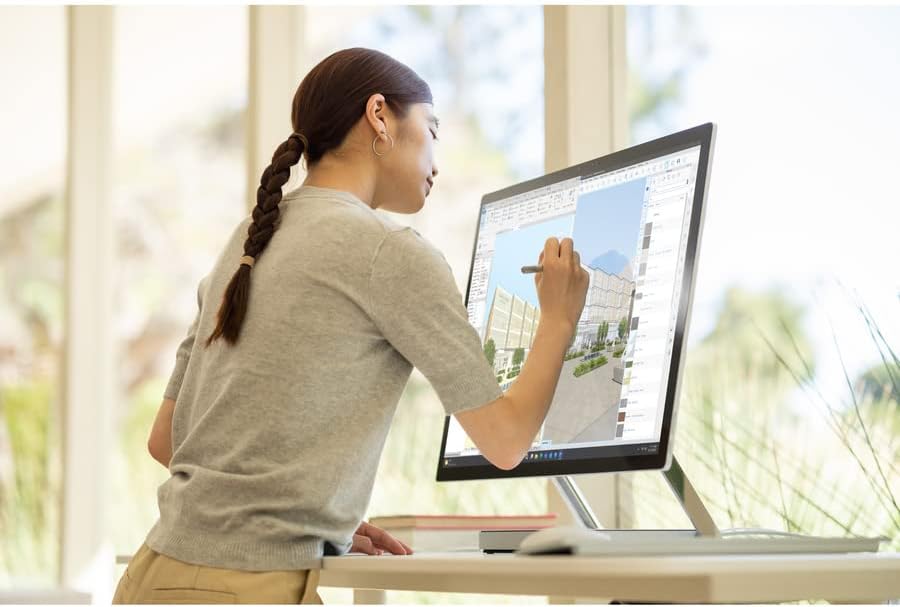
Image: A person using the Surface Pen to interact with the touchscreen of the Microsoft Surface Studio 2+ in studio mode.
- Тийүү жаңсоолору: Utilize standard Windows touch gestures for navigation, zooming, and scrolling.
- Беттик калем: The Surface Pen allows for precise drawing, writing, and annotation directly on the screen. It can be magnetically attached to the side of the display for storage.
Windows 11 Pro
Your Surface Studio 2+ comes pre-installed with Windows 11 Pro. Familiarize yourself with the operating system's interface and features for optimal productivity.
- Баштоо менюсу: Access applications, settings, and power options from the Start Menu.
- Тапшырма панели: Тез жетүү үчүн көп колдонулган тиркемелерди тапшырмалар тилкесине кадап коюңуз.
- Орнотуулар: Customize your device, manage accounts, and configure privacy settings through the Settings app.
Өзгөчөлүктөрү
The Microsoft Surface Studio 2+ is equipped with advanced components for high performance:
- Процессор: Intel Core i7 3 GHz processor for demanding tasks.
- Эстутум: 32 GB DDR4 RAM for smooth multitasking.
- Сактагыч: 1 TB Solid State Drive (SSD) for fast boot times and application loading.
- Графика: NVIDIA GeForce RTX 3060 with 6GB dedicated memory for graphics-intensive applications and gaming.
- Дисплей: 28-inch PixelSense™ touchscreen with 4500 x 3000 resolution.
- Операция системасы: Windows 11 Pro.
- Байланыш: Integrated 802.11ax Wi-Fi and Bluetooth for wireless connections.
Техникалык тейлөө
Аппаратты тазалоо
- Экран: Бир аз жумшак, түксүз кездемени колдонуңуз dampсуу же электроника үчүн атайын иштелип чыккан экран тазалоочу менен иштетилген. Катуу химиялык заттардан алыс болуңуз.
- Дене: Сырткы беттерди жумшак, кургак чүпүрөк менен сүртүңүз.
- Вентиляция: Ensure the ventilation openings on the base are clear of dust and obstructions to prevent overheating.
Программалык камсыздоо жаңыртуулары
Системаңызда эң акыркы коопсуздук тактары жана иштеши жакшыртылганын текшерүү үчүн Windows жаңыртууларын дайыма текшерип, орнотуп алыңыз.
- барыңыз Орнотуулар > Windows жаңыртуу.
- Click Жаңыртууларды текшериңиз жана жеткиликтүү жаңыртууларды орнотуу.
Проблемаларды чечүү
| Маселе | Мүмкүн чечим |
|---|---|
| Компьютер күйбөйт. | Ensure the power cord is securely connected to both the computer and a working electrical outlet. Try a different outlet. |
| Дисплей бош. | Check power connection. Ensure the computer is powered on. If connected to an external display, verify display input settings. |
| Surface Pen or Mouse not responding. | Check battery levels. Re-pair the devices via Bluetooth settings in Windows. |
| Жай аткаруу. | Close unnecessary applications. Check for and install Windows updates. Run a disk cleanup. |
| Wi-Fi туташуу көйгөйлөрү. | Restart your router and the Surface Studio 2+. Check Wi-Fi settings in Windows to ensure it's enabled and connected to the correct network. |
Техникалык шарттар
| Өзгөчөлүк | Деталь |
|---|---|
| Модель номери | SBG-00001 |
| Дисплей өлчөмү | 28 дюйм |
| Screen Resolution | 4500 x 3000 |
| Процессор | Intel Core i7 (3 ГГц) |
| RAM | 32 ГБ DDR4 |
| Катуу диск | 1 ТБ SSD |
| Графикалык сопроцессор | NVIDIA GeForce RTX 3060 |
| Графикалык картанын RAM өлчөмү | 6 ГБ |
| Операция системасы | Windows 11 Pro |
| Зымсыз түрү | 802.11ax, Bluetooth |
| Элемент Салмагы | 21.1 фунт |
| Продукциянын өлчөмдөрү (LxWxH) | 25.1 x 0.5 x 17.3 дюйм |
| Түс | Silver |
Кепилдик жана колдоо
Your Microsoft Surface Studio 2+ is covered by a manufacturer's warranty. Please refer to the included "Safety and Warranty Guide" for detailed information regarding warranty terms, conditions, and registration.
For technical support, driver downloads, or further assistance, please visit the official Microsoft Support website or contact Microsoft customer service.
Онлайн колдоо: support.microsoft.com/surface


