1. Киришүү
The WYRESTORM Halo-COM-MIC is an advanced 360° omnidirectional stereo conference USB microphone designed to enhance audio pickup in various meeting environments. It features Acoustic Echo Cancellation (AEC), Automatic Gain Control (AGC), and noise suppression technologies to deliver clear and consistent audio. This microphone can also be cascaded up to three times with the APO-60-UC for extended voice pickup range in larger spaces. This manual provides essential information for setting up, operating, maintaining, and troubleshooting your Halo-COM-MIC.
2. Продукт бүтүп калдыview
2.1 Негизги өзгөчөлүктөрү
- Built-in MEMS Microphone Array: Incorporates AEC (Acoustic Echo Cancellation), AGC (Automatic Gain Control), and noise-cancelling for superior sound pickup.
- Cascade Functionality: Allows cascading up to 3 units for extended voice pickup range when used with the APO-60-UC.
- Оңой жана ийкемдүү орнотуу: Compact design with minimal footprint, supporting various cable routing options.
- One-button Mute: Convenient mute toggle button with an LED indicator for quick control.
- 360° Voice Pickup: Round design with 4 microphones ensures comprehensive sound capture within a 10-16ft radius.
2.2 Продукт компоненттери
The Halo-COM-MIC package includes the microphone unit and a 3M USB cable.
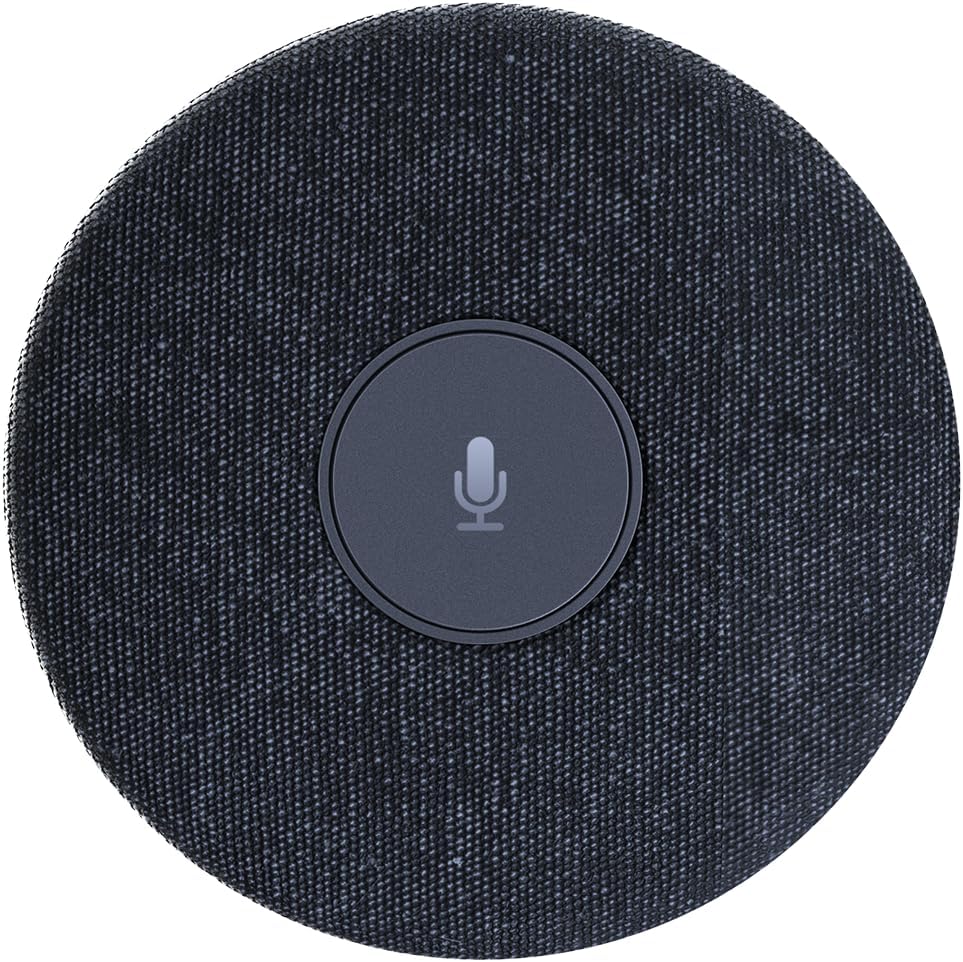
2.2.1-сүрөт: жогорудан ылдыйга view of the WYRESTORM Halo-COM-MIC microphone, showing its compact, circular design with a central mute button.

Figure 2.2.2: Illustration demonstrating the 360-degree voice pickup capability of the Halo-COM-MIC, covering a 16.4ft (approximately 5-meter) radius in a conference setting.

Сүрөт 2.2.3: Жакын пландан view of a finger pressing the central mute/unmute button on the Halo-COM-MIC, which features an LED indicator.
3. Орнотуу
3.1 Микрофонду туташтыруу
- Place the Halo-COM-MIC on a flat surface in the center of your meeting area for optimal 360° voice pickup.
- Connect the provided 3M USB cable to the USB Type-A port on the Halo-COM-MIC.
- Plug the other end of the USB cable into an available USB port on your computer (laptop or personal computer).
- Микрофон плагин жана ойнотуу болуп саналат жана операциялык тутумуңуз тарабынан автоматтык түрдө таанылышы керек.
3.2 Daisy-Chaining Multiple Microphones
For larger conference rooms or extended voice pickup, multiple Halo-COM-MIC units can be daisy-chained using the WyreStorm APO-60-UC. Up to three Halo-COM-MIC units can be connected in a cascade configuration.
- Connect the first Halo-COM-MIC to the APO-60-UC using a USB cable.
- Connect subsequent Halo-COM-MIC units to each other using their respective USB ports, forming a chain.
- Ensure proper cable routing to avoid interference and maintain a tidy setup. The microphone supports both same-direction and opposite-direction cable output.

Figure 3.2.1: Schematic diagram illustrating various configurations for daisy-chaining multiple Halo-COM-MIC units with an APO-60-UC for expanded coverage in large conference rooms.
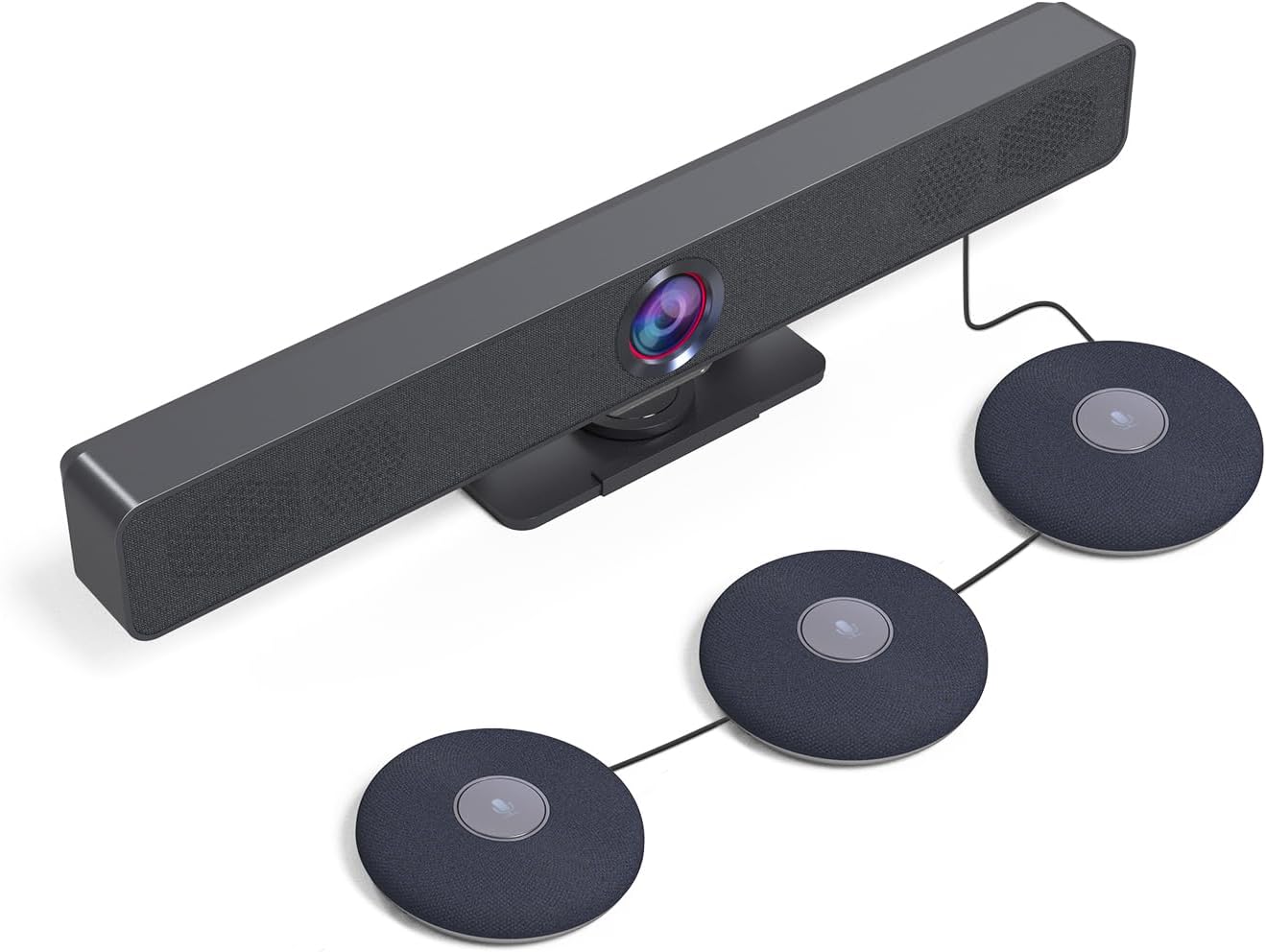
Сүрөт 3.2.2: Мурункуample setup showing a WyreStorm video bar connected to three cascaded Halo-COM-MIC microphones, demonstrating a typical conference room integration.
4. Операция
4.1 Негизги колдонуу
Once connected to your computer, the Halo-COM-MIC functions as a standard USB audio input device. Select it as your primary microphone in your communication software (e.g., Zoom, Microsoft Teams, Google Meet) settings.
4.2 Үнсүз кылуу функциясы
The central button on the microphone serves as a mute toggle. Press the button once to mute the microphone. The LED indicator will change color (typically red) to indicate that the microphone is muted. Press the button again to unmute the microphone, and the LED will return to its active state (typically blue or green).
4.3 Audio Enhancement Technologies
- Acoustic Echo Cancellation (AEC): Eliminates echoes that can occur when microphone picks up audio from speakers in the same room, ensuring clear two-way communication.
- Автоматтык пайданы башкаруу (AGC): Automatically adjusts the microphone's sensitivity to ensure consistent volume levels for all participants, regardless of their distance from the microphone.
- Ызы-чуу басуу: Reduces background noise, such as keyboard clicks, air conditioning hum, or general room ambiance, to focus on speech.
5. Техникалык тейлөө
5.1 Тазалоо
To maintain the appearance and functionality of your Halo-COM-MIC, follow these cleaning guidelines:
- Disconnect the microphone from the power source (USB port) before cleaning.
- Сырткы беттерди сүртүү үчүн жумшак, кургак, түксүз чүпүрөктү колдонуңуз.
- өжөр белгилери үчүн, бир аз гampчүпүрөктү суу менен. Катуу химиялык заттарды, абразивдүү тазалагычтарды же эриткичтерди колдонуудан алыс болуңуз.
- Суюктуктардын кандайдыр бир тешиктерге киришине жол бербеңиз.
5.2 Сактоо
When not in use for extended periods, store the microphone in a cool, dry place, away from direct sunlight and extreme temperatures. Protect it from dust and physical damage.
6. Кыйынчылыктарды
6.1 Жалпы маселелер жана чечимдер
| Көйгөй | Мүмкүн себеп | Чечим |
|---|---|---|
| No sound pickup / Microphone not detected | USB cable loose or disconnected; Incorrect audio input selected; Driver issue. |
|
| Үн сапаты начар / Фондук ызы-чуу | Microphone too far from speakers; Excessive ambient noise; Software settings. |
|
| Mute button LED not responding | Temporary software glitch; Power issue. |
|
| Daisy-chaining not working | Incorrect connection order; Faulty cable; APO-60-UC not detected. |
|
7. Техникалык шарттар
| Өзгөчөлүк | Деталь |
|---|---|
| Модель аты | HALO-COM-MIC |
| Микрофон форма фактору | Table Array, Boundary |
| Полярдык үлгү | Көп багыттуу |
| Үн менен алып кетүү диапазону | 10-16 feet (360°) |
| Өзгөчөлүктөр | 4 Noise-canceling Mics, Acoustic Echo Cancellation (AEC), Automatic Gain Control (AGC), Built-in Microphone |
| Байланыш технологиясы | USB |
| Туташтыргыч түрү | USB Type-A |
| Шайкеш түзмөктөр | Ноутбук, персоналдык компьютер |
| Power Source | Электр зымдары (USB менен иштейт) |
| Каналдардын саны | 2 |
| Элементтин өлчөмдөрү (L x W x Y) | 4 x 4 x 0.86 дюйм (10.16 x 10.16 x 2.18 см) |
| Элемент Салмагы | 1.1 фунт (0.5 кг) |
| Камтылган компоненттер | 3M USB кабели |
| Өндүрүүчү | WYRESTORM |
| Келип чыккан өлкө | Гонконг |
8. Кепилдик жана колдоо
8.1 Продукциянын кепилдиги
WYRESTORM products are manufactured to high standards and are designed for reliable performance. Specific warranty terms and conditions may vary by region and retailer. Please refer to the warranty information provided at the time of purchase or visit the official WYRESTORM website for detailed warranty policy information.
8.2 Техникалык колдоо
For technical assistance, troubleshooting beyond this manual, or inquiries regarding your WYRESTORM Halo-COM-MIC, please contact WYRESTORM customer support. Contact information can typically be found on the official WYRESTORM webсайтында же продуктунун таңгагында.