Introduction
This manual provides detailed instructions for the UrbanX UX030 Wireless Keyboard and Mouse Combo. Please read this manual carefully before use to ensure proper operation and to maximize the lifespan of your device. This combo offers multi-device connectivity, RGB backlighting, and a rechargeable design for enhanced productivity and convenience.
Пакеттин мазмуну
- UrbanX UX030 Wireless Keyboard
- UrbanX Wireless Mouse
- USB Receiver (for 2.4GHz connection)
- USB заряддоо кабели
- User Manual
Жайгашуу
1. Түзмөктөрдү заряддоо
Before first use, ensure both the keyboard and mouse are fully charged. Use the provided USB charging cable to connect the devices to a USB power source (e.g., computer USB port, USB wall adapter).
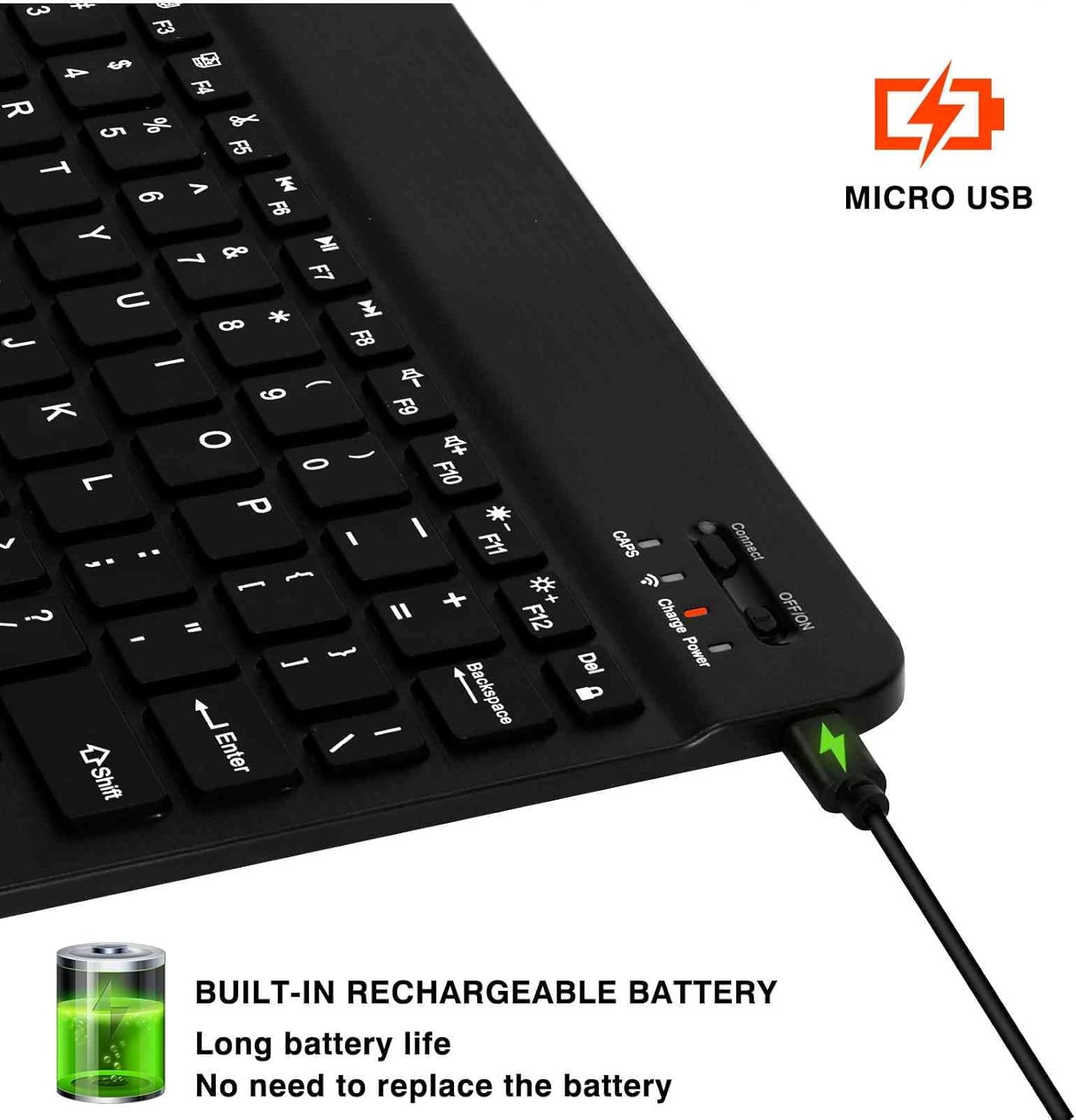
Image: The keyboard's Micro USB charging port, located on the top edge, with a charging cable inserted. An icon of a battery with a lightning bolt indicates charging.
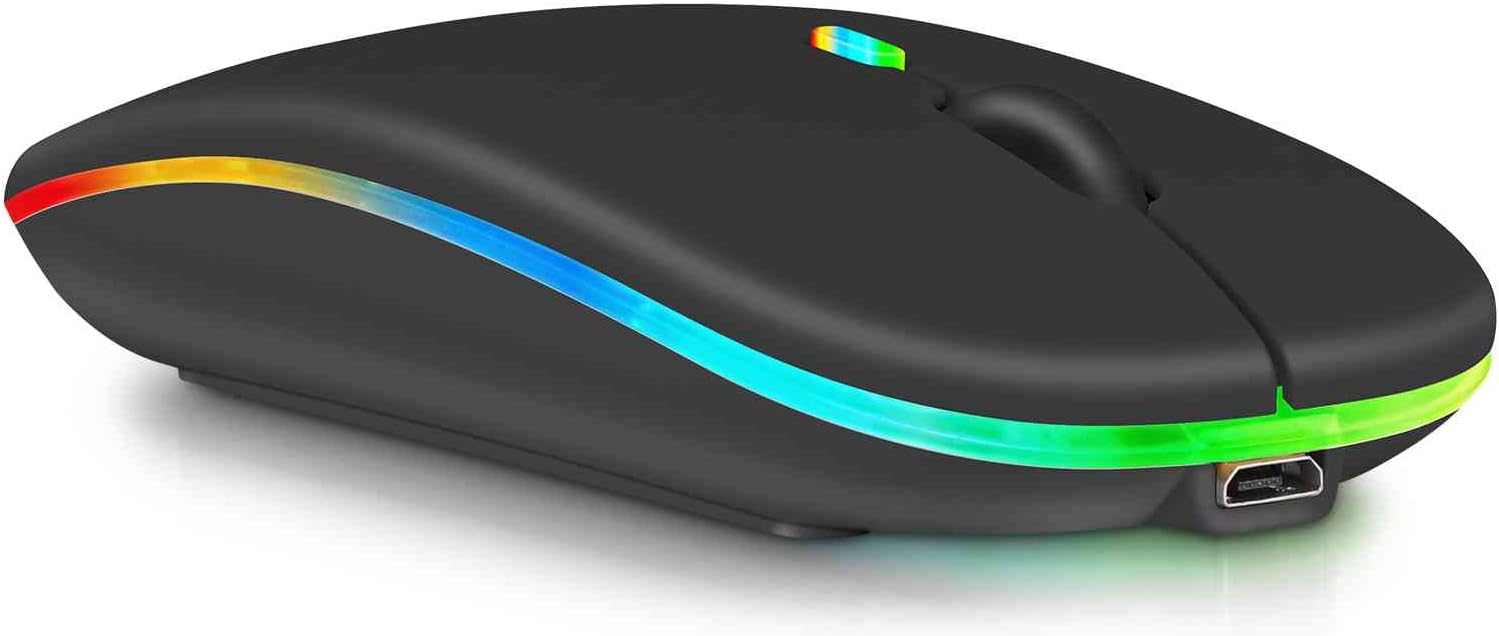
Image: The wireless mouse showing its Micro USB charging port at the front, ready for connection to a charging cable.
The charging indicator light will typically turn off or change color once charging is complete.
2. Connecting the Keyboard and Mouse
The UrbanX UX030 combo supports both 2.4GHz wireless and Bluetooth 5.1 connectivity, allowing connection to up to three devices simultaneously.
2.1. 2.4 ГГц зымсыз туташуу (USB кабыл алуучу)
- Көбүнчө чычкандын батарея бөлүмүндө сакталган USB кабылдагычты табыңыз.
- USB кабыл алгычты компьютериңиздеги же түзмөгүңүздөгү жеткиликтүү USB портуна сайыңыз.
- Клавиатура менен чычканды күйгүзүңүз, алардын тиешелүү кубат которгучтары.
- The devices should automatically connect. If not, press the "Connect" button on the keyboard (if available) or cycle the power.
2.2. Bluetooth 5.1 Connection (Up to 3 Devices)
The keyboard supports connecting to three Bluetooth devices. The mouse supports one Bluetooth connection.

Image: A close-up of the keyboard highlighting the keys with "Android", "Win", and "iOS" labels, indicating compatibility with multiple operating systems.
Баскычтоп үчүн:
- Баскычтопту күйгүзүңүз.
- басып, кармап туруңуз Fn баскычы жана Bluetooth баскычтарынын бири (Bluetooth 1, Bluetooth 2, же Bluetooth 3) for 3-5 seconds until the indicator light flashes, indicating pairing mode.
- On your device (computer, tablet, smartphone), go to Bluetooth settings and search for "UrbanX Keyboard" or a similar name.
- Select the keyboard to pair.
- Башка Bluetooth каналдарын колдонгон башка Bluetooth түзмөктөрү үчүн кайталаңыз.
Чычкан үчүн:
- Чычканды күйгүзүңүз.
- Press and hold the Bluetooth pairing button (usually on the bottom of the mouse) for 3-5 seconds until the indicator light flashes.
- On your device, go to Bluetooth settings and search for "UrbanX Mouse" or a similar name.
- Select the mouse to pair.
Compatibility: Compatible with Windows 7/8/10/XP/Vista, iPad, Mac OS, Android, iOS, and more.
Иштөө нускамалары
1. Switching Between Connected Devices (Keyboard)
To switch between paired Bluetooth devices, simply press the Fn тиешелүү Bluetooth канал баскычы менен бирге баскычын (Bluetooth 1, Bluetooth 2, же Bluetooth 3) that your device is paired to.
2. RGB Backlight Control (Keyboard)
Баскычтопто RGB арткы жарыгы ыңгайлаштырылуучу функция бар.
- басыңыз Электр лампасы key (often near the Home/PgUp keys) to cycle through different backlight colors or modes.
- To adjust brightness, use the Fn key combined with specific function keys (refer to keyboard legends for brightness controls, typically F1/F2 or arrow keys).

Image: The UrbanX UX030 wireless keyboard and mouse combo, both illuminated with vibrant green RGB backlighting, showcasing алардын жарашыктуу дизайны.
3. Чычкандын DPI жөндөөсү
The mouse offers adjustable DPI settings for cursor sensitivity.
- басыңыз DPI баскычы (usually located near the scroll wheel) to cycle through available DPI settings (800-1200-1600).
- The LED indicator on the mouse may change color or flash to indicate the current DPI level.

Image: The UrbanX wireless mouse, featuring an LED strip, and icons indicating its capabilities: LED lighting, Bluetooth 5.0, 2.4G wireless, and rechargeable battery.
4. Shortcut Keys (Keyboard)
The keyboard includes 12 shortcut keys for media control and other functions. These are typically accessed by pressing the Fn F1-F12 баскычтары менен айкалышта.
- Fn+F1-F12: Media controls (play/pause, volume, etc.) and system functions. Refer to the key legends for specific functions.
- Fn Lock: Some keyboards have an Fn Lock feature to toggle between standard F-key functions and multimedia functions.
Техникалык тейлөө
1. Тазалоо
- Turn off the keyboard and mouse before cleaning.
- Бир аз жумшак, түксүз кездемени колдонуңуз dampсуу же жумшак тазалоо эритмеси менен.
- Ашыкча нымдуулуктан алыс болуңуз жана тазалоочу каражаттарды түз эле түзмөктөргө чачпаңыз.
- Ачкычтардын ортосундагы өжөр кир үчүн, кысылган абаны колдонуңуз.
2. Батареяга кам көрүү
- The devices feature built-in rechargeable batteries.
- Батареянын иштөө мөөнөтүн узартуу үчүн, бат-баттан батарейканы толук зарядсыздандырбаңыз.
- Charge the devices regularly, especially if they will be stored for an extended period.
- The keyboard has an energy-saving mode that puts it to sleep after 30 minutes of inactivity. Press any key to wake it up.
Проблемаларды чечүү
1. Түзмөк туташпай жатат
- Күчтү текшерүү: Ensure both the keyboard and mouse are turned on and fully charged.
- Bluetoothду кайра жупташтыруу: If using Bluetooth, delete the device from your computer's Bluetooth list and re-pair it following the "Bluetooth 5.1 Connection" steps.
- USB кабыл алгыч: If using 2.4GHz, ensure the USB receiver is securely plugged into a working USB port. Try a different USB port.
- Аралык: Түзмөктөрдүн 10 метр (33 фут) иштөө диапазонунда экенин текшериңиз.
- Интерференция: Тоскоолдукка алып келиши мүмкүн болгон башка зымсыз түзмөктөрдөн алыс болуңуз.
2. Keyboard/Mouse Lag or Unresponsive
- Батарея деңгээли: Low battery can cause performance issues. Recharge the devices.
- Интерференция: Wireless interference can affect performance. Try moving the receiver closer or reducing other wireless activity.
- Кайра баштоо: Turn off and then on both the keyboard/mouse and your connected device.
3. Арткы жарык иштебейт
- Батарея деңгээли: Backlighting consumes power. Ensure the keyboard is sufficiently charged.
- Toggle Backlight: басыңыз Электр лампасы key to ensure it's not turned off.
- Жарыктык: Adjust brightness settings using Fn + brightness keys.
Техникалык шарттар
| Өзгөчөлүк | Деталь |
|---|---|
| Модель номери | UX030 |
| Байланыш | Bluetooth 5.1, 2.4GHz Wireless |
| Иштөө диапазону | 10 метрге чейин (33 фут) |
| Баскычтоптун өлчөмдөрү | 1.3 x 5.47 x 15.16 дюйм (болжол менен 3.3 x 13.9 x 38.5 см) |
| Баскычтоптун салмагы | 10 унция (болжол менен 283 грамм) |
| Батарея түрү | Built-in Rechargeable Aluminum Battery |
| Баскычтоптун күтүү режиминдеги убактысы | 800 саат |
| Keyboard Working Time (no backlight) | 220 саат |
| Чычкандын DPI жөндөөлөрү | 800-1200-1600 |
| Ачкычтын которуштуруу түрү | Scissor Switch |
| Негизги өмүр | 3,000,000 түртүү |
| Шайкештик | Windows, Mac OS, iOS, Android, iPad, Laptops, PCs, Smartphones |

Image: The UrbanX UX030 keyboard with its dimensions clearly labeled: 24.7 cm (9.72 inches) in length, 15 cm (6 inches) in width, and 0.5 cm (0.2 inches) in thickness, emphasizing its slim and portable design.
Кепилдик жана колдоо
UrbanX products are designed for durability and performance. For specific warranty details, please refer to the product packaging or contact UrbanX customer support.
If you encounter any issues or have questions regarding your UrbanX UX030 Wireless Keyboard and Mouse Combo, please contact our customer support team through the retailer's platform or the official UrbanX webсайт.
- Онлайн колдоо: Visit the UrbanX official webКөп берилүүчү суроолор жана колдоо булактары үчүн сайт.
- Электрондук почта колдоо: Кардарларды тейлөө электрондук почтасы үчүн сатып алуу документтериңизге кайрылыңыз.
