1. Киришүү
The ASprink P831 is a portable, inkless thermal transfer printer designed for convenience and efficiency. It utilizes advanced heat transfer technology, eliminating the need for ink cartridges and ensuring durable, fade-resistant prints. This printer supports a variety of paper types and sizes, making it a versatile tool for both personal and professional use on the go.

The ASprink P831 printer in use, demonstrating its compact size and wireless connectivity with a smartphone.
2. Кутуда эмне бар
Upon unboxing your ASprink P831 Portable Printer, please ensure all the following components are present:
- Heat Transfer Printer ×1
- Type C Cable ×1
- MAC converter ×1
- Ыкчам баштоо үчүн колдонмо ×2
3. Орнотуу колдонмосу
3.1. Принтерди баштапкы орнотуу
- Install Carbon Tape: Press and hold the two open cover buttons simultaneously to open the printer cover. Properly place the carbon tape (ink ribbon) into its designated slot, ensuring it is correctly aligned.
- Мукабаны жабуу: Close the printer cover securely until it clicks into place.
- Күйгүзүү: Press and hold the power button for 3 seconds to turn on the printer. The indicator light will illuminate.

Visual guide for installing the carbon tape and preparing the printer for use.
3.2. Байланыш параметрлери
The ASprink P831 printer offers both Bluetooth and USB connectivity for various devices.
Bluetooth туташуу (мобилдик түзмөктөр үчүн)
- Колдонмону жүктөп алуу: Издөө the official ASprink printing app on your device's app store (compatible with iOS & Android).
- Bluetooth иштетүү: Смартфонуңузда же планшетиңизде Bluetooth иштетилгенин текшериңиз.
- Түзмөктү жупташтыруу: Open the ASprink app and follow the on-screen instructions to pair with your P831 printer.
USB туташуусу (компьютерлер үчүн)
- Кабелди туташтыруу: Use the provided USB Type-C cable to connect the printer to your computer.
- Драйверди жүктөп алуу: For optimal performance and compatibility, download the latest printer driver from the official webсайт: p831.phomemo.com.
- Драйверди орнотуу: Follow the installation instructions provided with the driver package. Ensure the printer is connected and turned on during installation.

Бүттүview of the printer's Bluetooth and USB connectivity, compatible with multiple operating systems.
Linux System USB Connection Guide
For users connecting the P831 printer to a Linux system via USB, please refer to the following video guide for driver installation and setup:
Official guide on how to set up and use the ASprink P831 printer with a Linux system via USB connection, including driver installation steps.
4. Иштөө нускамалары
4.1. Кагазды жүктөө
The ASprink P831 supports various paper sizes and types. Ensure the paper is inserted correctly for optimal printing.
- Колдоого алынган өлчөмдөр: US Letter, A4, A5, B5. The adjustable paper slot width accommodates sizes from 5.8 inches to 8.5 inches.
- Колдоого алынган түрлөрү: Plain copy paper, thermal paper, glossy paper, notebook paper.
Gently insert the paper into the printer's paper slot. The printer will automatically adjust the paper position.

The printer supports multiple paper sizes, including US Letter, A4, B5, and A5.
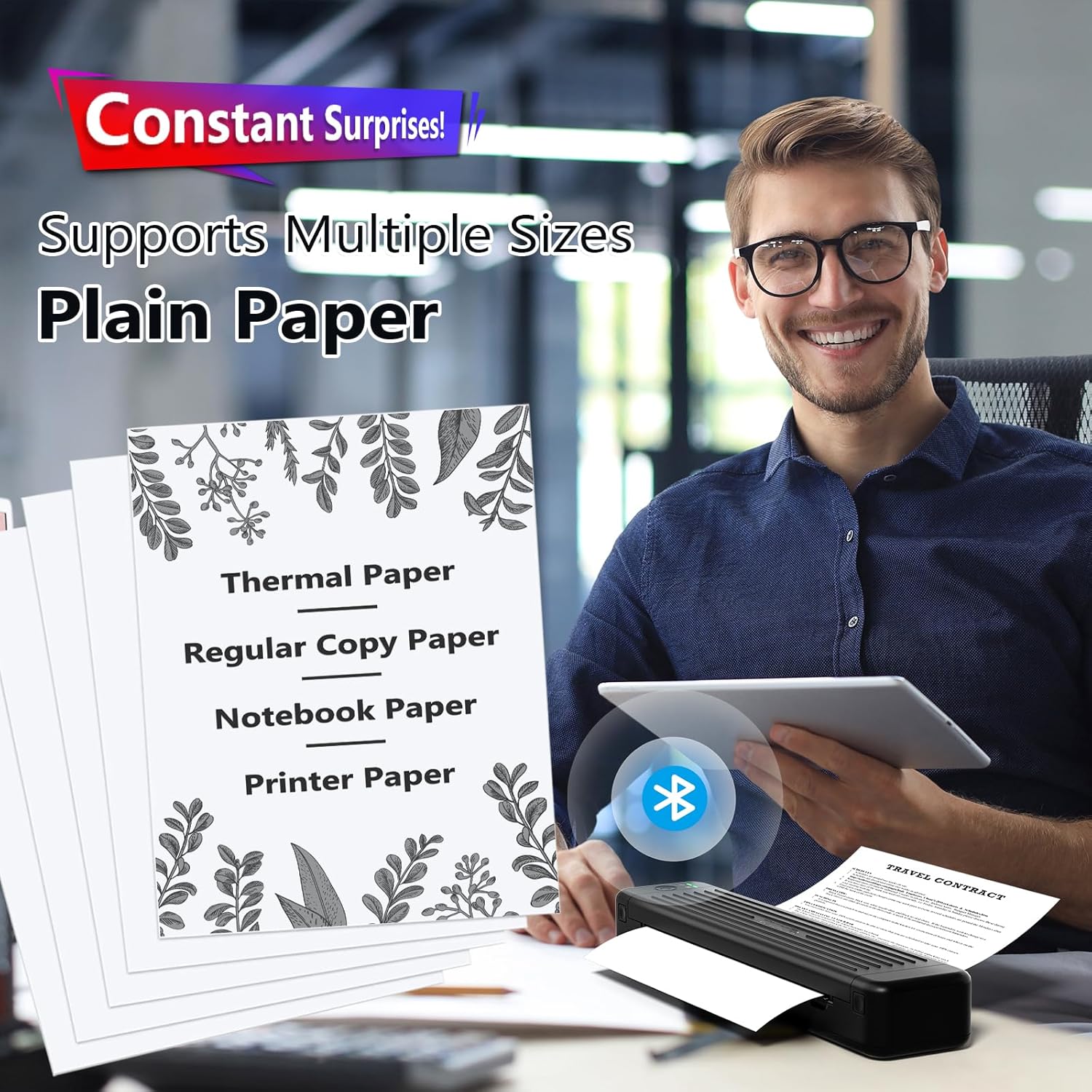
The ASprink P831 is versatile, supporting various plain paper types in addition to thermal paper.
4.2. Документтерди басып чыгаруу
Once connected and paper is loaded, you can initiate printing from your device. The printer supports monochrome printing only.
- Мобилдик тиркемеден: Use the ASprink app to select documents (Word, TXT, PDF), images, or web pages for printing. The app provides options for adjusting print settings.
- Компьютерден: After driver installation, the ASprink P831 will appear as an available printer in your system's print dialogue. Select it and proceed with printing your document.

The powerful and free ASprink app allows for diverse printing functions from your mobile device.
4.3. Double-Sided Printing
The ASprink P831 supports double-sided printing through a manual paper change process. After printing the first side, manually flip and re-insert the paper to print on the reverse side.
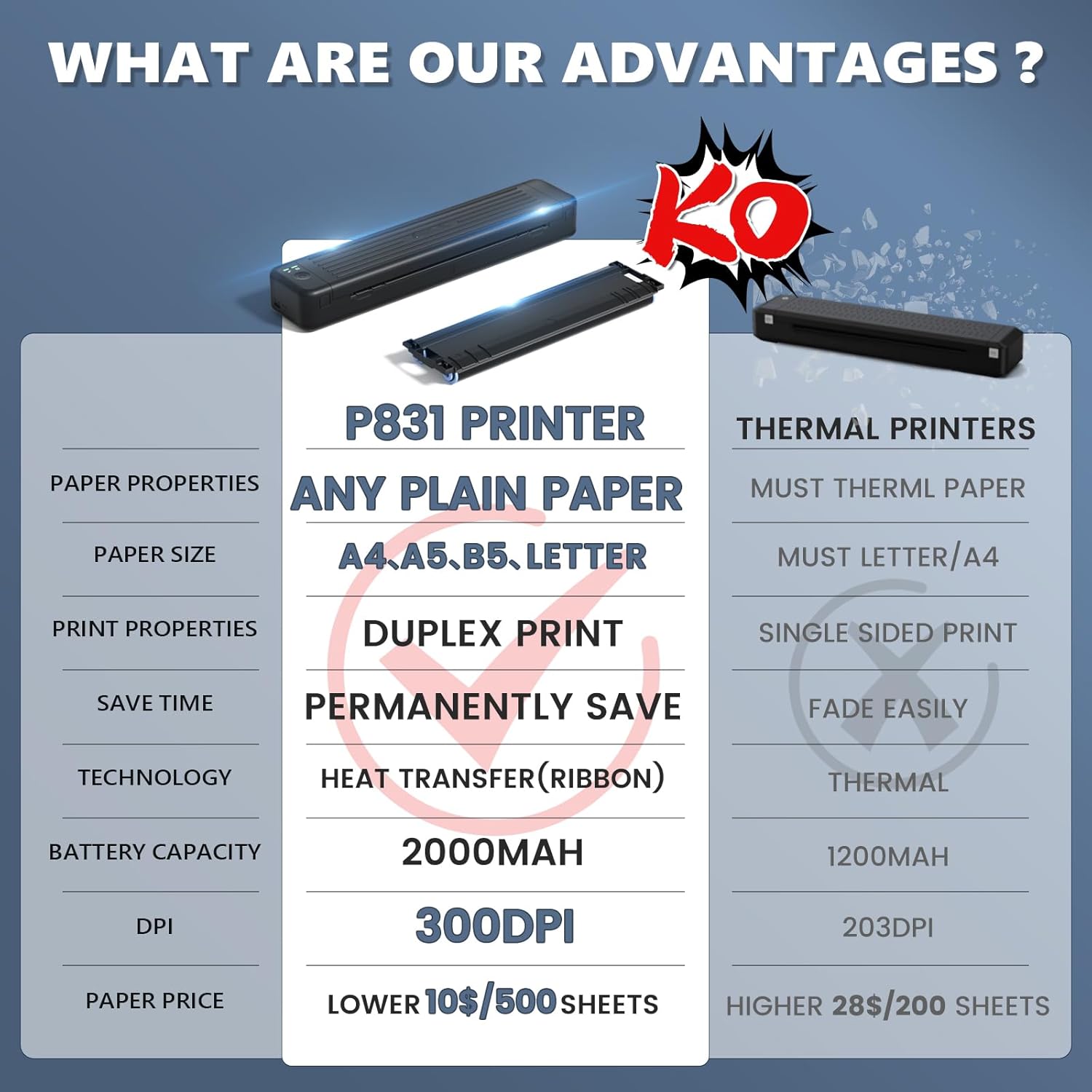
The P831 printer offers duplex printing, a key advantage over many thermal printers.
The printer provides a 300 dpi resolution for clear printing. For best results, ensure your documents are formatted correctly before printing.
5. Техникалык тейлөө
Proper maintenance ensures the longevity and optimal performance of your ASprink P831 printer.
- Тазалоо: Regularly wipe the exterior of the printer with a soft, dry cloth. For the internal components, especially the print head and paper path, use a lint-free cloth lightly dampизопропил спирти менен эритилсин. Тазалоодон мурун принтердин өчүрүлгөнүн жана электр кубатынан ажыратылганын текшериңиз.
- Carbon Tape Storage: Store spare carbon tapes in a cool, dry place away from direct sunlight and extreme temperatures to preserve their quality.
- Кагазды сактоо: Keep paper in its original packaging in a dry environment to prevent moisture absorption, which can affect print quality and cause paper jams.
- Батареяга кам көрүү: To maintain battery health, avoid fully discharging the printer frequently. Charge it regularly, even if not in constant use. The 2000 mAh battery supports continuous printing of up to 120 pages when fully charged.

The printer's large battery capacity ensures extended use and efficient power management.
6. Кыйынчылыктарды
If you encounter issues with your ASprink P831 printer, refer to the common problems and solutions below:
- Printer Not Pulling Up Paper:
- Ensure paper is inserted straight and fully into the paper slot.
- Check that the paper type is compatible and not too thick or thin for the printer's mechanism.
- Verify there are no obstructions in the paper path.
- Ribbon Stuck to Paper / Poor Print Quality:
- Confirm the carbon tape is installed correctly and securely. Refer to Section 3.1.
- Ensure the carbon tape is not damaged or wrinkled. Replace if necessary.
- Check if the paper is suitable for thermal transfer printing.
- Printer Shows 'In Use' But Not Printing (USB Connection):
- Try using a different USB cable. Sometimes, faulty cables can cause communication issues.
- Принтерди да, компьютериңизди да өчүрүп күйгүзүңүз.
- Reinstall the printer driver from p831.phomemo.com.
- Bluetooth туташуу маселелери:
- Ensure the printer is within range of your mobile device.
- Turn off and on Bluetooth on your device and the printer.
- Телефонуңуздун Bluetooth жөндөөлөрүнөн түзмөктү унутуп, кайра жупташтырыңыз.
- Update the ASprink app to the latest version.
7. Техникалык шарттар
| Өзгөчөлүк | Деталь |
|---|---|
| Бренд | ASprink |
| Модель аты | P831 |
| Басма технологиясы | Thermal Transfer (Inkless) |
| Принтердин чыгышы | Монохромдуу |
| Максималдуу кара жана ак басып чыгаруу чечими | 300 dpi |
| Максималдуу медиа өлчөмү | 8.5 x 11 inches (US Letter) |
| Барактын көлөмүнүн шайкештиги | 8.5 x 11 inches (US Letter), 210 x 297 mm (A4), A5, B5 |
| Шайкеш түзмөктөр | Laptops, Smartphones |
| Байланыш технологиясы | Bluetooth, USB |
| Элемент Салмагы | 1.75 фунт |
| Продукциянын өлчөмдөрү | 4.17"D x 3.11"W x 13.7"H |
| Батарея сыйымдуулугу | 2000 мАч |
| Максималдуу киргизүү барагынын сыйымдуулугу | 10 |
| Дуплекстүү басып чыгаруу | Simplex (Manual for double-sided) |

The ASprink P831 is significantly lighter and more efficient than traditional printers.
8. Кепилдик жана колдоо
The ASprink P831 Portable Printer comes with a limited warranty. For detailed information regarding warranty terms, technical support, or service inquiries, please visit the official ASprink webсайтка же түздөн-түз кардарларды колдоо менен байланышыңыз.
You can find additional instructions and tutorials on the product listing page and the official ASprink webсайт.
For the latest updates and support resources, please refer to the ASprink brand store on Amazon: ASprink Store.


