Introduction
Welcome to the user manual for your new TECLAST F16 Plus 15.6-inch Laptop. This guide provides essential information to help you set up, operate, maintain, and troubleshoot your device. Please read this manual carefully to ensure proper use and to maximize the performance and lifespan of your laptop.
Жайгашуу
Кутудан чыгаруу жана баштапкы орнотуу
Carefully remove the laptop and all accessories from the packaging. Ensure all components are present: the TECLAST F16 Plus laptop, power adapter, and this user manual. Connect the power adapter to the laptop's charging port and then to a power outlet. Allow the laptop to charge for at least 30 minutes before its first use.
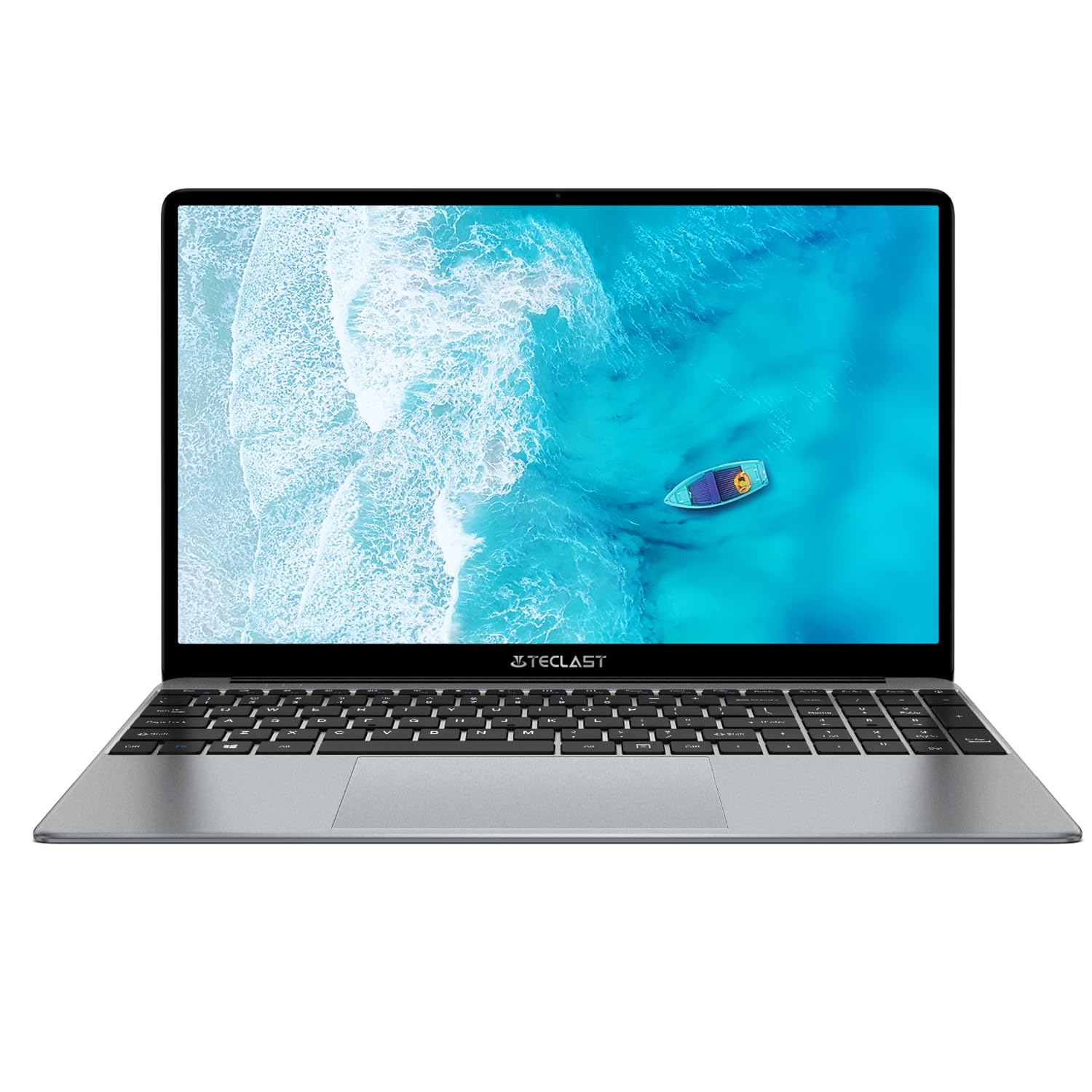
Image: The TECLAST F16 Plus laptop, showcasing its sleek design and 15.6-inch display with the Windows 11 operating system interface.
Күйгүзүү/өчүрүү
- Күйгүзүү үчүн: Press and hold the power button located on the top right of the keyboard until the screen illuminates.
- Жабуу: Click the Start button in Windows 11, then select the Power icon, and choose 'Shut down'.
- Кайра баштоо үчүн: Click the Start button, select the Power icon, and choose 'Restart'.
Перифериялык түзүлүштөрдү туташтыруу
Your TECLAST F16 Plus laptop is equipped with multiple ports for connecting external devices. Insert USB devices such as mice, keyboards, or external storage drives into the available USB ports. For external displays, use the appropriate video output port (e.g., HDMI) if available, and configure display settings in Windows.
Иштеп жатат
Баскычтоп жана сенсордук такта
The laptop features a full-sized keyboard and a responsive touchpad. Use the touchpad for navigation and gestures. Many function keys (F1-F12) have secondary functions, activated by pressing the 'Fn' key simultaneously. For example, 'Fn + F5' may control keyboard backlighting.
Дисплей орнотуулары
Adjust screen brightness using the dedicated function keys (often Fn + F5/F6 or similar). To change display resolution or scaling, right-click on the desktop, select 'Display settings', and make your adjustments.
Аудио жөндөөлөрү
Control volume using the dedicated function keys (often Fn + F2/F3 or similar) or through the sound icon in the Windows taskbar. Connect headphones or external speakers to the audio jack for private listening or enhanced sound.
Network Connectivity
To connect to Wi-Fi, click the network icon in the taskbar, select your desired network, enter the password, and click 'Connect'. Bluetooth devices can be paired via 'Settings > Bluetooth & devices'.
Windows 11 Basics
Your laptop runs on Windows 11. Familiarize yourself with the Start menu, taskbar, and File Explorer for efficient navigation and file management. Regular Windows updates are crucial for security and performance.
Техникалык тейлөө
Ноутбукту тазалоо
Бир аз жумшак, түксүз кездемени колдонуңуз dampened with water or a screen cleaner to clean the display. For the keyboard and chassis, use a soft brush or compressed air to remove dust. Avoid harsh chemicals or abrasive materials.
Батареяга кам көрүү
Батареянын иштөө мөөнөтүн узартуу үчүн, бат-баттан батарейканы толук зарядсыздандырбаңыз. Мүмкүн болсо, батареянын зарядын 20% жана 80% арасында кармап туруу сунушталат. Ноутбукту узак убакытка колдонбогондо салкын, кургак жерде сактаңыз.
Программалык камсыздоо жаңыртуулары
Regularly check for and install Windows updates and driver updates to ensure your system has the latest security patches and performance enhancements. This can be done through 'Settings > Windows Update'.
Сактагычты башкаруу
The 256GB SSD provides fast storage. To maintain optimal performance, regularly delete unnecessary files, empty the recycle bin, and consider using cloud storage for large files to free up local space.
Проблемаларды чечүү
Жалпы маселелер жана чечимдер
- Ноутбук күйбөй жатат: Ensure the power adapter is securely connected and the battery has sufficient charge. Try holding the power button for 15-20 seconds for a hard reset.
- Экранда дисплей жок: Connect an external monitor to check if the issue is with the laptop's display. Ensure brightness is not set to minimum.
- Wi-Fi туташпай жатат: Check if Wi-Fi is enabled in Windows settings. Restart your router and the laptop. Verify the Wi-Fi password.
- Жай аткаруу: Керексиз тиркемелерди жабыңыз. Task Manager'де фондук процесстерди текшериңиз. Жетиштүү бош орунду камсыз кылыңыз.
- USB түзмөктөрү таанылган жок: Try connecting the device to a different USB port. Ensure device drivers are installed. Restart the laptop.
Эгерде сиз бул жерде камтылбаган туруктуу көйгөйлөргө туш болсоңуз, кошумча жардам алуу үчүн колдоо бөлүмүнө кайрылыңыз.
Техникалык шарттар
Техникалык маалыматтар
| Өзгөчөлүк | Деталь |
| Бренд | TECLAST |
| Модел | F16Plus |
| Screen Size | 15.6 дюйм |
| Процессор | Intel Celeron N (4 Cores) |
| RAM | 12 ГБ |
| Сактагыч | 256 ГБ SSD |
| Операция системасы | Windows |
| Түс | New Gray |
| Батареянын курамы | Литий-полимер |
| киргизүү Interface | Баскычтоп |
| Пакеттин өлчөмдөрү | 50.79 x 29.2 x 7.9 см |
| Пакет Салмагы | 2.62 килограмм |
Кепилдик жана колдоо
Your TECLAST F16 Plus laptop comes with a standard manufacturer's warranty. Please refer to the warranty card included in your product packaging for specific terms and conditions. For technical support, driver downloads, or service inquiries, visit the official TECLAST webсайтка же кардарларды тейлөө бөлүмүнө кайрылыңыз. Сатып алуу дүмүрчөгүңүздүн жана продуктунун сериялык номерин колдоо издеп жатканда колдо болуңуз.


