Introduction
This manual provides essential instructions for setting up, operating, and maintaining your UMIDIGI G2 Tab Kids Android Tablet. Please read this manual thoroughly before using the device to ensure proper function and safety.
Пакеттин мазмуну
Пакетиңизде бардык буюмдар бар экенин текшериңиз:
- UMIDIGI G2 Tab Kids Tablet
- USB кубаттагыч кабели
- Protective Case (Pre-installed)
- Колдонуучунун колдонмосу (бул документ)
Түзмөк бүттүview
The UMIDIGI G2 Tab Kids is a 10.1-inch Android 13 tablet designed for children, featuring a durable protective case and parental control options.

Сүрөт: алдыңкы жана арткы view of the UMIDIGI G2 Tab Kids tablet in its green protective case.
Key features include a 10.1-inch HD display, 8MP cameras (front and rear), a 6000mAh battery, and a Rockchips RK3562 Quad-Core Processor with 8GB RAM (4GB physical + 4GB extended) and 64GB internal storage, expandable up to 1TB via TF card.

Image: Close-up of the rugged EVA drop-proof case, highlighting its 360° swivel and 180° flip stand functionality.
Жайгашуу
1. Баштапкы күйгүзүү жана тилди тандоо
Upon first use, press and hold the power button to turn on the tablet. You will be prompted to select your preferred language. Follow the on-screen instructions to complete the initial setup.
Video: This tutorial guides users through the initial setup process of the UMIDIGI Kids Tablet, covering language selection, Wi-Fi connection, and setting up a PIN.
2. Wi-Fiга туташуу
During setup, select your Wi-Fi network from the list and enter the password if required. If you wish to set up offline, select the "Set up offline" option.
3. Google Services and PIN Setup
Review and accept Google services terms. You will also have the option to set a PIN for device security. It is recommended to set a PIN to protect the tablet from unauthorized access.
4. RAM Expansion
The tablet supports RAM expansion to improve performance. Navigate to Settings > System > Memory & Expansion > RAM Expand to select the desired expansion size (1GB, 2GB, or 4GB). A restart may be required for changes to take effect.
Video: This video demonstrates how to set the language and expand memory on the UMIDIGI tablet during initial setup. It shows navigating through settings to change the language and adjust RAM expansion options.
Иштөө нускамалары
1. Parental Control and Kids App
The UMIDIGI G2 Tab Kids comes with a customized Kids App and parental control features. Access parental controls to manage screen time, app access, and content filtering to ensure a safe learning environment for children.

Image: A child interacting with the UMIDIGI G2 Tab Kids tablet, showcasing the parental control interface and child-friendly applications.
2. Бөлүнгөн экран режими
The tablet supports split screen mode, allowing two applications to run simultaneously. This feature is useful for multitasking, such as watching a video while taking notes.
Video: This video demonstrates how to use the split screen feature on the UMIDIGI tablet, showing two applications running side-by-side.
3. Планшетти заряддоо
Connect the provided USB charge cable to the tablet's USB-C port and a compatible power adapter. The 6000mAh battery provides extended usage time.
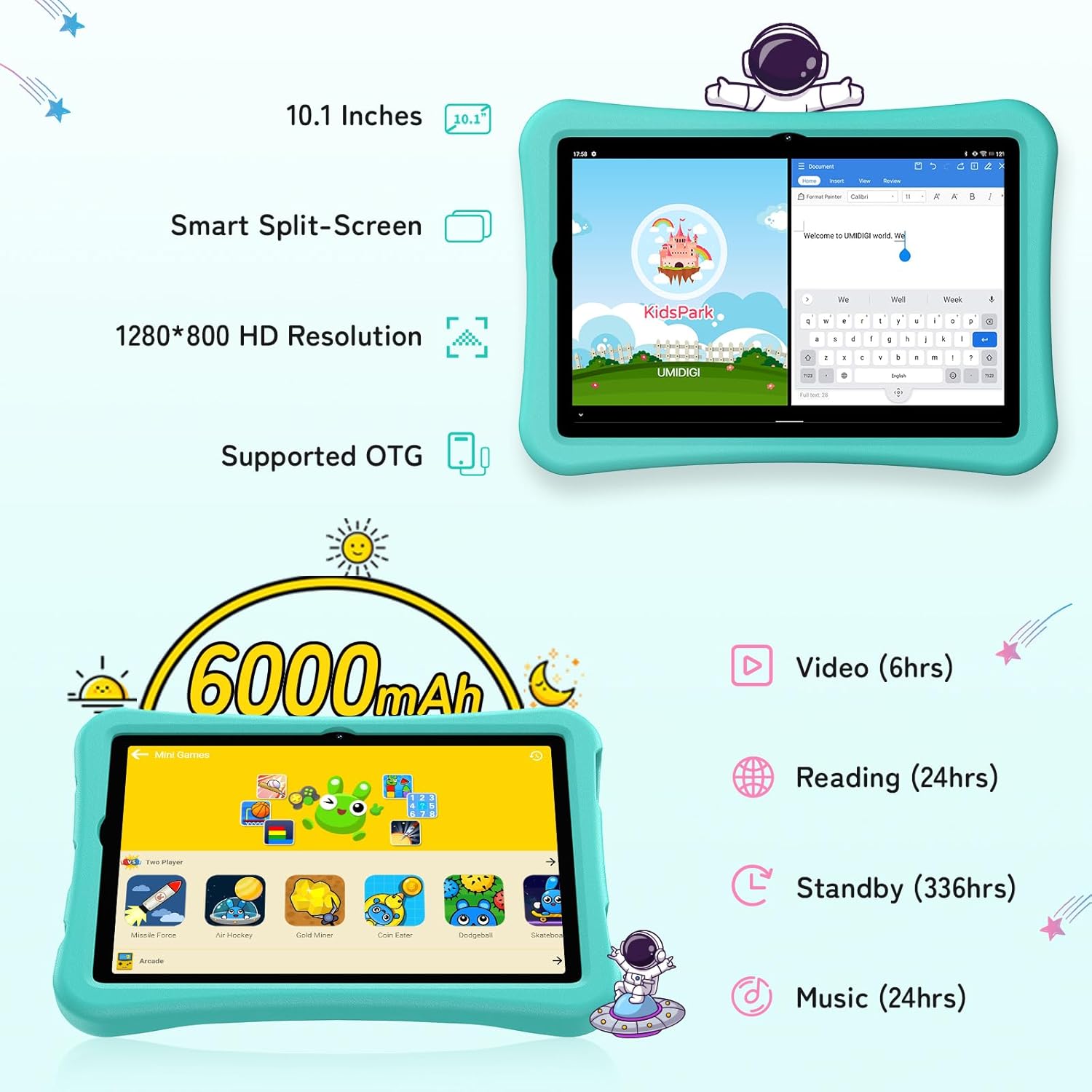
Image: The UMIDIGI G2 Tab Kids tablet connected to a charger, illustrating the charging process.
Техникалык тейлөө
1. Планшетти тазалоо
Use a soft, lint-free cloth to clean the screen and body of the tablet. Avoid using harsh chemicals or abrasive materials that could damage the device. The included EVA protective case can be removed for cleaning if necessary.
2. Программалык камсыздоону жаңыртуу
Оптималдуу иштөөнү жана коопсуздукту камсыз кылуу үчүн системанын жаңыртууларын үзгүлтүксүз текшерип туруңуз. Орнотуулар > Система > Системаны жаңыртуу жеткиликтүү жаңыртууларды текшерүү жана орнотуу үчүн.
3. Сактагычты башкаруу
To maintain performance, periodically manage the tablet's storage. Delete unnecessary files and applications. The tablet supports up to 1TB external storage via TF card for additional space.
Проблемаларды чечүү
- Планшет күйбөй жатат: Ensure the battery is charged. Connect the tablet to a charger and wait a few minutes before attempting to power it on again.
- Wi-Fi туташуу көйгөйлөрү: Check if Wi-Fi is enabled in settings. Restart your router and the tablet. If the issue persists, try forgetting the network and reconnecting.
- Жай аткаруу: Close unused applications. Clear cache from apps in Орнотуулар > Колдонмолор. Consider expanding RAM via Settings > System > Memory & Expansion.
- Экран жооп бербейт: Perform a forced restart by holding the power button for approximately 10-15 seconds. If the issue continues, contact customer support.
Техникалык шарттар
| Өзгөчөлүк | Спецификация |
|---|---|
| Модель аты | G2 TAB балдар үчүн |
| Операция системасы | Android 13 |
| Screen Size | 10.1 дюйм |
| Display Resolution | 1280x800 пиксел |
| RAM | 8GB (4GB physical + 4GB extended) |
| Ички сактагыч | 64 ГБ (1 ТБ чейин кеңейтүүгө болот) |
| Батарея сыйымдуулугу | 6000mAh |
| Камералар | Front and Rear 8MP |
| Байланыш | Bluetooth 5.0, WiFi 6 (2.4GHz & 5GHz) |
| Өлчөмдөр | 9.64 x 6.39 x 0.36 дюйм |
| Салмагы | 1.76 фунт |
Кепилдик жана колдоо
UMIDIGI products typically come with a 12-month warranty. For warranty claims, technical support, or service inquiries, please refer to the official UMIDIGI support channels or contact your retailer. Keep your purchase receipt as proof of purchase.
Көбүрөөк маалымат алуу үчүн, киргиле UMIDIGI Store.


