1. Киришүү
Thank you for choosing the Dragon Touch Notepad-102 Android 12 Tablet. This manual provides essential information for setting up, operating, maintaining, and troubleshooting your device. Please read it thoroughly to ensure optimal performance and longevity of your tablet.
2. Продукт бүтүп калдыview
The Dragon Touch Notepad-102 is a 10.1-inch Android 12 tablet designed for versatile use, from entertainment to productivity. It features an 8-core CPU, 8GB RAM, 128GB internal storage, and a vibrant IPS display.

Сүрөт 2.1: Алдыңкы жана арткы view of the Dragon Touch Notepad-102 tablet. The front displays 'Android 12' and '8GB+128GB', while the back shows a silver finish and the rear camera module.
2.1. Компоненттер жана порттор
Familiarize yourself with the tablet's physical features:
- Дисплей: 10.1-inch IPS screen.
- Алдыңкы камера: 8MP, typically located at the top center when held vertically.
- Арткы камера: 13MP, located on the back panel.
- Кубат баскычы: Планшетти күйгүзүү/өчүрүү же уктатуу үчүн колдонулат.
- Үн баскычтары: Аудио деңгээлин тууралоо.
- USB Type-C порту: Заряддоо жана маалыматтарды өткөрүү үчүн.
- 3.5 мм гарнитура уячасы: Аудио чыгаруу үчүн.
- MicroSD картасынын уячасы: For storage expansion (up to 128GB).
- Баяндамачылар: Аудио чыгаруу үчүн кош стерео динамиктер.

Сүрөт 2.2: Side view of the tablet highlighting the various ports and buttons, including the USB Type-C port and volume controls.
3. Орнотуу
3.1. Баштапкы күйгүзүү
- басып, кармап туруңуз Кубат баскычы экран күйгүчө.
- Follow the on-screen prompts to select your language, region, and accept the terms and conditions.
3.2. Wi-Fi туташуусу
- During initial setup or later, navigate to Орнотуулар > Тармак жана интернет > Wi-Fi.
- Wi-Fi которуштуруу On.
- Тизмеден каалаган Wi-Fi тармагын тандаңыз.
- Эгер суралса, тармак сырсөзүн киргизиңиз, андан кийин таптаңыз Туташуу.
3.3. Google аккаунтун орнотуу
Sign in with your Google account to access the Google Play Store, Gmail, and other Google services. If you don't have an account, you can create one during this step.
4. Негизги операция
4.1. Navigating Android 12
The tablet runs on Android 12, offering an intuitive user interface. Common gestures include:
- таптаңыз: Бир нерсени тандаңыз же колдонмону ачыңыз.
- Серпүү: Барактарды же менюларды жылдырыңыз.
- Чымчып чоңойтуу: Экрандагы мазмунду чоңойтуңуз же кичирейтиңиз.
- Узак басуу: Контексттик менюларга кириңиз же сүрөтчөлөрдү жылдырыңыз.
4.2. Колдонмону орнотуу
Download and install applications from the Google Play Store. Ensure you have a stable internet connection.

Сүрөт 4.1: The tablet screen showing a collection of application icons and photo thumbnails, demonstrating its multimedia capabilities and storage capacity.
5. Өркүндөтүлгөн функциялар
5.1. Камералар
The tablet is equipped with an 8MP front camera and a 13MP rear camera. Open the Camera app to capture photos and videos. The front camera is ideal for video calls and selfies.

Сүрөт 5.1: The tablet displaying a video call, showcasing the clarity of the front-facing camera for communication.
5.2. Зымсыз проекция
The tablet supports wireless projection, allowing you to mirror its screen to a compatible large display, such as a TV. This feature is useful for presentations or sharing media.
5.3. Docking Keyboard Support
Enhance your productivity by connecting a compatible docking keyboard (sold separately). This transforms your tablet into a laptop-like device, suitable for typing and work tasks.
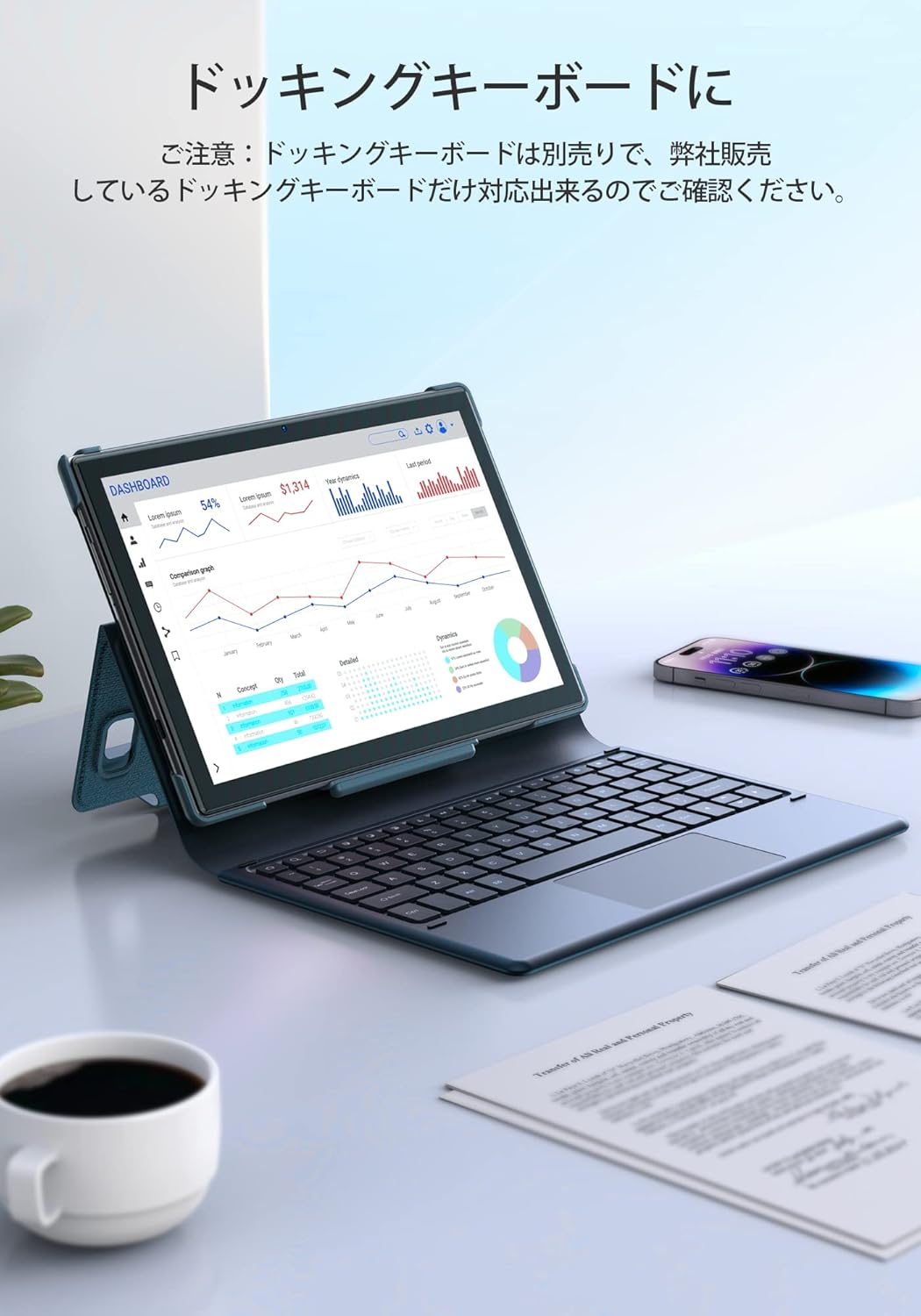
Сүрөт 5.2: The tablet docked with a keyboard accessory, displaying a dashboard with charts, illustrating its use for productivity.
6. Байланыш
6.1. WiFi
The tablet supports dual-band Wi-Fi (2.4GHz and 5GHz) with 802.11ac technology for stable and high-speed internet access. To manage Wi-Fi settings, go to Орнотуулар > Тармак жана интернет > Wi-Fi.
6.2.Bluetooth
Connect wireless headphones, speakers, or other Bluetooth-enabled devices. Access Bluetooth settings via Орнотуулар > Туташкан түзмөктөр > Bluetooth.
7. Батареяны башкаруу
The Notepad-102 is equipped with a 6000mAh battery. To charge, connect the included Type-C cable to the tablet's Type-C port and a compatible 5V/2A power adapter.
7.1. Батареянын иштөө мөөнөтү боюнча кеңештер
- Экран жарыктыгын азайтыңыз.
- Колдонулбай турган учурда Wi-Fi жана Bluetooth'ду өчүрүп коюңуз.
- Фондук колдонмолорду жабуу.
- Батареяны үнөмдөө режимин иштетүү.
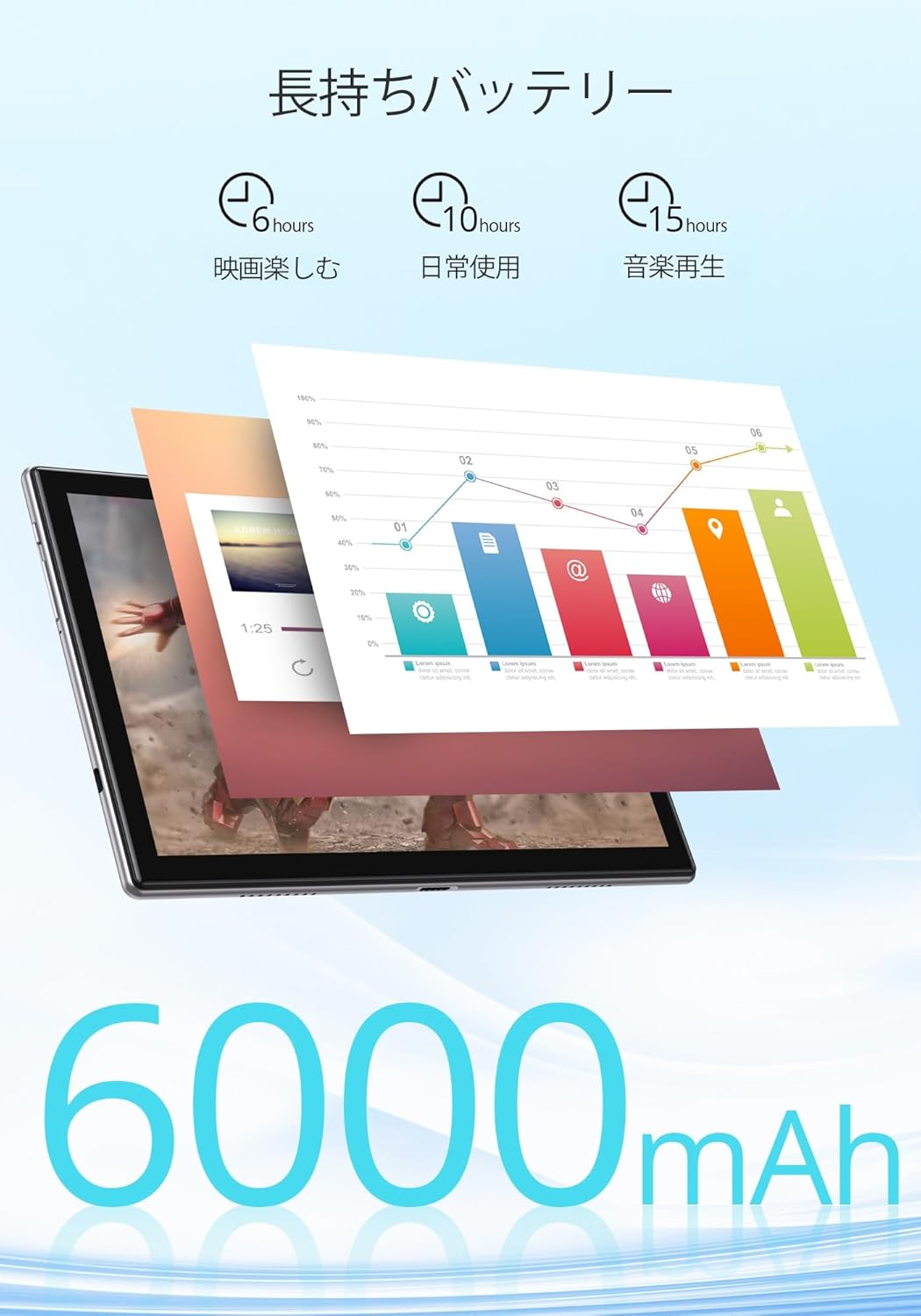
Сүрөт 7.1: An infographic showing estimated battery life for various activities: 6 hours for movies, 10 hours for daily use, and 15 hours for music playback, powered by the 6000mAh battery.
8. Техникалык тейлөө жана кам көрүү
- Планшетти экстремалдык температурадан жана тике күн нурунан алыс кармаңыз.
- Планшетти түшүрүүдөн же катуу таасирлерден сактаныңыз.
- Экранды жумшак, мамыксыз чүпүрөк менен тазалаңыз. Күчтүү химиялык заттарды колдонбоңуз.
- Заряддоо портунда чаң жана таштанды жок экенин текшериңиз.
9. Кыйынчылыктарды
9.1. Tablet Not Turning On
- Ensure the tablet is sufficiently charged. Connect it to a power source for at least 30 minutes.
- Мажбурлап өчүрүп күйгүзүү үчүн кубат баскычын 10-15 секунд басып туруңуз.
9.2. Wi-Fi туташуу маселелери
- Wi-Fi роутериңизди жана планшетиңизди өчүрүп күйгүзүңүз.
- Wi-Fi сигналынын чегинде экениңизди текшериңиз.
- Wi-Fi жөндөөлөрүнөн тармакты унутуп, кайра туташыңыз.
- Башка түзмөктөр бир эле Wi-Fi тармагына туташа аларын текшериңиз.
9.3. Колдонмолор бузулуп жатат же катып жатат
- Колдонмону жаап, кайра ачыңыз.
- Колдонмонун кэшин жана ичиндеги дайындарды тазалаңыз Орнотуулар > Колдонмолор > [Колдонмонун аты] > Сактоо жана кэш.
- Колдонмонун акыркы версиясына жаңыртылганын текшериңиз.
10. Техникалык шарттар
| Өзгөчөлүк | Спецификация |
|---|---|
| Бренд | Dragon Touch |
| Модел | Notepad-102 |
| Операция системасы | Android 12 (GMS тастыкталган) |
| Дисплей өлчөмү | 10.1 дюйм |
| Display Resolution | 1280 x 800 пиксел (IPS) |
| Процессор | 8-core CPU (2.0GHz) |
| RAM | 8 ГБ |
| Ички сактагыч | 128 ГБ |
| Кеңейтүүчү сактагыч | MicroSD 128 ГБ чейин |
| Wi-Fi | 2.4Ghz/5Ghz Dual-band (802.11ac) |
| Bluetooth | Ооба |
| Алдыңкы камера | 8MP |
| Арткы камера | 13MP |
| Батарея сыйымдуулугу | 6000mAh |
| Заряддоо порту | Type-C |
| Өлчөмдөр | 27.1 x 20 x 4.9 см |
| Салмагы | 940 г |
11. Кепилдик жана колдоо
The Dragon Touch Notepad-102 tablet comes with a one-year warranty. For any inquiries or support needs, please contact customer service through your Amazon purchase history, providing your order number. Our support team is dedicated to assisting you.
Эскертүү: Please use the provided charging cable and a 5V/2A power adapter for optimal charging.


