1. Киришүү
This manual provides essential information for setting up, operating, maintaining, and troubleshooting your Dell Precision 7780 Mobile Workstation. Please read this guide thoroughly to ensure optimal performance and longevity of your device.

2. Орнотуу
Follow these steps to set up your new mobile workstation.
2.1 Кутудан чыгаруу жана алгачкы текшерүү
- Carefully remove the workstation and its accessories from the packaging.
- Verify that all components are present, including the Dell Precision 7780 Mobile Workstation and the charger.
- Inspect the workstation for any physical damage. If damage is found, contact Dell support immediately.
2.2 Кубатты туташтыруу
- Connect the power adapter to the power connector on the workstation.
- Электр кабелин жерге туташтырылган электр розеткасына сайыңыз.
- Батарея автоматтык түрдө кубаттала баштайт. Биринчи жолу колдонуудан мурун батареяны толук кубаттоо сунушталат.
2.3 Баштапкы жүктөө жана операциялык системаны орнотуу
- Open the display and press the power button.
- Follow the on-screen instructions to complete the Windows 11 Pro operating system setup. This includes selecting language, region, and creating a user account.
- Система керектүү жаңыртууларды жүктөп ала аларын текшерүү үчүн суралганда Wi-Fi тармагына туташыңыз.
3. Operating Your Workstation
This section covers the basic operation of your Dell Precision 7780.
3.1 Баскычтоп жана сенсордук такта
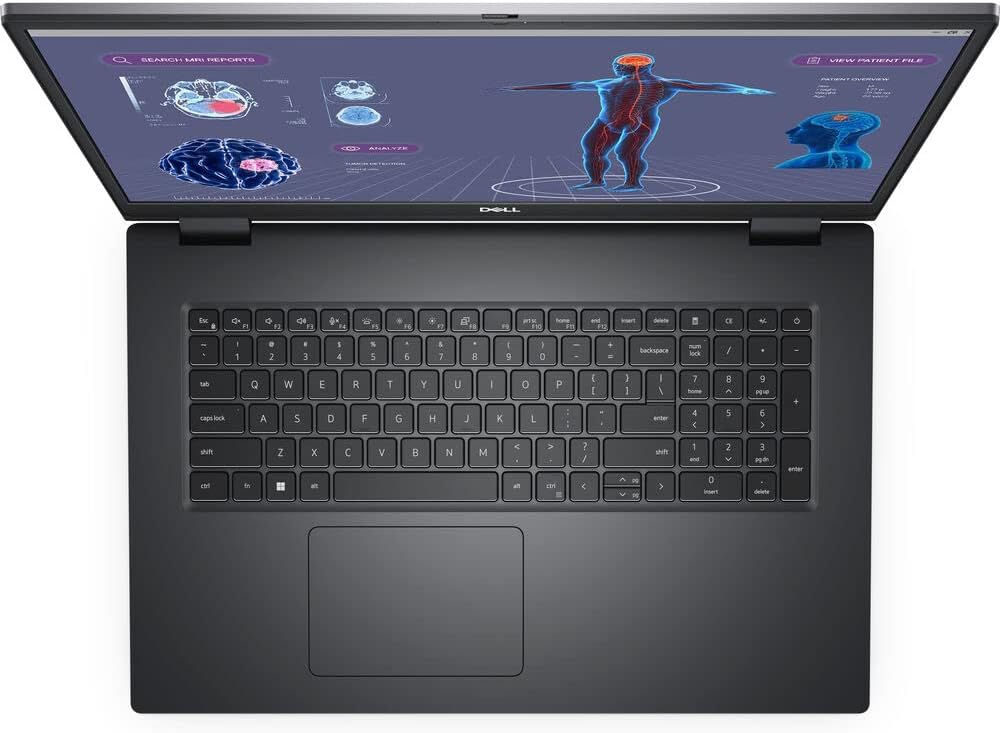
- The workstation features a US English Backlit Keyboard for comfortable typing in various lighting conditions.
- The integrated touchpad serves as your pointing device. Adjust sensitivity and gestures in Windows settings.
- A Single Pointing Palmrest with Full Scan FIPS Fingerprint Reader and Contacted SmartCard Reader (if configured) is included for enhanced security and convenience.
3.2 Дисплей
Your workstation is equipped with a 17.3-inch FHD (1920 x 1080) Wide View Angle Anti-Glare 60Hz 500-nits 99% DCI-P3 ComfortView Plus Low Blue Light Non-Touch Display. Adjust brightness and display settings through Windows display options.
3.3 Порттар жана туташуу
The Dell Precision 7780 offers a variety of ports for connecting peripherals and external devices:
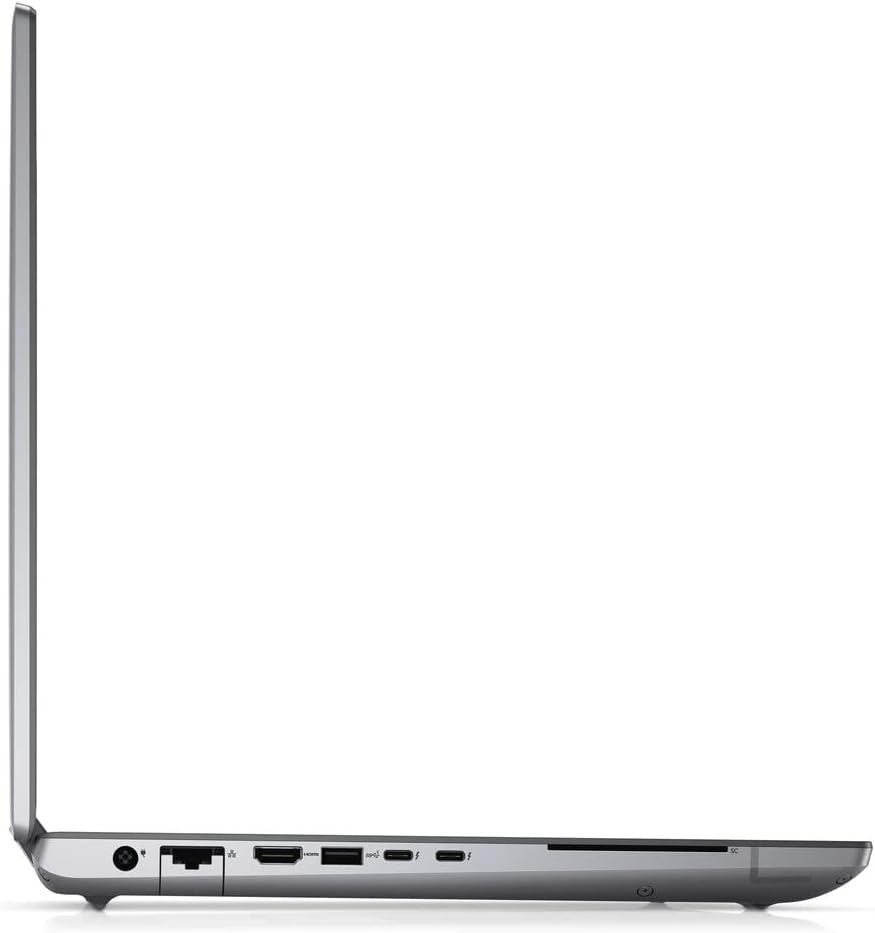
- Сол жагы: Power connector, Ethernet port, HDMI port, USB 3.2 Gen 1 Type-A port, two Thunderbolt 4 (USB-C) ports.
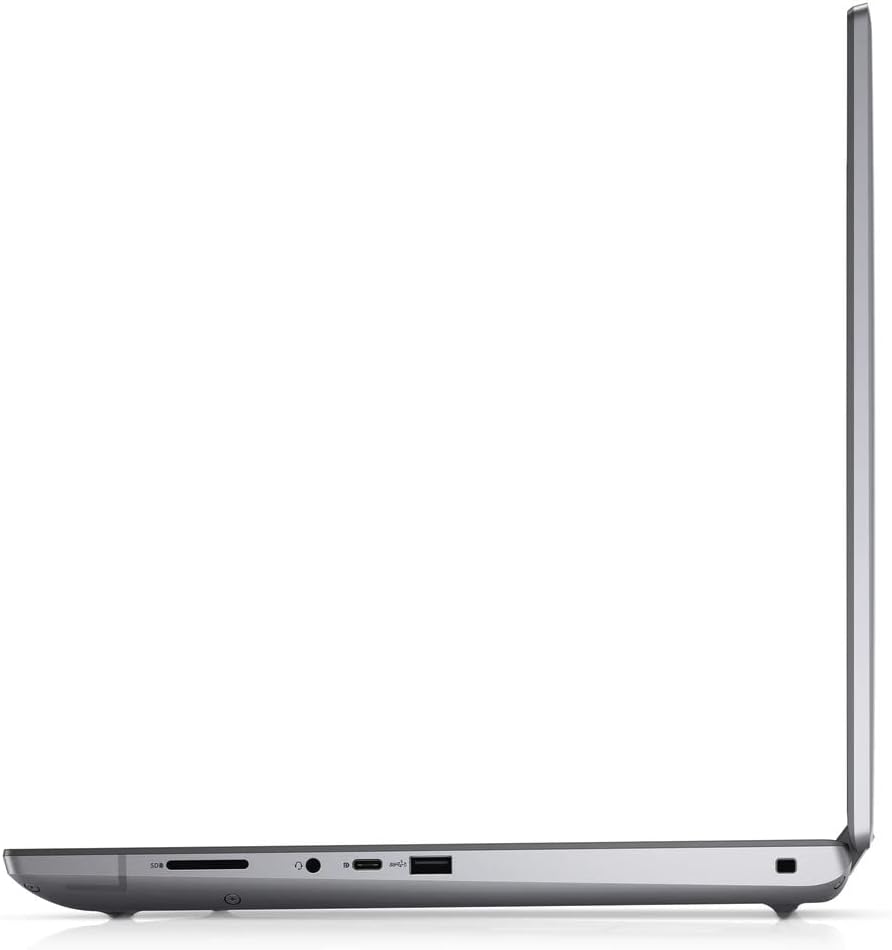
- Оң жагы: SD Card Reader, Headphone/Microphone combo jack, USB 3.2 Gen 1 Type-A port.
For wireless connectivity, the workstation includes Intel Wi-Fi 6E AX211 and Bluetooth.
3.4 Камера
The integrated FHD IR Camera with Shutter supports ExpressSign-In and Intelligent Privacy features, along with a microphone for video conferencing and secure login.
4. Техникалык тейлөө
Proper maintenance ensures the longevity and optimal performance of your workstation.
4.1 Cleaning Your Workstation
- Use a soft, lint-free cloth to clean the display. For stubborn smudges, use a screen cleaner specifically designed for electronics.
- Клавиатураны жана шассиди бир аз d менен сүртүңүзamp кездеме. Ашыкча нымдуулуктан сактаныңыз.
- Use compressed air to clear dust from vents and ports. Ensure the workstation is powered off before cleaning.
4.2 Батареяга кам көрүү
The workstation is powered by a 6-Cell, 93 WHr Lithium Ion Battery. To maximize battery life:
- Ашыкча температурадан сактаныңыз.
- Батареяны бат-баттан толук зарядсыздандырбаңыз.
- Calibrate the battery periodically (refer to Dell's official support for instructions).
4.3 Программалык камсыздоо жаңыртуулары
Regularly update your Windows 11 Pro operating system and Dell drivers to ensure security, stability, and performance. Use Windows Update and Dell SupportAssist for this purpose.

5. Кыйынчылыктарды
Бул бөлүмдө сиз кабылышы мүмкүн болгон жалпы маселелерди чечүү жолдору каралган.
5.1 Электр энергиясы маселелери
- Workstation does not turn on: Ensure the power adapter is securely connected and the outlet is functional. Try a different outlet. If using battery, ensure it is charged.
- Батарея кубатталбай жатат: Verify the power adapter is correctly connected. Check for any damage to the adapter or cable.
5.2 Дисплей маселелери
- Дисплей жок же бош экран: Connect an external monitor to check if the issue is with the internal display. Restart the workstation.
- Жаркылдаган же бурмаланган дисплей: Графикалык драйверлерди жаңыртыңыз. Windows жөндөөлөрүнөн дисплейдин чечилишин жана жаңыртуу ылдамдыгын тууралаңыз.
5.3 Байланыш маселелери
- Wi-Fi туташпай жатат: Ensure Wi-Fi is enabled. Restart your router and the workstation. Update wireless drivers.
- Bluetooth түзмөгү жупташкан жок: Bluetooth эки түзмөктө тең иштетилгенин текшериңиз. Түзмөктүн шайкештигин жана драйверлерин текшериңиз.
For more complex issues, refer to the Dell support webсайтка же техникалык колдоо менен байланышыңыз.
6. Техникалык шарттар
Detailed technical specifications for the Dell Precision 7780 Mobile Workstation:
| Өзгөчөлүк | Спецификация |
|---|---|
| Модель аты | 7780 |
| Процессор | Intel Core i7-13850HX (13th Gen, 20 Core, Up to 5.30GHz) |
| Операция системасы | Windows 11 Pro |
| Дисплей | 17.3-inch FHD (1920 x 1080) Anti-Glare, 60Hz, 500-nits, 99% DCI-P3 |
| RAM | 64GB DDR5 (5600MHz) |
| Сактагыч | 1TB PCIe M.2 NVMe Gen 4 Class 40 SSD |
| Графика | NVIDIA RTX 4000 Ada Generation (12GB GDDR6) |
| Зымсыз байланыш | Intel Wi-Fi 6E AX211 + Bluetooth |
| Батарея | 6-Cell, 93 WHr Lithium Ion |
| Өлчөмдөрү (LxWxH) | 15.67 x 10.44 x 1.06 дюйм |
| Салмагы | 10.56 фунт |
| Баскычтоп | US English Backlit Keyboard |
| Камера | FHD IR Camera with Shutter, ExpressSign-In |
7. Кепилдик маалыматы
Your Dell Precision 7780 Mobile Workstation includes:
- Dell 3 Years ONSITE Warranty
- ProSupport: Next Business Day Onsite, 3 Years
- ProSupport: 7x24 Technical Support, 3 Years
For detailed terms and conditions of your warranty, please refer to the documentation provided with your purchase or visit the official Dell support webсайт.
8. Кардарларды колдоо кызматы
For technical assistance, warranty claims, or additional information, please contact Dell customer support:
- Dell колдоо Webсайт: Visit www.dell.com/support
- Телефондук колдоо: Refer to the Dell support webаймактык байланыш номерлери үчүн сайт.
When contacting support, please have your service tag or express service code ready. This information is typically located on a label on the bottom of your workstation.


