1. Киришүү
This manual provides detailed instructions for the setup, operation, and maintenance of your Logitech POP Mouse. The POP Mouse is a compact, wireless mouse designed for multi-device use with customizable features.

Image: The Logitech POP Mouse in Graphite, showcasing анын компакттуу жана эргономикалык дизайны.
2. Пакеттин мазмуну
- Logitech POP Wireless Mouse
- 1x AA Battery (pre-installed)
- Колдонуучунун документтери

Image: The Logitech POP Mouse and a single AA battery, representing the items included in the product package.
3. Орнотуу нускамалары
3.1. Батареяны орнотуу
- Gently remove the top cover of the mouse. The cover is magnetically attached.
- Туура полярдуулукту (+/-) текшерип, комплекттеги AA батареясын салыңыз.
- Replace the top cover, ensuring it snaps securely into place.
3.2. Bluetooth аркылуу туташуу
- Төмөндө жайгашкан кубат которгучу менен чычканды күйгүзүңүз.
- Press and hold one of the Easy-Switch buttons (1, 2, or 3) on the bottom of the mouse until the LED indicator starts blinking rapidly. This indicates pairing mode.
- On your device (computer, tablet, or phone), open Bluetooth settings.
- Select "Logitech POP Mouse" from the list of available devices to complete the pairing process.
- The LED indicator will glow solid for a few seconds, then turn off, confirming a successful connection.

Image: The underside of the POP Mouse, highlighting the Easy-Switch buttons for multi-device pairing.
4. Иштөө нускамалары
4.1. Негизги функциялар
- Сол чыкылдатуу: Негизги тандоо жана өз ара аракеттенүү.
- Оң чыкылдатуу: Контексттик менюларга жетет.
- Жылдыруу дөңгөлөгү: Navigates vertically through documents and web барактар.
4.2. SilentTouch Technology
The POP Mouse features SilentTouch Technology, which significantly reduces click noise, providing a quieter user experience without compromising tactile feedback.

Image: A hand operating the POP Mouse, illustrating the quiet operation provided by SilentTouch Technology.
4.3. SmartWheel скроллинги
SmartWheel автоматтык түрдө эки режимдин ортосунда которулат:
- Тактык режими: For detailed, line-by-line navigation.
- Speed Scroll Mode: For rapid scrolling through long documents or web барактар.

Image: A user's hand demonstrating the use of the SmartWheel for efficient navigation.
5. Ыңгайлаштыруу
5.1. Customizable Top Button (Emoji Button)
The top button, located below the scroll wheel, is customizable. By default, it can be configured to open an emoji menu or assign other shortcuts.
- Download and install the Logitech Options+ Software from the official Logitech webсайт (logitech.com/optionsplus).
- Open the Logitech Options+ Software.
- Select your POP Mouse from the detected devices.
- Navigate to the button customization settings.
- Assign your desired function to the top button, such as an emoji shortcut, Snip Screen, Mic Mute, or Voice-to-Text.
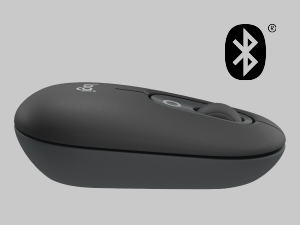
Image: A visual representation of the customizable top button on the POP Mouse, showing its function to access an emoji menu on a connected computer.
6. Multi-Device Connectivity
The Logitech POP Mouse can connect to up to three different devices simultaneously using Bluetooth. You can easily switch between these devices.
6.1. Которуу аппараттары
To switch between paired devices, press the Easy-Switch button (1, 2, or 3) on the bottom of the mouse corresponding to the desired device. The LED indicator will briefly light up to confirm the selected channel.
6.2. Logitech FLOW (Advanced Feature)
For seamless control across multiple computers, install Logitech Options+ Software on all devices. With Logitech FLOW enabled, you can move your mouse cursor across screens as if they were a single desktop, even copying and pasting text, images, and fileс алардын ортосунда.
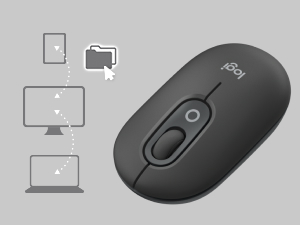
Image: A diagram showing how the POP Mouse can control multiple devices, illustrating the FLOW feature for cross-device interaction.
7. Техникалык тейлөө
7.1. Батареяны алмаштыруу
The POP Mouse operates on a single AA battery with an estimated life of up to 24 months. When the battery is low, the LED indicator on the bottom of the mouse may flash. Replace the battery by following the steps in Section 3.1.
7.2. Тазалоо
To clean your mouse, use a soft, lint-free cloth. For stubborn dirt, slightly dampчүпүрөктү суу менен. Катуу химиялык заттарды же абразивдүү материалдарды колдонуудан алыс болуңуз.
8. Кыйынчылыктарды
| Көйгөй | Чечим |
|---|---|
| Mouse does not turn on. | Ensure the power switch on the bottom of the mouse is in the 'ON' position. Check and replace the AA battery if necessary. |
| Mouse not connecting via Bluetooth. |
|
| Cursor movement is erratic or unresponsive. |
|
| Custom button not working. | Ensure Logitech Options+ Software is installed and running on your computer, and the button is correctly configured. |
9. Техникалык шарттар
| Өзгөчөлүк | Деталь |
|---|---|
| Модель номери | 910-007165 |
| Байланыш | Bluetooth 5.1 |
| Зымсыз диапазон | 10 метрге чейин (32.81 фут) |
| Sensor Technology | Logitech High Precision Optical Tracking |
| баскычтардын саны | 4 (Left/Right click, Scroll wheel click, Top customizable button) |
| Батарея түрү | 1 x AA батарейка |
| Батареянын иштөө мөөнөтү | 24 айга чейин (колдонууга жараша өзгөрүшү мүмкүн) |
| Өлчөмдөрү (LxWxH) | 14.12 x 2.34 x 1.38 дюйм (35.86 x 5.94 x 3.51 см) |
| Салмагы | 2.89 ounces (82g with battery) |
| Операциялык системанын шайкештиги | Windows 10 or later, macOS 10.15 or later, iPadOS, Chrome OS, Android |

Image: Technical drawing displaying the length, width, and height measurements of the Logitech POP Mouse.
10. Кепилдик жана колдоо
Кепилдик жөнүндө маалымат жана техникалык колдоо алуу үчүн, расмий Logitech колдоо кызматына кайрылыңыз website or refer to the user documentation included in your product package.
- Онлайн колдоо: support.logi.com
- Продукцияны каттоо: Registering your product can help you receive faster support and updates.


