Introduction
The HyperDrive Next 10 Port USB-C Hub is a versatile connectivity solution designed to expand the capabilities of your Mac, PC, or Chromebook. This hub provides a comprehensive array of ports, including 4K60Hz HDMI, multiple USB-A and USB-C ports with 10Gbps data transfer, 140W Power Delivery, SD and microSD card readers, Gigabit Ethernet, and a 3.5mm audio jack. It is engineered to enhance productivity, streamline workflows, and offer robust connectivity for various devices and peripherals.
Пакеттин мазмуну
- HyperDrive Next 10 порт USB-C хабы
- Колдонуучунун Колдонмосу (бул документ)
Ports Overview
The HyperDrive Next 10 Port USB-C Hub features a comprehensive set of ports to meet diverse connectivity needs. Understanding each port's function is essential for optimal use.

Сүрөттүн сүрөттөлүшү: A detailed diagram illustrating the layout and labeling of all 10 ports on the HyperDrive Next USB-C Hub. This includes USB-A 10Gbps, USB-A 5Gbps, 2x USB-C 10Gbps, SD 312MB/s, microSD 312MB/s, USB-C 140W PD 3.1, 4K60Hz HDMI, 3.5mm Audio Jack Combo, and Gigabit Ethernet.
- 4K60Hz HDMI Port: Connect an external monitor for extended display at up to 4K resolution at 60Hz.
- USB-A 10Gbps Port: For high-speed data transfer with USB-A devices.
- USB-A 5Gbps Port: For standard data transfer with USB-A devices.
- 2 x USB-C 10Gbps Ports: For high-speed data transfer with USB-C devices.
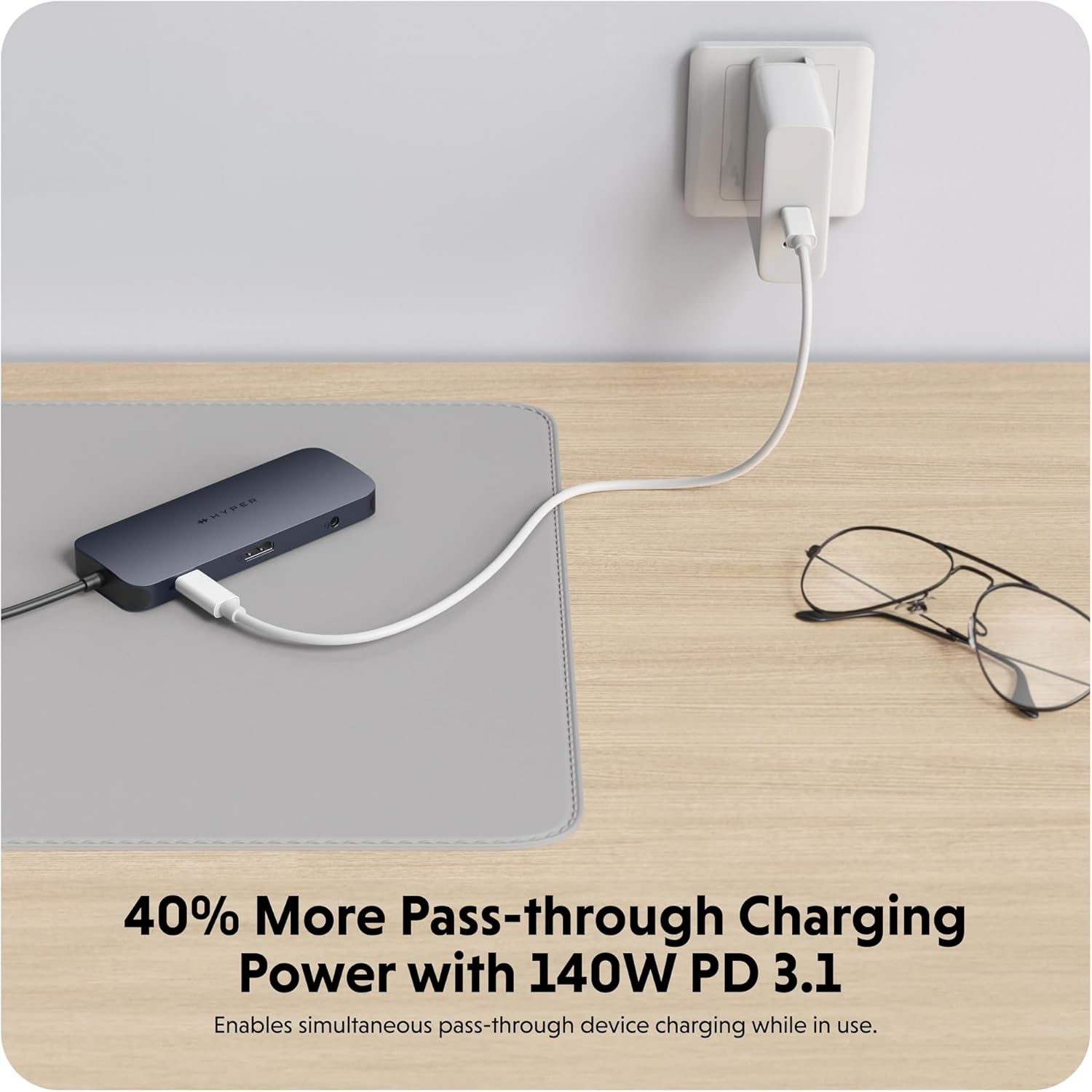
- USB-C 140W PD 3.1 Port: For power delivery to charge your host device (up to 125W) while using the hub. Requires a 140W PD 3.1 charger.
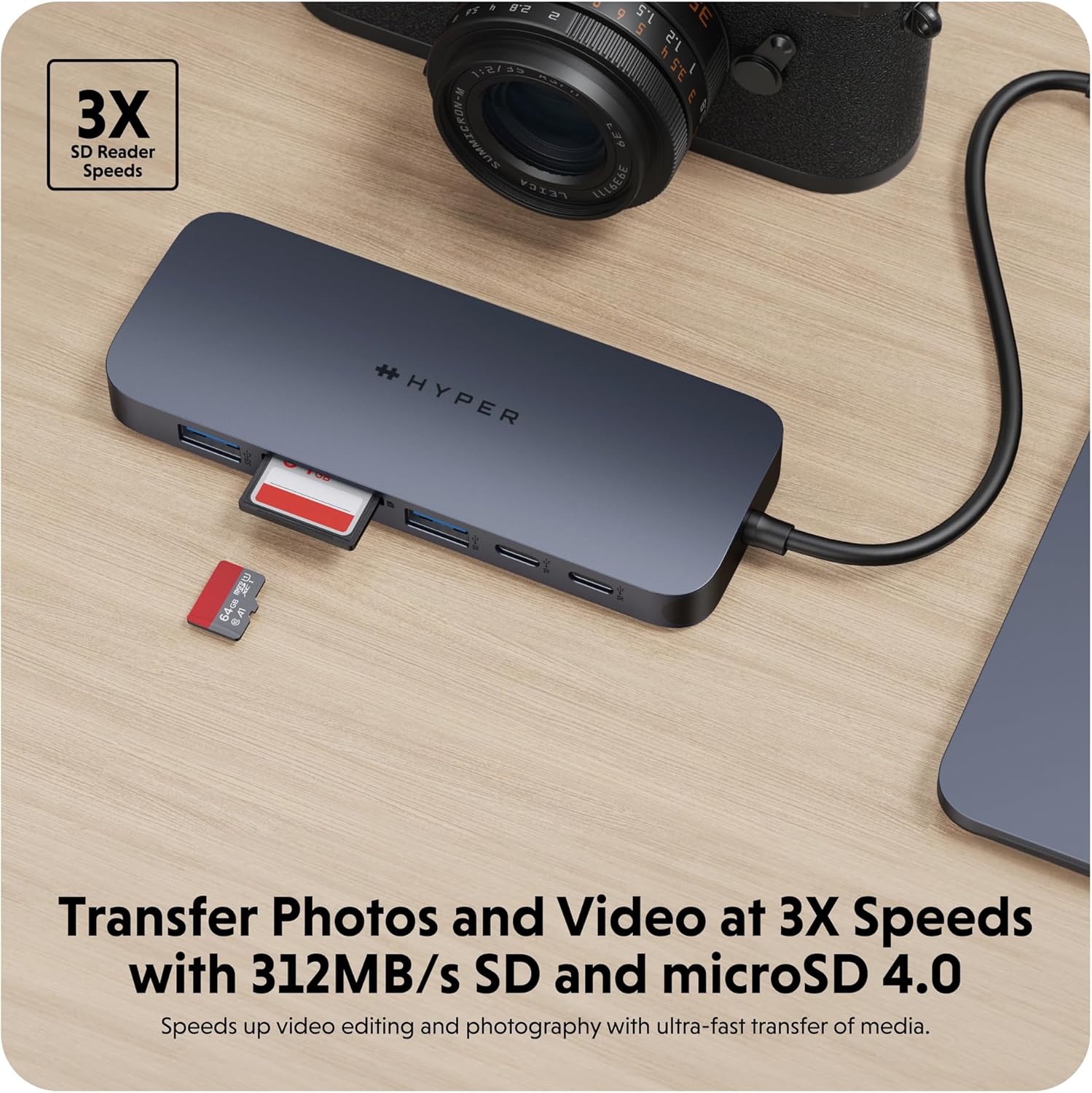
- SD Card Reader (312MB/s): For high-speed data transfer from SD memory cards.
- microSD Card Reader (312MB/s): For high-speed data transfer from microSD memory cards.
- Гигабит Ethernet порту: Provides a stable and fast wired internet connection.
- 3.5mm Audio Jack Combo: For connecting headphones or microphones.
Орнотуу нускамалары
- Хабды түзмөгүңүзгө туташтырыңыз: Insert the integrated USB-C cable of the HyperDrive Next 10 Port USB-C Hub into an available USB-C port on your Mac, PC, or Chromebook.
- Электр энергиясына туташуу (милдеттүү эмес, бирок сунушталат): For optimal performance and to charge your host device, connect a compatible USB-C Power Delivery charger (up to 140W PD 3.1) to the USB-C 140W PD 3.1 port on the hub. This allows pass-through charging up to 125W.
- Перифериялык түзүлүштөрдү туташтыруу: Once the hub is connected, you can begin connecting your peripherals to the respective ports on the hub.
- For external displays, use the HDMI port.
- For USB devices (flash drives, external hard drives, keyboards, mice), use the USB-A or USB-C data ports.
- For memory cards, insert them into the SD or microSD card slots.
- For wired internet, connect an Ethernet cable to the Gigabit Ethernet port.
- For audio, plug your headphones or microphone into the 3.5mm audio jack.
- Plug and Play: The HyperDrive Next hub is designed for plug-and-play functionality. No additional drivers or software installation are typically required for basic operation on compatible operating systems.

Сүрөттүн сүрөттөлүшү: Жакын план view of the HyperDrive Next 10 Port USB-C Hub, showcasing its compact design and the integrated USB-C cable ready for connection to a host device. This image highlights the hub's sleek appearance and port accessibility.
Иштөө нускамалары
Дисплей чыгышы (HDMI)
Connect an HDMI cable from the hub's HDMI port to your external monitor. Your device should automatically detect the display. You may need to adjust display settings (resolution, mirroring/extending) in your operating system's display preferences.

Сүрөттүн сүрөттөлүшү: A laptop connected to an external monitor through the HyperDrive Next USB-C Hub, demonstrating the extended display functionality. The image shows a workspace setup with the hub facilitating multi-monitor use.
Data Transfer (USB-A, USB-C, SD/microSD)
Insert your USB devices (flash drives, external hard drives) into the appropriate USB-A or USB-C data ports. For SD or microSD cards, insert them into the corresponding slots. Files can then be accessed and transferred via your computer's file изилдөөчү.
Сүрөттүн сүрөттөлүшү: The HyperDrive Next USB-C Hub connected to an external hard drive, illustrating its capability for high-speed data transfer via USB 3.2. The image emphasizes the efficiency of moving large files.
Сүрөттүн сүрөттөлүшү: The HyperDrive Next USB-C Hub with an SD card and a microSD card inserted into their respective slots, demonstrating the hub's fast media transfer capabilities for photographers and videographers.
Power Delivery (USB-C PD 3.1)
To charge your host device through the hub, connect a USB-C power adapter (140W PD 3.1 recommended) to the dedicated USB-C PD port on the hub. The hub will then pass through up to 125W of power to your connected laptop or device.

Сүрөттүн сүрөттөлүшү: The HyperDrive Next USB-C Hub connected to a wall charger, illustrating its 140W Power Delivery 3.1 pass-through charging capability. This image shows the hub providing power to a connected device.
Network Connection (Gigabit Ethernet)
Plug an Ethernet cable from your router or modem into the Gigabit Ethernet port on the hub. Your device should automatically establish a wired network connection, providing stable and high-speed internet access.
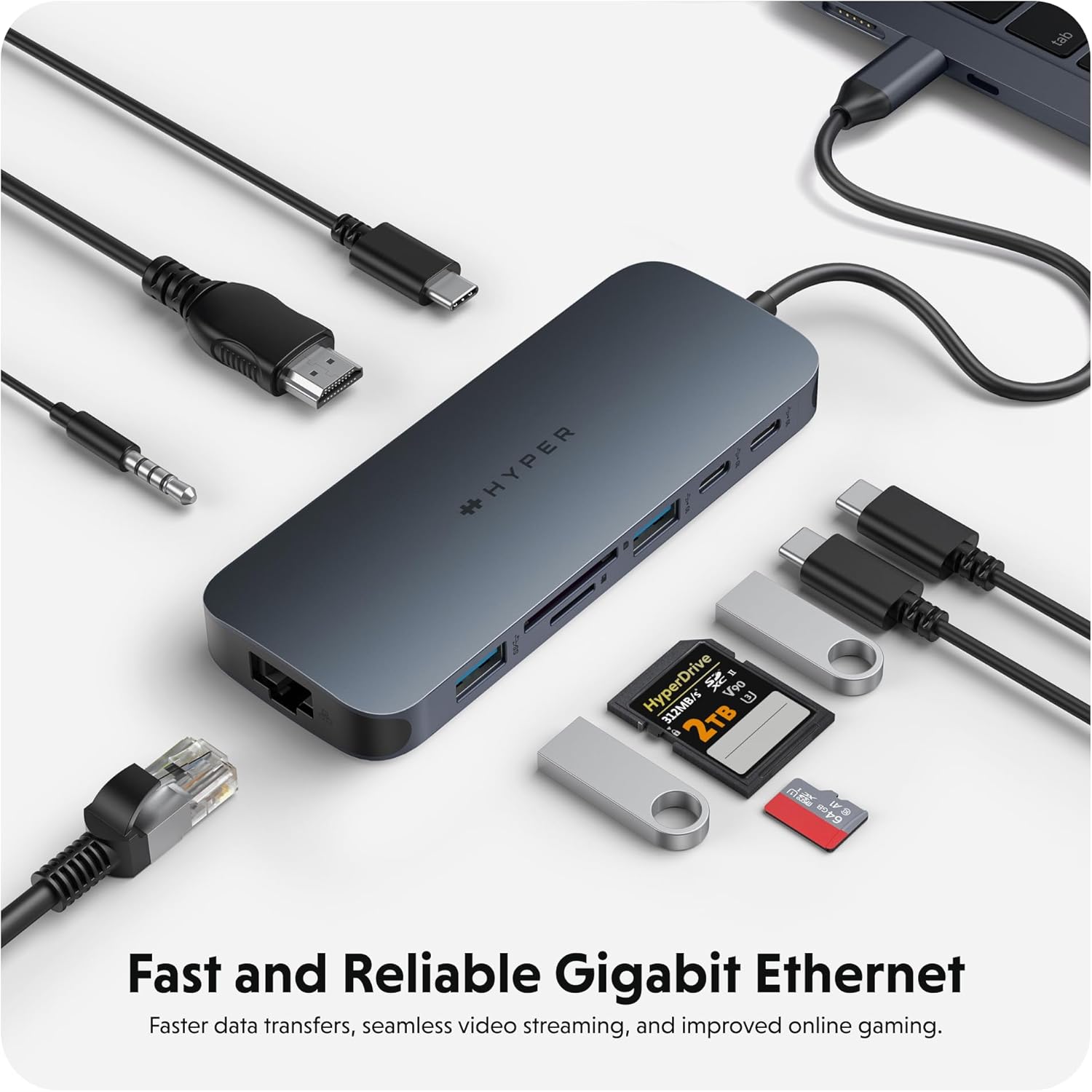
Сүрөттүн сүрөттөлүшү: The HyperDrive Next USB-C Hub with an Ethernet cable connected, highlighting its Gigabit Ethernet port for fast and reliable wired internet access. The image also shows other cables and accessories, emphasizing the hub's comprehensive connectivity.
Audio Connection (3.5mm Audio Jack)
Connect your headphones or microphone to the 3.5mm audio jack. Ensure your device's audio output/input settings are configured to use the hub's audio port if it doesn't switch automatically.

Сүрөттүн сүрөттөлүшү: A pair of headphones connected to the 3.5mm audio jack of the HyperDrive Next USB-C Hub, demonstrating its support for wired audio peripherals.
Шайкештик
The HyperDrive Next 10 Port USB-C Hub is compatible with a wide range of devices that feature a USB-C port with DisplayPort Alternate Mode (Alt Mode) and Power Delivery capabilities. This includes:
- Mac: MacBook Pro, MacBook Air, iMac, Mac mini, and other Mac models with USB-C/Thunderbolt 3/4 ports.
- Windows PC: Laptops and desktops with USB-C ports supporting DisplayPort Alt Mode and Power Delivery.
- Chromebook: Devices with USB-C ports supporting DisplayPort Alt Mode and Power Delivery.
For optimal performance, ensure your device's USB-C port supports the necessary features for video output and power delivery.
Техникалык тейлөө жана кам көрүү
- Тазалоо: Use a soft, dry cloth to clean the surface of the hub. Avoid using liquid cleaners or aerosols.
- Сактагыч: Түздөн-түз күндүн нурунан жана экстремалдык температурадан алыс салкын, кургак жерде борборду сактаңыз.
- Колдонуу: Avoid dropping the hub or subjecting it to strong impacts. Do not attempt to disassemble the device.
- Порт коргоо: When not in use, consider using port covers (if available) to prevent dust and debris from entering the ports.
Проблемаларды чечүү
- HDMI аркылуу дисплей чыгаруу жок:
- Хост түзмөгүңүздүн USB-C порту DisplayPort Alt режимин колдой турганын текшериңиз.
- Check the HDMI cable connection at both the hub and the monitor.
- Мүмкүн болсо, башка HDMI кабелин же мониторду колдонуп көрүңүз.
- Хост түзмөгүңүздү өчүрүп күйгүзүңүз.
- Adjust display settings in your operating system.
- USB түзмөктөрү аныкталган жок:
- Хабдын хост түзмөгүңүзгө коопсуз туташканын текшериңиз.
- USB түзмөгүңүздүн иштешин ырастоо үчүн аны түздөн-түз башкы түзмөгүңүзгө туташтырууга аракет кылыңыз.
- If using a high-power USB device (e.g., external hard drive), ensure the hub is connected to a power source via the PD port.
- Try a different USB port on the hub.
- Жай берилиштерди өткөрүү ылдамдыгы:
- Ensure you are using the correct USB 3.2 (10Gbps) ports for maximum speed.
- The speed is also dependent on the connected device's capabilities.
- Avoid transferring multiple large files simultaneously if performance is critical.
- Host Device Not Charging via PD Port:
- Ensure your USB-C power adapter is connected to the hub's 140W PD 3.1 port.
- Verify that your power adapter is functional and provides sufficient wattage (140W recommended for full pass-through).
- Confirm your host device supports USB-C Power Delivery.
Техникалык шарттар
| Өзгөчөлүк | Деталь |
|---|---|
| Модель номери | 5785587 |
| Порттар | 1x 4K60Hz HDMI, 1x USB-A 10Gbps, 1x USB-A 5Gbps, 2x USB-C 10Gbps, 1x USB-C 140W PD 3.1, 1x SD Card Reader (312MB/s), 1x microSD Card Reader (312MB/s), 1x Gigabit Ethernet, 1x 3.5mm Audio Jack Combo |
| HDMI чыгышы | 4K @ 60 Гц чейин |
| USB маалымат берүү ылдамдыгы | 10 Гбит/сек чейин (USB 3.2) |
| Power Delivery | 140W PD 3.1 pass-through (up to 125W to host) |
| Card Reader Speed | 312MB/s (SD 4.0 and microSD 4.0) |
| Ethernet | Гигабит Ethernet (10/100/1000 Мбит/сек) |
| Шайкеш түзмөктөр | Mac, Windows PC, Chromebook with USB-C (DisplayPort Alt Mode & PD) |
| Өлчөмдөр | 7.83 x 4.06 x 1.42 дюйм |
| Элемент Салмагы | 5.7 унция |
| Материал | 100% Recycled Aluminum, 85% Recycled Plastic |
Кепилдик жана колдоо
Hyper products are designed with quality and reliability in mind. For information regarding warranty coverage, technical support, or to register your product, please visit the official Hyper webсайтка же түздөн-түз кардарларды тейлөөгө кайрылыңыз.
Official Hyper Webсайт: www.hyper.com
For additional assistance, refer to the product's Amazon listing or contact Amazon customer support.


