1. Киришүү
Thank you for choosing the ONIKUMA CW908 Wired Gaming Mouse. This manual provides detailed instructions on how to set up, operate, maintain, and troubleshoot your new gaming mouse. Please read this manual carefully before use to ensure optimal performance and longevity of your device.
2. Продукт бүтүп калдыview
The ONIKUMA CW908 is a high-performance wired gaming mouse designed for comfort and precision. It features 7 programmable buttons, adjustable DPI up to 7200, and vibrant RGB lighting. Its ergonomic and lightweight design ensures comfortable use during extended gaming sessions.
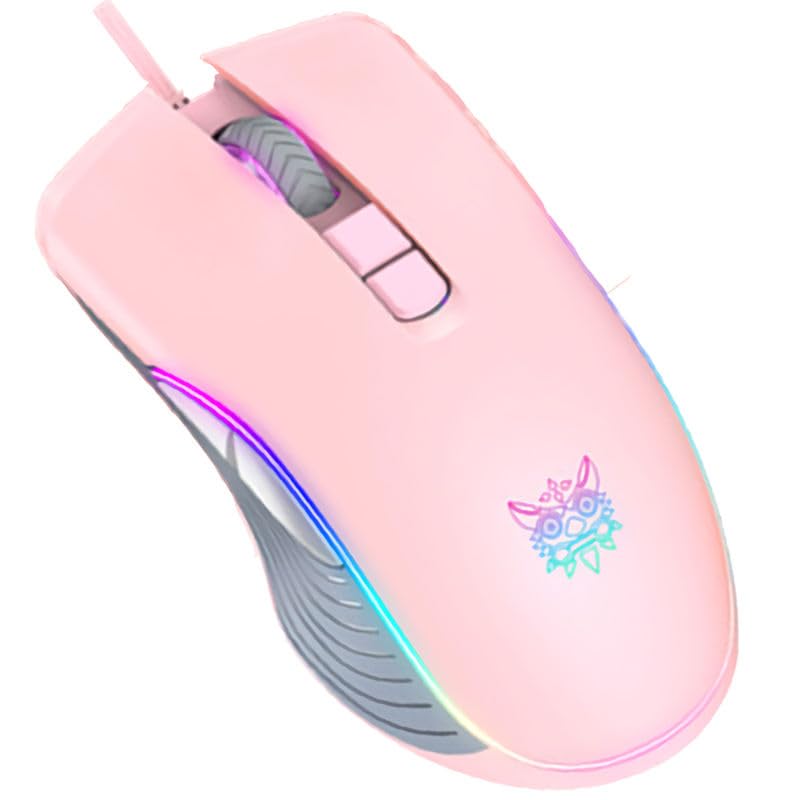
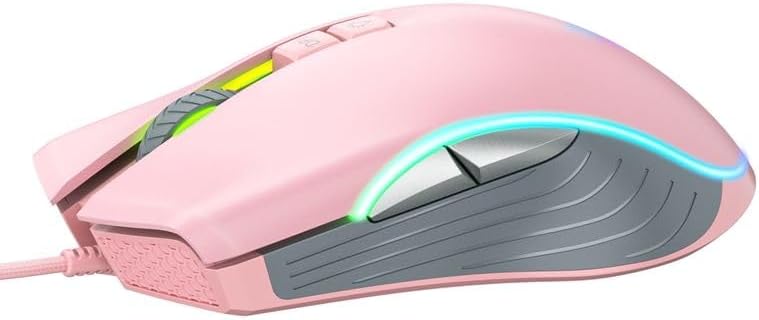
2.1 Чычкандын компоненттери
- Сол чыкылдатуу баскычы: Стандарттык негизги чыкылдатуу функциясы.
- Оң баскычты чыкылдатуу: Стандарттык кошумча чыкылдатуу функциясы.
- Жылдыруу дөңгөлөгү: Жылдыруу жана ортоңку чыкылдатуу функциясы үчүн.
- DPI жөндөө баскычы: DPI жөндөөлөрү аркылуу айланышат.
- Алга баскычы: Алга карай жылдырат web браузерлер же тиркемелер.
- Артка баскычы: Артка карай багыт алат web браузерлер же тиркемелер.
- RGB жарыктандыруу: Integrated LED lighting for aesthetic appeal.
- USB туташтыргычы: For wired connection to your computer.
2.2 Продукциянын сүрөттөрү
3. Орнотуу нускамалары
Setting up your ONIKUMA CW908 mouse is a simple plug-and-play process.
- Чычканды таңгактан чыгаруу: Чычканды анын таңгагынан кылдаттык менен чыгарыңыз.
- Компьютерге туташуу: Plug the USB connector of the mouse into an available USB port on your personal computer or laptop.
- Драйверди орнотуу: Your operating system (Windows 7, Windows 98, Linux, or newer versions) should automatically detect and install the necessary drivers. This process may take a few moments.
- Колдонууга даяр: Once the drivers are installed, the mouse will be ready for immediate use. The RGB lighting will illuminate.
4. Иштөө нускамалары
The ONIKUMA CW908 mouse offers intuitive controls for both general use and gaming.
4.1 Негизги операция
- Экрандагы курсорду башкаруу үчүн чычканды тегиз жерге жылдырыңыз.
- Use the Left Click Button for primary actions (e.g., selecting items, opening fileс).
- Use the Right Click Button for secondary actions (e.g., opening context menus).
- Roll the Scroll Wheel up or down to navigate through documents or web pages. Press the Scroll Wheel for its middle-click function.
4.2 DPI жөндөө
The mouse features an adjustable DPI (Dots Per Inch) setting, allowing you to change cursor sensitivity on the fly. The CW908 supports up to 7200 DPI.
- басыңыз DPI жөндөө баскычы (usually located behind the scroll wheel) to cycle through different DPI levels.
- Each press will switch to a predefined DPI setting, indicated by a change in the RGB lighting color or pattern (if applicable).
- Select the DPI level that best suits your task, whether it's precise aiming in games or fast navigation across multiple monitors.
4.3 Каптал баскычтары
The Forward and Backward buttons on the side of the mouse provide quick navigation.
- The Алга баскычы typically moves forward in web браузерлер же file изилдөөчүлөр.
- The Артка баскычы typically moves backward in web браузерлер же file изилдөөчүлөр.
5. Настройкаларды ыңгайлаштыруу
While the ONIKUMA CW908 offers plug-and-play functionality, advanced customization for button remapping or more intricate RGB control may require dedicated software. Please check the official ONIKUMA website for any available software downloads specific to the CW908 model.
- DPI жөндөөлөрү: As mentioned, the DPI button cycles through preset levels. Software, if available, may allow for custom DPI steps.
- Баскычтарды программалоо: With compatible software, the 7 buttons can often be remapped to perform specific functions, macros, or keyboard shortcuts, enhancing your gaming and productivity.
- RGB жарыктандыруу: Software can provide more granular control over RGB effects, colors, and brightness, beyond the default cycling modes.
6. Техникалык тейлөө
Proper maintenance ensures the longevity and performance of your gaming mouse.
- Тазалоо: Чычкандын бетин сүртүү үчүн жумшак, кургак чүпүрөктү колдонуңуз. өжөр кир үчүн, бир аз гampчүпүрөктү суу же жумшак тазалоо эритмеси менен жууп салыңыз. Катуу химиялык заттардан алыс болуңуз.
- Сенсор тазалоо: Кээде чычкандын астыңкы жагындагы оптикалык сенсордун айланасында чаң же таштандылар топтолушу мүмкүн. Сенсордун аймагын акырын тазалоо үчүн пахта таякчасын же кысылган абаны колдонуңуз.
- Кабельге кам көрүү: Avoid sharply bending or pulling the USB cable. Store the mouse in a way that prevents the cable from being crimped or damaged.
- Сактагыч: Колдонулбаганда, чычканды экстремалдык температурадан алыс, таза, кургак чөйрөдө сактаңыз.
7. Кыйынчылыктарды
If you encounter issues with your ONIKUMA CW908 mouse, refer to the following common problems and solutions:
| Көйгөй | Мүмкүн себеп | Чечим |
|---|---|---|
| Чычкан жооп бербей жатат | Бош USB туташуу, туура эмес USB порт, драйвер маселеси. | USB кабелинин бекем сайылганын текшериңиз. Башка USB портун колдонуп көрүңүз. Компьютериңизди өчүрүп-күйгүзүңүз. Драйвердин абалын билүү үчүн Түзмөк башкаргычын текшериңиз. |
| Курсордун кыймылы туруксуз же секирик | Кир оптикалык сенсор, чычкандын жаздыкчасынын бети жараксыз. | Clean the optical sensor on the underside of the mouse. Use a clean, uniform-colored mouse pad. |
| DPI баскычы сезгичтикти өзгөртпөйт | Баскычтын иштебей калышы, программалык камсыздоонун кагылышуусу. | Ensure the mouse is properly connected. If using custom software, check its settings. Try on another computer to rule out system issues. |
| RGB жарыктандыруу иштебейт | Кубат маселеси, программалык камсыздоо. | Ensure the mouse is receiving power via USB. If using custom software, check lighting settings. |
8. Техникалык шарттар
| Өзгөчөлүк | Деталь |
|---|---|
| Бренд | ONIKUMA |
| Модел | CW908 |
| Байланыш технологиясы | USB Wired |
| Кыймылды аныктоо | Оптикалык |
| DPI (Дюйм үчүн чекиттер) | 7200 чейин (жөнгө салынуучу) |
| баскычтардын саны | 7 |
| Өзгөчөлүктөр | LED Lighting (RGB), Comfortable Design, Lightweight |
| Сунушталган колдонуу | Оюндар |
| Шайкеш түзмөктөр | Персоналдык компьютер, ноутбук |
| Операциялык системанын шайкештиги | Linux, Windows 7, Windows 98 (and newer Windows versions) |
| Стиль | Заманбап |
| Түс | Кызгылт |
9. Кепилдик жана колдоо
ONIKUMA products are manufactured to high-quality standards. For specific warranty information, please refer to the warranty card included with your product or visit the official ONIKUMA website. If you require technical support or have questions not covered in this manual, please contact ONIKUMA customer service through their official channels.


