1. Киришүү
Thank you for choosing the WOLFANG WD01 4K Dash Cam. This manual provides detailed instructions for the installation, operation, and maintenance of your new dash camera system. Designed for optimal road safety, the WD01 offers high-resolution recording, advanced features, and user-friendly controls to ensure a reliable and comprehensive driving record.
The WOLFANG WD01 is a dual-camera system capable of simultaneously recording 4K video from the front camera and 1080P video from the rear camera. It features a responsive 3-inch IPS touch screen, built-in GPS for route tracking, and WiFi connectivity for easy access via a smartphone app. Enhanced night vision, G-sensor, loop recording, and 24-hour parking monitoring provide comprehensive protection for your vehicle.

Figure 1.1: WOLFANG WD01 4K Dash Cam system overview, showing the main unit, rear camera, and smartphone app integration.
2. Пакеттин мазмуну
Please check the package carefully to ensure all items are present and in good condition. If any items are missing or damaged, please contact WOLFANG customer support.
- 1 x WOLFANG WD01 4K Dash Cam (Front Camera)
- 1 x 1080P арткы камера
- 1 x Арткы камера кабели
- 1 x Car Charger (with built-in GPS module)
- 1 х Сорох кубок
- 1 x Type-C Power Cable
- 1 x Car Wire Trim Tool
- 1 x User Manual
- Spare 3M type stickers (for rear camera and GPS unit, if applicable)

Figure 2.1: All components included in the WOLFANG WD01 Dash Cam package.
3. Техникалык шарттар
| Өзгөчөлүк | Description |
|---|---|
| Модель аты | WD01 |
| Видео тартуунун резолюциясы | Front 4K UHD (3840x2160P) and Rear 1080P FHD (1920x1080P) |
| Дисплей | 3 дюймдук IPS сенсордук экраны |
| талаасы View | Front 170 Degrees, Rear 140 Degrees |
| Байланыш | Built-in WiFi, GPS, Type-C USB |
| Түнкү көрүнүш | SONY STARVIS Sensor, F1.8 Aperture, WDR & HDR |
| Өзгөчөлүктөр | Auto Recording, Loop Recording, G-Sensor, 24/7 Parking Monitoring (G-Sensor, Time-lapse), Automatic and Manual Emergency Recording |
| Сактагыч | Supports TF card up to 256GB (not included) |
| Power Source | Унаа заряддагыч (12V) |
| Dimensions (Front Cam) | 1.52 x 3.6 x 2.2 дюйм |
| Элемент Салмагы | 1.23 фунт |
| Батареялар | 1 литий-иондук батарея талап кылынат (орнотулган) |
| Өндүрүүчү | WOLFANG |
| Келип чыккан өлкө | Кытай |
4. Орнотуу жана орнотуу
Follow these steps for proper installation of your WOLFANG WD01 Dash Cam system.
4.1 Орнотууга даярдануу
- Format Micro SD Card: Before first use, insert a high-speed (Class 10 or higher) TF card (up to 256GB, not included) into the dash cam and format it via the camera's settings menu. This ensures optimal performance and prevents recording errors.
- Монтаждоо ордун тандоо: Алдыңкы айнегиңизге тоскоол болбогон жерди тандаңыз view of the road. The ideal spot is usually behind the rearview mirror. For the rear camera, choose a central location on the rear windshield.
4.2 Алдыңкы камераны орнотуу
- Clean the chosen area on your windshield thoroughly to ensure strong adhesion of the suction cup mount.
- Сорох чөйчөктү сызык камерасына бекитиңиз.
- Press the suction cup firmly against the windshield and lock it into place.
- Adjust the angle of the front camera to ensure it captures the road ahead clearly.
4.3 Арткы камераны орнотуу
- Clean the chosen area on your rear windshield.
- Attach the rear camera using its adhesive pad.
- Connect the rear camera cable to the rear camera and route it neatly to the front dash cam. Use the included trim tool to tuck the cable along the vehicle's headliner and A-pillars for a clean installation.
- Plug the rear camera cable into the AV-IN port on the main dash cam unit.
4.4 Кубат туташтыруу
- Унаа кубаттагычты унааңыздын тамеки от алгыч розеткасына сайыңыз.
- Connect the Type-C end of the power cable to the Type-C port on the dash cam.
- Route the power cable neatly, tucking it along the dashboard and console using the trim tool.
- Унааңыздын от алдыруу системасы күйгүзүлгөндө, видеорегистратор автоматтык түрдө күйүп, жаздыра баштайт.

Figure 4.1: Wiring diagram for the WOLFANG WD01 Dash Cam system.
5. Операция
5.1 Негизги жаздыруу
Once powered on, the dash cam will automatically start recording. The front camera records in 4K UHD, and the rear camera records in 1080P FHD simultaneously. Recordings are saved to the inserted TF card.

Figure 5.1: Visual representation of 4K front and 1080P rear recording quality.
- Цикл жаздыруу: The dash cam records video in continuous loops (e.g., 1, 3, or 5-minute segments). When the TF card is full, the oldest unlocked video files will be overwritten automatically.
- Өзгөчө кырдаалдарда жаздыруу (G-сенсор): In the event of a sudden impact or collision, the built-in G-sensor will automatically detect the event and lock the current video file, анын циклдик жазуу менен кайра жазылышына жол бербейт. Булар files өзүнчө "Окуя" папкасында сакталат.
- Кол менен өзгөчө кырдаалдарда жаздыруу: You can manually lock the current recording by pressing the designated button on the dash cam (refer to the on-screen interface or physical buttons).
5.2 3-inch IPS Touch Screen
The responsive 3-inch IPS touch screen allows for easy navigation of menus, settings, and video playback. Simply tap the icons on the screen to access various functions.
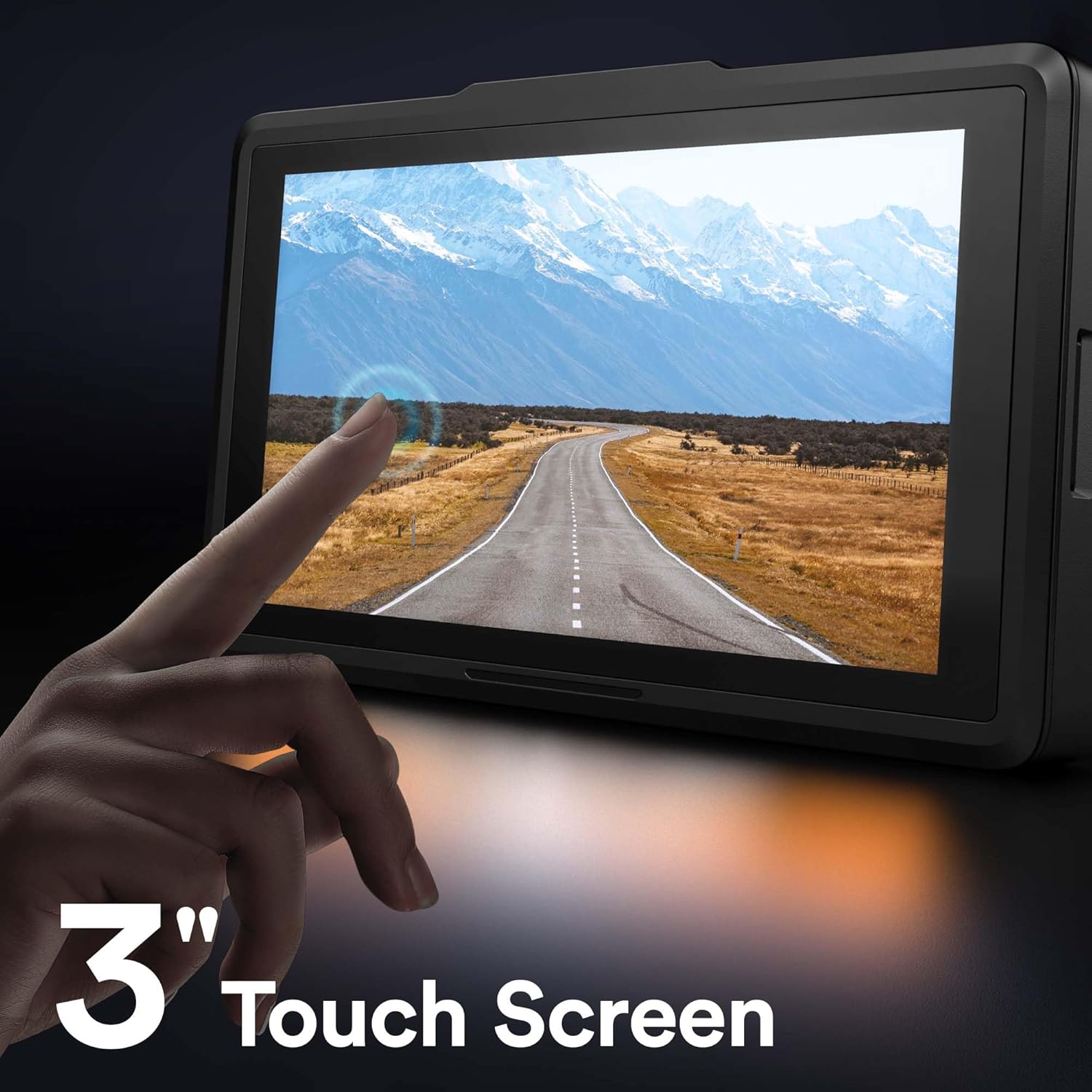
Figure 5.2: The 3-inch IPS touch screen interface.
5.3 GPS функциясы
The built-in GPS module (integrated into the car charger cable) records your driving route, speed, and other location data. This information can be viewed using a dedicated GPS player software on your Windows or Mac computer, providing crucial evidence in case of an incident. Please contact WOLFANG support to obtain the GPS player software.

Figure 5.3: GPS data access via computer and WiFi connectivity for smartphone.
5.4 Built-in WiFi & App Control
The WOLFANG WD01 features built-in WiFi, allowing you to connect your smartphone (iOS or Android) to the dash cam via the "LuckyCam" app. This app provides convenient access to:
- Жашоодон мурунview жазуулардын.
- Жаздырылган видеолорду ойнотуу.
- Adjustment of camera settings.
- Direct download of recorded videos to your smartphone.
- Easy sharing of footage on social media.
Download the "LuckyCam" app from your smartphone's app store. Follow the in-app instructions to connect to your dash cam's WiFi network.

Figure 5.4: Easy access and control via the LuckyCam smartphone application.
5.5 Түнкү көрүнүш
Equipped with an advanced SONY STARVIS sensor, F1.8 large aperture, and TRUE WDR (Wide Dynamic Range) technology, the WD01 dash cam provides enhanced low-light sensitivity, ensuring clear and detailed video recordings even in challenging night-time conditions.
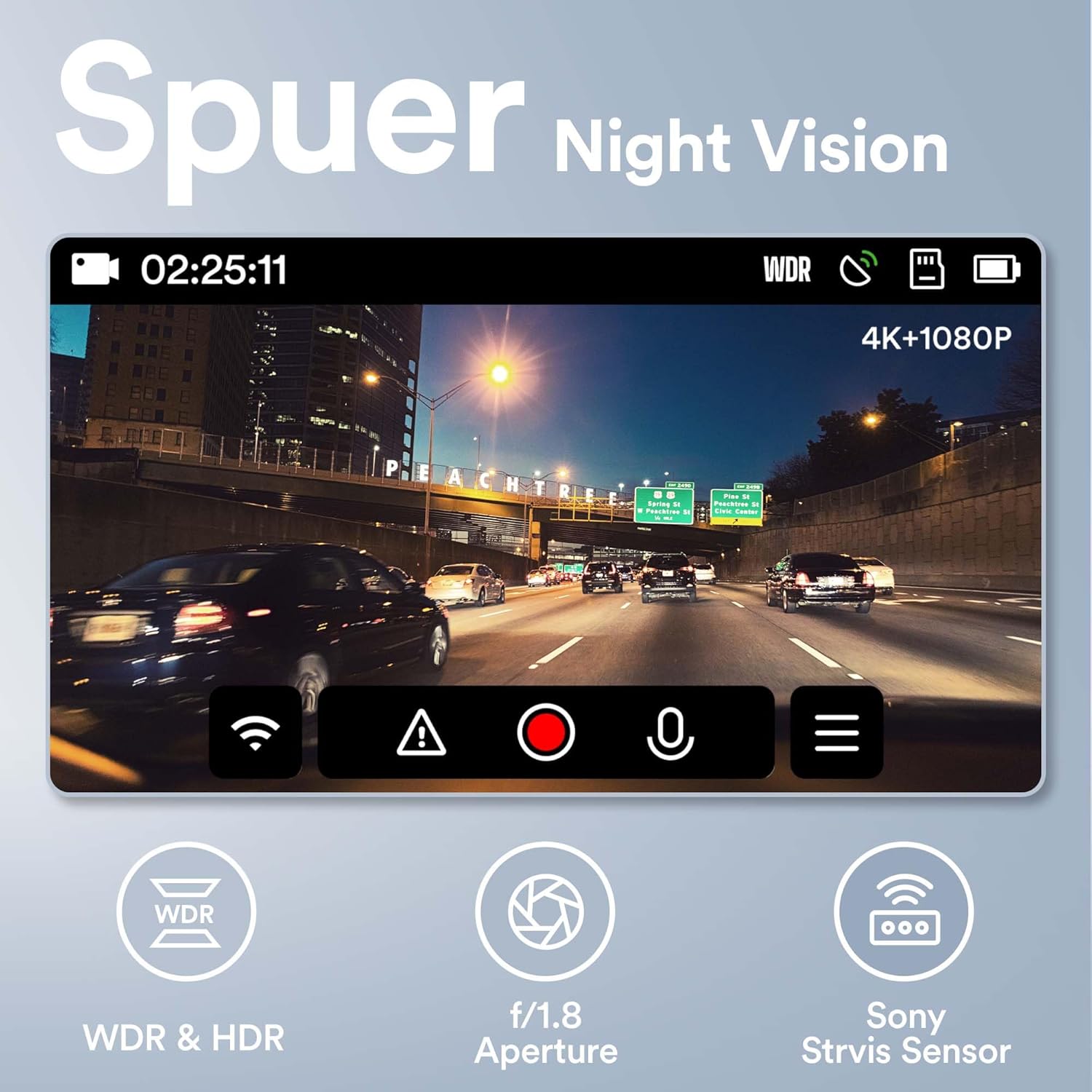
Figure 5.5: Super Night Vision capabilities of the WOLFANG WD01.
5.6 24 сааттык паркинг мониторинги
The 24-hour parking monitoring feature provides continuous protection for your vehicle even when parked. This mode can be activated through the camera settings and typically includes:
- G-сенсор режими: If an impact is detected while parked, the dash cam will automatically power on and record a short video, then power off.
- Убактылуу монитор: Records continuous video at a low frame rate (e.g., 1 frame per second) to save storage space, then plays back at a normal speed, allowing you to review long periods of parking activity quickly.
Note: For continuous 24-hour parking monitoring, a hardwire kit (sold separately) is usually required to provide constant power to the dash cam without draining the car battery.

Figure 5.6: ашыкview of 24-hour parking monitoring features.
6. Техникалык тейлөө
- Тазалоо: Камеранын линзасын жана экранын тазалоо үчүн жумшак, кургак чүпүрөктү колдонуңуз. Абразивдүү тазалагычтарды же эриткичтерди колдонбоңуз.
- TF картасын тейлөө: It is recommended to format the TF card once a month to maintain optimal performance and prevent data corruption. Back up any important videos before formatting.
- Температура: Avoid exposing the dash cam to extreme temperatures (hot or cold) for extended periods, as this can affect battery life and component integrity.
- Программалык камсыздоонун жаңыртуулары: Periodically check the WOLFANG official website for any available firmware updates. Updating the firmware can improve performance and add new features.
7. Кыйынчылыктарды
| Көйгөй | Мүмкүн чечим |
|---|---|
| Dash камерасы күйбөйт. |
|
| Camera stops recording or shows "Card Error". |
|
| Video footage бүдөмүк же түшүнүксүз. |
|
| GPS signal is not found or inaccurate. |
|
| WiFi connection issues with the app. |
|
8. Кепилдик жана колдоо
WOLFANG is committed to providing high-quality products and excellent customer service.
- Кепилдик: The WOLFANG WD01 Dash Cam comes with a one-year warranty from the date of purchase, covering manufacturing defects. Additionally, WOLFANG offers a 3-year quality guarantee.
- Кайтаруулар: You are eligible for a 365-day return policy. Please refer to your purchase platform's return guidelines for specific details.
- Кардарларды колдоо: For any questions, technical assistance, or warranty claims, please contact our professional after-sales team. We offer 24-hour after-sales service.
Байланыш электрондук почтасы: support.vc@wolfang.co
Please provide your product model (WD01) and purchase details when contacting support for faster service.


