Introduction
Logitech Brio 100 - бул Full HD форматындагы видеокарта. webcam designed for clear video calls and online communication. It features a built-in microphone, privacy protection, and automatic light correction to ensure you look and sound your best in various lighting conditions. This manual provides instructions for setup, operation, and maintenance of your Logitech Brio 100 webкамера
Пакеттин мазмуну
Продукцияңыздын таңгагында бардык элементтер бар экенин текшериңиз:
- Logitech Brio 100 Full HD Webcam with built-in USB-A cable
- Колдонуучунун документтери
Жайгашуу
1. Туташуу Webcam
The Logitech Brio 100 webcam is designed for simple plug-and-play installation, requiring no additional software for basic functionality.
- Компьютериңизде (иш тактасы же ноутбук) жеткиликтүү USB-A портун табыңыз.
- Plug the USB-A cable from the Brio 100 webcam firmly into the USB-A port on your computer.
- The webcam will be automatically detected by your operating system (Windows, macOS, ChromeOS). A notification may appear indicating the device is ready for use.
2. Positioning the Webcam
The integrated mounting clip allows for versatile and secure placement of your webкамера
- Монитор/ноутбук экранында: Open the clip and place it securely on top of your monitor or laptop screen, ensuring the front of the webcam faces you. Adjust the angle for optimal viewing.
- On a Desk/Tabletop: Fold the clip to form a stable stand and place the webтегиз бетке камера.

Image: The Logitech Brio 100 webcam shown mounted on a laptop screen, illustrating its flexible clip for easy attachment.
иштетүү Webcam
1. колдонуу Webcam with Applications
The Brio 100 is compatible with most popular video conferencing and recording applications.
- Open your preferred video application (e.g., Zoom, Microsoft Teams, Google Meet, Skype).
- Navigate to the application's settings or preferences, typically found under sections like "Audio & Video," "Devices," or "Camera/Microphone."
- Select "Logitech Brio 100" as your camera and microphone input device.
- Adjust video and audio settings within the application as needed to optimize your experience.
2. Купуялык жапкыч
The Brio 100 features a built-in physical privacy shutter for enhanced security and peace of mind when the webкамера колдонулбайт.
- To activate the privacy shutter, gently slide the physical cover over the lens. This will completely block the camera's view, ensuring your privacy.
- To open the privacy shutter and enable the camera, slide the cover away from the lens.
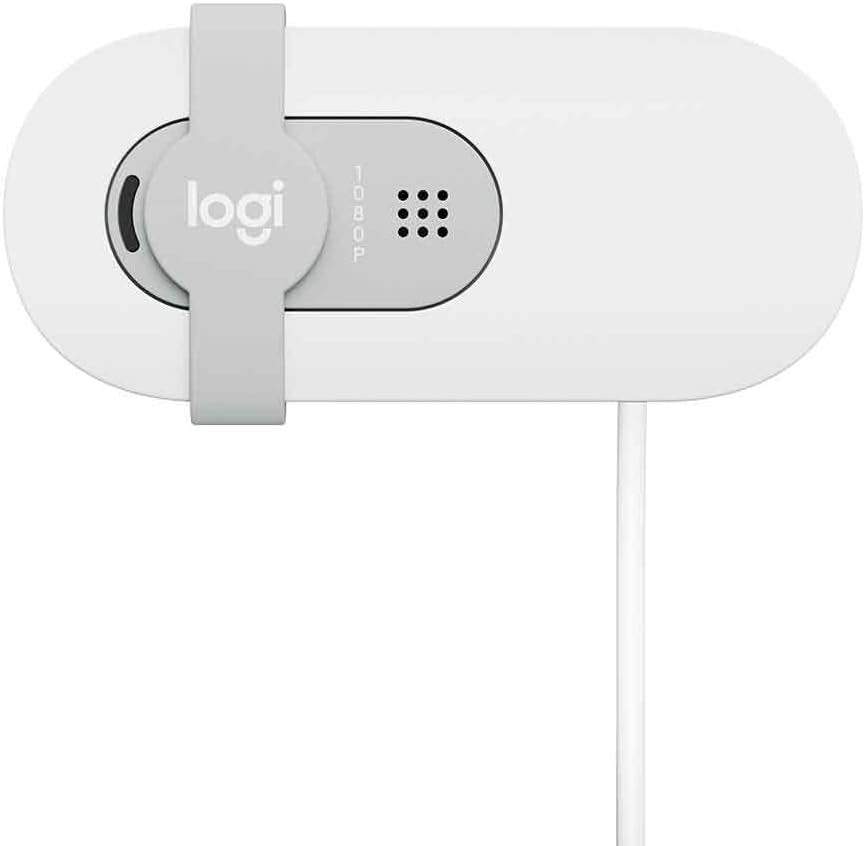
Сүрөт: жогорудан ылдыйга view of the Logitech Brio 100, highlighting the integrated privacy shutter that slides over the lens.
3. Automatic Light Correction (RightLight)
The webcam automatically adjusts to various lighting conditions to ensure you are well-lit and clearly visible.
- The RightLight feature intelligently increases brightness and reduces shadows by up to 50% compared to previous generation Logitech webcams, optimizing your image in dim or uneven lighting.
- This feature operates automatically, requiring no manual adjustment from the user.
4. Камтылган микрофон
The integrated microphone captures clear audio during your calls, eliminating the need for an external microphone.
- Ensure the Logitech Brio 100 is selected as the microphone input in your application's audio settings for optimal performance.
- For the best audio quality, speak clearly and avoid placing the webcam too far from your position.
Техникалык тейлөө
тазалоо Webcam
To maintain optimal performance and appearance of your Logitech Brio 100 webcam, follow these cleaning guidelines:
- Use a soft, lint-free cloth (e.g., microfiber cloth) to gently wipe the lens. Avoid abrasive materials, paper towels, or harsh cleaning chemicals, which can scratch or damage the lens coating.
- For the body of the webcam, a slightly damp cloth can be used. Ensure no moisture enters the device's openings.
- ар дайым камсыз кылуу webcam is disconnected from your computer before performing any cleaning.
Проблемаларды чечүү
Жалпы маселелер жана чечимдер
No Image/Video Output
- USB кабели экөөнө тең бекем туташтырылганын текшериңиз webcam and a functioning USB-A port on your computer.
- Verify that the Logitech Brio 100 is selected as the camera device in your video application's settings.
- Check if the physical privacy shutter is open and not covering the lens.
- туташтырып көрүңүз webкамераны компьютериңиздеги башка USB портуна туташтырыңыз.
- Restart your computer and the video application.
No Audio/Microphone Not Working
- Confirm that "Logitech Brio 100" is selected as the microphone input in your application's audio settings.
- Check your computer's sound settings to ensure the microphone is enabled and not muted.
- Ensure your operating system's privacy settings grant the application permission to access the microphone.
Видеонун сапаты начар
- камсыз кылуу webcam lens is clean (refer to the Maintenance section).
- Жарыктандыруу шарттарыңызды текшериңиз. Ал эми webcam has auto-correction, sufficient and even ambient light is always beneficial for optimal image quality.
- If experiencing lag or pixelation during online calls, verify your internet connection speed and stability.
- Ensure your video application is set to the desired resolution (e.g., 1080p) if adjustable.
WebКамера аныкталган жок
- туташтырып көрүңүз webкамераны компьютериңиздеги башка USB портуна туташтырыңыз.
- Компьютериңизди өчүрүп күйгүзүңүз.
- Check Device Manager (Windows) or System Information (macOS) to see if the device is listed under imaging devices or cameras.
- While typically plug-and-play, visiting the Logitech support website for any specific drivers or troubleshooting tools for your operating system might be helpful in rare cases.
Техникалык шарттар
| Өзгөчөлүк | Деталь |
|---|---|
| Модель номери | 960-001615 |
| Video Resolution | Full HD 1080p |
| Байланыш | USB-A |
| Микрофон | Камтылган |
| Купуялык функциясы | Интеграцияланган купуялык жапкыч |
| Light Correction | RightLight (Automatic) |
| Өлчөмдөрү (H x W x D) | 1.77 x 4.33 x 2.03 дюйм |
| Салмагы | 4.3 унция |
| Шайкеш OS | Windows, macOS, ChromeOS |
Кепилдик жана колдоо
Кепилдик маалымат
Logitech өнүмдөрү, адатта, чектелген жабдык кепилдиги менен келет. Сураныч, расмий Logitech компаниясына кайрылыңыз. website or the warranty card included with your product for specific terms and conditions, including warranty duration and coverage details applicable to your region.
Кардарларды колдоо
For further assistance, technical support, or to download the latest software (if applicable), please visit the official Logitech support webсайт:
You may also find helpful FAQs, troubleshooting guides, and community forums on their webсайт.


