1. Продукт бүтүп калдыview
The VENTION 15-in-1 USB-C MST Docking Station is a versatile and powerful solution designed to expand the connectivity of your USB-C enabled laptop or other compatible devices. It transforms a single USB-C port into a comprehensive workstation, offering multiple display outputs, high-speed data transfer ports, network connectivity, power delivery, and audio capabilities.
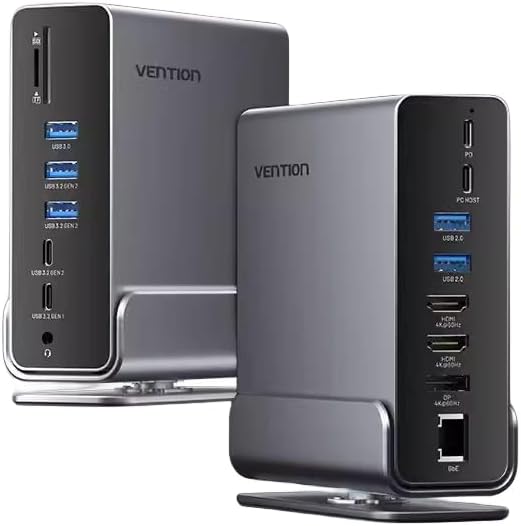
Сүрөт 1.1: Алдыңкы жана арткы view of the Vention 15-in-1 USB-C MST Docking Station, showcasing анын компакттуу конструкциясы жана ар турдуу порттору.
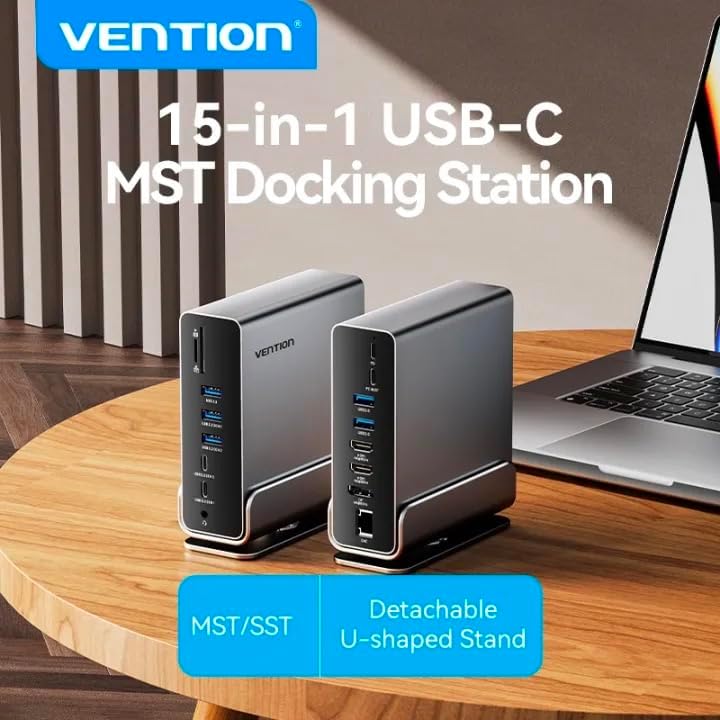
Image 1.2: The Vention 15-in-1 USB-C MST Docking Station connected to a laptop, illustrating its role as a central hub for multiple peripherals.
2. Негизги өзгөчөлүктөрү
- 15-in-1 Multi-Ports: Comprehensive connectivity including DP, HDMI, USB-A, USB-C, RJ45, SD/TF card slots, and 3.5mm audio jack.
- Жогорку ылдамдыктагы маалыматтарды өткөрүп берүү: Up to 10Gbps via USB 3.2 Gen 2 ports, 5Gbps via USB 3.2 Gen 1 and USB 3.0, and 480Mbps via USB 2.0.
- 4K@60Hz HD Display: Supports high-resolution video output for single, dual, or triple monitor setups.
- MST/SST Modes: Enables extended or mirrored display configurations for Windows and macOS systems.
- 100W кубаттуулугу: Provides pass-through charging for your host device.
- Гигабит Ethernet: Integrated RJ45 port for stable 1000Mbps wired network connection.
- SD/TF картасын окуу: Simultaneously read and write from SD and TF cards.
- Detachable U-shaped Stand: Allows for vertical docking and efficient space utilization.

Image 2.1: Detailed diagram illustrating all 15 ports and their functions on the docking station, highlighting its comprehensive connectivity.
3. Пакеттин мазмуну
Пакетти ачкандан кийин бардык буюмдар бар экенин жана жакшы абалда экендигин текшериңиз:
- Vention 15-in-1 USB-C MST Docking Station
- Detachable U-shaped Stand
- Колдонуучунун Колдонмосу (бул документ)
4. Орнотуу колдонмосу
4.1 Attaching the U-shaped Stand
The docking station comes with a detachable U-shaped stand for vertical placement, optimizing desk space and improving heat dissipation.
- Align the grooves on the bottom of the docking station with the rails on the U-shaped stand.
- Gently slide the docking station onto the stand until it clicks securely into place.
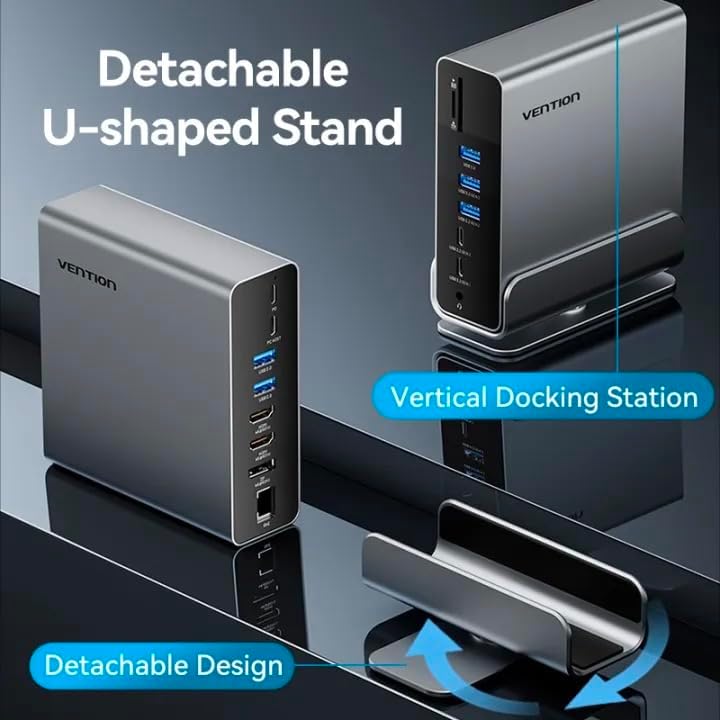
Image 4.1: Illustration of the detachable U-shaped stand and how it supports the docking station in a vertical orientation.
4.2 Хост түзмөгүңүзгө туташуу
Ensure your host device (laptop, smartphone, etc.) has a full-featured USB-C port that supports video output (DisplayPort Alternate Mode), data transfer, and power delivery.
- Connect the USB-C cable from the docking station's Хост порту to the USB-C port on your laptop or compatible device.
- For power delivery to your host device, connect your laptop's original USB-C power adapter to the Кубат жеткирүү (PD) port on the docking station. The docking station supports up to 100W power pass-through.
5. Иштөө нускамалары
5.1 Display Connections (HDMI & DisplayPort)
The docking station supports single, dual, and triple display setups with resolutions up to 4K@60Hz. It supports both MST (Multi-Stream Transport) and SST (Single-Stream Transport) modes.
- Connect your monitors to the HDMI жана/же DP ports on the docking station using appropriate cables.
- MST режими: Allows for extended desktop across multiple displays (Windows) or mirrored/extended displays (macOS, depending on specific model/chipset limitations).
- SST режими: Mirrors the display across all connected monitors.
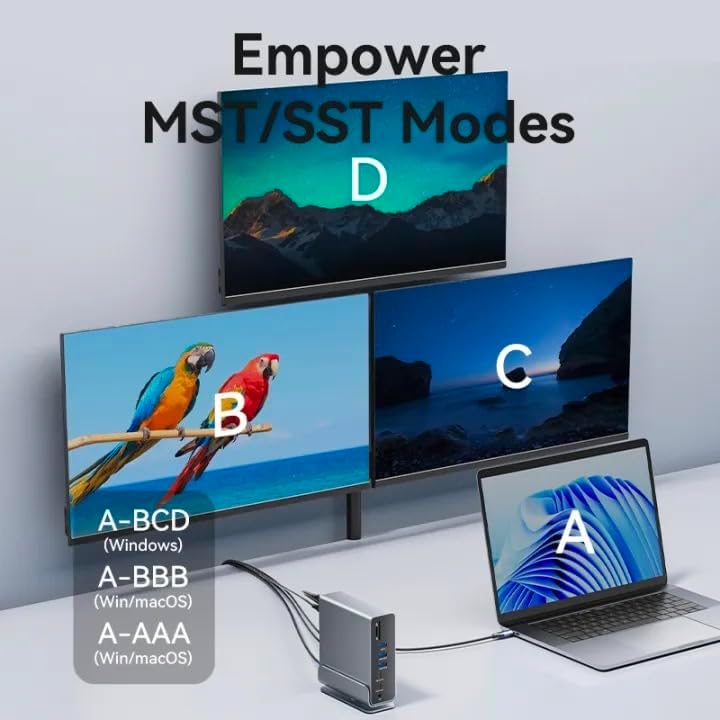
Image 5.1: Visual representation of MST (Multi-Stream Transport) and SST (Single-Stream Transport) display modes, demonstrating how the docking station can extend or mirror your desktop across multiple screens.

Сүрөт 5.2: Мисamples of various display configurations (A-BCD, A-BBB, A-AAA) achievable on both Windows and macOS systems using the docking station.

Image 5.3: Table detailing the maximum resolution performance for single, dual, and triple display setups on Windows and macOS systems, including MST/SST support.
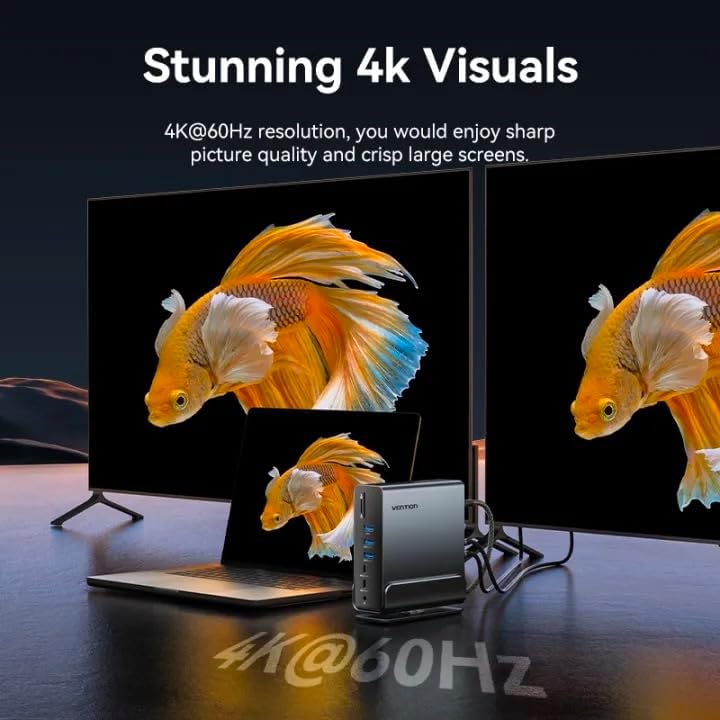
Image 5.4: A visual demonstrating the crisp 4K@60Hz resolution output achievable when connecting displays through the docking station.
5.2 Data Transfer Ports
Connect your USB devices (external hard drives, flash drives, keyboards, mice, etc.) to the available USB ports:
- USB 3.2 Gen 2-C (10Gbps): For high-speed USB-C peripherals.
- USB 3.2 Gen 2-A (10Gbps): For high-speed USB-A peripherals.
- USB 3.2 Gen 1-C (5Gbps): For standard USB-C peripherals.
- USB 3.0-A (5Gbps): For standard USB-A peripherals.
- USB 2.0-A (480Mbps): For peripherals like keyboards, mice, or printers.
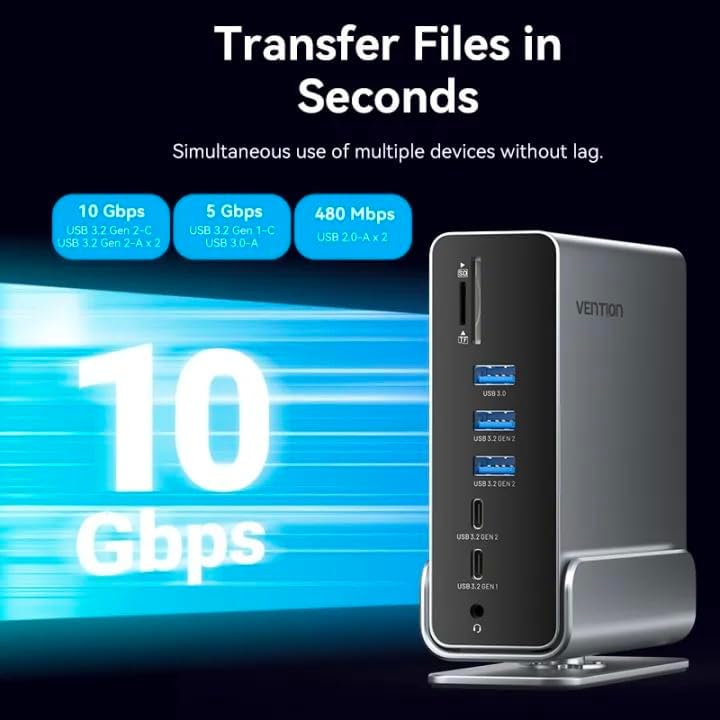
Image 5.5: Illustration highlighting the various data transfer speeds supported by the docking station's USB ports, including 10Gbps, 5Gbps, and 480Mbps.
5.3 Network Connection (RJ45)
For a stable and fast wired internet connection:
- Роутериңизден же модемиңизден Ethernet кабелин туташтырыңыз RJ45 port on the docking station.
- The docking station supports Gigabit Ethernet (1000Mbps).
5.4 Audio Connection (3.5mm TRRS)
Connect your headphones, speakers, or microphone to the 3.5 мм TRRS jack for audio input/output.
5.5 SD/TF картаны окугуч
Insert your SD or TF (microSD) cards into the respective slots. The docking station supports simultaneous reading and writing of two cards.
6. Кыйынчылыктарды
- Дисплей чыгышы жок:
- Хост түзмөгүңүздүн USB-C порту DisplayPort альтернативдик режимин колдоорун текшериңиз.
- Check all cable connections (USB-C to host, HDMI/DP to monitors).
- Try updating your graphics drivers on your host device.
- Restart your host device and reconnect the docking station.
- Электр энергиясын жеткирүү жок:
- Кубат адаптериңиз док станциясындагы PD портуна туташтырылганын текшериңиз.
- Verify your power adapter meets the required wattage for your laptop (e.g., 65W, 100W).
- USB түзмөктөрү таанылбайт:
- USB түзмөгүн док станциясындагы башка портко туташтырып көрүңүз.
- Түзмөк драйверлери хост системаңызга орнотулганын текшериңиз.
- Док станциясын хост түзмөгүңүздөн ажыратып, кайра туташтырыңыз.
- Тармакка туташуу маселелери:
- Ethernet кабелинин док станциясына жана роутерге/модемге туташуусун текшериңиз.
- Хост түзмөгүңүздөгү тармак жөндөөлөрүн текшериңиз.
7. Техникалык шарттар
| Өзгөчөлүк | Description |
|---|---|
| Модель аты | 15-in-1 USB-C MST Docking Station |
| Бренд | ВЕНЦИЯ |
| Хост байланышы | USB-C (толук функциялуу) |
| Video Output | 1x DisplayPort (DP), 2x HDMI (4K@60Hz Max) |
| USB маалымат порттору | 1x USB 3.2 Gen 2 Type-C (10Gbps) 2x USB 3.2 Gen 2 Type-A (10Gbps) 1x USB 3.2 Gen 1 Type-C (5Gbps) 1x USB 3.0 Type-A (5Gbps) 2x USB 2.0 Type-A (480Mbps) |
| Ethernet | 1x RJ45 Gigabit Ethernet (1000Mbps) |
| Card Reader | 1x SD Card Slot, 1x TF (MicroSD) Card Slot (Simultaneous Read/Write) |
| Аудио | 1x 3.5mm TRRS Audio Jack (Microphone/Audio) |
| Power Delivery | Up to 100W (Max) via USB-C PD port |
| Материал | Алюминий Alloy Shell |
| Түс | Боз |
| Шайкеш түзмөктөр | Laptops, Smartphones, Other Type-C Devices |
| Келип чыккан өлкө | Кытай |
8. Кароо жана тейлөө
- Тазалоо: Use a soft, dry cloth to clean the surface of the docking station. Avoid liquid cleaners or abrasive materials.
- Сактагыч: Аппаратты түз күн нурунан жана экстремалдык температурадан алыс салкын, кургак жерде сактаңыз.
- Колдонуу: Түзмөктү түшүрүп алуудан же катуу соккуга кабылтуудан алыс болуңуз. Түзмөктү бөлүктөргө бөлүүгө аракет кылбаңыз.
- Вентиляция: Ensure the ventilation openings are not blocked to prevent overheating, especially when using the vertical stand.
9. Кепилдик жана колдоо
For warranty information and technical support, please refer to the official VENTION webсайтына кириңиз же жергиликтүү дистрибьюторуңузга кайрылыңыз. Кепилдик талаптары үчүн сатып алуу дүмүрчөгүңүздү сактап коюңуз.
For further assistance, you may visit the VENTION Store online: Vention Official Store