1. Продукт бүтүп калдыview
The LETSUNG GoLite 11 Mini PC is a compact and powerful computing solution designed for daily office tasks, home entertainment, and entry-level industrial applications. Powered by an Intel Celeron N4020C processor, it offers reliable performance in a small form factor. This manual provides essential information for setting up, operating, maintaining, and troubleshooting your device.

1-сүрөт: алдыңкы жана каптал view of the LETSUNG GoLite 11 Mini PC, highlighting its compact design and various ports.
2. Орнотуу колдонмосу
2.1 Пакеттин мазмуну
Пакетте бардык буюмдар бар экенин текшериңиз:
- LETSUNG GoLite 11 Мини PC
- Кубаттуу адаптер
- VESA орнотуу кронштейни жана бурамалар
- Колдонуучунун Колдонмосу (бул документ)
2.2 Баштапкы орнотуу
Follow these steps to set up your Mini PC:
- Перифериялык түзүлүштөрдү туташтыруу: Баскычтопуңузду, чычканыңызды жана башка USB түзмөктөрүңүздү жеткиликтүү USB 3.2 портторуна туташтырыңыз.
- Дисплейди туташтыруу: Connect your monitor(s) to the HDMI ports. The device supports up to two displays simultaneously.
- Тармакка туташуу: For wired connection, connect an Ethernet cable to the RJ45 LAN port. For wireless connection, ensure your Wi-Fi network is available.
- Туташуу кубаты: Insert the power adapter into the DC jack on the Mini PC, then plug the adapter into a power outlet.
- Күйгүзүү: Mini PCтин алдыңкы бетинде жайгашкан кубат баскычын басыңыз.

2-сүрөт: Детальдуу view of the Mini PC's ports, including USB 3.2, HDMI, LAN, 3.5mm headphone jack, DC jack, and power button.
3. Иштөө нускамалары
3.1 Күйгүзүү/өчүрүү
- Күйгүзүү үчүн: Кубат баскычын бир жолу басыңыз.
- Жабуу: From the Windows 11 Pro desktop, click the Start button, then Power, and select "Shut down."
- Кайра баштоо үчүн: From the Windows 11 Pro desktop, click the Start button, then Power, and select "Restart."
3.2 Дисплейлерди туташтыруу
The GoLite 11 supports dual display output via its two HDMI 1.4 ports, allowing for a resolution of up to 1920x1080@60Hz on each screen. Simply connect your HDMI cables from the Mini PC to your monitors.

Figure 3: The LETSUNG GoLite 11 Mini PC supporting a dual display setup for enhanced productivity.
3.3 Сактагычты кеңейтүү
The Mini PC comes with a 128GB M.2 SATA SSD. For additional storage, the device supports expansion up to 512GB. Refer to the detailed instructions for M.2 SSD installation if you wish to upgrade the storage capacity.

Figure 4: Visual representation of the 128GB M.2 2280 SATA SSD, which can be expanded up to 512GB.
3.4 Тармак жана байланыш
The Mini PC supports Dual WiFi 5 for high-speed wireless internet access and Bluetooth 4.2 for connecting wireless peripherals such as keyboards, mice, and headphones.
4. Техникалык тейлөө
4.1 Тазалоо
To maintain optimal performance and appearance, regularly clean the exterior of the Mini PC with a soft, dry cloth. Avoid using liquid cleaners or abrasive materials. Ensure the ventilation openings are free from dust and debris.
4.2 Муздатуу системасы
The GoLite 11 features a low-power, low-noise cooling system designed for steady, long-lasting operation. Ensure adequate airflow around the device by not blocking the ventilation holes.
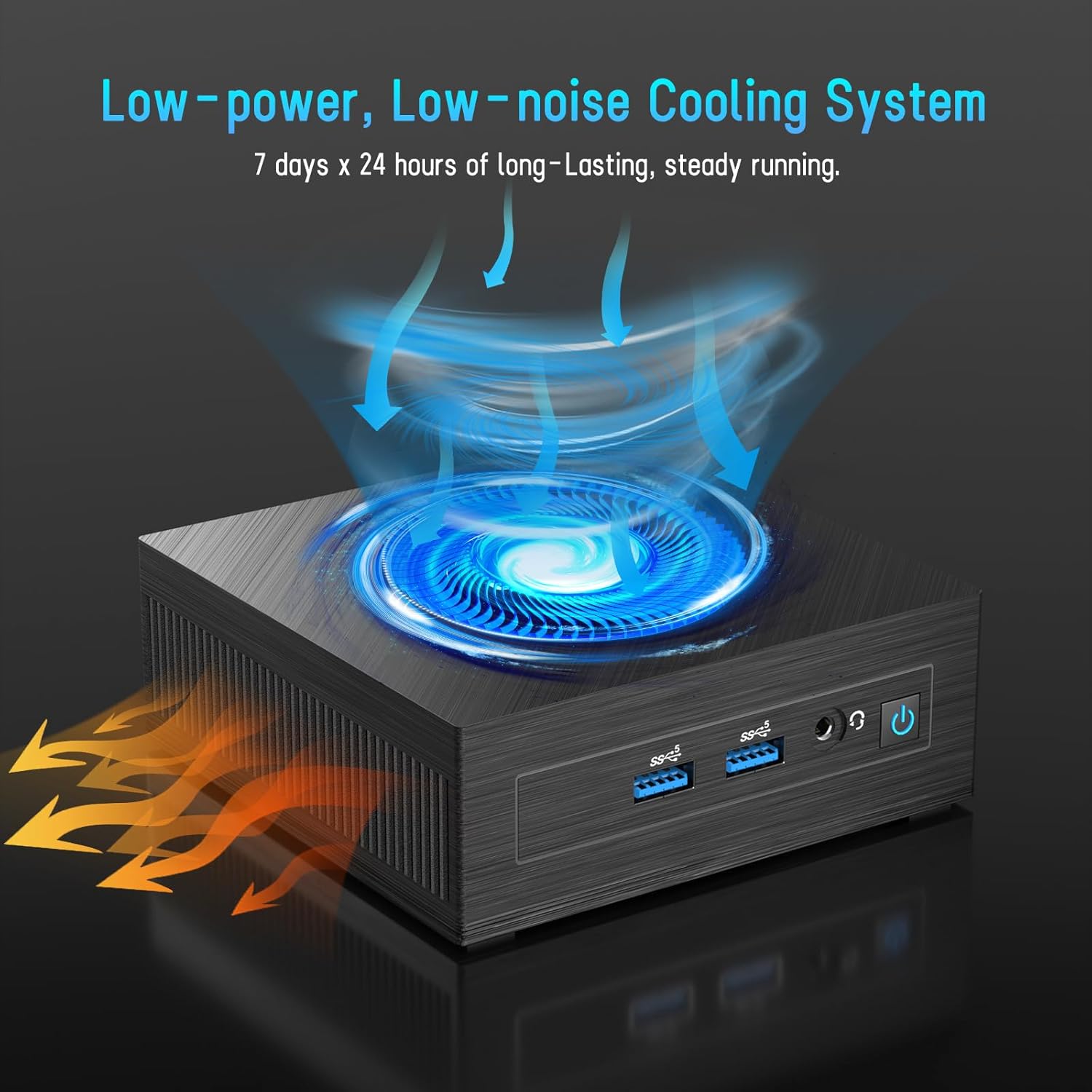
Figure 5: Illustration of the efficient low-power, low-noise cooling system integrated into the Mini PC.
5. Кыйынчылыктарды
If you encounter issues with your LETSUNG GoLite 11 Mini PC, refer to the common problems and solutions below:
- Дисплей чыгышы жок:
- Ensure the HDMI cables are securely connected to both the Mini PC and the monitor.
- Verify the monitor is set to the correct input source (HDMI 1, HDMI 2, etc.).
- Try connecting to a different monitor or using different HDMI cables.
- Кубат маселеси:
- Check if the power adapter is properly connected to the Mini PC and the power outlet.
- Электр розеткасынын иштешин текшериңиз.
- If the device does not power on, try a different power outlet.
- Тармакка туташуу көйгөйлөрү:
- For Wi-Fi, ensure the Wi-Fi adapter is enabled in Windows settings and you are connected to the correct network.
- For wired LAN, check the Ethernet cable connection. Note that the LAN port on this model supports up to 100 Mbps, not Gigabit Ethernet.
- Роутериңизди/модемиңизди өчүрүп күйгүзүңүз.
- Жай аткаруу:
- Фондо иштеп жаткан керексиз тиркемелерди жабыңыз.
- Ensure Windows 11 Pro is up to date.
- Check for sufficient free space on the SSD.
6. Техникалык шарттар
| Өзгөчөлүк | Спецификация |
|---|---|
| Процессор | Intel Celeron N4020C (Dual-Core, up to 2.8 GHz) |
| Графика | Intel UHD Graphics 600 |
| RAM | 6GB LPDDR4 (Integrated, Dual Channel) |
| Сактагыч | 128GB M.2 SATA SSD (Expandable up to 512GB) |
| Операция системасы | Windows 11 Pro (Алдын ала орнотулган) |
| Video Output | 2 x HDMI 1.4 (Supports Dual Display up to 1920x1080@60Hz) |
| USB порттору | 4 x USB 3.2 |
| Network | Dual WiFi 5, RJ45 LAN (100 Mbps) |
| Bluetooth | Bluetooth 4.2 |
| Аудио | 1 x 3.5 мм гарнитура уясы |
| Power Input | DC Jack |
| Өлчөмдөр | 4.53 x 4.43 x 1.61 дюйм (115 мм x 112 мм x 41 мм) |
| Салмагы | Болжол менен 9.66 унция (274 г) |
7. Кепилдик жана колдоо
The LETSUNG GoLite 11 Mini PC comes with a бир жылдык кепилдик сатып алынган күндөн тартып. Бул кепилдик өндүрүштөгү кемчиликтерди камтыйт жана продукттун белгиленген иштешине жооп берерин камсыздайт. Кепилдик дооматтары үчүн сатып алгандыгыңызды тастыктаган документти сактап коюңуз.
For any questions, technical assistance, or troubleshooting not covered in this manual, LETSUNG customer support is available 24/7 to assist you. Please refer to the contact information provided with your product packaging or visit the official LETSUNG webколдоо чоо-жайы үчүн сайт.


