Introduction
Welcome to your Fire TV Stick 4K Max and Luna Controller bundle. This manual provides essential information for setting up, operating, and maintaining your devices to ensure a seamless streaming and cloud gaming experience. This bundle combines the powerful 4K streaming capabilities of the Fire TV Stick 4K Max with the low-latency cloud gaming performance of the Luna Controller.

Image: The Fire TV Stick 4K Max, its accompanying Alexa Voice Remote, and the Luna Controller, showcasing толук топтом.
Эмне камтылган
- Fire TV Stick 4K Max
- Alexa Voice Remote
- Луна контроллери
- Power Adapter for Fire TV Stick
- USB Cable for Fire TV Stick
- HDMI Extender (optional use)
- 2 AAA Batteries for Alexa Voice Remote
- 2 AA Batteries for Luna Controller
Жайгашуу
1. Fire TV Stick 4K Max Setup
- Connect Fire TV Stick: Plug the Fire TV Stick 4K Max directly into an available HDMI port on your TV. For optimal Wi-Fi performance, use the included HDMI extender if the stick is too close to other cables or devices.
- Күйгүзүү: Connect the USB cable to the Fire TV Stick and the power adapter, then plug the adapter into a wall outlet.
- Алыскы батареяларды салыңыз: Open the back of the Alexa Voice Remote and insert the two AAA batteries.
- Киргизүүнү тандоо: Телевизоруңузду күйгүзүп, Fire TV Stick туташкан HDMI киргизүүсүн тандаңыз.
- Экрандагы нускамаларды аткарыңыз: The Fire TV Stick will guide you through language selection, Wi-Fi network connection, and Amazon account registration.

Image: The Fire TV Stick 4K Max and its remote, highlighting features like Wi-Fi 6E support, Fire TV Ambient Experience, Dolby Vision/Atmos, and 16GB storage.
2. Luna Controller Setup
- Батареяларды салыңыз: Open the battery compartment on the back of the Luna Controller and insert the two AA batteries.
- Күйгүзүү: Press and hold the Luna button (circle with a purple ring) for 3 seconds until the light ring around the Luna button turns blue.
- Pairing with Fire TV Stick:
- Ensure your Fire TV Stick is set up and connected to the internet.
- On your Fire TV, navigate to Settings > Controllers & Bluetooth Devices > Amazon Luna Controllers > Add New Luna Controller.
- Follow the on-screen prompts to complete the pairing process. The Luna button light ring will turn solid blue when connected.
- Cloud Direct Connection: For optimal low-latency gaming, the Luna Controller connects directly to Amazon's custom game servers via Wi-Fi. Ensure your Fire TV Stick and Luna Controller are on the same Wi-Fi network.
- Bluetooth туташуусу (кошумча): The Luna Controller can also connect via Bluetooth to compatible devices (e.g., PCs, Macs, Android phones, iPhones). To switch to Bluetooth mode, press and hold the Luna button and the 'B' button simultaneously for 3 seconds until the light ring flashes white. Then, pair it like any other Bluetooth device.

Сүрөт: жакын план view of the Luna Controller's buttons, highlighting its precise and responsive controls.
Иштеп жатат
1. Using Fire TV Stick 4K Max for Streaming
- Навигация: Use the Alexa Voice Remote's directional pad to navigate menus, select content, and control playback.
- Үн буйруктары: Press and hold the microphone button on the Alexa Voice Remote and speak your commands (e.g., "Open Netflix," "Find action movies," "Play Fortnite").
- Колдонмо орнотуу: Download and install your favorite streaming apps from the Appstore on your Fire TV.
- Ambient Experience: The Fire TV Stick 4K Max features an Ambient Experience, transforming your TV into a smart display when not in use, showing art, photos, or useful information.

Image: A visual representation of various streaming service logos, indicating the wide range of content available on Fire TV devices.
2. Using Luna Controller for Cloud Gaming
- Луна колдонмосу: Download the Luna app on your Fire TV Stick 4K Max. This app is your gateway to the Luna cloud gaming service.
- Оюн тандоо: Browse and select games directly from the Luna app.
- Cloud Direct Advantage: The Luna Controller's Cloud Direct technology connects directly to Amazon's cloud gaming servers, reducing input lag compared to traditional Bluetooth connections.
- Subscription Requirements: Access to Luna games typically requires a Prime membership or a Luna+ subscription. Specific game libraries (e.g., Ubisoft+, Jackbox Games) may require additional subscriptions.

Image: A person playing the game Fortnite on a large screen TV using the Luna Controller, demonstrating the cloud gaming experience.
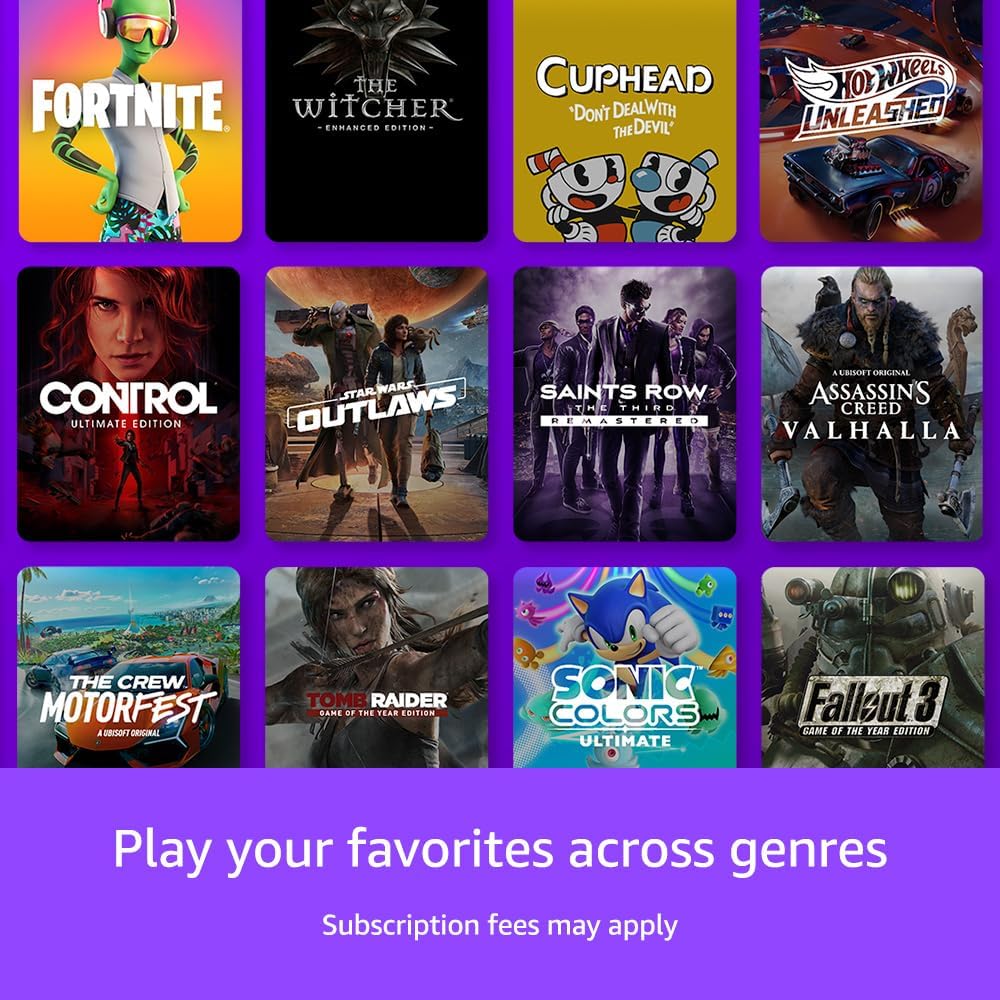
Image: A collage of popular game titles, illustrating the diverse selection of games available across different genres on the Luna platform.
Техникалык тейлөө
- Тазалоо: Use a soft, dry, lint-free cloth to clean the Fire TV Stick, remote, and Luna Controller. Do not use abrasive cleaners or solvents.
- Программалык камсыздоо жаңыртуулары: Your Fire TV Stick 4K Max will automatically download and install software updates when connected to the internet. Ensure it remains connected to receive critical updates.
- Luna Controller Batteries: Replace the AA batteries in your Luna Controller when the light ring around the Luna button flashes red, indicating low battery.
- Сактагыч: When not in use for extended periods, store devices in a cool, dry place away from direct sunlight and extreme temperatures.
Проблемаларды чечүү
Fire TV Stick Issues
- Кубат жок/Сигнал жок:
- Ensure the Fire TV Stick is properly plugged into the HDMI port and the power adapter is connected to a working outlet.
- Телевизоруңуз туура HDMI киргизүүсүнө коюлганын текшериңиз.
- Башка HDMI портун же розетканы колдонуп көрүңүз.
- Алыстан жооп бербейт:
- AAA батареяларын алмаштырыңыз.
- Pair the remote again by holding the Home button for 10 seconds near the Fire TV Stick.
- Wi-Fi туташуу көйгөйлөрү:
- Wi-Fi роутериңизди жана модемиңизди өчүрүп күйгүзүңүз.
- Go to Fire TV Settings > Network and try reconnecting or forgetting and re-adding your network.
- Ensure the Fire TV Stick is within range of your Wi-Fi router.
Luna Controller Issues
- Контроллер туташпай жатат:
- Ensure the Luna Controller has fresh AA batteries.
- Verify the controller is powered on (blue light ring).
- Re-pair the controller through the Fire TV Settings > Controllers & Bluetooth Devices menu.
- Ensure your Fire TV Stick and Luna Controller are on the same Wi-Fi network for Cloud Direct.
- Input Lag/Performance Issues in Games:
- Check your internet connection speed. Luna requires a stable, high-speed connection (at least 10 Mbps for 1080p).
- Reduce Wi-Fi interference by moving your router or Fire TV Stick.
- Ensure no other devices are heavily using your network bandwidth.
- Confirm the Luna Controller is connected via Cloud Direct (solid blue light) for optimal performance.
Техникалык шарттар
Fire TV Stick 4K Max
- Чечим: Up to 4K Ultra HD (2160p) at 60 fps
- HDR колдоо: Dolby Vision, HDR10, HDR10+, HLG
- Аудио колдоо: Dolby Atmos, 7.1 surround sound, 2-channel stereo, HDMI audio pass-through up to 5.1
- Процессор: Төрт ядролуу 1.8 ГГц
- GPU: 750 МГц
- Сактагыч: 16 ГБ ички сактагыч
- Wi-Fi: Wi-Fi 6E (802.11ax) tri-band, dual-band (2.4 GHz, 5 GHz)
- Bluetooth: Bluetooth 5.0 + LE
- Порттор: HDMI output, Micro-USB for power only
Луна контроллери
- Байланыш: Cloud Direct (Wi-Fi), Bluetooth, USB-C (wired)
- Күч: 2 АА батарейка
- Баскычтар: Standard gamepad layout (A, B, X, Y, D-pad, joysticks, shoulder buttons, triggers, Luna button, menu buttons)
- Haptics: Dual rumble motors
Кепилдик жана колдоо
For warranty information and customer support, please refer to the official Amazon support website or contact Amazon Customer Service directly. You can find detailed warranty terms and conditions, as well as troubleshooting guides and FAQs, by visiting amazon.com/devicesupport.


