1. Киришүү
This document serves as a comprehensive guide for the Dell Precision 7540 Mobile Workstation. It provides detailed instructions for initial setup, operation, maintenance, and troubleshooting to ensure optimal performance and longevity of your device. The Dell Precision 7540 is a powerful mobile workstation designed for demanding professional tasks, featuring a 15.6-inch Full HD IPS display, a 9th Generation Intel Core i7-9850H processor, 32GB of DDR4 RAM, and a 512GB NVMe PCIe Solid State Drive.

Figure 1: Dell Precision 7540 Laptop (Closed View)
2. Кутуда эмне бар
Upon unboxing your Dell Precision 7540, please verify that all the following items are included:
- Dell Precision 7540 Laptop
- AC адаптер
- Батарея
- Документтер (анын ичинде бул колдонмо)
- Webкамера (интеграцияланган)
3. Орнотуу
3.1 Баштапкы кубаттуулук
- Connect the AC adapter to the power port on the laptop and then to a power outlet.
- Ноутбуктун капкагын ачыңыз.
- Адатта баскычтоптун жогорку оң бурчунда жайгашкан кубат баскычын басыңыз.
- Windows 10 Home орнотуусун аяктоо үчүн экрандагы нускамаларды аткарыңыз.
3.2 Перифериялык түзүлүштөрдү туташтыруу
The Dell Precision 7540 offers a variety of ports for connecting external devices:
- USB-A порттору: Чычкан, клавиатура же тышкы сактагыч сыяктуу USB түзмөктөрүн туташтырыңыз.
- USB-C Thunderbolt 3 Ports: For high-speed data transfer, video output, and charging compatible devices.
- HDMI 2.0 Output: Тышкы дисплейлерге же проекторлорго туташуу.
- Mini DisplayPort 1.4 Output: Another option for connecting to external displays.
- 3.5 mm Headphone Output: Кулакчындарга же тышкы динамиктерге аудио чыгаруу үчүн.
- RJ45 (Ethernet) порту: Зымдуу тармак туташуусу үчүн.
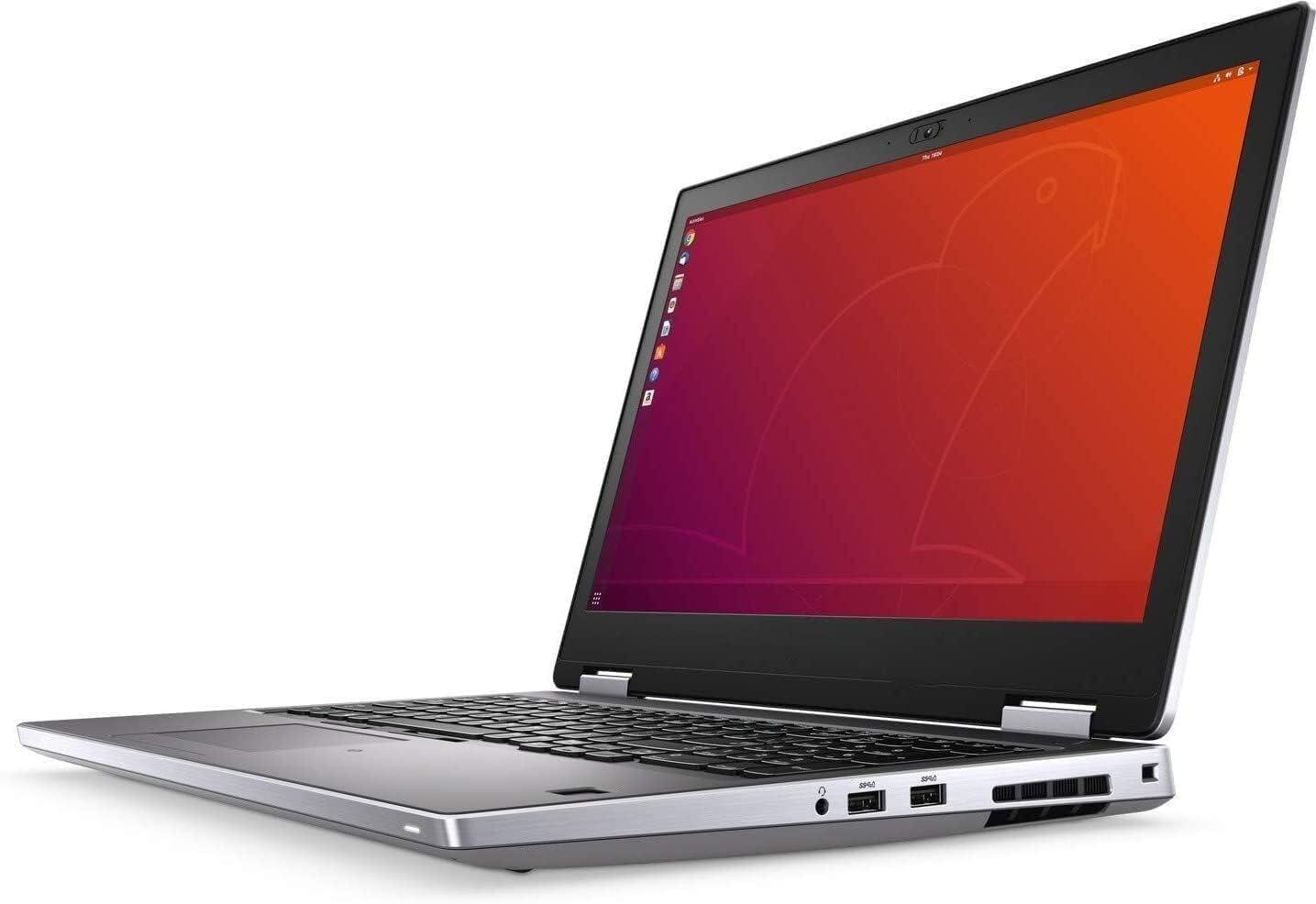
2-сүрөт: Каптал View Байланыш порттору менен
4. Иштөө нускамалары
4.1 Баскычтоп жана сенсордук такта
The laptop features an Internal US English Dual Pointing Backlit Keyboard for comfortable typing in various lighting conditions. The touchpad supports multi-touch gestures for navigation.

Figure 3: Open Laptop View
4.2 Дисплей
The 15.6-inch UltraSharp FHD IPS (1920 x 1080) Anti-Glare, Non-Touch Display provides clear visuals. Adjust brightness and display settings through the Windows operating system.
4.3 Webcam
The integrated camera and microphone are suitable for video conferencing and online communication.
5. Техникалык шарттар
| Өзгөчөлүк | Деталь |
|---|---|
| Процессор | 9th Generation Intel Core i7-9850H (6 Cores, 12 Threads, 2.60GHz, 4.60GHz Turbo, 12MB Cache) |
| Операция системасы | Windows 10 Home |
| Дисплей | 15.6" UltraSharp FHD IPS (1920 x1080) Anti-Glare, Non-Touch Display |
| Эс | 32 ГБ DDR4 эс тутуму |
| Сактагыч | 512GB NVMe PCIe Solid State Drive |
| Графика | NVIDIA Quadro T2000 w/4GB GDDR5 |
| Байланыш | Intel Wi-Fi 6 AX200 2x2 .11ax 160MHz + Bluetooth 5.1 |
| Порттар | 2 x USB-A 3.0, 2 x USB-C Thunderbolt 3, 1 x HDMI 2.0, 1 x Mini DisplayPort 1.4, 1 x 3.5 mm Headphone Output, 1 x RJ45 |
| Батарея | 6 Cell 97 WHr Long Life Cycle Lithium Ion Polymer Battery |
| Өлчөмдөрү (HxWxD) | 0.98 x 14.87 x 9.89 дюйм (25 x 377.6 x 251.3 мм) |
| Салмагы | Starts at 5.56 lb (2.52 kg) |
6. Техникалык тейлөө
6.1 Тазалоо
- Экранды жана сырткы беттерди тазалоо үчүн жумшак, түксүз чүпүрөктү колдонуңуз.
- Катуу химиялык заттарды же абразивдүү материалдарды колдонуудан алыс болуңуз.
- For the keyboard, use compressed air to remove dust and debris.
6.2 Программалык камсыздоо жаңыртуулары
Regularly update your operating system and drivers to ensure security and optimal performance. Windows Update can be accessed through the Settings menu.
6.3 Батареяга кам көрүү
To prolong battery life, avoid extreme temperatures and fully discharging the battery frequently. Store the laptop in a cool, dry place when not in use for extended periods.
7. Кыйынчылыктарды
7.1 Электр энергиясы маселелери
- Ноутбук күйбөй жатат: Ensure the AC adapter is securely connected and the power outlet is functional. Try a different outlet if necessary.
- Батарея кубатталбай жатат: Check the AC adapter and cable for damage. Ensure the battery is properly seated (if removable).
7.2 Дисплей көйгөйлөрү
- Бош экран: Көйгөй ноутбуктун дисплейинде экенин текшерүү үчүн тышкы мониторду туташтырыңыз. Ноутбукту өчүрүп-күйгүзүңүз.
- Жаркылдаган экран: Графикалык драйверлериңизди жаңыртыңыз. Windows жөндөөлөрүнөн дисплейдин жаңыртуу жыштыгын тууралаңыз.
7.3 Ишти аткаруу маселелери
- Жай аткаруу: Керексиз тиркемелерди жабыңыз. Зыяндуу программаларды текшериңиз. SSDде жетиштүү бош орун бар экенин текшериңиз.
- Ашыкча ысып кетүү: Ensure ventilation vents are clear. Use the laptop on a hard, flat surface.
8. Кепилдик жана колдоо
For warranty information and technical support, please refer to the official Dell support website or the documentation included with your product. Keep your product's serial number handy when contacting support.