
Keychron M6-A1
Keychron M6 зымсыз оптикалык чычкан колдонуучусунун колдонмосу
Model: M6-A1
1. Киришүү
This manual provides comprehensive instructions for the Keychron M6 Wireless Optical Mouse. It covers setup, operation, maintenance, and troubleshooting to ensure optimal performance and longevity of your device. The Keychron M6 is a high-performance wireless mouse designed for productivity and gaming, featuring multiple connectivity options, a precise sensor, and customizable buttons.

Figure 1: Keychron M6 Wireless Optical Mouse (Black)
This image shows the Keychron M6 wireless optical mouse in black, highlighting its ergonomic design and sleek appearance. A separate component, likely a wireless receiver, is also visible to the right.
2. Негизги өзгөчөлүктөрү
- Ар тараптуу байланыш: Supports 2.4 GHz wireless, Bluetooth 5.1, and wired USB connections.
- Добуш берүүнүн жогорку көрсөткүчү: Up to 4000 Hz polling rate for ultra-low latency response.
- Precise Sensor: Equipped with PixArt 3395 sensor, offering up to 26,000 DPI and 650 IPS.
- Жеңил дизайн: Weighs approximately 78g for comfortable extended use.
- Программалануучу баскычтар: Over ten customizable buttons and an infinite scroll wheel.
- Программалык камсыздоону ыңгайлаштыруу: Keychron Engine software for macOS/Windows allows personalization of keys, shortcuts, macros, LOD, polling rate, and DPI settings.

Figure 2: Key Features of Keychron M6 Mouse
This image visually highlights the key features of the Keychron M6 mouse, including its infinite scroll wheel, 4000 Hz polling rate, up to 26000 DPI, and 78g lightweight design.
3. Пакеттин мазмуну
Пакетте бардык буюмдар бар экенин текшериңиз:
- 1x Keychron M6 Wireless Optical Mouse
- 1x Type-C - Type-C кабели
- 1x Type-A to Type-C адаптер
- 1x 4K Wireless Receiver

Figure 3: Standard Version (4K) Package Contents
This image illustrates the contents included with the Keychron M6 mouse, showing the mouse itself, a USB-C cable, a USB-A to USB-C adapter, and the 4K wireless receiver.
4. Орнотуу колдонмосу
4.1 Чычканды заряддоо
The Keychron M6 mouse comes with a built-in 800 mAh battery. Before first use, it is recommended to fully charge the mouse.
- Connect the provided Type-C cable to the mouse's charging port.
- Кабелдин экинчи учун USB кубат булагына туташтырыңыз (мисалы, компьютердин USB порту, USB дубал адаптери).
- The charging indicator light will show the charging status. A full charge can provide up to 80 hours of use.

Figure 4: Mouse Dimensions and Battery Life
This image provides the physical dimensions of the Keychron M6 mouse and highlights its 800 mAh battery, which offers up to 80 hours of usage. It also shows the Huano 80M Micro Switch and DPI/Report Rate adjustment buttons.
4.2 Чычканды туташтыруу
The Keychron M6 supports three connection modes: 2.4 GHz wireless, Bluetooth 5.1, and wired USB.
4.2.1 2.4 ГГц зымсыз байланыш
- Locate the 4K wireless receiver included in the package.
- 4K зымсыз кабыл алгычын компьютериңиздеги жеткиликтүү USB портуна сайыңыз.
- On the bottom of the mouse, slide the switch to the "2.4G" position.
- Чычкан автоматтык түрдө ресиверге туташып турушу керек.

Сүрөт 5: Байланыш параметрлери
This image illustrates the stable and ultra-low latency response of the Keychron M6 mouse, showcasing its 2.4GHz, Bluetooth 5.1, and USB Wired connectivity options.
4.2.2 Bluetooth 5.1 туташуу
- On the bottom of the mouse, slide the switch to the "B" (Bluetooth) position.
- Чычкан жупташтыруу режимине өтөт (индикатор жарыгы күйүп-өчүшү мүмкүн).
- Компьютериңизде же түзмөгүңүздө Bluetooth жөндөөлөрүн ачып, жаңы түзмөктөрдү издеңиз.
- Select "Keychron M6" from the list of available devices to pair.
4.2.3 Зымдуу USB туташуусу
- Connect the provided Type-C cable to the mouse's port.
- Connect the other end of the cable (using the Type-A adapter if necessary) to a USB port on your computer.
- The mouse will function immediately in wired mode.
5. Иштөө нускамалары
5.1 DPI жөндөө
The Keychron M6 mouse allows for on-the-fly DPI adjustment without software.
- Locate the DPI button on the bottom of the mouse.
- Press the DPI button to cycle through different DPI levels. The indicator light may change color to indicate the current DPI setting.
- Fine-tune DPI settings using the Keychron Engine software for more precise control.

Figure 6: DPI and Report Rate Adjustment Buttons
This close-up image shows the buttons on the underside of the Keychron M6 mouse, specifically highlighting the DPI adjustment button and the G/OFF/B switch for connectivity modes, along with the Report Rate button.
5.2 Добуш берүү көрсөткүчүн тууралоо
The polling rate can be adjusted to optimize responsiveness for different uses.
- Locate the Report Rate button on the bottom of the mouse.
- Press the Report Rate button to cycle through available polling rates (e.g., 125 Hz, 500 Hz, 1000 Hz, 2000 Hz, 4000 Hz).
- Refer to the table below for indicator light meanings.

Figure 7: M6 (4000 Hz) Polling Rate and Indicator Guide
This image displays a table detailing the polling rates (Hz) and corresponding report rate light indicators (White, Blue, Red, Blue + Red, White + Red) for the Keychron M6 mouse, along with the available connection modes for each rate.
5.3 Customizing Buttons and Macros (Keychron Engine Software)
Өркүндөтүлгөн ыңгайлаштыруу үчүн, Keychron Engine программасын расмий Keychronдон жүктөп алып, орнотуңуз. webсайт.
- The software allows you to remap buttons, create custom shortcuts, and set up complex macros.
- Adjust Lift-Off Distance (LOD) and other sensor parameters.
- Бир нече адисти башкарууfileар кандай колдонмолор же оюндар үчүн.
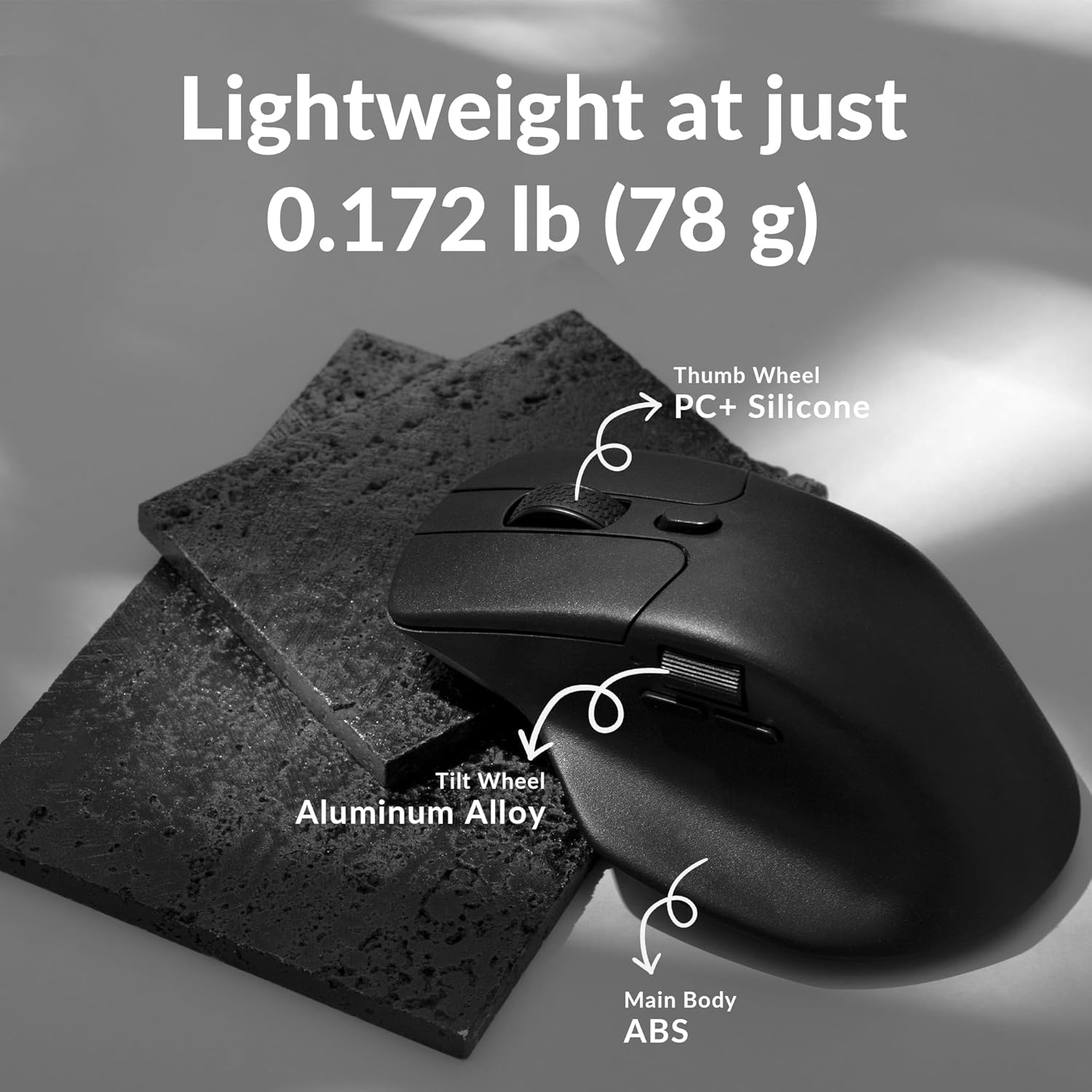
Figure 8: Keychron Engine Software for Customization
This image shows the user interface of the Keychron Engine software, demonstrating how users can customize buttons and settings for the Keychron M6 mouse on macOS and Windows operating systems.
6. Техникалык тейлөө
Proper maintenance ensures the longevity and optimal performance of your Keychron M6 mouse.
- Тазалоо: Чычкандын бетин сүртүү үчүн жумшак, кургак чүпүрөктү колдонуңуз. өжөр кир үчүн, бир аз гampчүпүрөктү суу же жумшак тазалоо эритмеси менен жууп салыңыз. Катуу химиялык заттардан алыс болуңуз.
- Сенсорго кам көрүү: Чычкандын түбүндөгү оптикалык сенсорду таза жана чаңдан же таштандылардан таза кармаңыз. Зарыл болсо, пахта таякчасын же кысылган абаны колдонуңуз.
- Сактагыч: Узак мөөнөткө колдонулбаганда, чычканды күн нурунан жана экстремалдык температурадан алыс салкын, кургак жерде сактаңыз.
- Батареянын иштөө мөөнөтү: To preserve battery health, avoid fully discharging the battery frequently. Charge the mouse when the battery indicator is low.
7. Кыйынчылыктарды
| Көйгөй | Мүмкүн себеп | Чечим |
|---|---|---|
| Чычкан жооп бербей жатат (Зымсыз) | Батарея аз; Ресивер сайылган эмес; Туура эмес режим тандалып алынган; Интерференция. | Charge the mouse; Ensure 4K receiver is securely plugged in; Switch to 2.4G or Bluetooth mode; Move closer to receiver or reduce interference sources. |
| Чычкан жооп бербей жатат (зымдуу) | Кабель туура туташкан эмес; USB порту иштебейт. | USB-C кабелинин чычканга да, компьютерге да бекем туташтырылганын текшериңиз; Башка USB портун колдонуп көрүңүз. |
| Кечигүү же туруксуз кыймыл | Dirty sensor; Surface issues; Low battery; Wireless interference. | Clean the optical sensor; Use on a clean, non-reflective mouse pad; Charge the mouse; Minimize other wireless devices nearby. |
| Баскычтар күтүлгөндөй иштебей жатат | Software settings; Driver issues. | Check Keychron Engine software settings for button assignments; Reinstall mouse drivers if necessary. |
| Bluetooth аркылуу туташуу мүмкүн эмес | Mouse not in pairing mode; Bluetooth on device is off; Already paired to another device. | Ensure mouse is in Bluetooth pairing mode; Enable Bluetooth on your device; Unpair from other devices or reset Bluetooth connection. |
8. Техникалык шарттар
| Өзгөчөлүк | Деталь |
|---|---|
| Модель номери | M6-A1 |
| Байланыш | 2.4 ГГц зымсыз, Bluetooth 5.1, USB зымдуу |
| Сенсор | PixArt 3395 оптикалык сенсор |
| DPI диапазону | 26,000 XNUMX DPI чейин |
| IPS | 650IPS |
| Добуш берүү көрсөткүчү | 4000 Гц чейин |
| Салмагы | Болжол менен 78г (2.75 унция) |
| Батарея | 800 мАч (80 саатка чейин) |
| Өлчөмдөр | 4.82 x 2.97 x 1.97 дюйм (122.5 x 75.4 x 50 мм) |
| Операциялык системанын шайкештиги | Windows, macOS, Linux |
9. Кепилдик жана колдоо
Keychron products typically come with a limited warranty. Please refer to the official Keychron webбелгилүү бир кепилдик шарттары жана шарттары үчүн сайт же сатып алуу документтери.
For technical support, driver downloads, or further assistance, please visit the official Keychron support page:
You can also find the official user guide PDF here: Keychron M6 User Guide (PDF)
Ask a question about this manual
Ask about setup, troubleshooting, compatibility, parts, safety, or missing instructions. Manuals+ will review the question and use this page’s manual context to help answer it.