
1. Киришүү
Thank you for choosing the NEWQ Steam Deck Dock. This 4-in-1 accessory is designed to enhance your gaming experience by providing essential connectivity for your Steam Deck or Steam Deck OLED. It features a foldable stand for portability and desktop use, allowing you to connect to external displays, peripherals, and power sources with ease.
2. Негизги өзгөчөлүктөрү
- 4-ин-1 Дизайн: Integrates HDMI 2.0 4K@60Hz output, two USB-A 3.0 ports, and a 100W Max PD-in USB-C port for comprehensive connectivity.
- Unique Handheld Mode: Enables controller-free gaming on an external monitor by using the Steam Deck as a wired joystick via an HDMI cable.
- Portable Stand Design: Lightweight (78g) and slim, with a hidden foldable kickstand for convenient outdoor or desktop use.
- High Refresh Rate Display: HDMI 2.0 supports 4K resolution at 60Hz, delivering crystal-clear and smooth graphics for an immersive gaming experience.
- Тез кубаттоо: Supports up to 100W Power Delivery (PD-in) to ensure your Steam Deck remains charged during use (Note: Max charging power for Steam Deck is 45W).
- Жогорку ылдамдыктагы маалыматтарды өткөрүп берүү: USB-A 3.0 ports offer 5Gbps data transfer speeds for connecting various peripherals.
3. Пакеттин мазмуну
- NEWQ 4-in-1 Steam Deck Dock (USB3.0 Version) x 1
- Колдонуучунун колдонмосу x 1
4. Орнотуу нускамалары
- Attach the Dock: Align the NEWQ Steam Deck Dock with the top edge of your Steam Deck. Gently slide and clip the dock onto the device, ensuring the integrated USB-C connector plugs securely into the Steam Deck's USB-C port. The dock is designed to not block the rear ventilation.
- Кубат туташтыруу (милдеттүү эмес): For charging your Steam Deck or powering connected peripherals, plug a compatible USB-C power adapter (up to 100W) into the dock's 'PD-in' USB-C port.
- Дисплейге туташуу (милдеттүү эмес): To output video to an external monitor or TV, connect an HDMI cable from your display to the HDMI 2.0 port on the dock. Ensure your display is set to the correct input source.
- USB перифериялык түзүлүштөрүн туташтыруу (милдеттүү эмес): Plug your USB-A devices, such as a keyboard, mouse, or external storage, into the two USB-A 3.0 ports on the dock.

Image: The NEWQ Steam Deck Dock securely attached to a Steam Deck, highlighting its compact form factor and accessible ports.

Сүрөт: деталдуу view of the NEWQ Steam Deck Dock's connectivity options, including two blue USB-A 3.0 ports, an HDMI 2.0 port, and a USB-C PD-in port.
5. Иштөө нускамалары
5.1. Using the Foldable Stand
The dock features a built-in foldable kickstand. To use it, simply pull out the stand from the back of the dock until it locks into place. This allows your Steam Deck to stand upright on a flat surface for comfortable viewing or desktop mode.
5.2. Тышкы дисплейге туташуу
Once the HDMI cable is connected from the dock to your monitor, your Steam Deck should automatically detect the external display. You may need to adjust display settings within the Steam Deck's operating system (SteamOS or Desktop Mode) to configure resolution, refresh rate, and display arrangement (e.g., mirror or extend display).
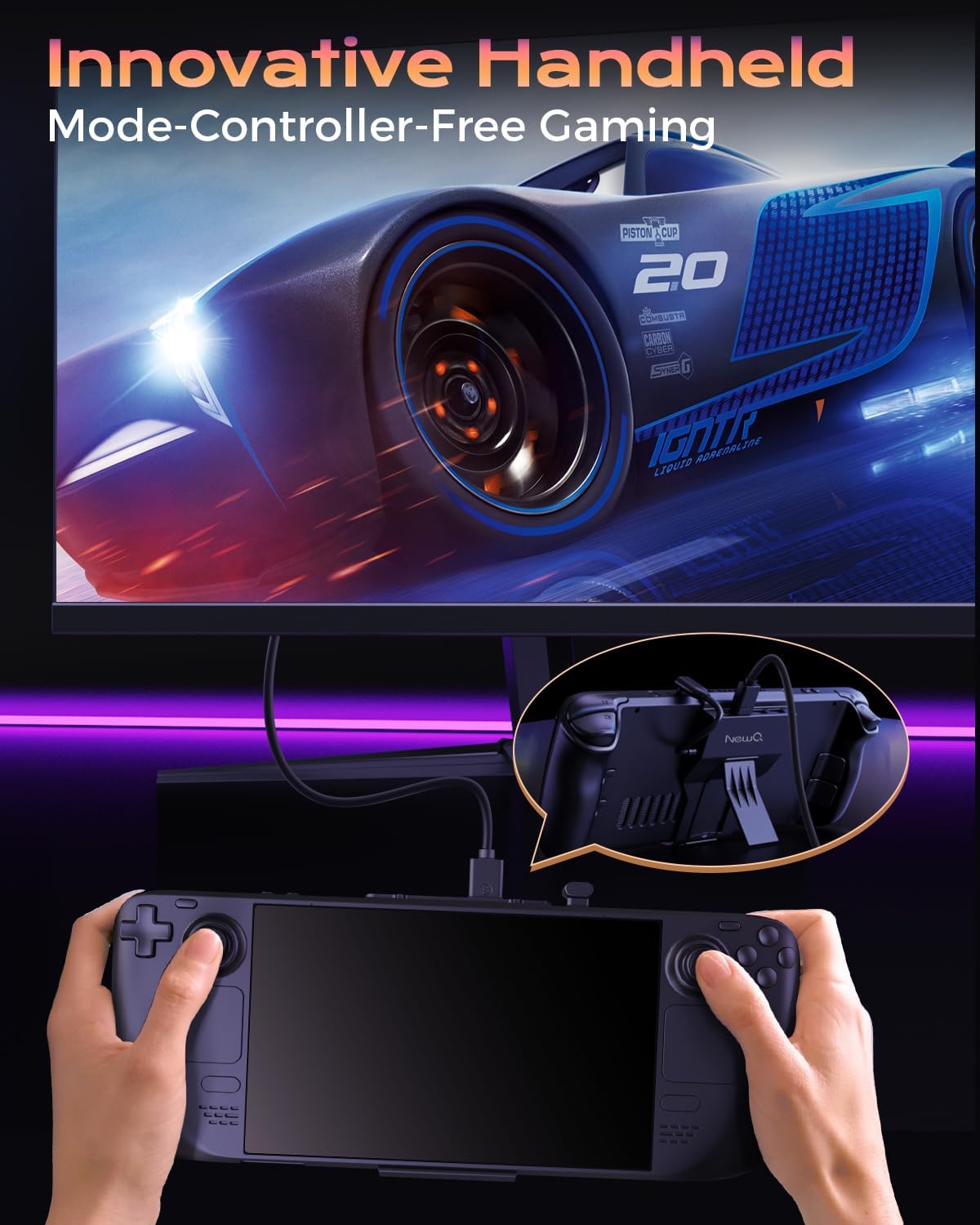
Image: A user playing a racing game on an external monitor, with the Steam Deck connected via the NEWQ dock and used as a controller.

Image: The Steam Deck connected to a large monitor, showcasing vibrant 4K@60Hz game graphics, emphasizing the enhanced visual experience.
5.3. Using USB Peripherals
Plug your USB keyboard, mouse, or other compatible USB-A devices into the dock's USB 3.0 ports. These devices will be recognized by your Steam Deck, allowing for a desktop-like experience or enhanced control in certain games.
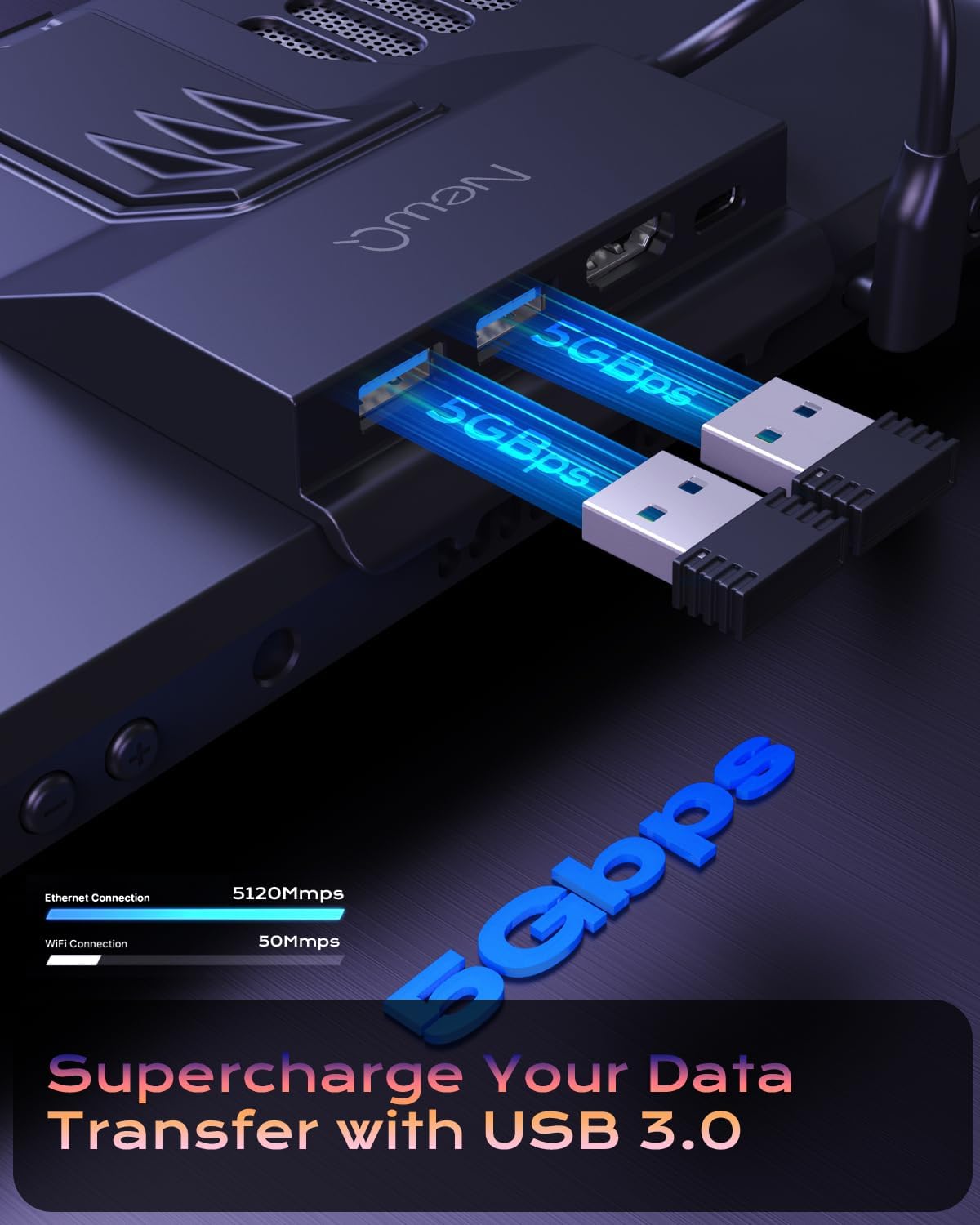
Image: A close-up of the NEWQ dock with two USB 3.0 devices plugged in, illustrating the 5Gbps data transfer capability.
5.4. Charging Your Steam Deck
When a power adapter is connected to the dock's PD-in port, the dock will pass through power to charge your Steam Deck. This allows you to play and charge simultaneously, preventing battery drain during extended gaming sessions.

Image: The Steam Deck is shown connected to the NEWQ dock, which is receiving 100W power, ensuring the device charges efficiently during gameplay.
5.5. Видео демонстрация
Video: A short demonstration of the NEWQ 4-in-1 Steam Deck Docking Station, highlighting its features and ease of use.
6. Техникалык тейлөө
- Тазалоо: Use a dry, soft cloth to clean the product. Do not use liquid or foam cleaning solutions.
- Сактагыч: If the product is not used for a long time, disconnect it from the power supply and store it in a cool, dry place.
- Экологиялык шарттар: Avoid using the product in humid environments or exposing it to liquids. The maximum ambient temperature for use should not exceed 104°F/40°C.
7. Кыйынчылыктарды
- No Display on External Monitor:
- Ensure the HDMI cable is securely connected to both the dock and the monitor.
- Монитордун киргизүү булагы туура тандалганын текшериңиз.
- Check Steam Deck display settings in SteamOS or Desktop Mode.
- Перифериялык түзүлүштөр жооп бербейт:
- Ensure USB devices are fully inserted into the dock's USB-A ports.
- Try connecting the devices directly to the Steam Deck (if possible) to rule out device issues.
- Steam Deck Not Charging:
- Confirm the USB-C power adapter is connected to the dock's 'PD-in' port and is functioning correctly.
- Ensure the dock's integrated USB-C connector is firmly plugged into the Steam Deck.
- Dock Not Fitting Securely:
- Ensure no protective cases or skins on your Steam Deck are obstructing the dock's connection points.
8. Техникалык шарттар
| пункт | Description |
|---|---|
| Бренд | NEWQ |
| Модел | USB3.0 версиясы |
| Түс | Кара |
| HDMI чыгышы | HDMI 2.0, 4K@60Hz |
| USB-A порттору | 2 x USB-A 3.0 (5Gbps data speed) |
| USB-C PD-in Port | 1 x USB-C (100W Max Power Delivery) |
| Шайкеш түзмөктөр | Steam Deck, Steam Deck OLED |
| Элемент Салмагы | 0.11 Kilograms (Approximately 78g) |
| Өлчөмдөрү (L x W x Y) | 4.8 (L) x 3.2 (W) x 0.89 (H) дюйм |
9. Кепилдик жана колдоо
This NEWQ Steam Deck Dock comes with an 18 айлык кепилдик from the date of purchase. For technical support, troubleshooting assistance, or warranty claims, please contact the NEWQ Store directly through your purchase platform or visit the official NEWQ webсайт.
NEWQ is committed to providing reliable products and trustworthy support. If an issue arises, they aim to provide a prompt replacement and work with you to find a satisfying solution.