1. Киришүү
The ASUS ZenWiFi XD4 Plus AX1800 Dual-band Mesh WiFi 6 System is designed to provide fast, stable, and secure whole-home Wi-Fi coverage. This system utilizes the latest Wi-Fi 6 technology to deliver dramatically improved coverage, speed, and stability across your entire home, covering up to 4,800 sq. ft. and supporting over 25 devices with a total wireless speed of 1800Mbps.
Негизги өзгөчөлүктөр төмөнкүлөрдү камтыйт:
- Banish WiFi Dead Zones: Unique antenna placement ensures strong Wi-Fi signals in every corner.
- Hassle-free Control: Easy 3-step setup and management via the ASUS Router App.
- Always Up-to-date Security: Lifetime free cloud-based security powered by Trend Micro protects your connected devices.
- AiMesh колдоосу: Mix and match with other AiMesh-compatible routers for a powerful and flexible whole-home Wi-Fi system.
- Wallmount Support: Designed for flexible placement, allowing you to stand or mount the units.
2. Пакеттин мазмуну
Баштоодон мурун, пакетиңизде бардык элементтер бар экенин текшериңиз:
- ZenWiFi XD4 Plus Units (3-pack)
- RJ-45 кабели
- Кубаттуу адаптер
- Кепилдик картасы
- Quick Start Guide

Image: The ASUS ZenWiFi XD4 Plus units, along with power adapters and an Ethernet cable, laid out on a surface.
3. Орнотуу нускамалары
Setting up your ASUS ZenWiFi XD4 Plus system is a straightforward 3-step process using the ASUS Router App.
- Күйгүзүү жана туташуу:
- Place your ZenWiFi routers about 2 meters apart from each other initially.
- Plug in the power adapters for all ZenWiFi units and turn them on.
- Connect one of the ZenWiFi units to your modem's WAN port using the provided RJ-45 Ethernet cable.
- Wait for the LED lights on both routers to turn solid blue, indicating they are ready.

Image: A close-up of the back of an ASUS ZenWiFi XD4 Plus unit, highlighting the power input, LAN ports, and WAN/LAN port.
- Download and Launch ASUS Router App:
- Download the ASUS Router App from the Google Play Store or Apple App Store on your smartphone.
- Смартфонуңузда Bluetooth'ду иштетип, колдонмону ачыңыз.
- Follow the on-screen prompts to begin the setup process.

Image: A hand holding a smartphone displaying the ASUS Router App, with options for setting up a new router.
- Create Your Network:
- The app will guide you to create a Wi-Fi network name (SSID) and password.
- You will also set up an administrator username and password for managing your router.
- The system will optimize your network, which may take a few minutes. Once complete, your Wi-Fi system is ready.
Орнотуу видео көрсөтмөсү:
Video: This official ASUS video provides a step-by-step guide on how to unbox and set up your ASUS ZenWiFi mesh network using the ASUS Router App, demonstrating the ease of installation.
4. Иштөө нускамалары
4.1 Whole-Home Wi-Fi Coverage
The ZenWiFi XD4 Plus system is designed to eliminate Wi-Fi dead zones, providing seamless and strong Wi-Fi signals throughout your home. With coverage up to 4,800 sq. ft., you can enjoy reliable internet connectivity in every room.
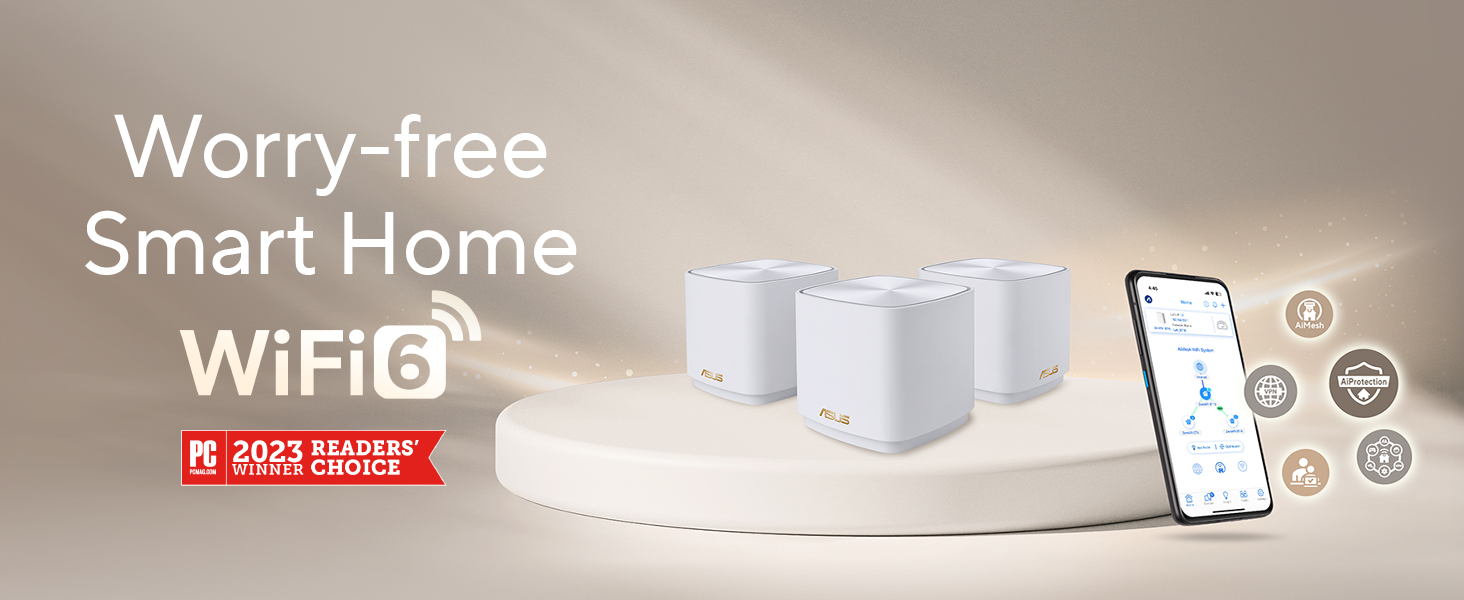
Image: A visual representation of a home with multiple ASUS ZenWiFi units strategically placed to provide comprehensive Wi-Fi coverage.
4.2 AiMesh System
ASUS AiMesh technology allows you to combine multiple ASUS AiMesh-compatible routers to create a powerful and flexible whole-home Wi-Fi system. This feature ensures that your devices automatically connect to the strongest Wi-Fi signal as you move around your home, providing uninterrupted connectivity.

Image: A diagram showing how multiple ASUS ZenWiFi units form an AiMesh network to extend Wi-Fi coverage across a multi-story house.
4.3 Ата-эненин көзөмөлү
The ASUS Router App provides advanced parental controls, allowing you to manage and monitor internet usage for different devices and users in your home. You can set time schedules, block content, and create kid-safe presets to ensure a secure online environment for your family.
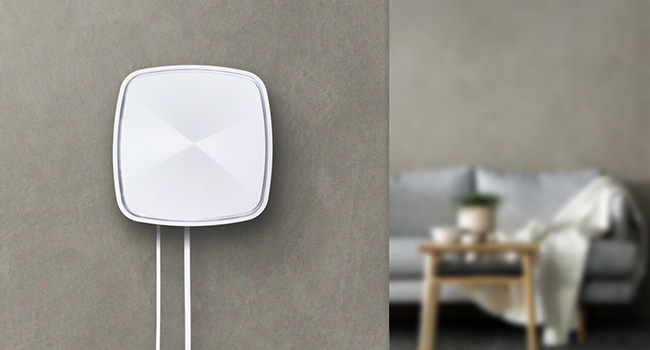
Image: A smartphone screen displaying the ASUS Router App's parental control interface, showing options for content filtering and time scheduling.
4.4 Internet Security (AiProtection)
Your ZenWiFi XD4 Plus includes lifetime free commercial-grade security powered by Trend Micro. This AiProtection feature safeguards your network and connected devices from online threats, ensuring your privacy is protected without any subscription fees.
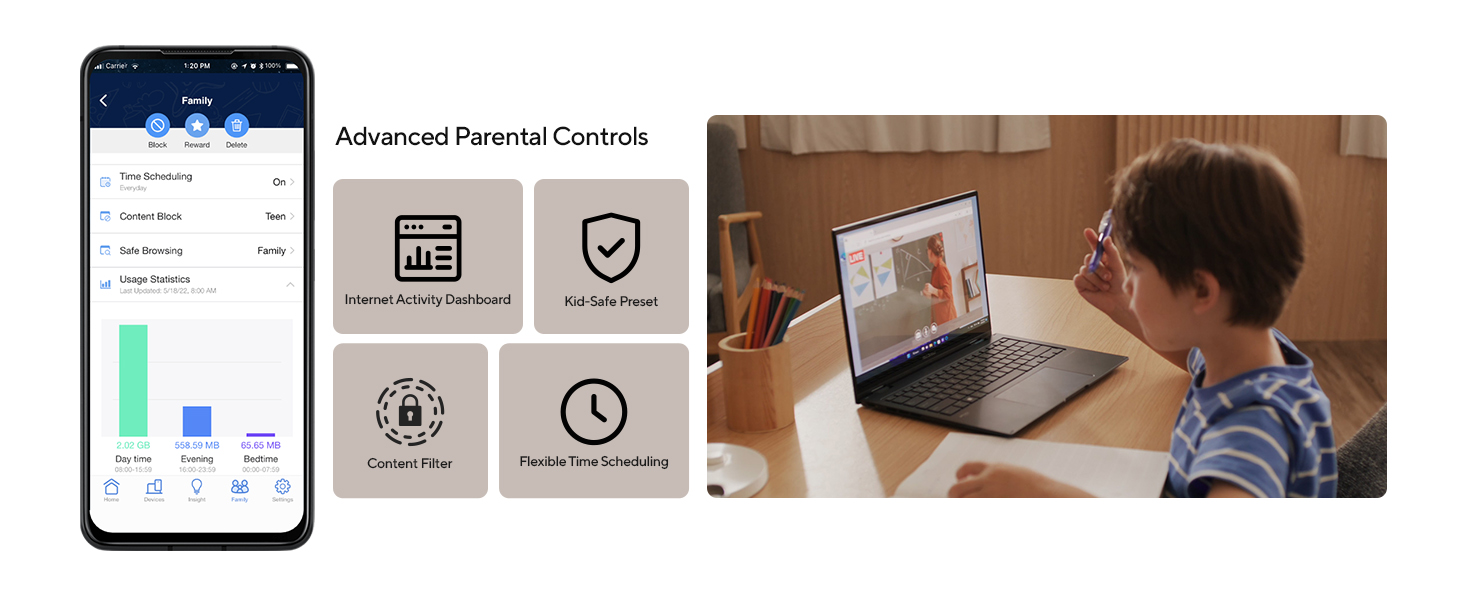
Image: A graphic showing a tablet user interacting with a secure network, with icons for Parental Control and AiProtection, indicating comprehensive security.
ASUS Instant Guard for Secure Wi-Fi:
Video: This official ASUS video explains how ASUS Instant Guard makes free Wi-Fi secure wherever you are, highlighting the VPN and AiProtection features.
4.5 Flexible Network Naming
The ZenWiFi XD4 Plus allows for flexible network naming, enabling you to assign separate names for each frequency band (2.4GHz and 5GHz). This can help optimize performance for specific devices or user preferences.
Image: A smartphone screen showing available Wi-Fi networks, with separate SSIDs for 2.4GHz and 5GHz bands, illustrating flexible network naming.
4.6 Wallmount Option
The ZenWiFi XD4 Plus units are designed with hanging holes and include a screw pack, offering versatile mounting options. You can choose to stand them on a flat surface or mount them on a wall to best suit your home's aesthetics and optimize signal placement.

Image: An ASUS ZenWiFi XD4 Plus unit neatly mounted on a wall, blending into the home environment.
5. Техникалык тейлөө
To ensure optimal performance and longevity of your ASUS ZenWiFi XD4 Plus system, consider the following maintenance tips:
- Программалык камсыздоонун жаңыртуулары: Regularly check for and install firmware updates via the ASUS Router App. Updates often include performance improvements, security enhancements, and bug fixes.
- Оптималдуу жайгаштыруу: Ensure your ZenWiFi units are placed in open areas, away from large metal objects, thick walls, and other electronic devices that may cause interference.
- Тазалоо: Periodically clean the exterior of the units with a soft, dry cloth to prevent dust buildup, which can affect ventilation.
- Кайра иштетилүүдө: If you experience slow speeds or connectivity issues, try restarting your modem and all ZenWiFi units.
6. Кыйынчылыктарды
If you encounter any issues with your ASUS ZenWiFi XD4 Plus system, please refer to the following common troubleshooting steps:
- Интернет байланышы жок:
- Check all cable connections between your modem and the primary ZenWiFi unit. Ensure the Ethernet cable is securely plugged into the WAN port.
- Restart your modem and all ZenWiFi units. Wait a few minutes for them to re-establish connection.
- Интернет провайдериңиздин (ISP) байланышы активдүү экенин текшериңиз.
- Poor Wi-Fi Signal or Dead Zones:
- Adjust the placement of your ZenWiFi units to ensure optimal coverage. Avoid placing them behind large furniture or in enclosed spaces.
- Ensure there are no major obstructions (e.g., thick concrete walls, large appliances) between your devices and the nearest ZenWiFi unit.
- Use the ASUS Router App to check the signal strength between your mesh nodes and connected devices.
- Орнотуу маселелери:
- If the app fails to detect units during setup, ensure Bluetooth is enabled on your phone and the units are powered on and within close proximity.
- Perform a factory reset on the units if initial setup repeatedly fails. Refer to the Quick Start Guide for reset instructions.
- Микропрограмманы жаңыртуу катасы:
- Программалык камсыздоону жаңыртуу учурунда туруктуу интернет байланышын камсыз кылыңыз.
- Do not power off or disconnect any cables during the update process.
- If an update fails, try again after restarting the unit and ensuring a strong connection.
7. Техникалык шарттар
| Өзгөчөлүк | Description |
|---|---|
| Зымсыз түрү | 802.11a, 802.11ac, 802.11ax, 802.11g |
| Модель аты | XD4 PLUS |
| Жыштык тилкесинин классы | Кош тилкелүү |
| Элемент Салмагы | 10.7 унция |
| Продукциянын өлчөмдөрү | 3.54 x 3.54 x 3.35 дюйм |
| Тtage | 110 вольт |
| Түс | АК |
| Байланыш технологиясы | Ethernet, Wi-Fi |
| Операциялык системанын шайкештиги | Колдонмо, Linux, Mac OS, Windows |
| Өзгөчөлүктөр | Access Point Mode, Guest Mode, Internet Security, Parental Control, QoS |
| Шайкеш түзмөктөр | Оюн консолу, персоналдык компьютер, акылдуу телевизор, смартфон, планшет |
| Сунушталган Колдонуулар | Бизнес, оюн, үй |
8. Кепилдик жана колдоо
The ASUS ZenWiFi XD4 Plus AX1800 Dual-band Mesh WiFi 6 System comes with a 3-year warranty. For detailed information regarding your warranty coverage, terms, and conditions, please refer to the Warranty Card included in your product package.
For technical support, product registration, or additional resources, please visit the official ASUS support website or utilize the ASUS Router App for assistance.


