Introduction
The Logitech Signature M550 Wireless Mouse is designed for enhanced productivity and comfort. Featuring an adaptive SmartWheel for precise and fast scrolling, SilentTouch technology for quiet clicks, and versatile connectivity options, this mouse is compatible with multiple operating systems and devices. This manual will guide you through its setup, operation, and maintenance.
Жайгашуу
1. Батареяны орнотуңуз
The Logitech Signature M550 mouse requires one AA battery, which is included. To install the battery:
- Чычкандын астыңкы жагындагы батарея бөлүкчөсүн табыңыз.
- Капкакты жылдырыңыз.
- Туура полярдуулукту (+/-) камсыз кылып, AA батареясын салыңыз.
- Батарея бөлүгүнүн капкагын ордуна коюңуз.

Сүрөт: асты view of the Logitech Signature M550 mouse, highlighting the battery compartment, on/off switch, and the Logi Bolt USB receiver storage slot.
2. Чычканыңызды туташтырыңыз
The Signature M550 offers two connection methods: Bluetooth Low Energy or the Logi Bolt USB receiver.
Using the Logi Bolt USB Receiver:
- Remove the Logi Bolt USB receiver from the battery compartment.
- Plug the Logi Bolt USB receiver into an available USB-A port on your computer.
- Turn on the mouse using the on/off switch on the bottom. The mouse should connect automatically.
Bluetooth Low Energy колдонулууда:
- Turn on the mouse using the on/off switch on the bottom.
- Press and hold the Easy-Switch button on the bottom of the mouse until the LED light starts blinking rapidly. This indicates pairing mode.
- On your device (computer, tablet, etc.), open Bluetooth settings and search for available devices.
- Select "Logi M550" from the list to complete the pairing process.
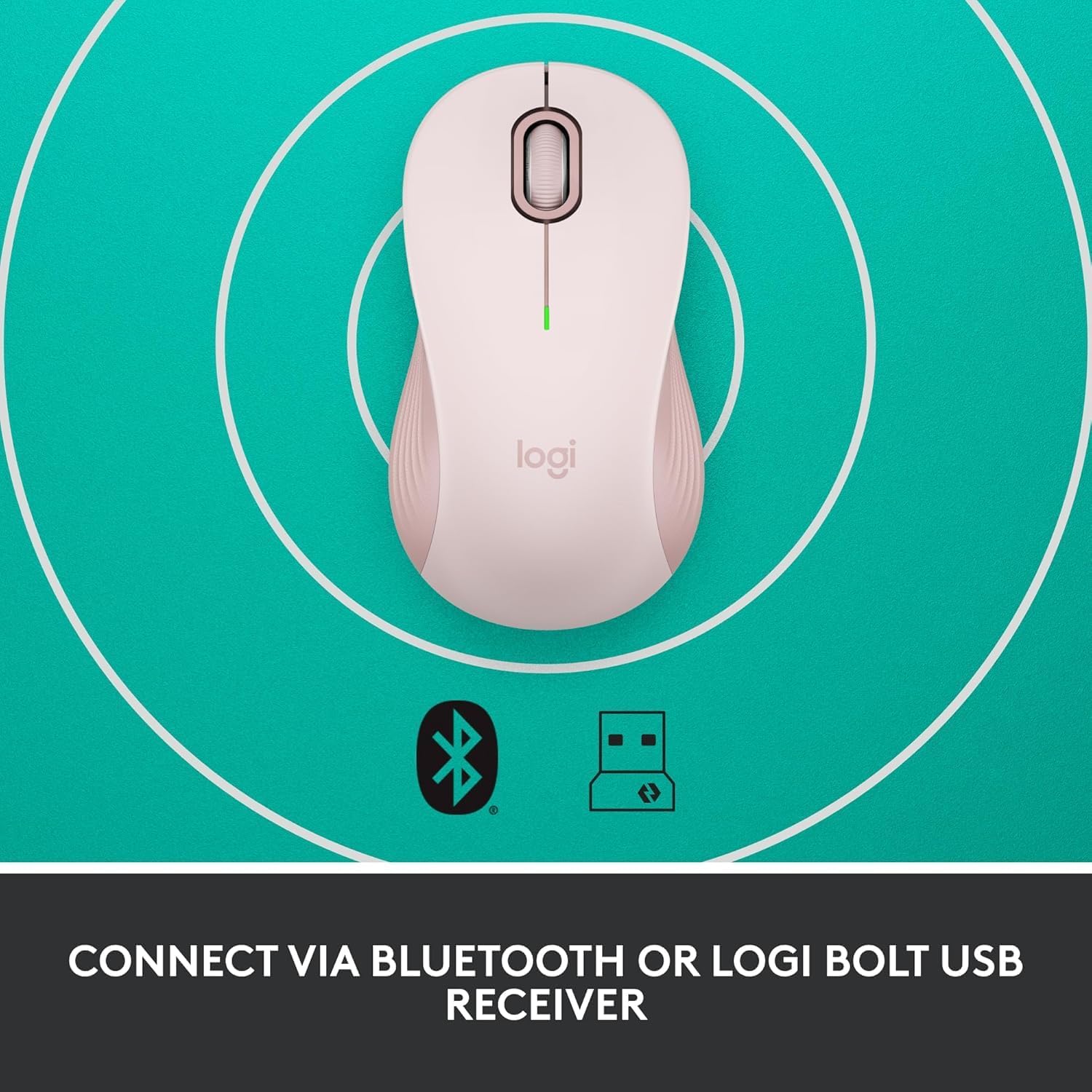
Image: The Logitech Signature M550 mouse on a teal background with icons for Bluetooth and the Logi Bolt USB receiver, illustrating its dual connectivity options.
Video: A demonstration of installing the battery and connecting the Logitech Signature M550 Wireless Mouse via Bluetooth or USB receiver.
Video: A user demonstrating the easy setup process of the Logitech Signature M550, including battery insertion and connectivity.
Иштөө нускамалары
SmartWheel сыдыруусу
The Signature M550 features an adaptive SmartWheel that allows for two modes of scrolling:
- Сап боюнча тактык: Документтерде жана электрондук жадыбалдарда деталдуу навигация үчүн.
- Super-fast free spin: Flick the wheel for rapid scrolling through long web барактар же документтер.

Image: A close-up of the Logitech Signature M550 mouse, highlighting the SmartWheel for precision and speed scrolling.
Video: A demonstration of the Logitech Signature M550's SmartWheel functionality, showcasing both precise and super-fast scrolling modes.
SilentTouch технологиясы менен үнсүз чыкылдатуулар
Experience a quieter workspace with Logitech's SilentTouch technology, reducing click noise by 90% compared to traditional mice. This allows for focused work without distractions.

Image: A woman using the Logitech Signature M550 mouse at a desk, illustrating the benefit of 90% less clicking noise for a focused work environment.
Multi-Device and OS Compatibility
The Signature M550 offers seamless compatibility across various platforms:
- Windows (including Windows 11)
- macOS
- Linux
- Chrome OS
- iPadOS
- Android
Image: The Logitech Signature M550 mouse displayed with a message confirming its full compatibility with Windows 11.
Техникалык тейлөө
Батареяны алмаштыруу
The mouse operates on a single AA battery with an average life of 24 months. When the battery is low, the LED indicator on the mouse will blink. To replace the battery, follow the steps outlined in the 'Install Battery' section.
Тазалоо
To maintain optimal performance, regularly clean your mouse with a soft, dry cloth. Avoid using harsh chemicals or abrasive materials.
Проблемаларды чечүү
Туташуу маселелери
- Чычкан жооп бербей жатат: Ensure the mouse is turned on and the battery is correctly installed or replaced.
- Bluetooth жупташуусунда ката кетти: Make sure your device's Bluetooth is enabled and the mouse is in pairing mode (blinking LED). Try restarting both the mouse and your device.
- USB receiver not detected: Ensure the Logi Bolt USB receiver is securely plugged into a working USB-A port. Try a different USB port.
- Интерференция: Чычканды түзмөгүңүзгө жакыныраак жана тоскоолдук жаратышы мүмкүн болгон башка зымсыз түзмөктөрдөн алысыраак жылдырыңыз.
Техникалык шарттар
| Бренд | Logitech |
| Сериялар | M550 |
| Элемент моделинин номери | 910-006593 |
| Байланыш технологиясы | Bluetooth, USB |
| Кыймылды аныктоо технологиясы | Оптикалык |
| Өзгөчөлүктөр | Lightweight, Portable, Soundless, Wireless |
| Power Source | Батарея менен иштейт |
| Батареялар талап кылынат | 1 AA батарейка (кошулган) |
| Батареянын орточо иштөө мөөнөтү | 24 ай |
| Элемент Салмагы | 3.44 унция |
| Пакеттин өлчөмдөрү | 5.55 x 3.54 x 1.73 дюйм |
| Аппараттык платформа | Linux, Mac, PC |
| Иштетүү системалары колдоого алынат | Windows, macOS, Linux, Chrome OS, iPadOS, Android |
Кепилдик маалымат
For detailed warranty information regarding your Logitech Signature M550 Wireless Mouse, please refer to the official Logitech website or the warranty card included with your product. Logitech typically offers a limited hardware warranty for its products.
Колдоо
If you encounter any issues or have questions about your Logitech Signature M550 Wireless Mouse, please visit the official Logitech support webКөп берилүүчү суроолор, көйгөйлөрдү чечүү боюнча колдонмолор жана кардарларды тейлөө кызматынын байланыш маалыматы үчүн сайт.