1. Киришүү
Thank you for choosing the IFYOO G53 Dual Mode RGB Vertical Ergonomic Wireless Mouse. This manual provides detailed instructions for setting up, operating, and maintaining your new mouse. Designed for comfort and efficiency, the G53 features dual wireless connectivity (2.4 GHz and Bluetooth 5.1), adjustable DPI, dynamic RGB lighting, and a rechargeable battery.
Продукт бүттүview
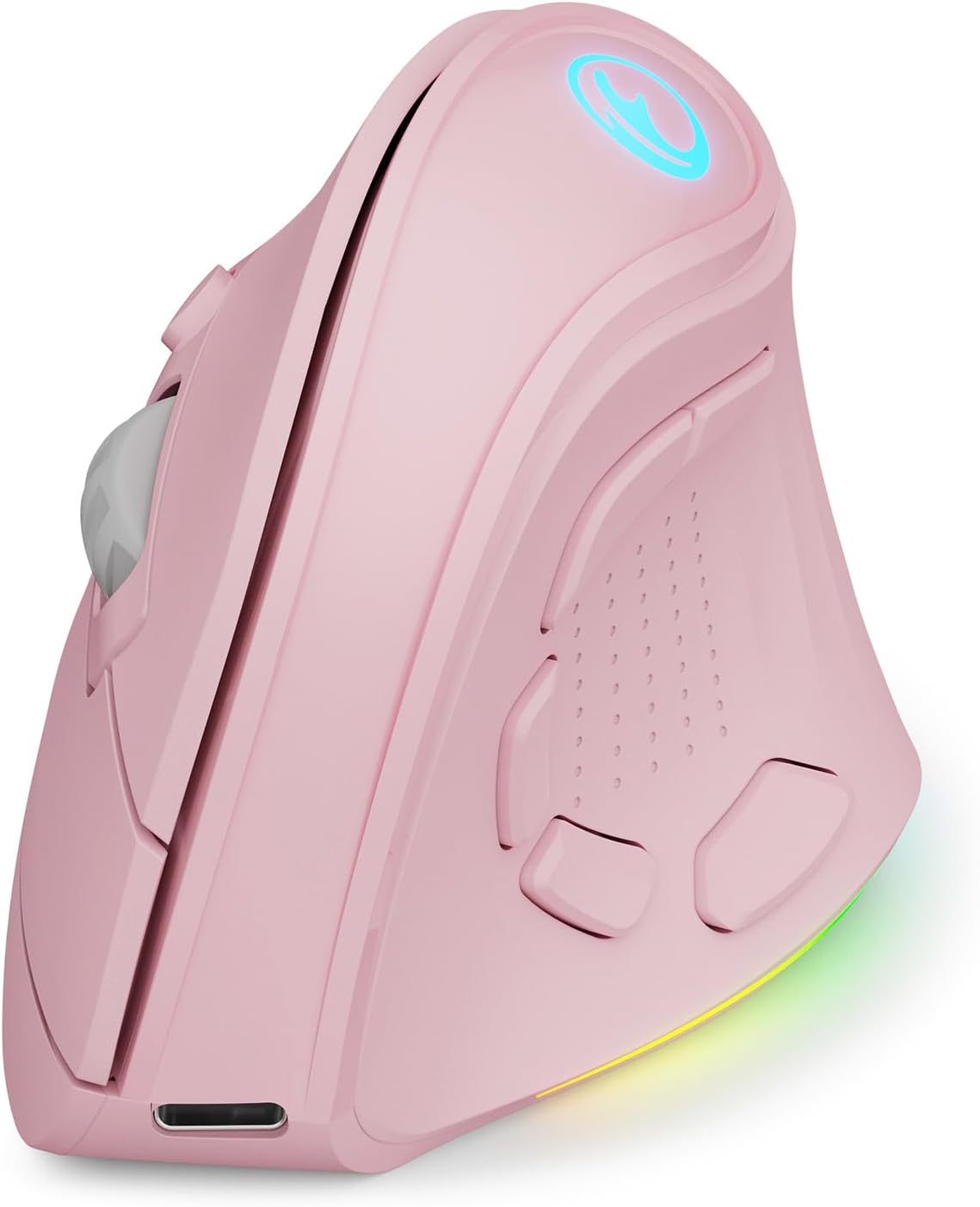
Figure 1: IFYOO G53 Vertical Ergonomic Wireless Mouse (Pink)
The IFYOO G53 is engineered to promote a natural hand posture, reducing wrist strain and discomfort often associated with traditional mice. Its vertical design helps maintain a handshake position, which can alleviate symptoms of carpal tunnel syndrome.

Figure 2: Ergonomic Benefits of the Vertical Mouse Design
Пакеттин мазмуну
- 1 x IFYOO G53 Wireless Mouse
- 1 x User Manual
- 1 x USB Type-C заряддоо кабели
- 1 x 2.4 GHz USB Receiver (located at the bottom of the mouse)
Шайкештик жана Маанилүү эскертүүлөр
- Compatible Operating Systems: Windows 11, 10, 8, 7, XP; Mac OS; iPad OS; Android.
- Эскертүү: Some side button shortcuts may not function with Mac OS, iPad OS, and other non-Windows operating systems.
- Эскертүү: The driver software for advanced customization is only compatible with Windows OS. In Bluetooth mode, the driver software and certain side buttons (7-9) are not functional. Mouse configuration changes are only supported in wired and 2.4G wireless modes.
2. Орнотуу
2.1 Чычканды заряддоо
Before initial use, it is recommended to fully charge the mouse. Connect the provided USB Type-C cable to the charging port on the front of the mouse and to a USB power source (e.g., computer USB port, USB wall adapter). The RGB lighting may indicate charging status.
2.2 Connecting via 2.4 GHz Wireless Mode
- Locate the 2.4 GHz USB receiver at the bottom of the mouse. Gently pull it out.
- USB ресиверди компьютериңиздеги жеткиликтүү USB портуна сайыңыз.
- Төмөндө жайгашкан кубат которгучу менен чычканды күйгүзүңүз.
- Press the Mode Switch button (also on the bottom) until the mouse is in 2.4G mode (indicated by a specific LED color or pattern, refer to the layout diagram).
- Чычкан түзмөгүңүзгө автоматтык түрдө туташуу керек.
2.3 Connecting via Bluetooth 5.1 Mode
- Төмөндө жайгашкан кубат которгучу менен чычканды күйгүзүңүз.
- Press the Mode Switch button (on the bottom) until the mouse is in Bluetooth mode (indicated by a specific LED color or pattern, refer to the layout diagram).
- On your device (PC, laptop, Mac, iPad, Android device), open Bluetooth settings.
- Издөө new devices and select "IFYOO G53" (or similar) from the list to pair.
- Once paired, the mouse is ready for use.

Figure 3: Multi-Device Connectivity via 2.4G and Bluetooth
2.4 Режимдердин ортосунда которулуу
The IFYOO G53 mouse supports seamless switching between 2.4 GHz wireless and Bluetooth 5.1 modes. Use the Mode Switch button located on the bottom of the mouse to toggle between the connected devices or modes.

Figure 4: IFYOO G53 Mouse Layout and Components
3. Иштөө нускамалары
3.1 Баскыч функциялары
The IFYOO G53 mouse features 10 buttons, including standard left/right click, scroll wheel, DPI switch, and 5 programmable side buttons.
- Сол баскыч: Стандарттык сол чыкылдатуу функциясы.
- Оң баскыч: Стандарттык оң баскычты чыкылдатуу функциясы.
- Жылдыруу дөңгөлөгү: Scroll up/down, middle-click.
- DPI которуу: DPI жөндөөлөрү аркылуу айланышат.
- Side Buttons (Default Functions):
- Алга: Алга карай жылдырат web браузерлер же file изилдөөчү.
- Артка: Артка карай багыт алат web браузерлер же file изилдөөчү.
- Жарык эффекттери: RGB жарыктандыруу режимдерин өзгөртөт.
- File Изилдөөчү: ачат File Explorer (Windows only).
- иш-такта: Returns to desktop (Windows only).

Figure 5: Side Button Functions for Enhanced Productivity
3.2 Adjusting DPI (Dots Per Inch)
The mouse features adjustable DPI settings up to 8400 DPI, allowing you to customize cursor sensitivity for different tasks. Press the DPI Switch button (located near the scroll wheel) to cycle through the available DPI levels. Each DPI level may be indicated by a different color on the DPI logo.
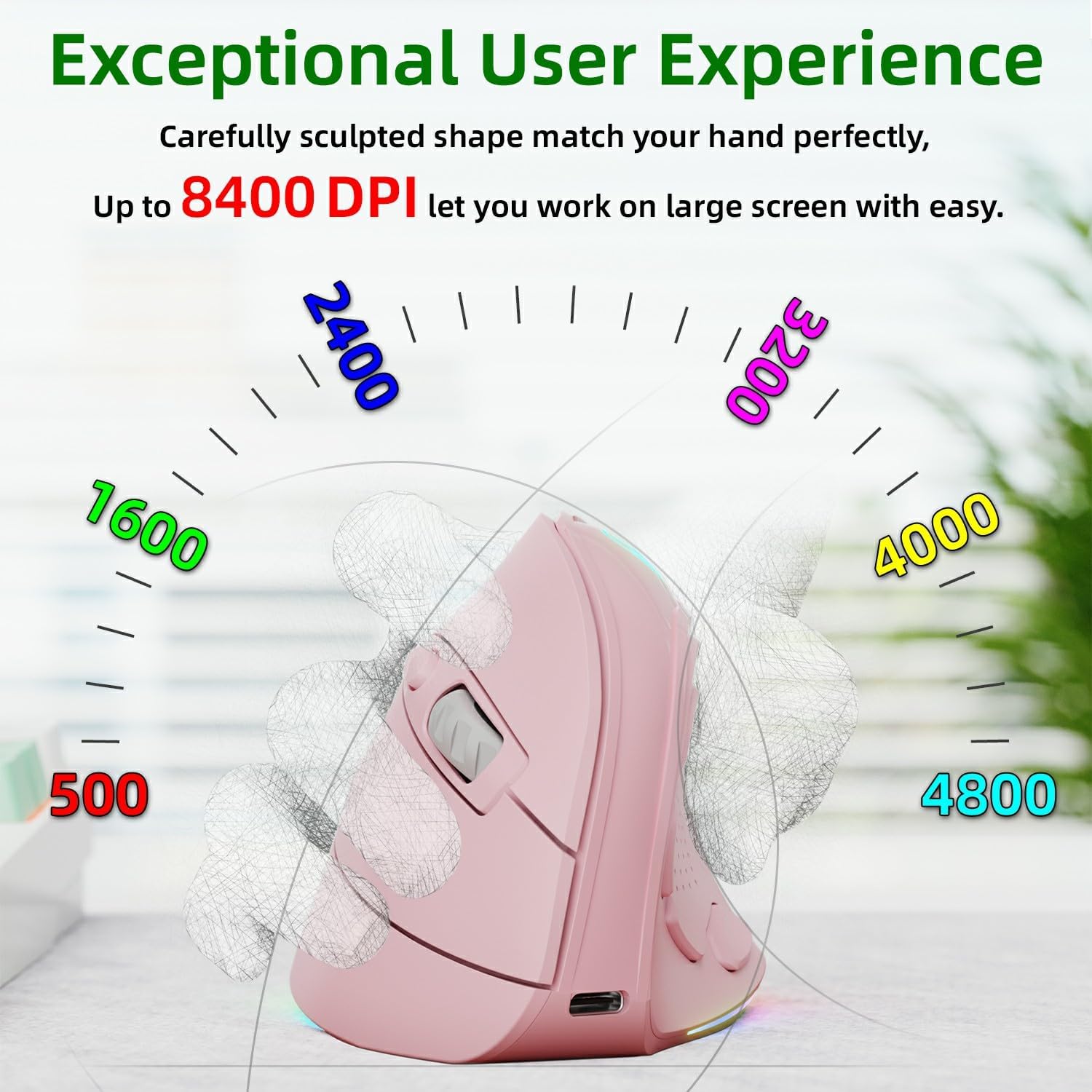
Figure 6: Adjustable DPI Levels for Precise Control
3.3 Dynamic RGB Lighting Effects
The IFYOO G53 mouse features 9 dynamic RGB lighting modes. Press the 'Light Effects' side button to cycle through these modes. You can also turn off the lighting if preferred. For advanced customization of lighting effects, use the driver software (Windows OS only).

Figure 7: Available RGB Lighting Effects
3.4 Электр энергиясын башкаруу
The mouse is equipped with a 600 mAh rechargeable battery and intelligent power-saving features to extend battery life. When not in use, the mouse may enter a sleep mode to conserve power. Move the mouse or click a button to wake it up.
4. Техникалык тейлөө
4.1 Тазалоо
Чычканыңызды тазалоо үчүн, анын бетин жумшак, d менен акырын сүртүңүзamp cloth. Avoid using harsh chemicals or abrasive materials, as these can damage the finish. Ensure no liquid enters the mouse's internal components.
4.2 Батареяга кам көрүү
The mouse contains a built-in lithium-polymer rechargeable battery. To prolong battery life:
- Батареяны бат-баттан толук кубаттап калуудан алыс болуңуз.
- Charge the mouse using the provided USB Type-C cable.
- Чычканды өтө жогорку температурага дуушар кылбаңыз.
5. Кыйынчылыктарды
5.1 Чычкан жооп бербейт
- Чычкан күйгүзүлгөнүн текшериңиз.
- Батареянын деңгээлин текшерип, керек болсо заряддаңыз.
- Verify the correct connection mode (2.4G or Bluetooth) is selected via the Mode Switch button.
- For 2.4G mode, ensure the USB receiver is securely plugged into your device. Try a different USB port.
- For Bluetooth mode, ensure Bluetooth is enabled on your device and the mouse is paired. Try re-pairing the mouse.
- Компьютериңизди же түзмөгүңүздү өчүрүп күйгүзүңүз.
5.2 Курсордун кыймылы туура эмес же артта калууда
- Чычкандын түбүндөгү оптикалык сенсорду тазалаңыз.
- Чычканды ылайыктуу жерде (мисалы, чычкан аянтчасында) колдонуп жатканыңызды текшериңиз.
- Эгерде курсор өтө тез болсо, DPI жөндөөсүн төмөнкү мааниге тууралаңыз.
- Жакын жерде күчтүү зымсыз тоскоолдуктар жок экенин текшериңиз.
5.3 Side Buttons Not Working (Mac OS/iPad OS)
As noted in the Introduction, some side button shortcuts (e.g., File Explorer, Desktop) are designed for Windows OS and may not function on Mac OS, iPad OS, or Android. The 'Light Effects' button should generally work across all compatible operating systems.
5.4 Driver Software Issues
The driver software for advanced customization is only compatible with Windows OS. If you are experiencing issues with the software, ensure your Windows operating system is up to date and that you have downloaded the correct driver from the official IFYOO webсайт (эгер бар болсо).
6. Техникалык шарттар
| Өзгөчөлүк | Спецификация |
|---|---|
| Бренд | ЭФСЕН |
| Модель аты | G53 |
| Элемент моделинин номери | IFYOO-G53-Pink |
| Түс | Кызгылт |
| Байланыш технологиясы | 2.4 GHz Wireless, Bluetooth 5.1 |
| Кыймылды аныктоо технологиясы | Оптикалык |
| баскычтардын саны | 10 |
| DPI диапазону | 8400 DPI чейин (Жөнгө салынуучу) |
| Өзгөчөлүктөр | LED Light, Rechargeable, Ergonomic Vertical Design |
| Шайкеш түзмөктөр | PC, Laptop, Mac, MacBook, iPad, Android devices |
| Операциялык системанын шайкештиги | Windows 11, 10, 8, 7, XP; Mac OS; iPad OS; Android |
| Батарея түрү | Литий-полимер |
| Батарея сыйымдуулугу | 600 мАч |
| Колдун багыты | Туура |
| Сунушталган продукт колдонуу | Ички/тышкы |
7. Кепилдик жана колдоо
Information regarding product warranty and customer support is not available in the provided product data. Please refer to the product packaging or the manufacturer's official webкепилдик камтуу жөнүндө чоо-жайы жана кардарларды колдоо менен кантип байланышуу үчүн сайт.


