1. Киришүү
This manual provides comprehensive instructions for setting up, operating, maintaining, and troubleshooting your MERCUSYS Halo H1500X AX1500 WiFi 6 Mesh System (3-Pack). Please read this guide carefully to ensure proper installation and optimal performance of your mesh network.
2. Пакеттин мазмуну
Пакетиңизде төмөнкү заттар бар экенин текшериңиз:
- 3 x Halo H1500X Units
- 3 х Power адаптерлери
- 1 х Ethernet кабели
- 1 x Ыкчам орнотуу колдонмосу

Image: The MERCUSYS Halo H1500X 3-Pack Mesh WiFi System, including three white cube-shaped units and an Ethernet cable, displayed within its red retail packaging.
3. Продукт бүтүп калдыview
The MERCUSYS Halo H1500X is an AX1500 WiFi 6 Mesh System designed to provide seamless, high-speed internet coverage throughout your home. Key features include:
- Dual-Band WiFi 6 Speeds: Up to 1500 Mbps (1201 Mbps on 5 GHz and 300 Mbps on 2.4 GHz).
- Үзгүлтүксүз роуминг: Halo units work together to automatically switch between nodes as you move, maintaining a single unified WiFi network name and password.
- Үйдү толугу менен камтуу: A 3-pack system can cover up to 550 m² (approximately 5920 sq ft), eliminating WiFi dead zones.
- Бир нече түзмөктөрдү туташтыруу: Provides fast and stable connections for over 100 devices.
- Easy Network Management: Configure and manage your WiFi quickly using the MERCUSYS app, including parental controls for managing online time and content.
- Толук гигабиттик порттор: Each unit includes Gigabit Ethernet ports for ultra-fast wired connections.

Image: Three white, cube-shaped MERCUSYS Halo H1500X units, viewалдыңкы жактан көрсөтүлдү, көрсөтүүasing алардын минималисттик дизайны.
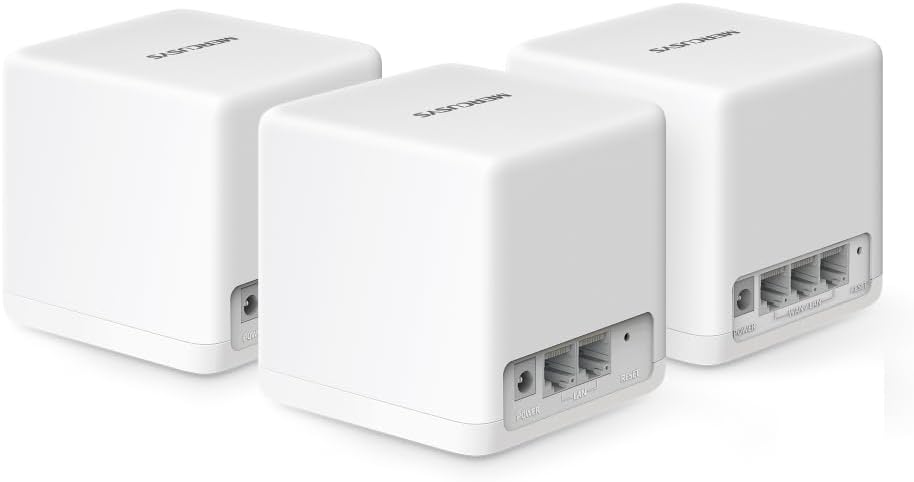
Сүрөт: арткы view of three MERCUSYS Halo H1500X units, highlighting the power input, WAN/LAN, and LAN ports on each device.

Image: An infographic illustrating key features of the Halo H1500X, including 1500 Mbps Wi-Fi 6, seamless roaming, Mercusys app control, connectivity for over 100 devices, up to 550 m² coverage, and Gigabit ports.
4. Орнотуу колдонмосу
Follow these steps to set up your MERCUSYS Halo H1500X Mesh System:
- MERCUSYS колдонмосун жүктөп алыңыз: Издөө "MERCUSYS" in your mobile device's app store (App Store for iOS or Google Play Store for Android) and download the application.
- Connect the Main Halo Unit:
- Unpack one Halo unit. This will be your main unit.
- Connect your modem's Ethernet port to any Ethernet port on the main Halo unit using the provided Ethernet cable.
- Connect the power adapter to the main Halo unit and plug it into a power outlet.
- Wait for the LED indicator on the Halo unit to turn solid blue, indicating it is ready for setup.
- Configure the Main Halo Unit via App:
- Open the MERCUSYS app on your smartphone or tablet.
- Follow the on-screen instructions to create a MERCUSYS ID (if you don't have one) and set up your main Halo unit. This includes creating your new WiFi network name (SSID) and password.
- Add Additional Halo Units:
- Place the remaining Halo units in desired locations within your home to extend coverage. Ensure they are within range of another Halo unit or the main unit.
- Connect the power adapters to the additional Halo units and plug them into power outlets.
- The additional units will automatically detect and join the existing mesh network. Wait for their LED indicators to turn solid blue.
- You can verify the connection and signal strength of each unit through the MERCUSYS app.

Image: A visual guide showing the four steps for setting up the Halo H1500X: identifying components, connecting devices (modem to Halo), configuring the main Halo via the app, and powering on additional units for automatic network integration.
5. Иштөө нускамалары
Once your Halo Mesh System is set up, it operates as a single, unified WiFi network. Your devices will automatically connect to the strongest signal as you move around your home, ensuring a seamless online experience.
5.1 Using the MERCUSYS App
The MERCUSYS app is your central control panel for the mesh system:
- Түзмөктү башкаруу: View all connected devices, their connection status, and which Halo unit they are connected to.
- Ата-энелик көзөмөл: Профессионалдуу колдонуучуну түзүүfiles, set time limits for internet access, and filter content for specific devices.
- Коноктор тармагы: Easily create a separate WiFi network for guests, keeping your main network secure.
- Network Prioritization (QoS): Prioritize bandwidth for specific devices or activities (e.g., gaming, streaming) to ensure optimal performance.
- Программалык камсыздоонун жаңыртуулары: Check for and install the latest firmware updates to ensure security and performance.

Image: A smartphone screen displaying the MERCUSYS app interface, showing a list of connected devices and their respective network speeds, illustrating easy network management.
5.2 LED көрсөткүчтөрү
The LED on each Halo unit provides status information:
- Катуу көк: Туура иштеп жатат.
- Көк түстүү: Starting up or connecting.
- Катуу кызыл: No internet connection or an issue with the unit.
- Жылуу кызыл: Disconnected from the mesh network.
6. Техникалык тейлөө
To ensure the longevity and optimal performance of your MERCUSYS Halo Mesh System, consider the following maintenance tips:
- Микропрограмманын үзгүлтүксүз жаңыртуулары: Check the MERCUSYS app periodically for new firmware updates. Updates often include security patches, performance improvements, and new features.
- Оптималдуу жайгаштыруу: Ensure Halo units are placed in open areas, away from obstructions like large metal objects, thick walls, or other electronic devices that may cause interference.
- Тазалоо: Gently wipe the units with a soft, dry cloth to remove dust. Do not use liquid cleaners or abrasive materials.
- Кайра иштетилүүдө: If you experience minor network issues, try restarting your Halo units and modem. Unplug them from power, wait 30 seconds, then plug them back in.
7. Кыйынчылыктарды
This section addresses common issues you might encounter with your Halo Mesh System.
7.1 Интернет байланышы жок
- Модемди текшерүү: Модемиңиз туура иштеп жатканын жана активдүү интернет байланышы бар экенин текшериңиз.
- Кабелдик байланыштар: Verify that the Ethernet cable connecting your modem to the main Halo unit is securely plugged in.
- Halo LED: If the main Halo unit's LED is solid red, it indicates no internet connection. Check your modem and ISP status.
- Кайра баштоо: Restart your modem and then your main Halo unit.
7.2 Poor WiFi Coverage or Slow Speeds
- Бирдиктин жайгашуусу: Relocate Halo units to optimize coverage. Ensure they are not too far apart and are centrally located. Refer to the coverage diagram in the Product Overview.
- Интерференция: Move Halo units away from potential sources of interference such as microwaves, cordless phones, or large metal objects.
- Арткы байланыш: For optimal performance, especially in multi-story homes or large areas, consider using an Ethernet cable to connect Halo units (wired backhaul) if possible. This provides a more stable and faster connection between units than wireless backhaul.
- Device Count: While the system supports over 100 devices, excessive simultaneous high-bandwidth usage can impact performance.
- Микропрограмма: Ensure all Halo units are running the latest firmware.
7.3 Cannot Connect to the MERCUSYS App
- WiFi туташуусу: Ensure your smartphone is connected to the Halo WiFi network.
- Колдонмонун Нускасы: Make sure you have the latest version of the MERCUSYS app installed.
- MERCUSYS ID: Verify your MERCUSYS ID and password.
8. Техникалык шарттар
| Өзгөчөлүк | Спецификация |
|---|---|
| Бренд | MERCUSYS |
| Модель аты | Halo H1500X (3-pack) |
| Зымсыз туташуу түрү | 802.11ac, 802.11ax (WiFi 6), 802.11n |
| Жыштык тилкесинин классы | Кош тилкелүү |
| Зымсыз байланыш стандарты | 802.11ac, 802.11ax, 802.11n |
| Байланыш технологиясы | Ethernet, Wi-Fi |
| Шайкеш түзмөктөр | Ноутбук, смартфон, планшет |
| Өзгөчө өзгөчөлүк | QoS (Кызматтын сапаты) |
| Антенна түрү | Ички |
| Продукт Салмагы | 490 г |
| Пакеттин өлчөмдөрү | 34.1 x 15.7 x 13.4 см |
| Түс | Ак |
9. Кепилдик жана колдоо
For warranty information and technical support, please refer to the official MERCUSYS webсайтка же кардарларды тейлөөгө кайрылыңыз. Чоо-жайы адатта продукт таңгагында же өндүрүүчүнүн колдоо беттеринде берилет.


