1. Киришүү
Thank you for choosing the Joso D9 Universal Wireless Game Controller. This device is designed to enhance your gaming experience across multiple platforms, including smartphones, tablets, PCs, and gaming consoles. This manual provides detailed instructions for setup, operation, and maintenance to ensure optimal performance.
2. Продукциянын өзгөчөлүктөрү
- Холл эффектинин джойстиктери жана триггерлери: Provides precise control and extended durability.
- Программалануучу артка баскычтар: Two customizable M1/M2 buttons for advanced gameplay.
- Турбо функциясы: Adjustable auto-fire settings for rapid input.
- Көп платформа шайкештиги: Supports iOS, Android, PC, Nintendo Switch, PS3, and PS4.
- 6-октуу гироскоптук сенсор: High-sensitivity motion control for compatible games.
- Dual Motors Vibration: Enhances game immersion with tactile feedback.
- USB-C заряддоо: Ыңгайлуу жана тез кубаттоо.

Image: The Joso D9 controller demonstrating its 6-axis gyro sensor for precise motion control and dual motors for enhanced vibration feedback, shown with a game displayed on a screen.
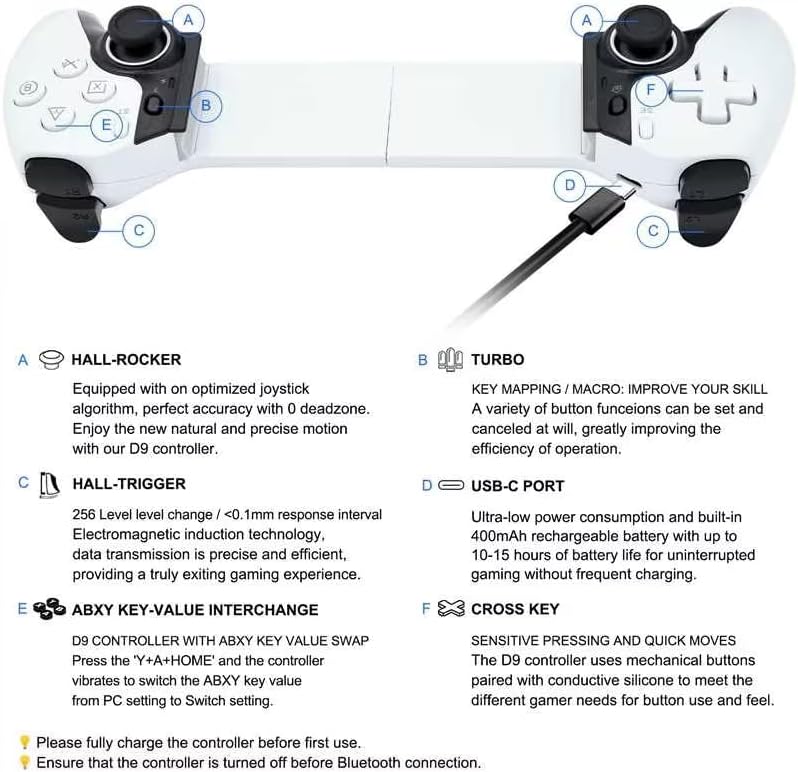
Image: A detailed diagram highlighting key features of the Joso D9 controller, including Hall-Rocker joysticks, Hall-Triggers, USB-C charging port, ABXY key value interchange, and the sensitive Cross Key.
3. Орнотуу колдонмосу
3.1 Контроллерди заряддоо
Before first use, fully charge the controller. Connect the provided USB-C charging cable to the controller's USB-C port and the other end to a power source (e.g., USB wall adapter, computer USB port). The indicator light will show charging status and turn off when fully charged.
3.2 Күйгүзүү/өчүрүү
To power on, press and hold the Home button. To power off, press and hold the Home button until the indicator lights turn off.
3.3 Жупташтыруу боюнча көрсөтмөлөр
Ensure the controller is turned off before initiating Bluetooth connection.
- For iOS (iPhone/iPad iOS 13.0+):
басып, кармап туруңуз A + Home buttons simultaneously until the indicator light flashes rapidly. On your iOS device, go to Bluetooth settings and select "D9 Controller" to pair. - For Android (Android 6.0+ phones/tablets):
басып, кармап туруңуз X + Home buttons simultaneously until the indicator light flashes rapidly. On your Android device, go to Bluetooth settings and select "D9 Controller" to pair. - Nintendo Switch үчүн:
On the Switch console, go to "Controllers" > "Change Grip/Order". Press and hold the Y + Үй buttons simultaneously on the D9 controller until the indicator light flashes rapidly. The Switch will detect and pair with the controller. - For PC (Windows 10+ Laptops via Bluetooth):
басып, кармап туруңуз X + Home buttons simultaneously until the indicator light flashes rapidly. On your PC, go to Bluetooth settings, add a new device, and select "D9 Controller" to pair. The controller will be recognized as an Xbox controller. - For PS3/PS4/PS5 (Wired Connection):
Connect the controller to the PS3/PS4/PS5 console using the USB-C cable. The controller will automatically connect and function as a wired controller. For wireless PS4/PS3 gameplay, some games may require initial wired connection or specific in-game settings.

Image: The Joso D9 controller shown with various compatible devices, illustrating its stretchable design to accommodate different phone and tablet sizes, and its broad compatibility with iOS, Android, PC, PS, and Switch platforms.
4. Иштөө нускамалары
4.1 Баскычтын жайгашуусу
The Joso D9 controller features standard gamepad buttons including A, B, X, Y, D-Pad, Left/Right Joysticks, L1/R1 (bumpers), L2/R2 (triggers), Home, Start, Select, and two programmable back buttons (M1, M2).
4.2 Programmable Back Buttons (M1/M2)
The M1 and M2 buttons on the back of the controller can be programmed to replicate other button inputs for quick access during gameplay. Up to 16 buttons can be mapped.
- басып, кармап туруңуз SET button (usually a small button on the back or bottom) until the indicator light starts flashing.
- Press the M1 or M2 button you wish to program.
- Press the button(s) you want to assign to M1/M2 (e.g., A, B, X, Y, L1, R1, L2, R2, D-Pad directions).
- басыңыз SET button again to save the mapping. The indicator light will stop flashing.

Image: The Joso D9 controller highlighting the M1 and M2 programmable back buttons, which allow users to assign up to 16 button functions for improved control.
4.3 Турбо функциясы
The Turbo function allows a button to be pressed repeatedly as long as it is held down, useful for rapid-fire actions.
- Turbo иштетүү үчүн: басып, кармап туруңуз TURBO button, then press the desired action button (A, B, X, Y, L1, R1, L2, R2). The button will now have Turbo enabled.
- Турбо ылдамдыгын тууралоо үчүн: басыңыз TURBO button and then press the Right Joystick Up or Down to cycle through 8, 15, or 25 shots/second.
- Турбо режимин өчүрүү үчүн: басып, кармап туруңуз TURBO баскычын, андан кийин аракет баскычын кайрадан басыңыз.
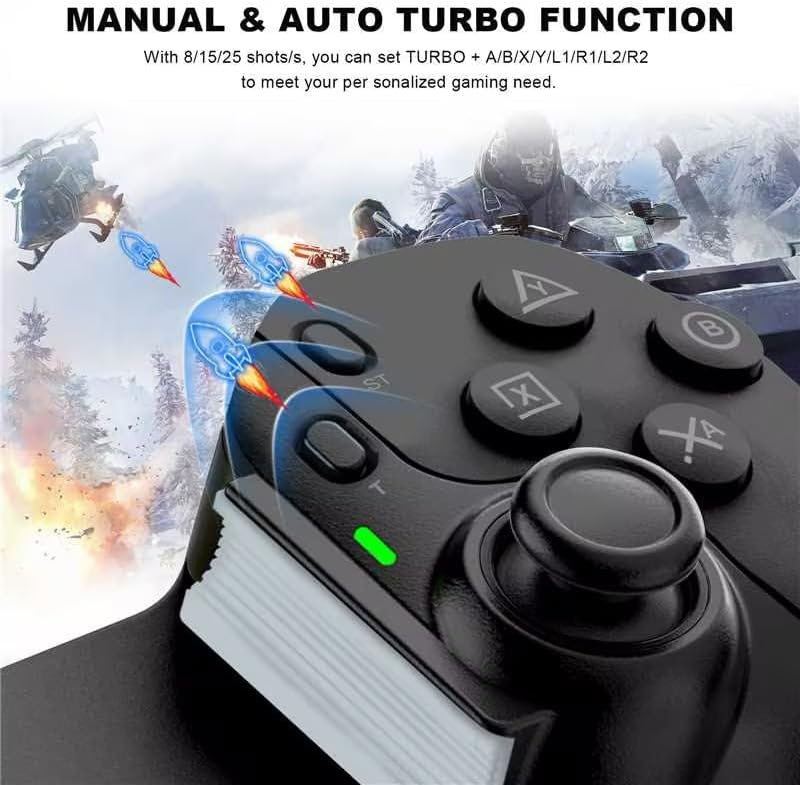
Image: A close-up of the Joso D9 controller's buttons, illustrating the manual and auto turbo function with adjustable speeds (8/15/25 shots/s) for buttons like A, B, X, Y, L1, R1, L2, R2.
4.4 ABXY Key Value Interchange
The D9 controller supports swapping the ABXY key values to match different platform layouts (e.g., Nintendo Switch vs. Xbox/PC). Press the 'Y' + 'A' + HOME buttons simultaneously to switch the ABXY key value from PC setting to Switch setting.
4.5 Вибрацияны тууралоо
To adjust the vibration intensity of the dual motors, press the TURBO баскычын, андан кийин басыңыз RIGHT ROCKER key up or down to increase or decrease the vibration level.
5. Шайкештик
The Joso D9 controller offers extensive compatibility with various gaming devices and platforms:
- Түз ойнотуу: Supports Bluetooth connection for iPhone/iPad (iOS 13.0+) and Android phones/tablets (Android 6.0+) for direct game play.
- Nintendo Switch: Bluetooth connection for playing Switch games.
- PC: Bluetooth connectivity for Windows 10+ laptops, recognized as an Xbox controller.
- PlayStation: Wired connection for PS3/PS4/PS5 consoles to play PS4/PS3 games.
- Булут оюндары: Supports cloud gaming services on iOS/Android devices, including Arcade, Google Play Pass, Game Pass (Xbox Cloud), GeForce Now, Rainway, and Luna.
- Console/PC Streaming: Supports streaming from Xbox/PS5/PS4 consoles and PC via mobile applications like Xbox/PS Remote Play and Steam Link on iOS/Android devices.
Атайын эскертүү:
- Only stream Xbox games via the Xbox mobile app. Direct play of Xbox games via Xbox console is not supported.
- Only play PS5 games via PS Remote Play app. Direct support for PS5 games via PS5 console is not available.

Image: A comprehensive chart detailing the Joso D9 controller's compatibility with various gaming platforms and services, including direct play for App Store, Google Play, and Steam, streaming for Xbox, PS4/PS5, and Steam, and cloud gaming for Arcade, Google Play Pass, GeForce Now, and Luna.
6. Техникалык тейлөө
6.1 Тазалоо
Башкаргычты тазалоо үчүн жумшак, кургак чүпүрөктү колдонуңуз. Өтө кир болсо, бир аз сүртүңүз.amp cloth can be used, but ensure no liquid enters the controller. Do not use harsh chemicals or abrasive cleaners.
6.2 Сактоо
Store the controller in a cool, dry place away from direct sunlight and extreme temperatures. Avoid placing heavy objects on the controller.
6.3 Батареяга кам көрүү
To prolong battery life, avoid fully discharging the controller frequently. If storing for an extended period, charge the controller to about 50% every few months.
7. Кыйынчылыктарды
- Контроллер туташпай жатат: Ensure the controller is charged. Verify the correct pairing mode is selected for your device (e.g., A+Home for iOS, X+Home for Android/PC, Y+Home for Switch). Turn off and restart both the controller and the device.
- Баскычтар жооп бербейт: Check if the controller is properly paired. If using a wired connection, ensure the cable is securely connected. Test in a different game or application.
- Киргизүү кечигүү: Аспабыңыздын Bluetooth'уна башка зымсыз сигналдар тоскоолдук кылбасын текшериңиз. Түзмөгүңүзгө жакындап көрүңүз.
- Вибрация иштебейт: Check in-game settings to ensure vibration is enabled. Verify the vibration adjustment setting on the controller.
- Контроллер кубатталбай жатат: Ensure the USB-C cable is functional and connected correctly to a working power source.
- Controller feels loose with device: The D9 controller stretches from 130-280mm. Ensure your device fits within this range. For smaller devices, use the included pads for a snug fit.
8. Техникалык шарттар
| Өзгөчөлүк | Спецификация |
|---|---|
| Модель номери | D9 |
| Бренд | Жосо |
| Өлчөмдөрү (пакет) | 27.8 x 11.5 x 7.4 см |
| Салмагы | 350 грамм |
| Байланыш технологиясы | Bluetooth, USB |
| Controller Type | Gamepad |
| Шайкеш түзмөктөр | iPhone, iPad, Android Phone, Android Tablet, PC, Nintendo Switch, PS4 |
| Түс | Кара |
| Өзгөчө өзгөчөлүк | Зымсыз |
| баскычтардын саны | 16 |
| Аппараттык платформа | Оюн консолу, смартфон, планшет, телевизор |
9. Кепилдик жана колдоо
The Joso D9 Universal Wireless Game Controller comes with a standard manufacturer's warranty. For detailed warranty information, technical support, or service inquiries, please refer to the contact information provided with your purchase or visit the official Joso webсайт.


