1. Киришүү
The Corsair M75 AIR Wireless Ultra-Light FPS Gaming Mouse is engineered for competitive play, offering a symmetrical design, ultra-lightweight construction, and precise optical sensor technology. This manual provides essential information for setting up, operating, maintaining, and troubleshooting your device.

Figure 1: Corsair M75 AIR Wireless Ultra-Light FPS Gaming Mouse (Light Gray)
Негизги өзгөчөлүктөрү:
- Ультра жеңил дизайн: Weighing just 60g for agile and precise movements.
- Симметриялуу форма: Meticulously crafted for maximum comfort and control for both left and right-handed users.
- Ultra-Precise 26,000 DPI Optical Sensor: CORSAIR MARKSMAN sensor with 650 IPS tracking and up to 50G acceleration.
- CORSAIR QUICKSTRIKE баскычтары: Zero-delay optical switches rated for 100 million clicks.
- Hyper-Fast Wireless Connectivity: SLIPSTREAM WIRELESS for sub-1ms latency, Bluetooth, or USB wired options.
2. Пакеттин мазмуну
Пакетиңизде бардык буюмдар бар экенин текшериңиз:
- CORSAIR M75 AIR WIRELESS Ultra-Light FPS Gaming Mouse
- USB заряддоо жана маалымат кабели
- USB зымсыз трансивер
- Коопсуздук баракчасы
- Кепилдик картасы

Figure 2: Contents of the Corsair M75 AIR Wireless Mouse package.
3. Орнотуу
3.1 Чычканды туташтыруу
The M75 AIR offers three connection methods: 2.4GHz SLIPSTREAM WIRELESS, Bluetooth, and USB wired.
3.1.1 2.4GHz SLIPSTREAM WIRELESS Connection
- Locate the USB Wireless Transceiver in your package.
- Plug the USB Wireless Transceiver into an available USB port on your PC or Mac.
- Turn on the mouse using the power switch located on the underside. Ensure the mode toggle is set to 2.4GHz wireless.
- The mouse should automatically connect. If not, refer to the troubleshooting section.

Figure 3: Connecting the USB Wireless Transceiver for 2.4GHz SLIPSTREAM connectivity.
3.1.2 Bluetooth байланышы
- Turn on the mouse using the power switch located on the underside. Ensure the mode toggle is set to Bluetooth.
- On your PC or Mac, navigate to your Bluetooth settings.
- Select the Corsair M75 AIR from the list of available devices to pair.
- Жупташтыруу процессин аяктоо үчүн экрандагы көрсөтмөлөрдү аткарыңыз.
3.1.3 USB зымдуу туташуусу
- Connect the USB Charging and Data Cable to the front port of the mouse.
- Plug the other end of the USB cable into an available USB port on your PC or Mac.
- The mouse will function as a wired device and will also charge its internal battery.
3.2 Чычканды заряддоо
To charge the M75 AIR, connect the USB Charging and Data Cable to the mouse and a powered USB port. The mouse can be used while charging.
4. Иштөө нускамалары
4.1 Баскыч функциялары
The M75 AIR features several buttons for enhanced control:
- Сол чыкылдатуу баскычы: Негизги аракет.
- Оң баскычты чыкылдатуу: Экинчилик аракет.
- Жылдыруу дөңгөлөгү: Scrolls content vertically. Can also be pressed for a middle-click action.
- Каптал баскычтары: Two programmable buttons located on the left side (default for forward/back in browsers). These can be swapped for left-handed use.
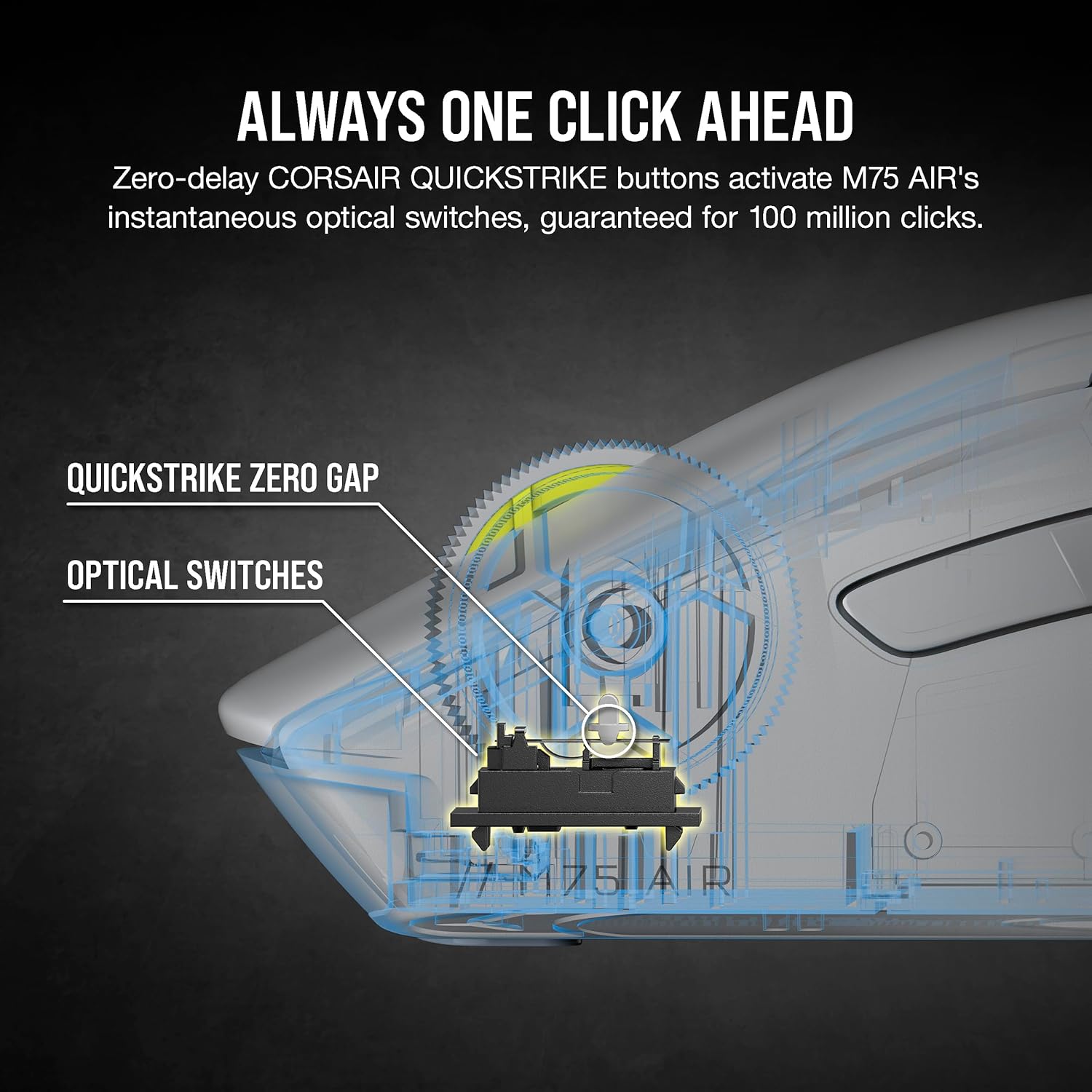
Figure 4: Illustration of CORSAIR QUICKSTRIKE buttons and optical switches.
4.2 DPIди (сезгичтикти) жөндөө
The M75 AIR features an ultra-precise 26,000 DPI optical sensor. DPI settings can be adjusted on-the-fly using the dedicated DPI switch located on the underside of the mouse. You can customize DPI stages and assign them to the switch using the iCUE software.

Figure 5: The CORSAIR MARKSMAN optical sensor provides up to 26,000 DPI.
4.3 Туташуу режимдерин которуу
A mode toggle switch on the underside of the mouse allows you to switch between 2.4GHz wireless and Bluetooth connectivity. The wired connection is automatically detected when the USB cable is plugged in.
4.4 iCUE Software
For advanced customization, including button remapping, DPI stage configuration, surface calibration, and firmware updates, download and install the Corsair iCUE software from the official Corsair webсайт.
5. Техникалык тейлөө
5.1 Тазалоо
Оптималдуу иштөөсүн сактоо үчүн, чычканды үзгүлтүксүз тазалап туруңуз. Жумшак, түксүз чүпүрөктү бир аз сүртүңүз.ampened with water or a mild cleaning solution. Avoid harsh chemicals or abrasive materials. Ensure no liquid enters the mouse's openings.
5.2 Сенсорго кам көрүү
Keep the optical sensor on the underside of the mouse clean and free of dust or debris. Use a cotton swab or compressed air to gently clean the sensor area.
5.3 PTFE Фут
The mouse features ultra-low-friction PTFE feet for smooth gliding. If these feet become worn, they are easily replaceable. Replacement feet can be purchased separately from Corsair or authorized retailers.
6. Кыйынчылыктарды
6.1 Чычкан жооп бербейт
- Чычкан күйгүзүлгөнүн текшериңиз.
- Check the battery level. Connect the USB cable to charge if the battery is low.
- Verify the connection mode:
- For 2.4GHz wireless, ensure the USB Wireless Transceiver is securely plugged in and the mouse is set to 2.4GHz mode.
- For Bluetooth, ensure Bluetooth is enabled on your device and the mouse is correctly paired and set to Bluetooth mode.
- For wired, ensure the USB cable is securely connected to both the mouse and your computer.
- Try plugging the USB Wireless Transceiver or wired cable into a different USB port.
- Компьютериңизди өчүрүп күйгүзүңүз.
6.2 Intermittent Connection / Lag
- Ensure the USB Wireless Transceiver is positioned close to the mouse and not obstructed by metal objects. Using a USB extension cable to bring the transceiver closer can improve signal strength.
- Avoid using the mouse near other wireless devices that may cause interference (e.g., Wi-Fi routers, other wireless peripherals).
- Update the mouse firmware via Corsair iCUE software.
6.3 DPI жөндөөлөрү өзгөрбөйт
- Ensure the iCUE software is installed and running.
- Check the DPI settings within iCUE to ensure custom stages туура конфигурацияланган.
- Verify that the DPI switch on the underside of the mouse is functioning.
7. Техникалык шарттар
| Өзгөчөлүк | Спецификация |
|---|---|
| Бренд | Корсар |
| Модель номери | CH-931D102-NA |
| Байланыш технологиясы | Bluetooth, USB, 2.4GHz Wireless (SLIPSTREAM) |
| Кыймылды аныктоо технологиясы | Оптикалык (CORSAIR MARKSMAN) |
| Макс DPI | 26,000 DPI |
| Макс IPS | 650IPS |
| Макс ылдамдатуу | 50G |
| Которгучтар | CORSAIR QUICKSTRIKE Optical Switches (100 Million Clicks) |
| Салмагы | 60g (Ultra-Light) |
| Өлчөмдөрү (LxWxH) | 5.04 x 2.56 x 0.1 дюйм |
| Батареянын орточо иштөө мөөнөтү | 34 Hours (Wireless) |
| Батарея түрү | 1 Литий Полимердик батарейка (кошулган) |
| Операциялык системанын шайкештиги | Windows, macOS |
8. Кепилдик жана колдоо
Your Corsair M75 AIR Wireless Ultra-Light FPS Gaming Mouse comes with a Warranty Card included in the package. Please refer to this card for detailed warranty terms and conditions specific to your region.
For technical support, driver downloads, firmware updates, and additional product information, please visit the official Corsair webсайт:
You can also find a Safety Leaflet in your package, which contains important safety information regarding the use and disposal of the product.
9. Продукт видеосу
Video 1: CORSAIR M75 AIR WIRELESS - 3D Trailer. This video provides a visual overview of the Corsair M75 AIR Wireless mouse's design and features.


