Introduction
This manual provides essential information for setting up, operating, and maintaining your HP 15.6" Touch-Screen Laptop, model 15-DY5033DX. Designed for efficiency and portability, this laptop features an Intel 12th Generation Core i3 processor, 8GB of memory, a 256GB SSD, and runs on Windows 11 Home in S mode. Its touch-screen display enhances user interaction for various tasks.
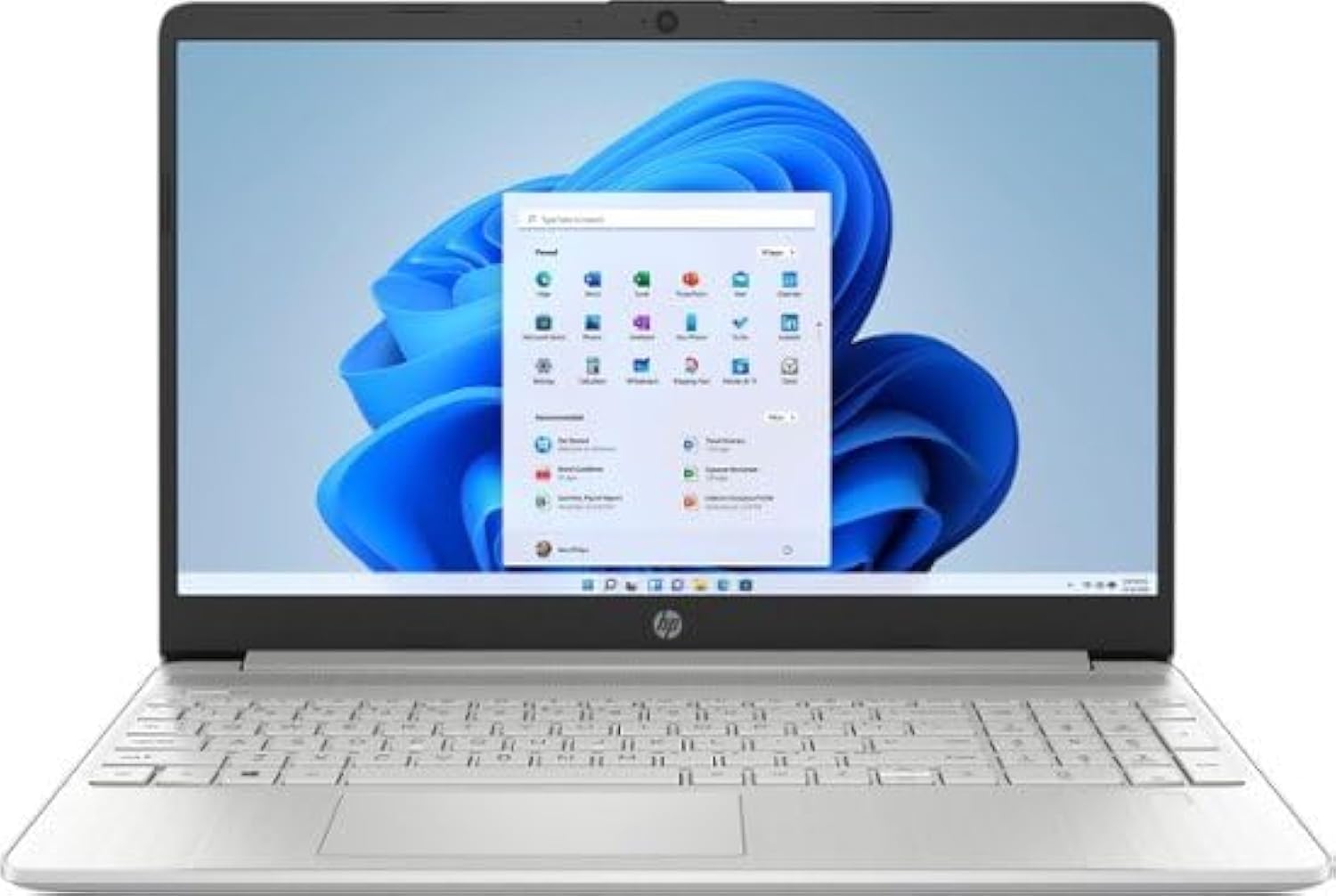
Сүрөт 1: Алдыңкы view of the HP 15.6" Touch-Screen Laptop.
Орнотуу колдонмосу
1. Баштапкы күйгүзүү жана заряддоо
Before first use, connect the laptop to a power outlet using the provided AC adapter. The laptop is equipped with HP Fast Charge technology, allowing it to charge from 0% to 50% in approximately 45 minutes. Press the power button, typically located on the top right of the keyboard, to turn on the device.
2. Windows 11 Home Setup
Follow the on-screen instructions to complete the initial setup of Windows 11 Home in S mode. This includes connecting to a Wi-Fi network, setting up your user account, and configuring privacy settings. Windows 11 in S mode offers enhanced security and faster boot times.
3. Connecting Peripherals and Ports
Your HP laptop features various ports for connecting external devices:
- SuperSpeed USB Type-C®: Жогорку ылдамдыктагы маалыматтарды өткөрүү жана туура келген USB-C түзмөктөрүн туташтыруу үчүн.
- HDMI 1.4b: Тышкы дисплейлерге же проекторлорго туташуу.
- Көп форматтуу SD медиа карта окугуч: SD карталардан маалыматтарды окуу жана жазуу үчүн.
- Headphone/microphone combo: Аудио киргизүү жана чыгаруу үчүн.
- AC smart pin: Кубат адаптерин туташтыруу үчүн.
- SuperSpeed USB Type-A: Стандарттык USB түзмөктөрүн туташтыруу үчүн.

Figure 2: ашыкview of laptop ports for connectivity.
Ноутбугуңузду иштетүү
1. Touch-Screen Functionality
The 15.6-inch HD (1366 x 768) touch-screen display allows for intuitive interaction. Use gestures such as tapping, swiping, pinching, and zooming directly on the screen. This is particularly useful for applications requiring precise input or for general navigation.
2. Баскычтоп жана сенсордук такта
The full-size keyboard provides a comfortable typing experience. The integrated touchpad supports multi-touch gestures for navigation, scrolling, and zooming. Refer to Windows 11 settings for customizing touchpad gestures.
3. Зымсыз байланыш
The laptop includes a Wi-Fi 5 (1x1) and Bluetooth 4.2 wireless card. To connect to Wi-Fi, click the network icon in the taskbar, select your desired network, and enter the password. For Bluetooth devices, go to Windows Settings > Bluetooth & devices to pair.
4. Camera and Audio
The HP True Vision HD Camera and dual array microphones ensure clear video calls and audio recordings. The advanced noise reduction technology helps minimize background distractions.
Техникалык тейлөө жана кам көрүү
1. Ноутбугуңузду тазалоо
Бир аз жумшак, түксүз кездемени колдонуңуз dampened with water or a screen cleaner specifically designed for electronics to clean the display. For the keyboard and chassis, use a soft, dry cloth. Avoid harsh chemicals or abrasive materials.
2. Программалык камсыздоону жаңыртуу
Regularly check for and install Windows updates and HP driver updates to ensure optimal performance, security, and compatibility. Go to Windows Settings > Windows Update to check for updates.
3. Батареяга кам көрүү
Батареянын иштөө мөөнөтүн узартуу үчүн, экстремалдык температурадан жана батареяны бат-баттан толук кубаттап турбаңыз. Узак мөөнөттүү сактоо үчүн, батареяны болжол менен 50% кубаттап, ноутбукту салкын, кургак жерде сактаңыз.
4. Экологиялык эске алуулар
This HP laptop is EPEAT Silver registered and ENERGY STAR certified, indicating its design with environmental sustainability in mind. It also contains post-consumer recycled plastics. Please dispose of the product and its components responsibly according to local regulations.
Проблемаларды чечүү
Ноутбугуңузда көйгөйлөргө туш болсоңуз, көйгөйдү чечүүнүн төмөнкү жалпы кадамдарын карап көрүңүз:
- Кубат жок: AC адаптери ноутбукка да, иштеген электр розеткасына да бекем туташып турганын текшериңиз. Кубат индикаторунун жарыгын текшериңиз.
- Дисплей маселелери: If the screen is blank, try pressing the Fn key and the appropriate function key (often F4 or F5) to toggle the display output. Ensure external monitors are properly connected.
- Wi-Fi туташуусу: Verify that Wi-Fi is enabled in Windows settings and that you are connected to the correct network. Restart your router if necessary.
- Сенсордук экран жооп бербейт: Restart the laptop. If the issue persists, check for driver updates in Device Manager or consult HP support.
- Жай аткаруу: Close unnecessary applications, check for malware, and ensure sufficient free space on the SSD.
For more complex problems, refer to the HP support webсайтка же кардарларды тейлөөгө кайрылыңыз.
Техникалык мүнөздөмөлөр
| Өзгөчөлүк | Спецификация |
|---|---|
| Модель аты | 15-DY5033DX |
| Screen Size | 15.6 дюйм |
| Screen Resolution | 1366 x 768 пиксел (HD) |
| Процессор | Intel 12th Generation Core i3 1215U (4.1 GHz) |
| RAM | 8GB DDR4-3200 MHz |
| Сактагыч | 256 ГБ PCIe NVMe SSD |
| Графикалык карта | Интеграцияланган Intel UHD графикасы |
| Операция системасы | Windows 11 Home S режиминде |
| Зымсыз түрү | Wi-Fi 5 (802.11ac) and Bluetooth 4.2 |
| Порттар | SuperSpeed USB Type-C®, HDMI 1.4b, Multi-format SD media card reader, Headphone/microphone combo, AC smart pin, SuperSpeed USB Type-A |
| Элемент Салмагы | 3.75 фунт |
| Өлчөмдөрү (LxWxH) | 14.11 x 9.53 x 0.71 дюйм |
| Түс | Табигый күмүш |

Figure 3: Laptop dimensions.
Кепилдик жана колдоо
Your HP laptop comes with a standard manufacturer's warranty. For detailed information regarding warranty coverage, terms, and conditions, please refer to the warranty card included with your product or visit the official HP support webсайты. Техникалык жардам, драйверлерди жүктөп алуу жана мүчүлүштүктөрдү оңдоо боюнча көрсөтмөлөр үчүн бул жерге кириңиз support.hp.com.