Introduction
This manual provides essential information for setting up, operating, and maintaining your ASUS VA329HE 32-inch Full HD LED Backlit LCD Monitor. The ASUS VA series is designed to enhance productivity with vivid visuals and eye care features. This bundle includes a dual monitor stand for an optimized workspace.
Жайгашуу
1. Кутудан чыгаруу жана компоненттерди текшерүү
Бардык компоненттерди таңгактан кылдаттык менен алып салыңыз. Төмөнкү нерселердин бар экенин текшериңиз:
- ASUS VA329HE Monitor
- Кубаттуу адаптер жана кабель
- HDMI кабели
- VGA кабели
- Dual Monitor Desk Mount Stand (with heavy-duty desk clamp and detachable VESA bracket plates)
- Колдонуучунун Колдонмосу (бул документ)
2. Монитор Ассамблеясы
The monitor can be used with its included desk mount stand or mounted using its VESA compatibility.

Figure 1: Components of the Dual Monitor Desk Mount Stand. This image shows the various parts of the desk mount, including the main pole, adjustable arms, and VESA plates, ready for assembly.
For Desk Mount Stand:
- Attach the VESA bracket plates to the back of each monitor using the provided screws.
- Assemble the desk mount stand according to its specific instructions, securing the heavy-duty desk clamp үстөлүңүзгө.
- Attach the monitors (with VESA plates) to the adjustable arms of the stand.
- Adjust the height, tilt, swivel, and rotation of the monitors for optimal viewсооронуч.
For VESA Wall Mount (not included):
- The monitor is VESA compatible. Remove the pre-attached stand (if any) and follow the instructions provided with your VESA wall mount kit.

2-сүрөт: Арткы view of the ASUS VA329HE monitor, highlighting the VESA mounting holes for attaching to a compatible stand or wall mount.
3. Туташтыруучу кабельдер
Connect the necessary cables to your monitor and computer.
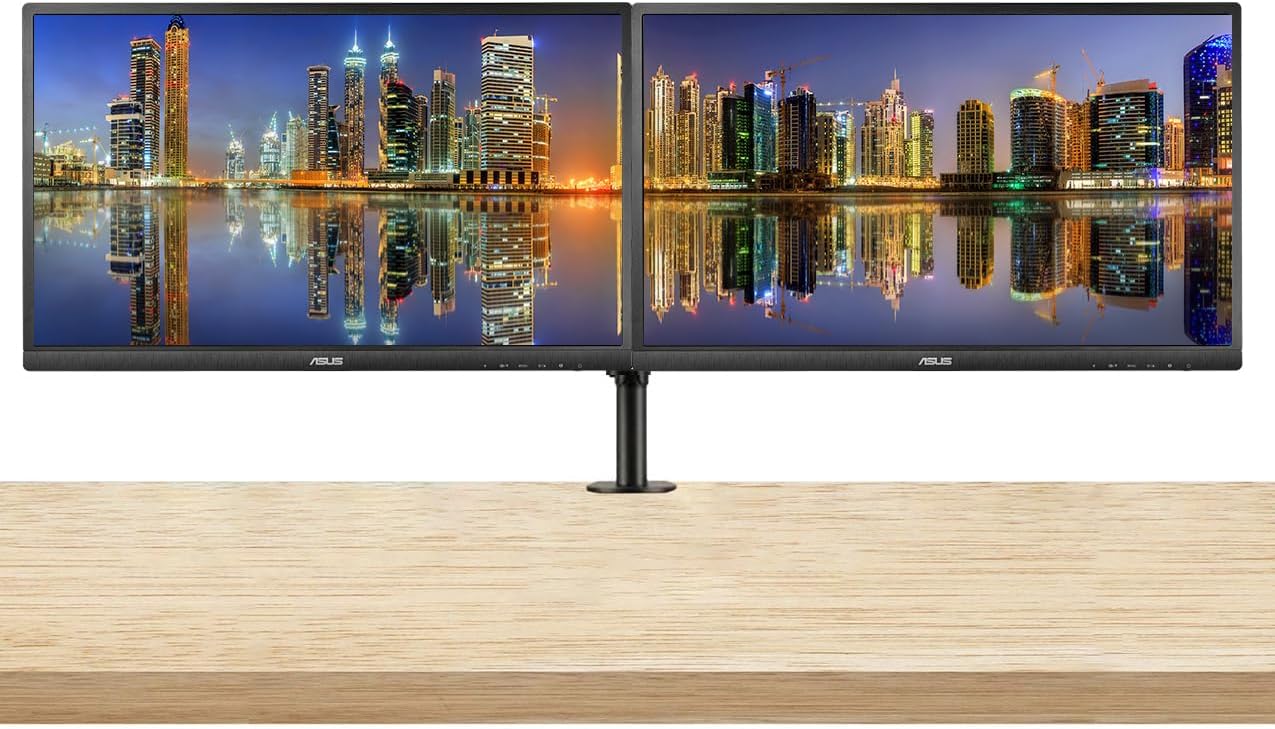
Figure 3: Two ASUS VA329HE monitors displayed on a dual monitor stand, showcasing a typical setup for enhanced productivity.
- Күч: Кубат адаптерин монитордун кубат киргизүү булагына, андан кийин розеткага туташтырыңыз.
- Video Input: Connect either the HDMI cable or the VGA cable from your computer's video output to the corresponding port on the monitor.
- Аудио (милдеттүү эмес): If you wish to use external speakers or headphones, connect them to the monitor's audio output jack.
Video 1: This video demonstrates the unboxing and initial setup of an ASUS 31.5-inch 1080P monitor, including connecting cables and powering it on. It provides a visual guide to the physical setup process.
Иштөө нускамалары
1. Күйгүзүү/өчүрүү
Мониторду күйгүзүү же өчүрүү үчүн анын ылдыйкы оң жагында жайгашкан кубат баскычын басыңыз. Монитор иштеп турганда кубат индикаторунун жарыгы күйөт.
2. Экрандагы дисплей (OSD) менюсу
The OSD menu allows you to adjust various monitor settings. Use the control buttons located on the bottom right bezel of the monitor to navigate the menu.
- басыңыз Меню OSD менюсун ачуу үчүн баскычты басыңыз.
- колдонуу Навигация buttons (up/down/left/right arrows) to move through options.
- басыңыз Тандоо button (often the center button) to confirm a selection.
- басыңыз Чыгыңыз button to close the OSD menu or go back to the previous level.
3. Негизги өзгөчөлүктөр жана орнотуулар
- Киргизүүнү тандоо: Use the OSD menu to switch between HDMI and VGA inputs.
- Жарыктык/Контраст: Adjust these settings in the OSD menu to optimize visual clarity for your environment. The monitor features an ultra-high 3,000:1 contrast ratio and 300cd/m² brightness.
- ASUS Smart Contrast Technology: This feature, with an 80,000,000:1 contrast ratio, optimizes color brightness, contrast, and sharpness. Access various modes like Reading and Darkroom via the OSD.
- Көзгө кам көрүү технологиясы: The VA Series includes a certified Blue Light Filter to reduce harmful blue light emissions. Select from four different filter settings in the OSD menu to minimize eye strain during extended use.
- AMD FreeSync: This technology helps eliminate screen tearing and choppy frame rates for smoother visuals, especially during dynamic content. Ensure your graphics card supports AMD FreeSync for optimal performance.
Техникалык тейлөө
1. Мониторду тазалоо
- Тазалоодон мурун ар дайым мониторду өчүрүп, электр зымдарын сууруп алыңыз.
- Жумшак, түксүз кездемени жеңил колдонуңуз dampсуу же жумшак, абразивдүү эмес экран тазалагыч менен иштетиңиз.
- Wipe the screen gently. Avoid applying direct pressure to the screen.
- Спирт, аммиак же абразивдүү тазалоочу каражаттарды колдонбоңуз, анткени алар экрандын бетине зыян келтириши мүмкүн.
2. Жалпы кам көрүү
- Монитор же анын кабелдерине оор нерселерди коюудан алыс болуңуз.
- Мониторду күн нурунан, жылуулук булактарынан жана ашыкча нымдуулуктан алыс кармаңыз.
- Ашыкча ысып кетүүдөн сактануу үчүн монитордун айланасында жетиштүү желдетүүнү камсыз кылыңыз.
Проблемаларды чечүү
Мониторуңузда көйгөйлөргө туш болсоңуз, төмөнкү жалпы чечимдерди караңыз:
| Көйгөй | Мүмкүн чечим |
|---|---|
| Экранда сүрөт жок |
|
| Сүрөт бүдөмүк же бурмаланган |
|
| Динамиктерден/наушниктерден үн чыкпайт |
|
| Экрандын бүлбүлдөөсү |
|
Техникалык шарттар
| Өзгөчөлүк | Деталь |
|---|---|
| Модель номери | VA329HE |
| Screen Size | 32 дюйм |
| Резолюция | 1920 x 1080 пиксел (FHD 1080p) |
| Аспект катышы | 16:9 |
| Жаңыртуу ылдамдыгы | 75 Гц |
| Сүрөттүн жарыктыгы | 300 кд/м² |
| Контраст катышы | 3,000:1 (Typical), 80,000,000:1 (ASUS Smart Contrast Ratio) |
| Viewбурч | 178° кең-View |
| Screen Surface | Жылтырак |
| Байланыш | VGA, HDMI |
| Продукциянын өлчөмдөрү | 9 x 24 x 28 дюйм |
| Элемент Салмагы | 30 фунт |

Figure 4: The ASUS VA329HE monitor with its physical dimensions (height, width, depth) clearly indicated for reference.
Кепилдик жана колдоо
Кепилдик маалыматы жана техникалык колдоо үчүн расмий ASUSга кайрылыңыз website or contact ASUS customer service directly. Keep your purchase receipt for warranty claims.


