1. Киришүү
The ID-COOLING FROZN A620 PRO SE is a high-performance dual-tower air CPU cooler designed to provide efficient heat dissipation for your processor. It features a blackout aesthetic, dual 120mm PWM fans, and six Ф6mm copper heatpipes to ensure optimal cooling performance while maintaining quiet operation. This manual will guide you through the installation, operation, and maintenance of your new CPU cooler.

Сүрөт 1.1: Бүттүview of the ID-COOLING FROZN A620 PRO SE CPU Cooler.
2. Пакеттин мазмуну
Please verify that all components are present in your package before proceeding with installation:
- FROZN A620 PRO SE Heatsink (Dual-Tower)
- 2 x 120mm PWM Cooling Fans
- Mounting Hardware Kit for Intel (LGA1700/1851/1200/115X)
- Mounting Hardware Kit for AMD (AM4/AM5)
- Thermal Paste (FROST X35)
- Fan Y-Cable (for connecting both fans to a single CPU fan header)
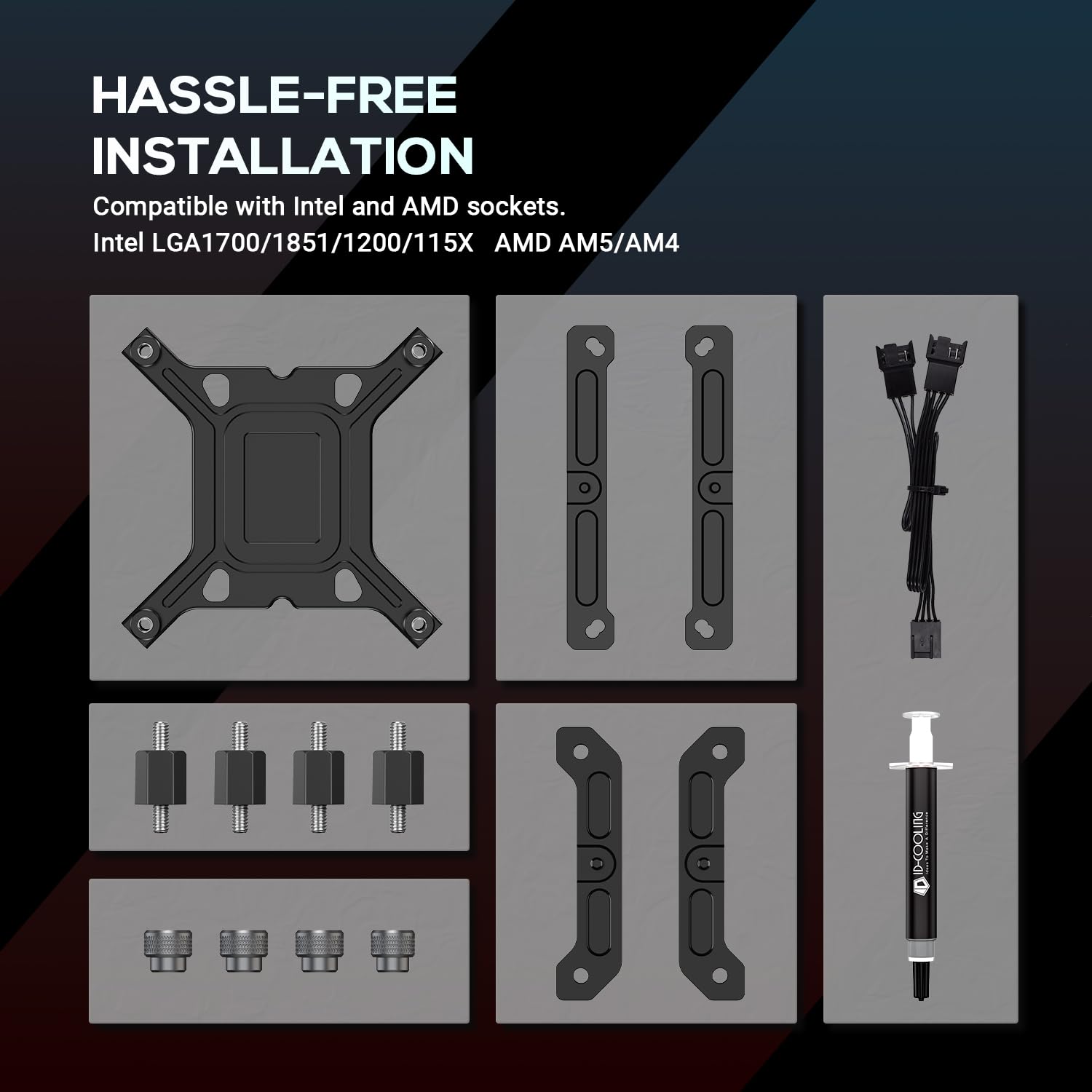
Image 2.1: Included mounting hardware and accessories.
3. Техникалык шарттар
| Өзгөчөлүк | Деталь |
|---|---|
| Модель номери | FROZN-A620-PRO-SE |
| Өлчөмдөрү (L x W x Y) | 5.59 x 4.72 x 6.18 дюйм (142 x 120 x 157 мм) |
| Салмагы | 2.62 фунт (1.19 кг) |
| Жылуулук түтүктөрү | 6 x Ф6mm Copper Heatpipes |
| Fan Size | 2 x 120x120x25mm PWM Fans |
| Ызы-чуу деңгээли | 27.2 dB(A) Max. |
| RAM Тазалоо | 40mm for standard RAM, up to 63mm with cut-out fin design |
| Шайкештик | Intel LGA1700/1851/1200/115X; AMD AM4/AM5 |
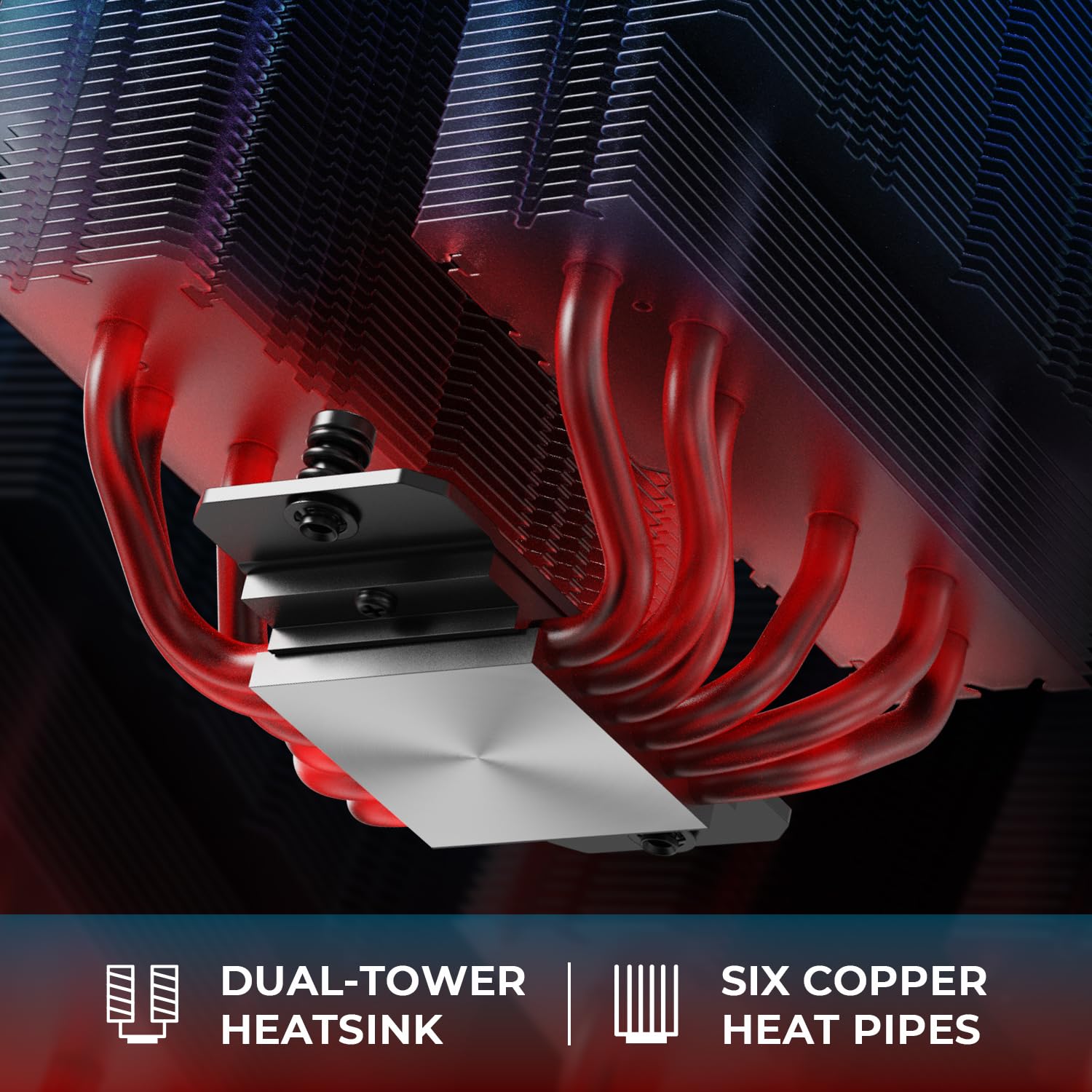
Сүрөт 3.1: Жакын пландан view of the dual-tower heatsink and six copper heatpipes.
4. Орнотуу жана орнотуу
Before installation, ensure your motherboard is removed from the PC case or has sufficient access to the CPU socket's rear for backplate installation. Refer to your motherboard manual for specific instructions on CPU and RAM installation.
4.1. Жалпы даярдык
- Бардык компоненттерди таңгактан чыгарып, пакеттин мазмунун тизме менен текшериңиз.
- Эски термикалык паста же калдыктарды кетирүү үчүн процессордун бетин изопропил спирти менен кылдат тазалаңыз.
- Apply a small amount of the provided thermal paste (FROST X35) to the center of the CPU's integrated heat spreader (IHS). A pea-sized dot is generally sufficient.

Image 4.1: Illustration of thermal paste application on the CPU.
4.2. Mounting Hardware Installation
The installation process varies slightly between Intel and AMD platforms. Follow the instructions relevant to your CPU socket type.

Image 4.2: General mounting hardware installation for Intel LGA1851/1700/1200/115X and AMD AM4/AM5 sockets.
4.2.1. Intel Sockets (LGA1700/1851/1200/115X)
- Place the universal backplate behind the motherboard, aligning the holes with the CPU socket.
- Insert the four standoffs through the motherboard from the front, screwing them into the backplate until secure.
- Place the two Intel mounting brackets onto the standoffs, ensuring they are oriented correctly. Secure them with the provided nuts.
- Carefully place the heatsink onto the CPU, aligning the mounting holes on the heatsink base with the threaded posts on the mounting brackets.
- Secure the heatsink by alternately tightening the two spring-loaded screws until snug. Do not overtighten.
4.2.2. AMD Sockets (AM4/AM5)
- Remove the original plastic retention modules from the motherboard, but retain the stock AMD backplate.
- Screw the four AMD standoffs into the stock backplate's threaded holes from the front of the motherboard.
- Place the two AMD mounting brackets onto the standoffs, ensuring they are oriented correctly. Secure them with the provided nuts.
- Carefully place the heatsink onto the CPU, aligning the mounting holes on the heatsink base with the threaded posts on the mounting brackets.
- Secure the heatsink by alternately tightening the two spring-loaded screws until snug. Do not overtighten.
4.3. Fan Installation & RAM Clearance
Attach the two 120mm PWM fans to the heatsink using the included fan clips. Ensure the fans are oriented to pull air through the heatsink towards the rear of your PC case. Connect both fans to the provided Y-cable, then connect the Y-cable to your motherboard's CPU_FAN header.
The cooler provides 40mm of clearance for standard RAM modules. With its cut-out fin design, it can accommodate RAM modules up to 63mm in height. If you have tall RAM, you may need to adjust the front fan's vertical position slightly upwards using the fan clips to ensure clearance. The total height of the cooler is 157mm, which fits most tower cases.
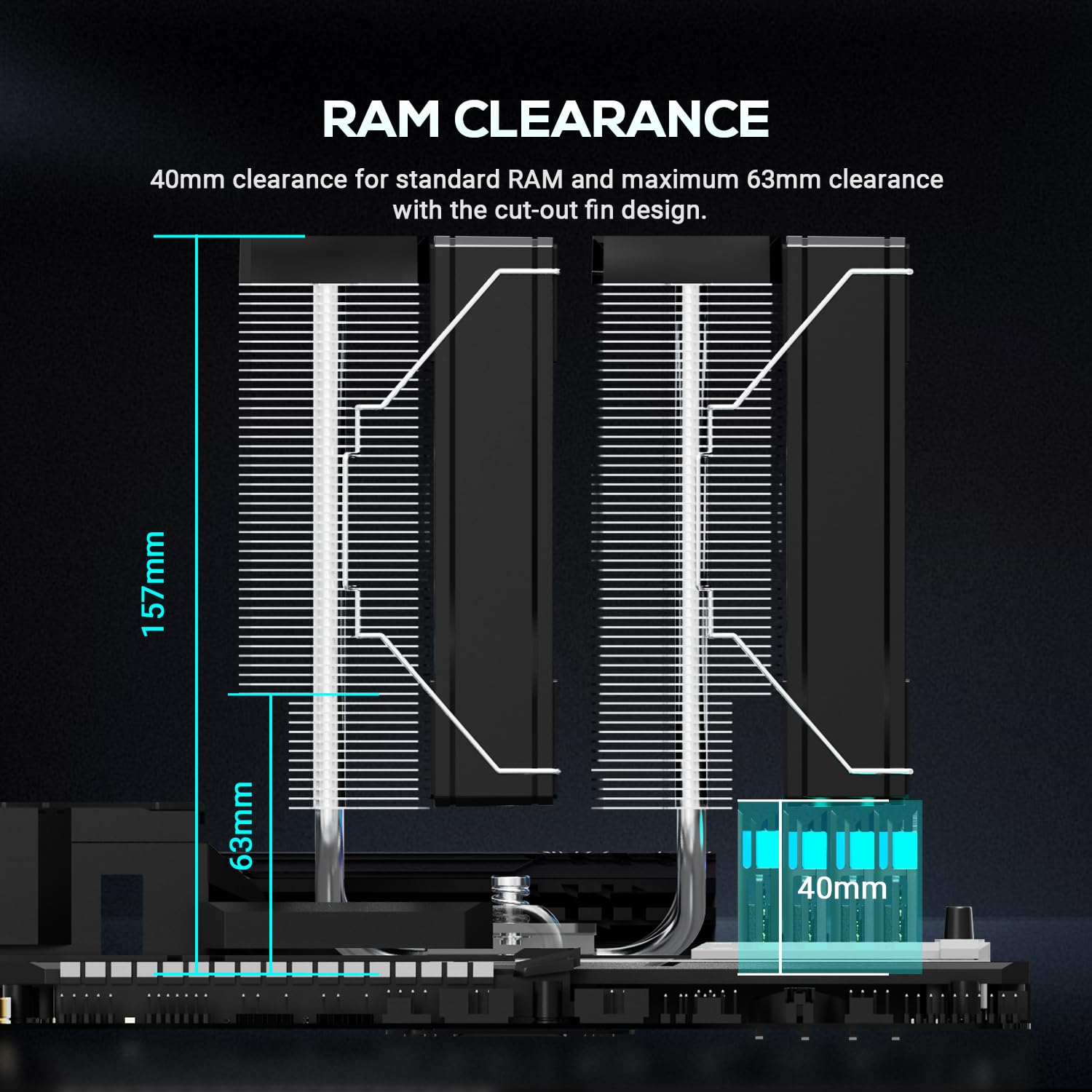
Image 4.3: Diagram illustrating RAM clearance with the cooler, showing 40mm for standard RAM and up to 63mm with fin cut-out.
5. Иштөө нускамалары
The FROZN A620 PRO SE features two 120mm PWM fans. PWM (Pulse Width Modulation) functionality allows your motherboard to automatically control the fan speed based on CPU temperature, ensuring optimal cooling performance while minimizing noise. The fans are designed for ultra-quiet operation, with a maximum noise level of 27.2 dB(A).
After installation, enter your motherboard's BIOS/UEFI settings to confirm that the CPU_FAN header is set to PWM mode and that the fan curve is configured to your preference. A well-configured fan curve will balance cooling efficiency with acoustic performance.

Image 5.1: Illustration of the cooler's quiet fan operation, indicating a maximum noise level of 27.2 dB(A).
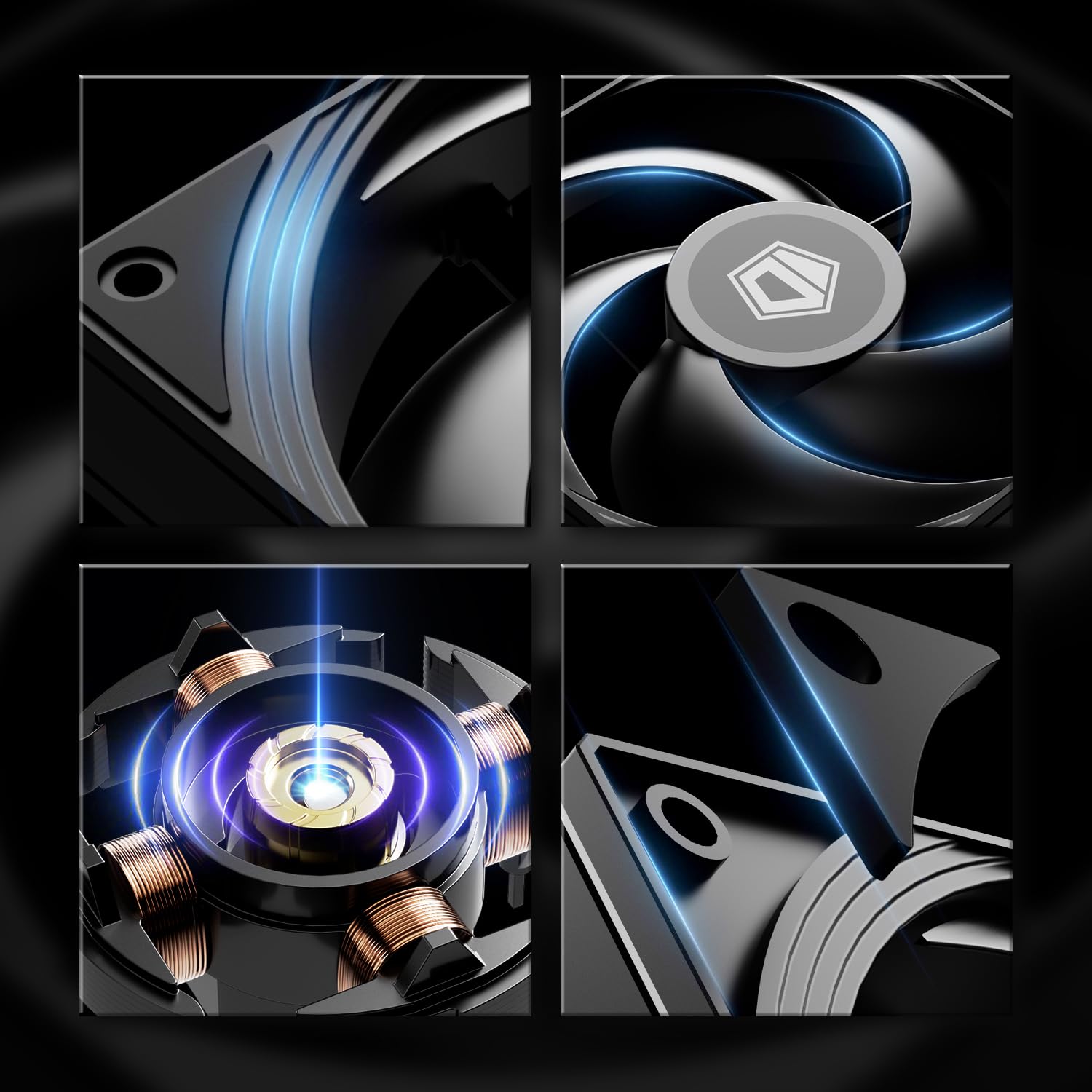
Сүрөт 5.2: Детальдуу view of the fan design, highlighting components contributing to performance.
6. Техникалык тейлөө
Үзгүлтүксүз тейлөө сиздин CPU муздаткычыңыздын оптималдуу иштешин жана узак иштөөсүн камсыз кылууга жардам берет.
- Чаңды тазалоо: Periodically (every 3-6 months, or more frequently in dusty environments) use compressed air to clean dust from the heatsink fins and fan blades. Ensure the fans are held stationary during cleaning to prevent over-spinning and potential damage.
- желдеткич текшерүү: Check fan blades for any obstructions or signs of wear. If a fan becomes excessively noisy or stops spinning, it may need replacement.
- Термикалык паста: While not typically required frequently, if you remove the cooler for any reason (e.g., CPU upgrade), it is recommended to clean off the old thermal paste and apply a fresh layer before reinstallation.
7. Кыйынчылыктарды
If you encounter issues with your FROZN A620 PRO SE cooler, consider the following:
- Жогорку CPU температурасы:
- Ensure the heatsink is securely mounted and making full contact with the CPU.
- Термикалык пастанын туура жана бирдей сүйкөлгөнүн текшериңиз.
- Check fan orientation; they should be pulling air through the heatsink.
- Confirm fans are spinning and connected to the CPU_FAN header.
- Clean any dust accumulation from the heatsink and fans.
- Айланбаган күйөрмандар:
- Ensure the fan Y-cable is securely connected to both fans and the motherboard's CPU_FAN header.
- Check BIOS/UEFI settings to ensure the CPU_FAN header is enabled and configured correctly.
- Ашыкча желдеткич ызы-чуу:
- Inspect fans for any obstructions (cables, debris).
- Check if fan blades are damaged or loose.
- Adjust fan curve settings in BIOS/UEFI to reduce fan speed at lower temperatures.
8. Кепилдик жана колдоо
ID-COOLING typically offers a 3-year warranty for its products. For specific warranty terms, conditions, and the most current support procedures, please refer to the official ID-COOLING website or contact your point of purchase. When seeking support, have your product model number (FROZN-A620-PRO-SE) and proof of purchase readily available.


