Introduction
Welcome to the user manual for your new PRITOM 10.1 inch Android 13 Tablet. This tablet is designed to provide a high-performance and versatile computing experience, featuring an Octa-core processor, 8GB RAM, 64GB ROM (expandable up to 512GB), and a 6000mAh battery. With its HD IPS touch screen, 5G/2.4G WiFi6, and Bluetooth 5.0, it is ideal for entertainment, productivity, and communication. This manual will guide you through the setup, operation, and maintenance of your device to ensure optimal performance and longevity.
Кутуда эмне бар
Пакетиңиздин мазмунун текшериңиз. Эгерде кандайдыр бир нерселер жок болсо же бузулса, кардарларды колдоо менен байланышыңыз.
- PRITOM 10.1 inch Android 13 Tablet
- Заряддоочу жана кабель
- Folio Case
- Колдонуучунун Колдонмосу (бул документ)
Продукт бүттүview

This image displays the sleek design of the PRITOM tablet, highlighting its vibrant screen and the Android 13 operating system. The tablet features a large display suitable for various multimedia and productivity tasks.

This visual summary highlights the core specifications of the tablet, including its memory, storage, battery capacity, display technology, and connectivity options, emphasizing its high performance and modern features.
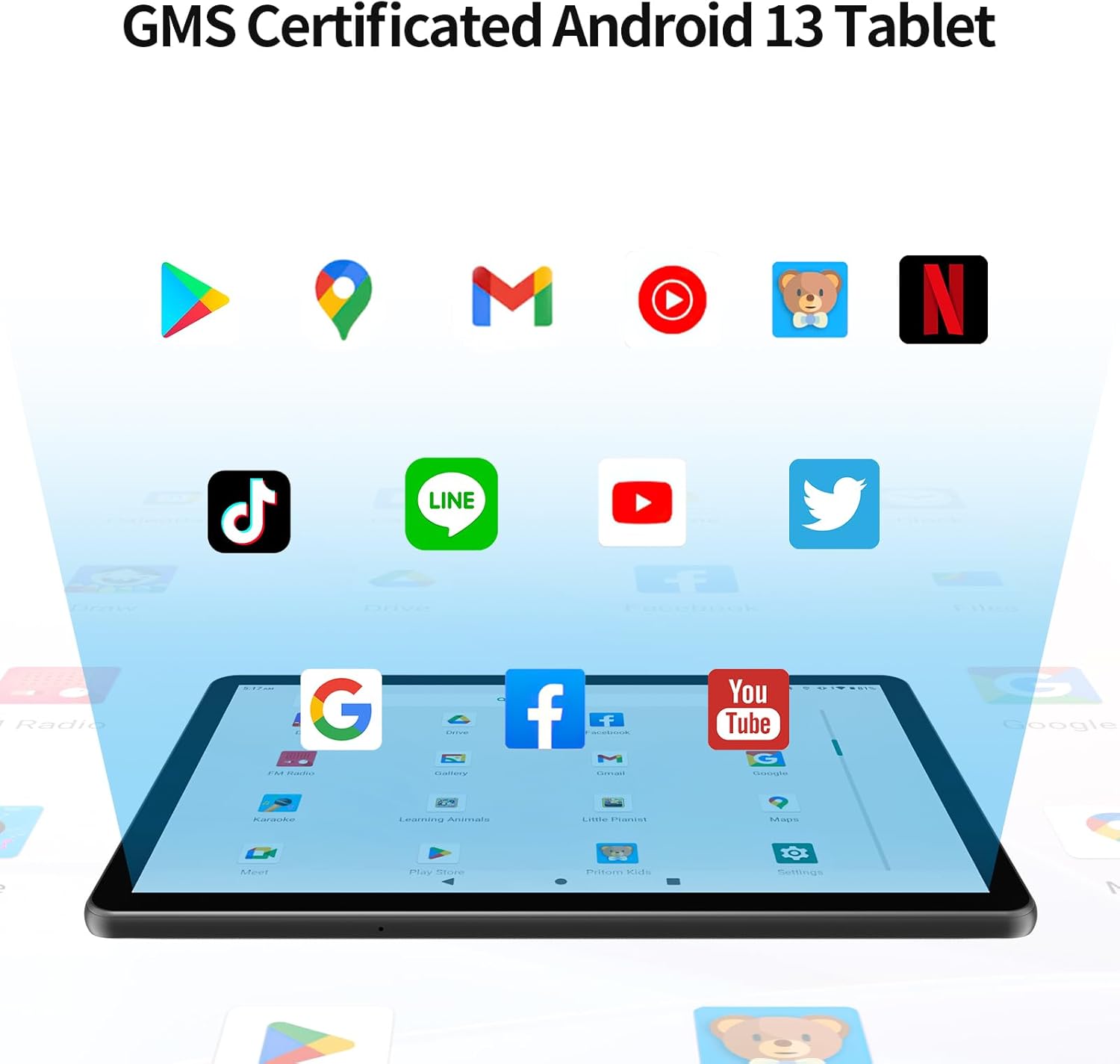
This image confirms the tablet's Google certification, ensuring users can download and utilize a wide range of popular applications from the Google Play Store, enhancing its versatility for both work and entertainment.
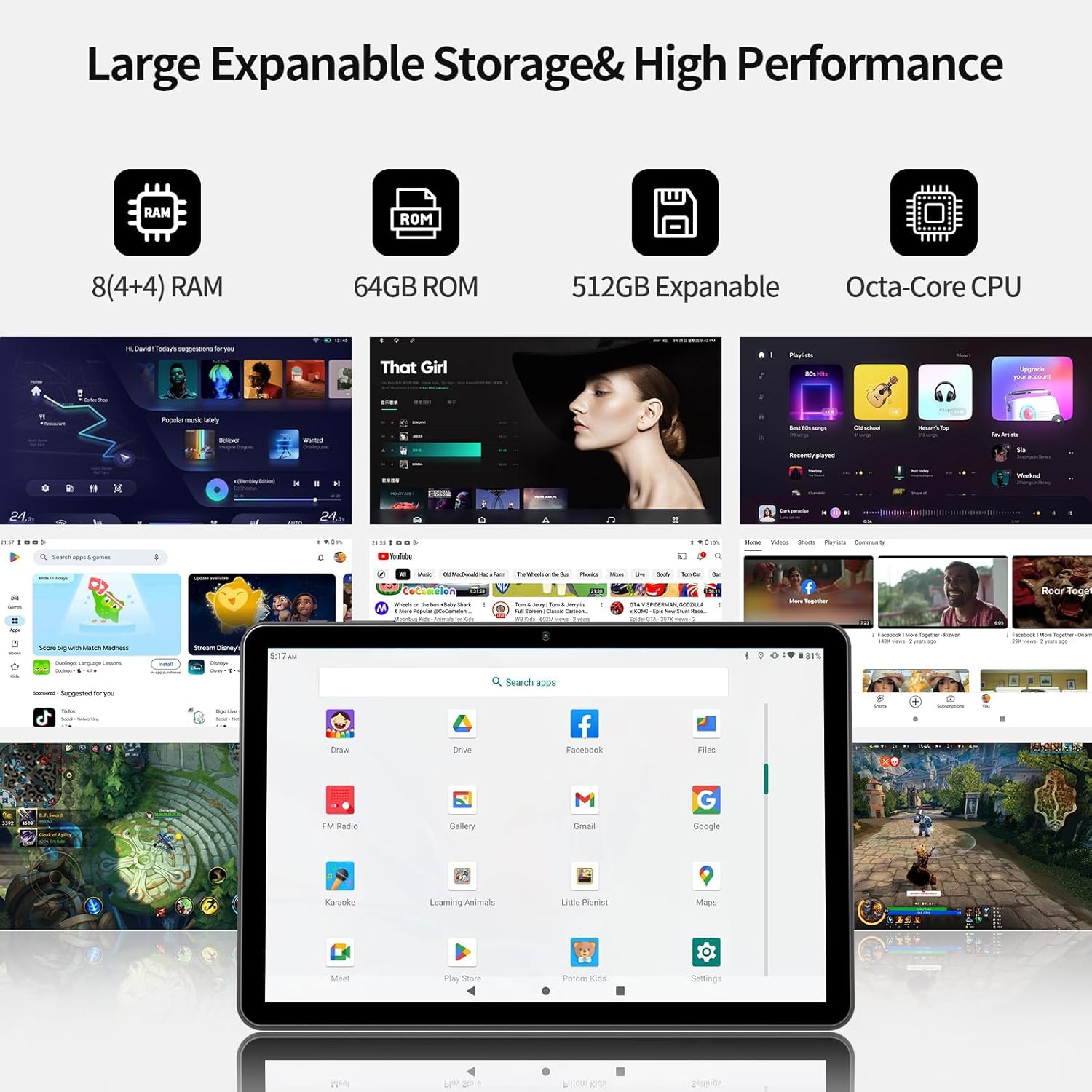
This image highlights the tablet's robust internal storage and expandable memory capabilities, coupled with its powerful processor and ample RAM, demonstrating its ability to handle demanding applications and store extensive media libraries.
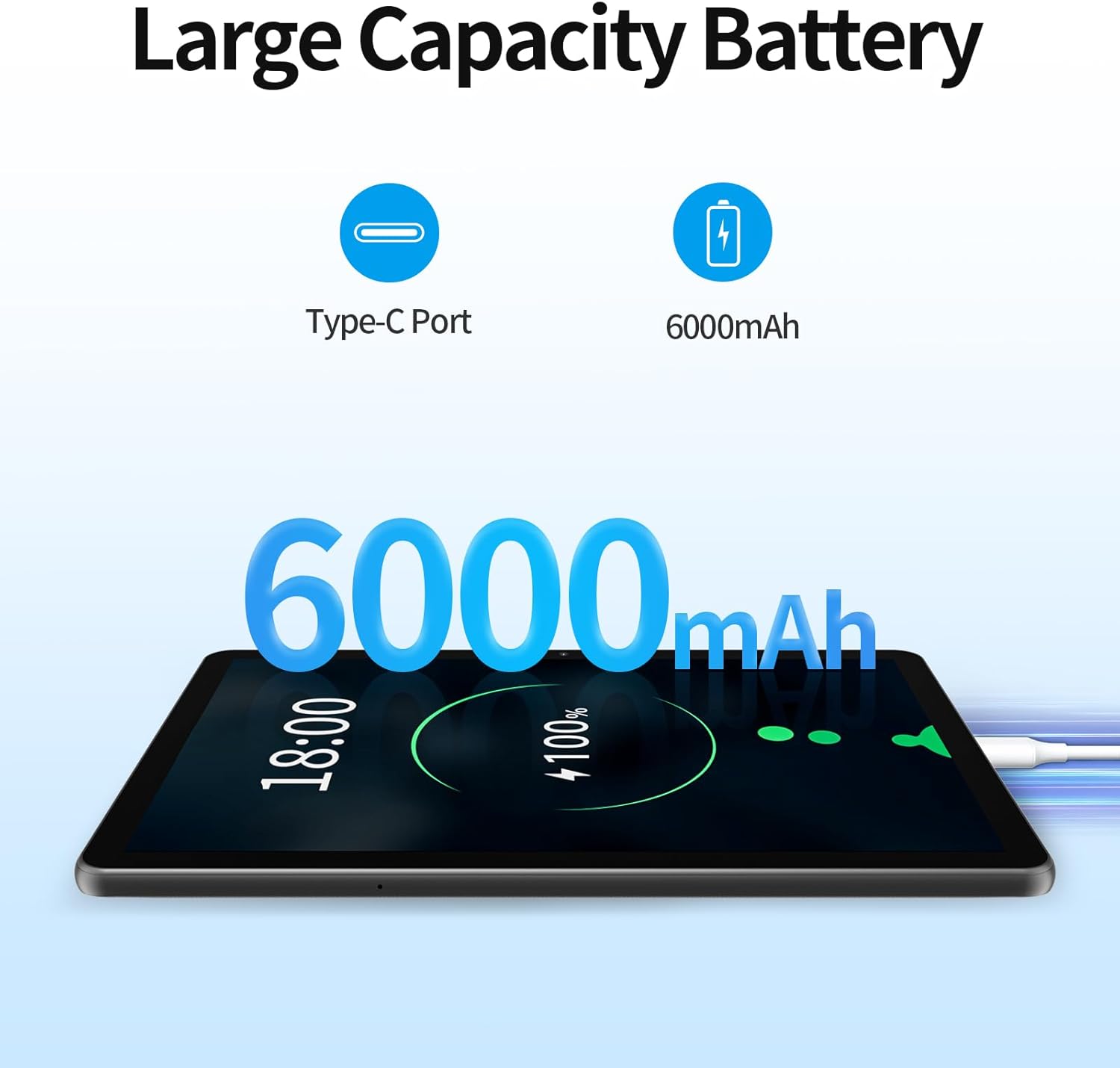
This image emphasizes the tablet's long-lasting 6000mAh battery, providing extended usage times for various activities, and its convenient Type-C charging port for modern connectivity.

This diagram provides a clear guide to the physical layout of the tablet, identifying all essential buttons, ports, and camera locations for easy user reference and interaction.
Жайгашуу
1. Планшетти заряддоо
Before first use, fully charge your tablet using the provided charger and cable. Connect the Type-C cable to the tablet's Type-C port and the other end to the power adapter, then plug the adapter into a wall outlet. The charging indicator will show the charging status.
2. Күйгүзүү / Өчүрүү
- To power on: Press and hold the Power button (located on the top edge) until the PRITOM logo appears on the screen.
- To power off: Press and hold the Power button until a power-off menu appears. Select "Power off" to shut down the device.
3. Баштапкы орнотуу устасы
Upon first power-on, the tablet will guide you through an initial setup process:
- Тил тандоо: Өзүңүзгө жаккан тилди тандаңыз.
- Wi-Fi туташуусу: Select your Wi-Fi network from the list and enter the password. A stable internet connection is recommended for setup.
- Google аккаунту: Учурдагы Google аккаунтуңуз менен кириңиз же жаңысын түзүңүз. Бул Google Play Дүкөнүнө, Gmailге жана башка Google кызматтарына кирүү үчүн абдан маанилүү.
- Дата жана убакыт: Set the correct date and time, or allow the tablet to set it automatically via the network.
- Коопсуздук: Түзмөктүн коопсуздугу үчүн экран кулпусун (PIN код, үлгү же сырсөз) орнотуңуз.
- Follow any remaining on-screen prompts to complete the setup.
4. MicroSD картасын салуу (кошумча)
To expand storage, insert a MicroSD card (up to 1TB, not included) into the TF Card slot. Ensure the tablet is powered off before inserting or removing the card.
Иштөө нускамалары
Негизги навигация
- тийүү: Аны тандоо үчүн сүрөтчөнү же опцияны басыңыз.
- Тийип кармап туруу: Press and hold an item to access context menus or drag items.
- Серпүү: Slide your finger across the screen to scroll or navigate between screens.
- Чымчуу: Сүрөттөрдү чоңойтуу же кичирейтүү үчүн эки манжаңызды колдонуңуз же web барактар.
Башкы экран
The home screen is your central hub. You can customize it with app shortcuts, widgets, and wallpapers. Swipe left or right to access additional home screens.
Билдирмелер жана Ыкчам орнотуулар
Swipe down from the top of the screen to access the notification panel and quick settings toggles (Wi-Fi, Bluetooth, Brightness, etc.).
Колдонмо башкаруу
- Колдонмолорду ачуу: Үй экранында же колдонмо суурмасында колдонмо сөлөкөтүн таптаңыз.
- Колдонмолорду жабуу: Swipe up from the bottom of the screen and swipe the app card upwards to close it.
- Бөлүнгөн экран: Android 13 supports split screen. Open a recent app, tap its icon at the top of the preview, and select "Split top" or "Split screen" to use two apps simultaneously.
- Виджеттер: Touch and hold an empty space on the home screen, then select "Widgets" to add interactive app components.
Байланыш
- Wi-Fi: Go to Settings > Network & internet > Internet to connect to or manage Wi-Fi networks.
- Bluetooth: Кулакчындар же динамиктер сыяктуу Bluetooth түзмөктөрү менен жупташтыруу үчүн Орнотуулар > Туташкан түзмөктөр > Туташуу жөндөөлөрү > Bluetooth бөлүмүнө өтүңүз.
Техникалык тейлөө
Планшетиңизди тазалоо
Планшеттин экранын жана корпусун тазалоо үчүн жумшак, түксүз чүпүрөктү колдонуңуз. өжөр тактар үчүн, бир аз гampчүпүрөккө суу же экран тазалоочу каражат. Катуу химиялык заттарды же абразивдик материалдарды колдонуудан алыс болуңуз.
Батареяга кам көрүү
- Ашыкча температурадан качыңыз, алар батареянын иштөө мөөнөтүн начарлатышы мүмкүн.
- Батареянын бат-баттан түгөнүп калышына жол бербеңиз. Аны өтө төмөн деңгээлге жеткенге чейин заряддаңыз.
- Зыяндын алдын алуу үчүн берилген заряддагычты жана кабелди гана колдонуңуз.
Программалык камсыздоо жаңыртуулары
Планшетиңизде эң акыркы функциялар, коопсуздук жаңыртуулары жана иштин натыйжалуулугун жакшыртуулар бар экенине ынануу үчүн система жаңыртууларын такай текшерип туруңуз. Орнотуулар > Система > Системаны жаңыртуу бөлүмүнө өтүңүз.
Сактагычты башкаруу
Мезгил-мезгили менен кайраview орнотулган колдонмолоруңуз жана fileс. Колдонулбаган колдонмолорду чыгарып салыңыз жана керексиз колдонмолорду жок кылыңыз files to free up storage space and maintain optimal performance. You can check storage usage in Settings > Storage.
Проблемаларды чечүү
| Көйгөй | Чечим |
|---|---|
| Планшет күйбөйт | Ensure the battery is charged. Connect the charger and wait a few minutes before attempting to power on again. If it still doesn't turn on, try holding the power button for 10-15 seconds. |
| Wi-Fi туташуу маселелери | Check if Wi-Fi is enabled in Quick Settings or Settings > Network & internet. Restart your Wi-Fi router. Forget the network and reconnect. Ensure you are within range of the Wi-Fi signal. |
| Жай аткаруу | Close unused apps running in the background. Clear app caches (Settings > Apps > [App Name] > Storage & cache > Clear cache). Free up storage space. Restart the tablet. |
| Колдонмолор бузулуп же катып калууда | Force stop the app (Settings > Apps > [App Name] > Force stop). Clear the app's cache and data. Update the app from the Google Play Store. Reinstall the app. |
| Экран жооп бербей жатат | Restart the tablet by holding the power button. Ensure the screen is clean and free of debris. |
Техникалык шарттар
| Өзгөчөлүк | Деталь |
|---|---|
| Модель аты | Touch10 plus |
| Элемент моделинин номери | A523 |
| Операция системасы | Android 13 |
| Процессор | Octa-Core (2 GHz) |
| RAM | 8 ГБ (4 ГБ + 4 ГБ кеңейтүү) |
| Ички сактагыч (ROM) | 64 ГБ |
| Кеңейтүүчү сактагыч | Up to 1TB via Micro SD card (not included) |
| Screen Size | 10.1 дюйм |
| Screen Resolution | 1280 x 800 Pixels (IPS Display) |
| Батарея сыйымдуулугу | 6000 мАч литий полимери |
| Батареянын орточо иштөө мөөнөтү | Up to 7 hours (mixed usage) |
| Зымсыз байланыш | 5G/2.4G WiFi6 (802.11ax), Bluetooth 5.0 |
| Камералар | Front: 2.0 MP, Rear: 8.0 MP |
| Түс | Боз |
| Элемент Салмагы | 2.12 фунт |
| Продукциянын өлчөмдөрү (LxWxH) | 9.6 x 0.28 x 6.3 дюйм |
Кепилдик жана колдоо
Your PRITOM tablet comes with a standard manufacturer's warranty. Please refer to the warranty card included in your package for specific terms and conditions. For technical support, troubleshooting assistance, or warranty claims, please contact PRITOM customer service through the contact information provided on the official PRITOM website or your purchase platform. You can also visit the PRITOM Store on Amazon for more information: PRITOM Official Store.


