1. Киришүү
This manual provides detailed instructions for the setup, operation, and maintenance of your EMEET SmartCam S800-4K Webкамера. Түзмөгүңүздүн оптималдуу иштешин жана узак мөөнөттүү иштешин камсыз кылуу үчүн бул көрсөтмөнү кылдат окуп чыгыңыз.
2. Кутуда эмне бар
- EMEET SmartCam S800-4K Webcam
- Ийкемдүү стенд
- Standard ¼ inch nut for tripod
- USB кабели
- User Manual
3. Орнотуу
3.1 Физикалык орнотуу
The EMEET SmartCam S800-4K Webcam features a flexible stand for easy mounting on your monitor or laptop. It also includes a standard ¼ inch nut for tripod compatibility.

Image: EMEET SmartCam S800-4K Webcam mounted on a laptop screen, showcasing its compact design and stable placement.
туташтыруу webберилген USB кабелин колдонуп, камераны компьютериңизге туташтырыңыз. webcam features a USB-C port on the back for connection.

Сүрөт: жакын план view of the EMEET SmartCam S800-4K Webcam's rear, highlighting the USB-C port for cable connection.
3.2 Software Installation (EMEETLINK)
For advanced settings and firmware updates, download the EMEETLINK software from the official EMEET website. The software is compatible with Windows (Win7, 10, 11) and macOS (10.14 and above).
Video: Demonstration of EMEETLINK software for webcam settings adjustment.
The webcam is plug-and-play, automatically recognized by your system without complex driver installations.
4. Иштөө нускамалары
4.1 Негизги операция
Once connected, the EMEET SmartCam S800-4K is ready for use with major platforms like Zoom, Skype, Microsoft Teams, and Google Meet. It operates in USB Video Device Class (UVC) mode for seamless compatibility.
4.2 Camera Settings (EMEETLINK Software)
Utilize the EMEETLINK software to fine-tune your webcam's performance:
- Сүрөттү которуу: Flip the camera horizontally or vertically.
- HDR: Manually enable High Dynamic Range for improved detail in bright and dark areas.
- Фокус: Choose between Face Focus or Central Area Focus. The PDAF (Phase Detection Autofocus) and TOF (Time of Flight) dual autofocus system provides fast and precise focusing.
- Чоңойтуу: талаасын тууралаңыз view (FOV) from 40° to 73° to frame your subject perfectly.
- Video Customization: Adjust brightness, contrast, sharpness, saturation, tone, and white balance.
Video: Demonstration of EMEETLINK software for webcam settings adjustment.
4.3 Privacy Cover
The webcam features a built-in rotatable privacy cover. Simply rotate the ring around the lens to physically block the camera when not in use, ensuring your privacy.

Image: The EMEET SmartCam S800-4K Webcam showing its integrated privacy cover in the closed position.
4.4 Adjustable Field of View (FOV)
The software allows you to adjust the field of view from 40° to 73°, providing flexibility for individual use or group settings.

Image: The EMEET SmartCam S800-4K Webcam illustrating the range of its adjustable field of view, from a narrow 40 degrees to a wide 73 degrees.
4.5 Аудио өзгөчөлүктөрү
Equipped with dual noise-cancelling microphones, the webcam uses advanced noise suppression to ensure clear audio capture within a 10-foot range, minimizing background noise.
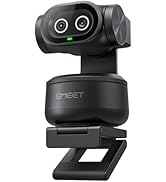
Image: The EMEET SmartCam S800-4K Webcam highlighting its dual noise-cancelling microphones for clear audio.
4.6 4K Usage and Requirements
The S800-4K supports 4K resolution at 30 frames per second (FPS) and 1080P at 60 FPS. To experience 4K at its best, ensure you use a USB 3.0 port and a 4K display.
Video: Demonstration of EMEETLINK software for webcam settings adjustment.
For 4K live streaming, professional encoder software like OBS or YouTube Studio is recommended to set up 4K resolution and encoding.
5. Техникалык шарттар
| Өзгөчөлүк | Нарк |
|---|---|
| Продукциянын өлчөмдөрү | 2.05 x 2.83 x 2.8 дюйм |
| Элемент Салмагы | 3.88 унция |
| Элемент моделинин номери | E3120 |
| Фото сенсор технологиясы | SONY |
| Видео тартуунун резолюциясы | 4K |
| Максималдуу фокус узундугу | 3000 миллиметр |
| Максималдуу диафрагма | 1.8 миллиметр |
| Байланыш технологиясы | USB |
6. Кыйынчылыктарды
6.1 Camera Not Recognized
- USB кабели экөөнө тең бекем туташтырылганын текшериңиз webcam and a USB 3.0 port on your computer.
- Башка USB портуна туташып көрүңүз.
- Компьютериңизди өчүрүп күйгүзүңүз.
- Колдонмолорго камерага кирүү мүмкүнчүлүгү берилгенин текшерүү үчүн операциялык тутумуңуздун купуялык жөндөөлөрүн текшериңиз.
6.2 Сүрөттүн сапаты начар
- Айлана-чөйрөңүздө жетиштүү жарыкты камсыз кылыңыз.
- тазалаңыз webкамера линзасын жумшак, кургак чүпүрөк менен сүртүңүз.
- Adjust settings in EMEETLINK (brightness, contrast, sharpness, HDR) to optimize image.
- Verify your streaming/meeting platform settings are configured for the highest available resolution (e.g., 1080P or 4K if supported).
6.3 Аудио маселелери
- Ensure the EMEET SmartCam S800-4K is selected as the default microphone in your computer's sound settings and your application settings.
- Check the Microphone Noise Reduction setting in EMEETLINK.
- Ensure you are within the 10-foot optimal range for the microphones.
7. Кепилдик жана колдоо
EMEET provides a 2-year warranty for the SmartCam S800-4K Webcam. Lifetime professional technical support is also available. For assistance, please visit the official EMEET support webсайтка же кардарларды тейлөөгө кайрылыңыз.


