1. Продукт бүтүп калдыview
The SCULPFUN CAM500 is an industrial-grade 5MP HD camera specifically designed for use with Lightburn software and SCULPFUN laser engraving machines. It enables precise material positioning, image tracing, batch engraving, and video recording of the engraving process, significantly enhancing work efficiency and accuracy.

Figure 1.1: The SCULPFUN CAM500 Lightburn Camera, designed for precise laser engraving positioning.
Негизги өзгөчөлүктөрү
- Precise Material Positioning: Seamlessly integrates with Lightburn's CAM function, identifying the engraved object's position with less than 1mm error. Recommended camera height from engraving position is 325mm.
- Official Sculpfun Camera: Industrial camera specifically designed for Lightburn, featuring true 5MP pixels for more precise and clearer detection. Perfectly compatible with SCULPFUN S6, S9, S10, and S30/S30 Ultra series laser engraving machines.
- Engraving Position Control: Allows moving the pattern in Lightburn to a specific position on the engraved object. The laser will engrave the pattern at this adjusted position.
- Видео жаздыруу: The CAM500 can be used as a computer camera to record the entire engraving process, making it convenient for viewинг жана бөлүшүү.
- Image Tracing: Works with Lightburn to identify and extract patterns from object surfaces with one click (e.g., T-shirt patterns, hand-painted children's drawings), quickly generating vector files for engraving or cutting.
- Batch Engraving: Enables adding multiple engraving objects to perform different independent tasks simultaneously. The laser automatically finds predefined engraving positions sequentially, improving work efficiency. Features a large positioning area with a 120° wide-angle lens covering a 400 x 400 mm workspace.
2. Пакеттин мазмуну
Пакетте бардык компоненттер бар экенин текшериңиз:
- 1 x Camera Vertical Bar
- 1 x T-shaped Clamp кашаа
- 1 x Camera Slider (Connector)
- 1 x U-shaped Clamp кашаа
- 1 x бурама баштык
- 4 x Basswood Plywood Sheets
- 3 x A5 Calibration Paper Sheets
- 1 x User Manual
- 1 x Soft Ruler
3. Орнотуу жана орнотуу
Follow these steps to properly install your SCULPFUN CAM500 camera:
- Assemble the Camera Support Structure: Attach the camera vertical bar to the horizontal bar using the provided connectors and screws. Ensure all connections are secure.
- Камераны орнотуу: Slide the CAM500 camera module into the camera slider on the support structure.
- Attach to Laser Engraver: Use either the T-shaped or U-shaped clamp bracket to securely attach the assembled camera support structure to your SCULPFUN laser engraving machine. Choose the bracket that best fits your machine's frame.
- Adjust Camera Height: Position the camera so that its lens is approximately 325mm above the engraving surface. This is the recommended height for optimal performance and accurate positioning within the 400x400mm optimal workspace.
- Компьютерге туташуу: Connect the CAM500 camera to your computer using the provided USB 2.0 cable.
- Install Lightburn Software: Ensure you have Lightburn software installed on your computer (compatible with Win7/Win10/Win11/Mac). For best performance, Win7 or later is recommended.
- Calibrate the Camera: Follow the calibration instructions within the Lightburn software using the provided A5 calibration paper sheets to ensure precise positioning.

Figure 3.1: Illustration of the T-shaped and U-shaped fixing clamps for versatile installation, showing dimensions for compatibility.
4. Иштөө нускамалары
4.1 Программанын шайкештиги
The SCULPFUN CAM500 is designed to work seamlessly with Lightburn software. It is compatible with Windows 7, Windows 10, Windows 11, and macOS operating systems.
4.2 Так позициялоо
The CAM500 camera, when integrated with Lightburn, allows for highly accurate positioning of your engraving designs on the material. The camera identifies the exact location of the object, and the software adjusts the laser path accordingly, minimizing positioning errors to less than 1mm.

Figure 4.1: Demonstration of precise positioning in Lightburn software, showing adjustment of the engraving path to match the physical object.
4.3 Work Preview
Utilize the work preview function in Lightburn to see a real-time observation of your work area. This eliminates the need for manual positioning and allows you to monitor the engraving progress directly on your screen.

Figure 4.2: Screenshot of Lightburn software showing the work area preview function, allowing real-time monitoring of the engraving process.
4.4 Image Tracing
The CAM500, in conjunction with Lightburn, can identify and extract patterns from images on the surface of objects. This feature is particularly useful for converting hand-drawn designs or existing images into engravable vector fileс оңой менен.

4.3-сүрөт: Мисample of image tracing in Lightburn, converting a hand-drawn image into a vector for engraving or cutting.
4.5 Топтомдук гравюралоо
Improve your workflow efficiency by using the batch engraving feature. The CAM500 allows you to set up multiple independent engraving tasks on different objects simultaneously. The laser will automatically locate each predefined position and begin work, streamlining production.
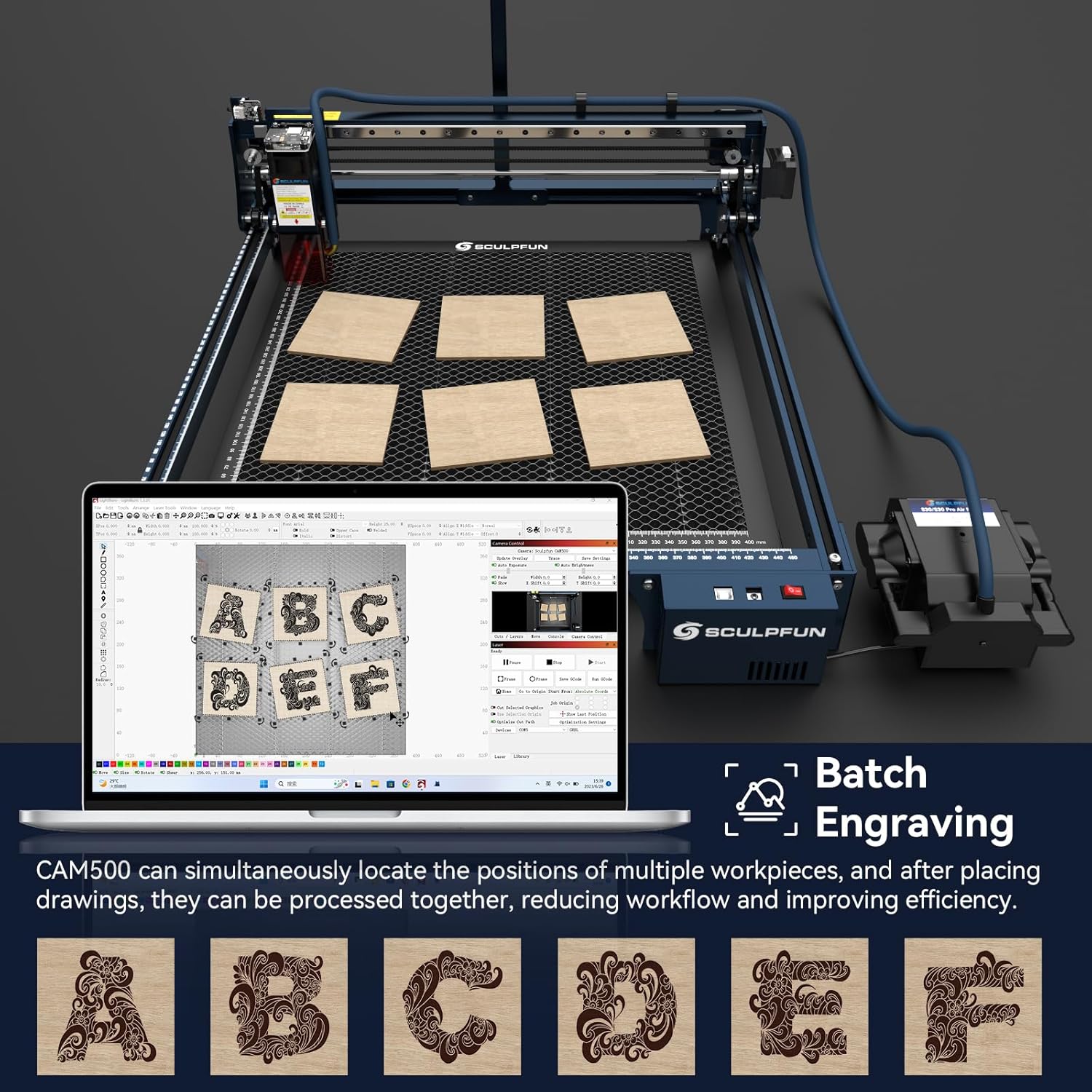
Figure 4.4: Visual representation of batch engraving, showing multiple workpieces being processed simultaneously by the laser engraver with CAM500 assistance.
4.6 Видео жаздыруу
The SCULPFUN CAM500 can function as a computer camera to record the entire engraving process. This feature is useful for documenting your work, creating tutorials, or sharing your creative process with others.

Figure 4.5: Image illustrating the video recording capability of the CAM500, allowing users to capture and share their engraving process.
5. Техникалык тейлөө
To ensure the longevity and optimal performance of your SCULPFUN CAM500 camera, follow these maintenance guidelines:
- Линзаны тазалоо: Gently clean the camera lens with a soft, lint-free cloth. For stubborn smudges, use a lens cleaning solution specifically designed for optical lenses. Avoid abrasive materials or harsh chemicals.
- Чаңды тазалоо: Regularly use a soft brush or compressed air to remove dust from the camera body and support structure. Accumulation of dust can affect performance.
- Сактагыч: When not in use for extended periods, store the camera in a clean, dry, and dust-free environment.
- Кабелдик текшерүү: Periodically check the USB cable for any signs of wear, fraying, or damage. Replace if necessary to ensure a stable connection.
6. Кыйынчылыктарды
If you encounter issues with your SCULPFUN CAM500 camera, refer to the following common troubleshooting tips:
- Камера аныкталган жок:
- USB кабелинин камерага да, компьютерге да бекем туташтырылганын текшериңиз.
- Компьютериңиздеги башка USB портуна туташып көрүңүз.
- Restart Lightburn software and your computer.
- Check if the camera drivers are properly installed (usually handled automatically by the operating system).
- Poor Image Quality/Blurry Image:
- Камеранын линзасы таза жана чаң же тактар жок экенин текшериңиз.
- Verify that the camera is positioned at the recommended height of 325mm from the engraving surface.
- Check lighting conditions. Adequate and even lighting is crucial for clear images.
- Recalibrate the camera within Lightburn software.
- Туура эмес жайгаштыруу:
- Perform a camera calibration in Lightburn. This is critical for accurate positioning.
- Ensure the material is flat and securely placed on the engraving bed.
- Verify that the camera is stable and not vibrating during operation.
- Ensure the object to be engraved is within the optimal 400x400mm working area and as close to the center of the camera's view мүмкүн болушунча.
- Программалык камсыздоонун тоңуп калышы/кыйрашып калышы:
- Ensure your Lightburn software is updated to the latest version.
- Check your computer's system requirements and ensure it meets them.
- Фондо иштеп жаткан башка талаптуу тиркемелерди жабыңыз.
If these steps do not resolve the issue, please contact SCULPFUN customer support for further assistance.
7. Техникалык шарттар
Detailed specifications for the SCULPFUN CAM500 Lightburn Camera:

Figure 7.1: Detailed technical specifications of the SCULPFUN CAM500 5MP Camera Module, including resolution, sensor type, and interface.
| Спецификация | Нарк |
|---|---|
| Бренд | SCULPFUN |
| Модел | CAM500-1 |
| Продукт моделинин аталышы | SCULPFUN CAM500 lightburn Kamera |
| Натыйжалуу дагы эле чечим | 5 мегапиксел |
| Color Image Sensor | 1/4 дюймдук CMOS |
| Maximum Resolution | 2592 * 1944 Чечим |
| Pixel Size | 1.4um*1.4um |
| Фокус режими | Fixed Focus |
| Интерфейс | USB 2.0 |
| Optimal Working Area | 400 x 400 мм |
| Recommended Camera Height | 325 mm (from engraving position) |
| Perspective Breadth (Field of View) | 120° |
| Video Resolution | 1080p |
| Шайкеш түзмөктөр | Lightburn Software, SCULPFUN Laser Engraving Machines (S6, S9, S10, S30/S30 Ultra), Windows 7/10/11, macOS |
| Сууга туруктуулук деңгээли | Суу өткөрбөйт |
| Продукт Салмагы | 0.8 кг |
8. Кепилдик жана колдоо
Information regarding specific warranty details and availability of spare parts for the SCULPFUN CAM500 is not provided in the available product data. For warranty claims, technical support, or inquiries about spare parts, please contact SCULPFUN directly through their official webсайт же ыйгарым укуктуу дистрибьюторлор.
Software updates are guaranteed until information is not available. Please check the Lightburn software website for the latest updates and compatibility information.
9. Расмий продукт Videos
No official product videos from the seller were found in the provided product data for embedding in this manual.


