Introduction
This manual provides detailed instructions for the setup, operation, and maintenance of your NUROUM V32AFL 4K Webкамера. Оптималдуу иштешин жана узак мөөнөттүү кызмат кылуусун камсыз кылуу үчүн, продуктуну колдонуудан мурун ушул колдонмону кылдат окуп чыгыңыз.
Продукт бүттүview
Негизги өзгөчөлүктөрү
- 4K UHD токтому: 8-megapixel CMOS sensor for clear video at 4K resolution, 1080P at 60 FPS.
- Adjustable Ring Fill Light: Built-in light with 3 brightness levels for optimal illumination in various environments.
- True Autofocus: Automatically sharpens focus on subjects and objects.
- AI-powered Auto-Framing: Keeps you centered in the frame and adjusts for multiple participants.
- Кош ызы-чууну жокко чыгаруучу микрофондор: Captures clear audio within a 3-meter radius, suppressing background noise.
- Жөнгө салынуучу талаа View (FOV): Customizable from 45° to 90° using NearSync software.
- Автоматтык жарыкты оңдоо: Adapts to lighting conditions for consistent image quality.
- Купуялыкты көзөмөлдөө: Dedicated button for camera ON/OFF and microphone mute.
- Кеңири шайкештик: Works with major platforms like Zoom, Teams, OBS, and operating systems including Windows, macOS, and Linux.
Пакеттин мазмуну
- 1x NUROUM V32AFL 4K Webcam
- 1x Колдонуучунун колдонмосу (бул документ)
Webкамеранын компоненттери
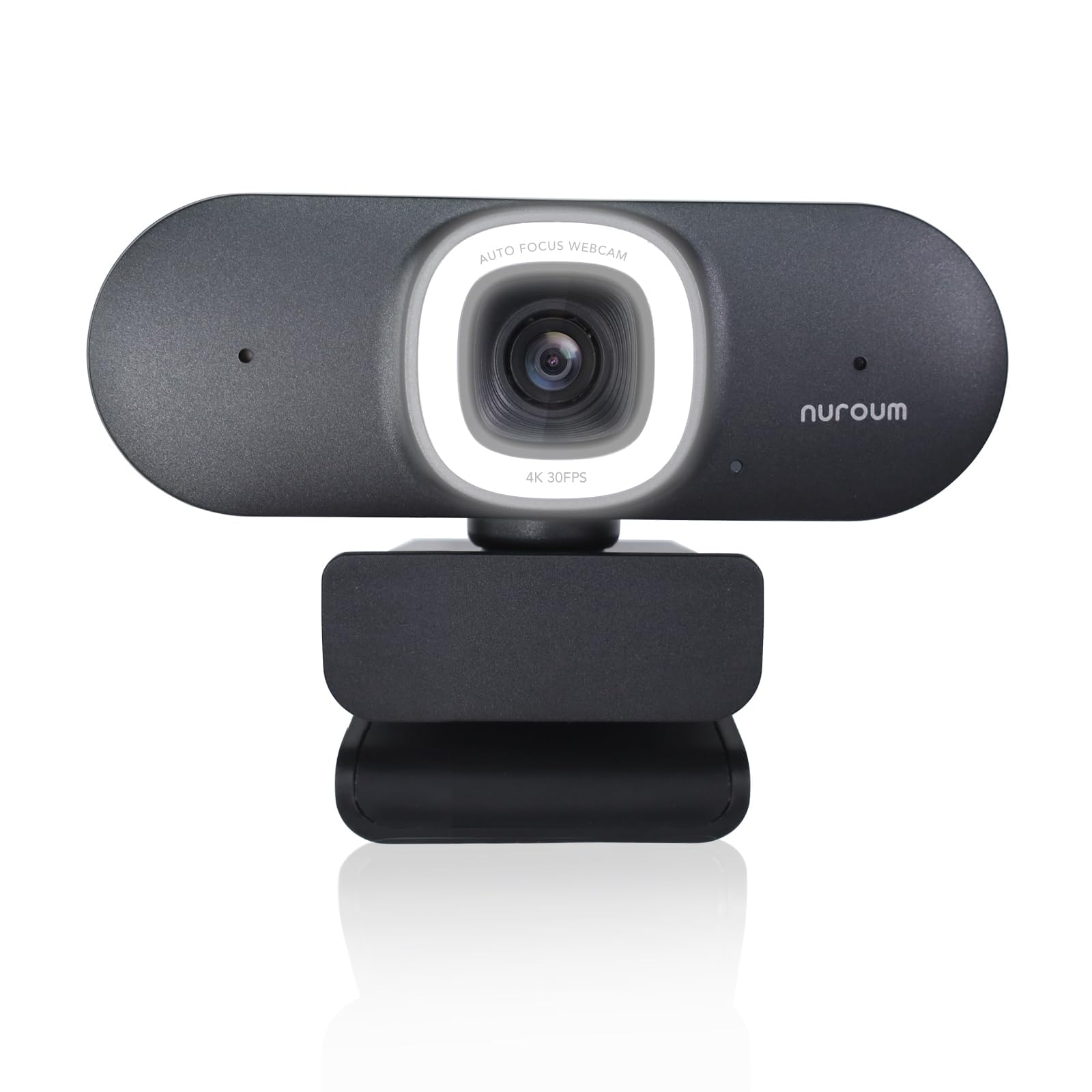
- Камера линзасы: Видеону тартып алат.
- Ring Light: Жарыктандыруу жөнгө салынуучу жарыктандырууну камсыз кылат.
- Микрофондор: Two built-in noise-canceling microphones.
- Privacy/Power Button: Controls camera and microphone status.
- Жарыктыкты жөндөө баскычы: Adjusts ring light intensity.
- Mounting Clip/Stand: For attaching to monitors, laptops, or tripods.
- USB кабели: Integrated for connectivity.
Жайгашуу
монтаждоо Webcam
The V32AFL webcam offers versatile mounting options:
- On a Monitor or Laptop:
Unfold the mounting clip. Place the webcam on top of your monitor or laptop screen, ensuring the front lip rests securely on the display and the adjustable clip supports the back. Adjust the angle as needed.

The webcam securely clipped onto the top edge of a laptop screen. - Иш столунда:
Fold the mounting clip to form a stable stand. Place the webcam on a flat surface such as your desk.
- On a Stand or Tripod:
The mounting clip includes a standard 1/4-inch screw thread. Attach the webcam to a compatible tripod or stand for more flexible positioning.

Webcam mounted on a desk stand, demonstrating its use as a document camera.
Компьютериңизге туташуу
The V32AFL webcam is plug-and-play. Simply connect the integrated USB cable from the webcam to an available USB port on your computer (PC, Laptop, or Mac). The operating system will automatically detect and install the necessary drivers.

Иштөө нускамалары
Ring Light операциясы
The V32AFL features a built-in ring light with three adjustable brightness levels. Use the dedicated touch control button on the webcam to cycle through low, medium, and high brightness settings, or to turn the light off.

Купуялыкты көзөмөлдөө
For privacy, the webcam includes a physical button to turn the camera ON/OFF and mute the microphone. Press this button to instantly disable video and audio transmission when not in use, preventing unauthorized access.
Autofocus and AI Auto-Framing
The webcam features true autofocus, which automatically adjusts to keep you and important objects in sharp focus. The AI-powered auto-framing technology ensures you remain centered in the video frame, even if you move. It can also expand the frame to include new participants. To activate or manage auto-framing, use the NearSync software.


Ызы-чууну жокко чыгаруучу микрофондор
The two integrated microphones utilize an AI noise-canceling algorithm to filter out unwanted background sounds, such as keyboard typing, ensuring your voice is clear within a 3-meter pickup radius. For applications like OBS Studio, select the V32AFL as both video and audio input source.

NearSync Software
The NUROUM NearSync software enhances your webcam experience by providing advanced customization options. It is recommended to download NearSync from the official Nuroum website for full functionality, including firmware updates and image adjustments.
Key Functions of NearSync:
- Жөнгө салынуучу талаа View (FOV): ыңгайлаштыруу webcam's FOV from the default 90 degrees to narrower angles like 45, 60, or 75 degrees to suit your preference or meeting requirements.
- Auto-Framing Activation: Enable or disable the AI auto-framing feature.
- Image Parameter Tuning: Fine-tune parameters such as brightness, contrast, and saturation to achieve desired image quality.
- Программалык камсыздоонун жаңыртуулары: Өзүңүздү сактаңыз webcam's firmware up-to-date for improved performance and new features.

Техникалык тейлөө
Туура тейлөө сиздин узак жана оптималдуу иштешин камсыз кылат webкамера
- Тазалоо: Тазалоо үчүн жумшак, кургак чүпүрөктү колдонуңуз webcam lens and body. Avoid abrasive cleaners or solvents that could damage the surfaces.
- Сактагыч: Колдонулбаган учурда, дүкөндү сактаңыз webкамераны таза, кургак жерде, өтө жогорку температурадан жана түз күн нурунан алыс сактаңыз.
- Кабельге кам көрүү: Ички зыян келтирбөө үчүн USB кабелин өтө ийип же бурап албаңыз.
Проблемаларды чечүү
| Көйгөй | Мүмкүн себеп | Чечим |
|---|---|---|
| WebКомпьютер камераны аныктай алган жок. | Бош USB туташуу, туура эмес USB порт, драйвер маселеси. | Ensure the USB cable is securely connected. Try a different USB port. Restart your computer. Check Device Manager (Windows) or System Information (macOS) for webcam detection. Reinstall NearSync software if necessary. |
| Видеонун сапаты начар же бүдөмүк. | Insufficient lighting, dirty lens, software settings, autofocus issues. | Ensure adequate lighting; use the built-in ring light. Clean the lens with a soft cloth. Check video settings in your application or NearSync. Ensure autofocus is enabled in NearSync. |
| Microphone not picking up audio or sound is unclear. | Microphone muted, incorrect audio input selected, excessive background noise. | текшерүү webcam's privacy button to ensure the microphone is not muted. Select "NUROUM V32AFL" as the audio input device in your application settings. Ensure you are within the 3-meter pickup radius. |
| Auto-framing not working or behaving erratically. | Feature disabled, software conflict, specific lighting conditions. | Ensure auto-framing is enabled in the NearSync software. Update NearSync to the latest version. Ensure sufficient and even lighting. |
| Ring light not turning on or adjusting brightness. | Power issue, faulty button. | камсыз кылуу webcam is properly connected to your computer. Press the brightness adjustment button firmly. If the issue persists, contact support. |
Техникалык шарттар
| Өзгөчөлүк | Деталь |
|---|---|
| Модель номери | NA-V32AFL |
| Сенсор түрү | CMOS (8-megapixel) |
| Видео тартуунун резолюциясы | 4K UHD, 1080P @ 60 FPS |
| талаасы View (FOV) | Adjustable (45°, 60°, 75°, 90°) via NearSync |
| Автофокус | Ооба |
| Микрофондор | 2x Built-in, Noise-Canceling (3-meter pickup) |
| Интегралдык жарык | 3-level Adjustable Ring Fill Light |
| Байланыш | USB |
| Элемент Салмагы | 8.1 унция |
| Пакеттин өлчөмдөрү | 5.2 x 4.61 x 2.68 дюйм |
| Колдоого алынган OS | Windows, macOS, Linux, Chromebook |
Кепилдик жана колдоо
For warranty information, please refer to the documentation provided at the time of purchase or visit the official NUROUM website. For technical support, firmware updates, or additional assistance, please visit the NUROUM Store on Amazon or the official Nuroum webсайт.


