1. Киришүү
The Microsoft Surface Pro 10 is a versatile 2-in-1 device designed to adapt to various work styles, offering the functionality of both a tablet and a laptop. It features an Intel Core Ultra 5 processor, providing robust performance for daily tasks and advanced applications. This manual provides essential information to help you set up, operate, and maintain your device, ensuring optimal performance and longevity.
2. Кутуда эмне бар
Carefully unpack your Surface Pro 10 and ensure all items are present. The standard package includes:
- Microsoft Surface Pro 10 Device
- Электр менен жабдуу бирдиги
- Microsoft Surface Pro Keyboard
- Microsoft Surface Pro Slim Pen
- Quick Start Guide
- Коопсуздук жана кепилдик документтери
3. Түзмөк бүттүview
Familiarize yourself with the physical components of your Surface Pro 10.

3.1-сүрөт: Фронт view of the Surface Pro 10 with the keyboard attached, showcasing дисплей жана клавиатура жайгашуусу.

3.2-сүрөт: Side view of the Surface Pro 10 in laptop configuration, highlighting the adjustable kickstand and connected keyboard.
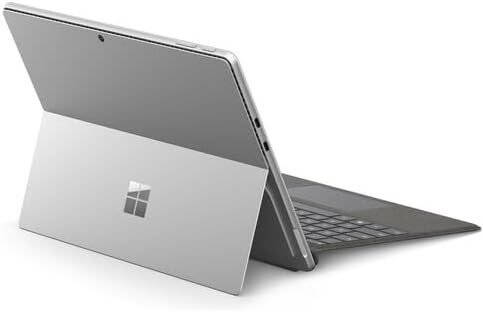
3.3-сүрөт: Арткы view of the Surface Pro 10 with the kickstand deployed, revealing the device's sleek design and the iconic Microsoft logo.
Негизги компоненттер:
- 13-inch PixelSense Flow Display: High-resolution touchscreen for vibrant visuals and touch interaction.
- Алдыңкы камера: For video calls and facial recognition (Windows Hello).
- Арткы камера: Сүрөттөрдү жана видеолорду тартуу үчүн.
- Кубат баскычы: Капталында жайгашкан, аппаратты күйгүзүү/өчүрүү же уктатуу үчүн колдонулат.
- Үн баскычтары: Located on the side, for adjusting audio levels.
- USB-C порттору: For charging, data transfer, and connecting external displays or accessories.
- Surface Connect Port: For charging and connecting to Surface Dock accessories.
- Кикстенд: Integrated into the back, allows for multiple viewбурчтар.
- Микрофондор: For voice commands and audio recording.
4. Орнотуу
4.1 Алгачкы заряддоо
- Connect the power supply to the Surface Connect port or one of the USB-C ports on your Surface Pro 10.
- Электр кубатын розеткага сайыңыз.
- Allow the device to charge for at least 30 minutes before first use, or until the battery indicator shows sufficient charge.
4.2 Күйгүзүү/өчүрүү
- Күйгүзүү үчүн: Экранда Microsoft логотиби пайда болгонго чейин Кубат баскычын басып, кармап туруңуз.
- Өчүрүү үчүн: From the Windows desktop, select Баштоо > Күч > Өчүрүү. Alternatively, press and hold the Power button for a few seconds, then slide down to shut down.
- Уктоо үчүн: Briefly press the Power button. Press it again to wake the device.
4.3 Windowsту баштапкы орнотуу
Upon first power-on, you will be guided through the Windows 11 setup process. Follow the on-screen prompts to:
- Тилди жана аймакты тандаңыз.
- Wi-Fi тармагына туташыңыз.
- Лицензия шарттарын кабыл алыңыз.
- Microsoft аккаунтуңуз менен кириңиз же жаңысын түзүңүз.
- Set up Windows Hello (facial recognition or fingerprint, if available).
- Купуялык жөндөөлөрүн конфигурациялаңыз.
4.4 Attaching the Surface Pro Keyboard
Align the magnetic connector on the keyboard with the corresponding port at the bottom edge of your Surface Pro 10. The keyboard will snap into place magnetically. You can adjust the keyboard to lie flat or tilt it slightly for a more ergonomic typing experience.
4.5 Pairing the Surface Pro Slim Pen
The Surface Pro Slim Pen typically pairs automatically when first used with your Surface Pro 10. If not, follow these steps:
- барыңыз Баштоо > Орнотуулар > Bluetooth жана түзмөктөр > Түзмөк кошуу > Bluetooth.
- Press and hold the top button on your Slim Pen for 5-7 seconds until the LED light flashes white.
- Select your Surface Slim Pen from the list of available devices and follow any on-screen prompts.
5. Operating Your Surface Pro 10
5.1 Switching Between Tablet and Laptop Modes
- Ноутбук режими: Attach the Surface Pro Keyboard and adjust the kickstand for a traditional laptop experience.
- Планшет режими: Detach the keyboard or fold it back completely. Windows will automatically switch to Tablet Mode, optimizing the interface for touch input.
5.2 Сенсордук экранды колдонуу
The PixelSense Flow Display supports multi-touch gestures:
- таптаңыз: Бир нерсени тандаңыз же колдонмону ачыңыз.
- Таптап кармаңыз: Access context menus (right-click equivalent).
- Чоңойтуу үчүн чымчыңыз: Сүрөттөрдү чоңойтуу же кичирейтүү жана web барактар.
- Swipe from Edges: Access quick settings, notifications, or switch between apps.
5.3 Using the Surface Pro Slim Pen
The Slim Pen allows for precise input and creative tasks:
- Жазуу/Чийүү: Use the pen directly on the screen in compatible apps like Microsoft Whiteboard or OneNote.
- Тандоо: Tap with the pen to select items.
- өчүргүч: Use the eraser button on the pen to erase digital ink.
- Жогорку баскыч: Customizable for quick access to apps like OneNote or screenshots.
5.4 Windows 11деги негизги навигация
- Баштоо менюсу: Access apps, settings, and power options.
- Тапшырма панели: Pin frequently used apps and view колдонмолорду ачуу.
- Аракеттер борбору: Swipe in from the right edge (or click the icon) for quick settings and notifications.
- Виджеттер: Swipe in from the left edge (or click the icon) for personalized information.
6. Техникалык тейлөө
6.1 Аппаратыңызды тазалоо
- Бир аз жумшак, түксүз кездемени колдонуңуз dampened with water or an approved screen cleaner to wipe the display.
- For the body of the device and keyboard, use a soft, dry cloth.
- Avoid harsh chemicals, abrasive cleaners, or excessive moisture.
6.2 Батареяга кам көрүү
- Батареяны бат-баттан толук кубаттап калуудан алыс болуңуз.
- Аппаратты узак убакыт бою колдонбогондо салкын, кургак жерде сактаңыз.
- Use only the official Microsoft power supply or certified compatible chargers.
6.3 Программалык камсыздоо жаңыртуулары
Regularly check for and install Windows updates to ensure your device has the latest security patches, features, and performance improvements. Go to Баштоо > Орнотуулар > Windows жаңыртуу.
7. Кыйынчылыктарды
7.1 Түзмөк күйбөй жатат
- Түзмөктүн заряддалганын текшериңиз. Кубат булагын туташтырып, күйгүзүүдөн мурун бир нече мүнөт күтө туруңуз.
- Perform a force restart: Press and hold the Power button for 15-20 seconds, then release and press it again briefly to turn on.
7.2 Экран көйгөйлөрү (Дисплей жок, жымыңдайт)
- Аппаратты кайра иштетиңиз.
- Ensure display drivers are up to date via Windows Update.
- If connected to an external display, try disconnecting it.
7.3 Wi-Fi же Bluetooth туташуу көйгөйлөрү
- Check if Wi-Fi or Bluetooth is enabled in Quick Settings or Windows Settings.
- Restart your Surface Pro 10 and your router/modem.
- Тармакты/түзмөктү унутуп, кайра туташып көрүңүз.
- Update network drivers via Windows Update.
7.4 Performance Issues (Slowdowns, Freezes)
- Фондо иштеп жаткан керексиз тиркемелерди жабыңыз.
- Бардык жеткиликтүү Windows жаңыртууларын текшерип, орнотуңуз.
- Run a disk cleanup and optimize drives.
- жетиштүү бош орун камсыз кылуу.
8. Техникалык шарттар
The following table outlines the key technical specifications for the Microsoft Surface Pro 10 (Intel Core Ultra 5, 16GB RAM, 256GB SSD) model:
| Өзгөчөлүк | Спецификация |
|---|---|
| Модель аты | Surface Pro 10 (ZEA-00001) |
| Туруктуу экран дисплей өлчөмү | 13 дюйм |
| Screen Resolution | 2880 x 1920 пиксель |
| Max Screen Resolution | 2880x1920 |
| Процессор | 1.4 GHz Intel Core Ultra 5 |
| Катуу диск | 256 ГБ SSD |
| RAM эстутум орнотулган өлчөмү | 16 ГБ DDR5 RAM |
| Операция системасы | Windows 11 Pro |
| Chipset маркасы | Intel |
| Графикалык картанын сүрөттөлүшү | Интеграцияланган |
| Зымсыз түрү | 802.11ax |
| Түс | Платина |
| Продукциянын өлчөмдөрү | 11.3 x 8.2 x 0.4 дюйм |
| Батареялар | 1 литий-иондук батарейка (кошулган) |
9. Кепилдик жана колдоо
Your Microsoft Surface Pro 10 comes with a limited hardware warranty. For detailed warranty information, please refer to the documentation included with your device or visit the official Microsoft Support website. For technical assistance, troubleshooting guides, and driver downloads, please visit support.microsoft.com/surface.


