1. Киришүү
This manual provides detailed instructions for the setup, operation, and maintenance of your A4tech FBK27C AS Bluetooth & 2.4G Rechargeable Keyboard. Please read this manual thoroughly to ensure proper use and to maximize the keyboard's features.
The A4tech FBK27C AS keyboard is designed for enhanced comfort and productivity, featuring dual connectivity options, QuietKey technology for silent typing, and multi-device pairing capabilities. Its ergonomic design aims to reduce wrist strain during extended use.
2. Өзгөчөлүктөрү
- Кош байланыш: Seamlessly switch between 2.4GHz wireless (via USB dongle) and Bluetooth connections.
- Көп түзмөктү жупташтыруу: Connect and switch between up to three devices (one 2.4GHz and two Bluetooth devices).
- Эргономикалык дизайн: Features a split keyboard layout and an integrated wrist rest to promote a natural hand and wrist posture, reducing discomfort during prolonged typing.
- QuietKey Technology: Designed for silent typing, minimizing noise in shared environments.
- Кайра заряддалуучу батарея: Equipped with a built-in rechargeable battery, charged via a USB-C port.
- Multimedia & Function Keys: Dedicated keys for media control, system functions, and quick access to common tasks.
- Кеңири шайкештик: Supports Windows, Mac, iOS, and Android operating systems.
3. Пакеттин мазмуну
Пакетте бардык буюмдар бар экенин текшериңиз:
- A4tech FBK27C AS Keyboard
- USB-C заряддоо кабели
- 2.4GHz USB Receiver (dongle)
- Quick Start Guide
4. Орнотуу
4.1 Баскычтопту заряддоо
Before first use, fully charge the keyboard. Connect the provided USB-C cable to the charging port on the keyboard (located on the upper top left edge, near the ON/OFF button) and the other end to a USB power source. The power LED will illuminate during charging and turn off when fully charged.
4.2 2.4 ГГц зымсыз байланыш аркылуу туташуу
- Locate the 2.4GHz USB receiver (dongle), typically stored magnetically on the underside of the keyboard.
- USB ресиверди компьютериңиздеги жеткиликтүү USB портуна сайыңыз.
- ON/OFF которгучу аркылуу клавиатураны күйгүзүңүз.
- Press the '2.4G' key on the keyboard to activate 2.4GHz mode. The indicator light will confirm the connection.
4.3 Bluetooth аркылуу туташуу
The keyboard supports two Bluetooth connections (BT1 and BT2).
- ON/OFF которгучу аркылуу клавиатураны күйгүзүңүз.
- Press and hold either the 'BT1' or 'BT2' key for a few seconds until its indicator light starts blinking rapidly. This indicates pairing mode.
- Түзмөгүңүздө (компьютер, планшет, смартфон) Bluetooth жөндөөлөрүнө өтүп, жаңы түзмөктөрдү издеңиз.
- Select 'A4tech FBK27C AS' (or similar name) from the list of available devices.
- Follow any on-screen prompts to complete the pairing process. The indicator light on the keyboard will become solid when successfully paired.
- Repeat for the second Bluetooth channel if desired.
4.4 Баскычтоптун жантайышын тууралоо
The keyboard features adjustable feet on both the front and back. To achieve a more ergonomic typing angle, you can extend the front feet to raise the keyboard's front edge, further enhancing wrist comfort.
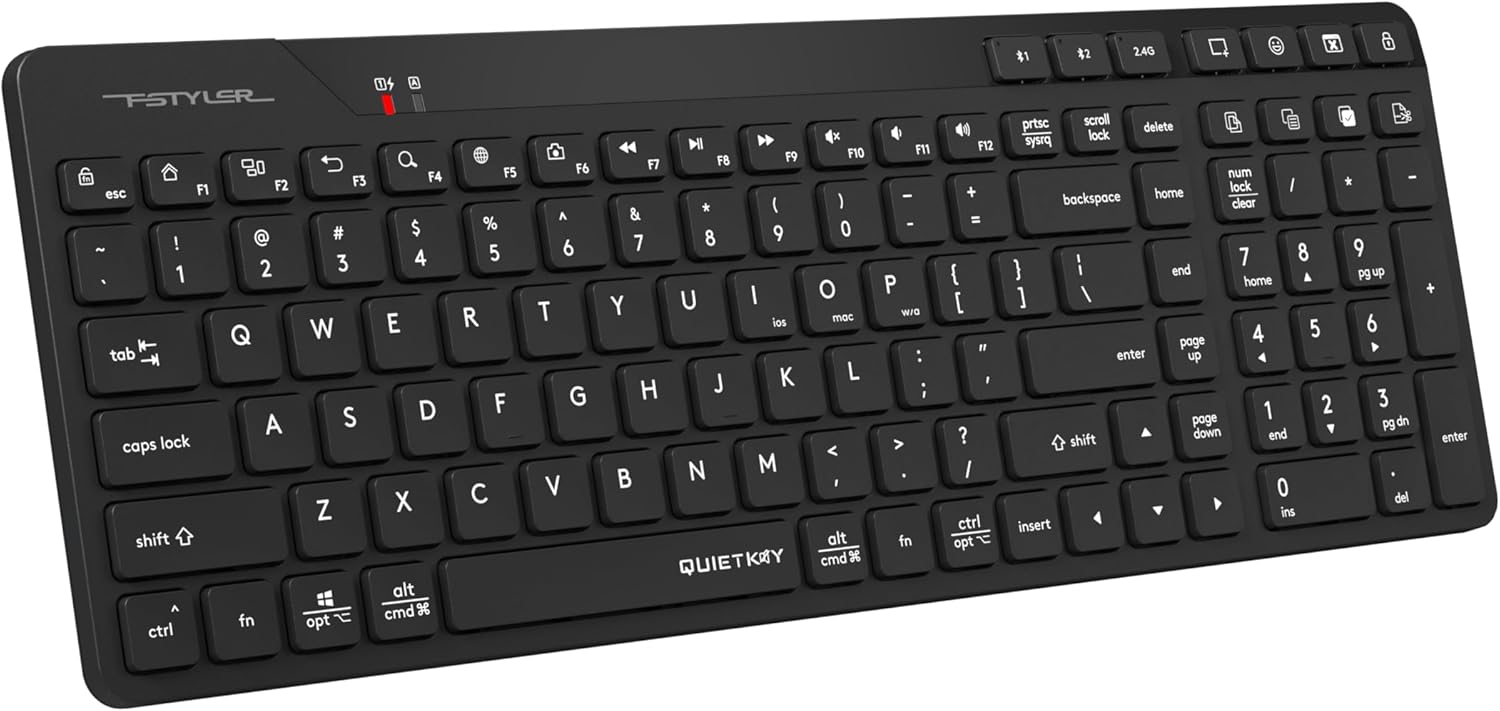
1-сүрөт: Жогорку view of the A4tech FBK27C AS keyboard, showcasing its ergonomic split design and integrated wrist rest.
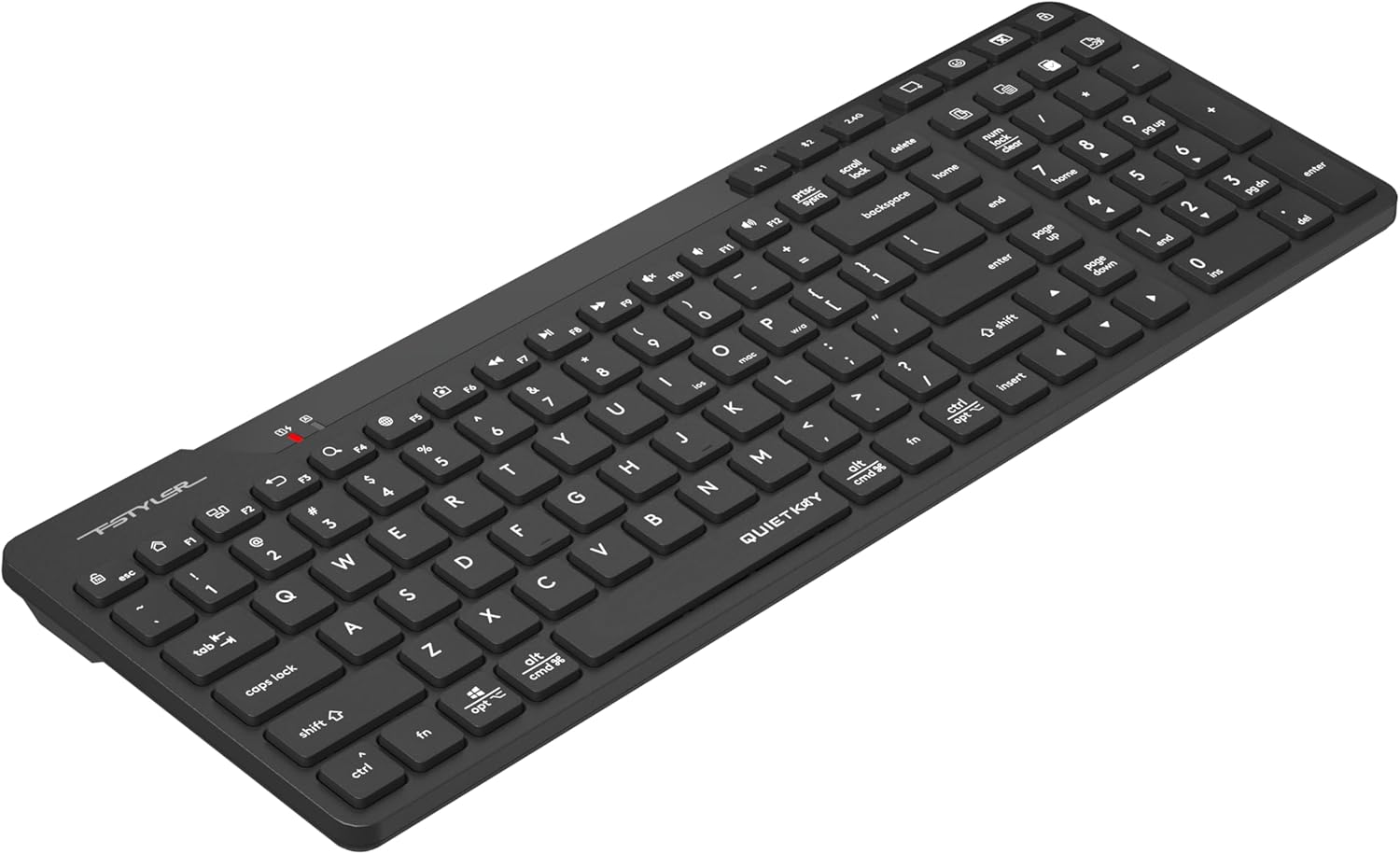
2-сүрөт: Бурчтуу view of the A4tech FBK27C AS keyboard, highlighting the contoured shape for natural hand positioning.
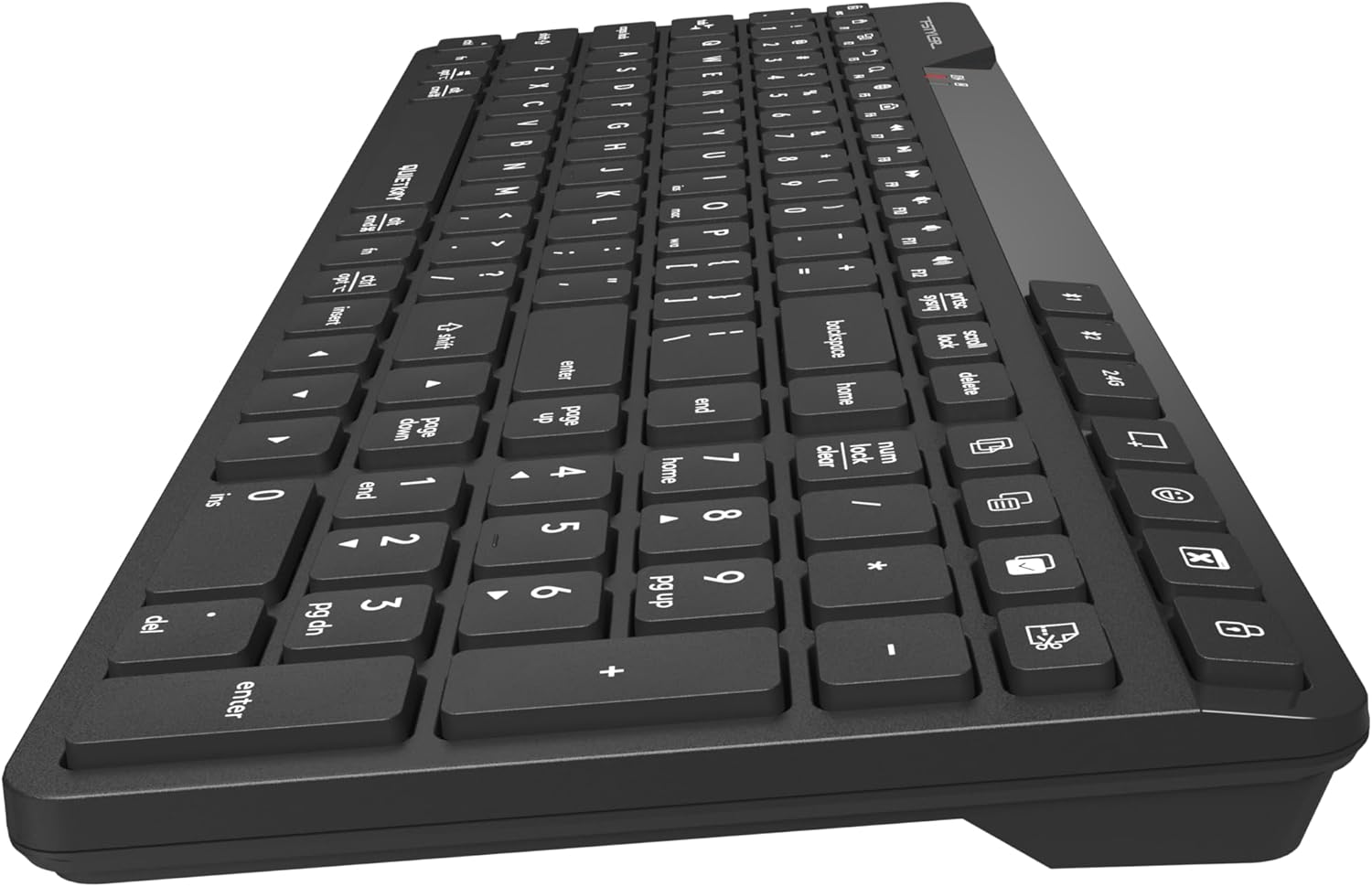
3-сүрөт: Каптал view of the A4tech FBK27C AS keyboard, showing the profile and the integrated wrist rest.

4-сүрөт: Жогору жактан ылдый бурчтуу view of the A4tech FBK27C AS keyboard, providing a comprehensive look at the key layout and ergonomic design.
5. Иштөө нускамалары
5.1 Туташкан түзмөктөрдүн ортосунда которулуу
To switch between your connected devices, simply press the corresponding connectivity key:
- Press '2.4G' to connect to the device using the USB receiver.
- Press 'BT1' to connect to the first Bluetooth-paired device.
- Press 'BT2' to connect to the second Bluetooth-paired device.
5.2 Мультимедиа жана функция баскычтары
The keyboard features a row of function keys (F1-F12) that double as multimedia or special function keys. To use these functions, you may need to press the 'Fn' key simultaneously with the desired function key, depending on your operating system and keyboard settings.
| ачкыч | Функция |
|---|---|
| Fn + F1 | Үй |
| Fn + F2 | издөө |
| Fn + F3 | |
| Fn + F4 | Скриншот параметрлери |
| Fn + F5 | Эмодзилердин символдору |
| Fn + F6 | Колдонмону жашыруу |
| Fn + F7 | Мурунку трек |
| Fn + F8 | Ойнотуу/Тыныгуу |
| Fn + F9 | Кийинки трек |
| Fn + F10 | Үнүн өчүрүү |
| Fn + F11 | Үндү төмөндөтүү |
| Fn + F12 | Үндү көтөрүү |
| Атайын ачкычтар | Copy, Paste, Select All, Calculator, Computer Lock |

Figure 5: Icons representing special functions like Screenshot, Emoji, Hide Application, Copy, Paste, and Select All.
5.3 Operating System Mode Switching
The keyboard is compatible with multiple operating systems. Use the following key combinations to switch modes:
- Press 'Fn + Win/Alt' for Windows/Android mode.
- Press 'Fn + Cmd/Alt' for Mac/iOS mode.

Figure 6: Keyboard layout illustrating the keys for switching between iOS, Mac, and Windows/Android operating system modes.
6. Техникалык тейлөө
6.1 Тазалоо
Клавиатураңызды тазалоо үчүн, анын бетин жумшак, нымдуу чүпүрөк менен акырын сүртүңүзamp cloth. Avoid using harsh chemicals or abrasive materials that could damage the finish or key legends. For debris between keys, use compressed air.
6.2 Батареяга кам көрүү
To prolong battery life, avoid fully discharging the keyboard frequently. Charge it when the low battery indicator appears. If storing the keyboard for an extended period, charge it to about 50% and store it in a cool, dry place.
7. Кыйынчылыктарды
7.1 Байланыш маселелери
- Баскычтоп туташпай жатат: Ensure the keyboard is turned on and fully charged. For 2.4GHz, check if the USB receiver is properly inserted. For Bluetooth, ensure your device's Bluetooth is enabled and the keyboard is in pairing mode (blinking BT1/BT2 light).
- Үзгүлтүксүз туташуу: Move the keyboard closer to your device to reduce interference. Avoid placing large metal objects between the keyboard and the receiver/device.
7.2 Ачкычтар жооп бербейт
- Specific keys: Баскыч капкагынын астындагы физикалык тоскоолдуктарды же таштандыларды текшериңиз.
- All keys: Ensure the keyboard is powered on and properly connected to your device. Try restarting your device or re-pairing the keyboard.
7.3 Заряддоо көйгөйлөрү
- Keyboard not charging: Verify the USB-C cable is securely connected to both the keyboard and the power source. Try a different USB-C cable or power adapter.
8. Техникалык шарттар
| Өзгөчөлүк | Деталь |
|---|---|
| Бренд | A4tech |
| Модель аты | FBK27C AS |
| Байланыш технологиясы | Bluetooth, 2.4 ГГц |
| Шайкеш түзмөктөр | PC (Windows, Mac, iOS, Android) |
| Keyboard Description | Quiet Keys, Ergonomic |
| Сунушталган Колдонуулар | Күнүмдүк колдонуу |
| Өзгөчө өзгөчөлүк | Программалануучу ачкычтар |
| Элемент Салмагы | 1.3 фунт |
| Пакеттин өлчөмдөрү | 16 x 6.5 x 1.25 дюйм |
9. Кепилдик жана колдоо
For warranty information and technical support, please refer to the documentation included with your product or visit the official A4tech webсайт. Кепилдик дооматтар үчүн сатып алганыңыздын далилин сактаңыз.


