1. Киришүү
This manual provides detailed instructions for the installation, operation, and maintenance of your AZDOME GS63H 4K WiIFi Dash Cam. Please read this manual thoroughly before using the device to ensure proper function and safety.

Image 1.1: AZDOME GS63H Dash Cam, showing the device, its suction mount, a smartphone displaying the companion app, and the included 128GB SD card.
2. Пакеттин мазмуну
Төмөндө тизмеленген нерселердин баары пакетиңизде бар экенин текшериңиз:
- AZDOME GS63H Dash Cam
- Соруу кашаа
- 128 ГБ эстутум картасы
- Кубат кабели (унаа кубаттагычы)
- USB маалымат кабели
- User Manual

Image 2.1: The included 128GB SD card, designed for fast data transfer speeds, compatible with the AZDOME GS63H dash cam.
3. Продукт бүтүп калдыview жана өзгөчөлүктөрү
The AZDOME GS63H is a 4K WiIFi Dash Cam designed to record driving footage. Key features include:
- 4K UHD Recording: Captures video at 2880x2160P resolution for detailed footage.
- Камтылган WiFi: Allows connection to a smartphone via the AZDOME app for video management.
- Камтылган GPS: Records driving speed, route, latitude, and longitude data.
- Супер түнкү көрүнүш: Equipped with WDR (Wide Dynamic Range) and a SONY IMX335 sensor for clear recording in low-light conditions.
- Цикл жаздыруу: Автоматтык түрдө эң эскинин үстүнөн жазат fileэстутум картасы толгондо.
- G-сенсор: Detects sudden movements or collisions and locks the current video file to prevent overwriting.
- Унаа токтотуучу жай: Records automatically when motion or impact is detected while parked (requires hard-wire kit, sold separately).
- Кыймылды аныктоо: Initiates recording when movement is detected in front of the camera.

Image 3.1: Visual representation of the AZDOME GS63H dash cam's core features, including 4K Ultra HD video, WiFi connectivity, GPS, and various recording modes.
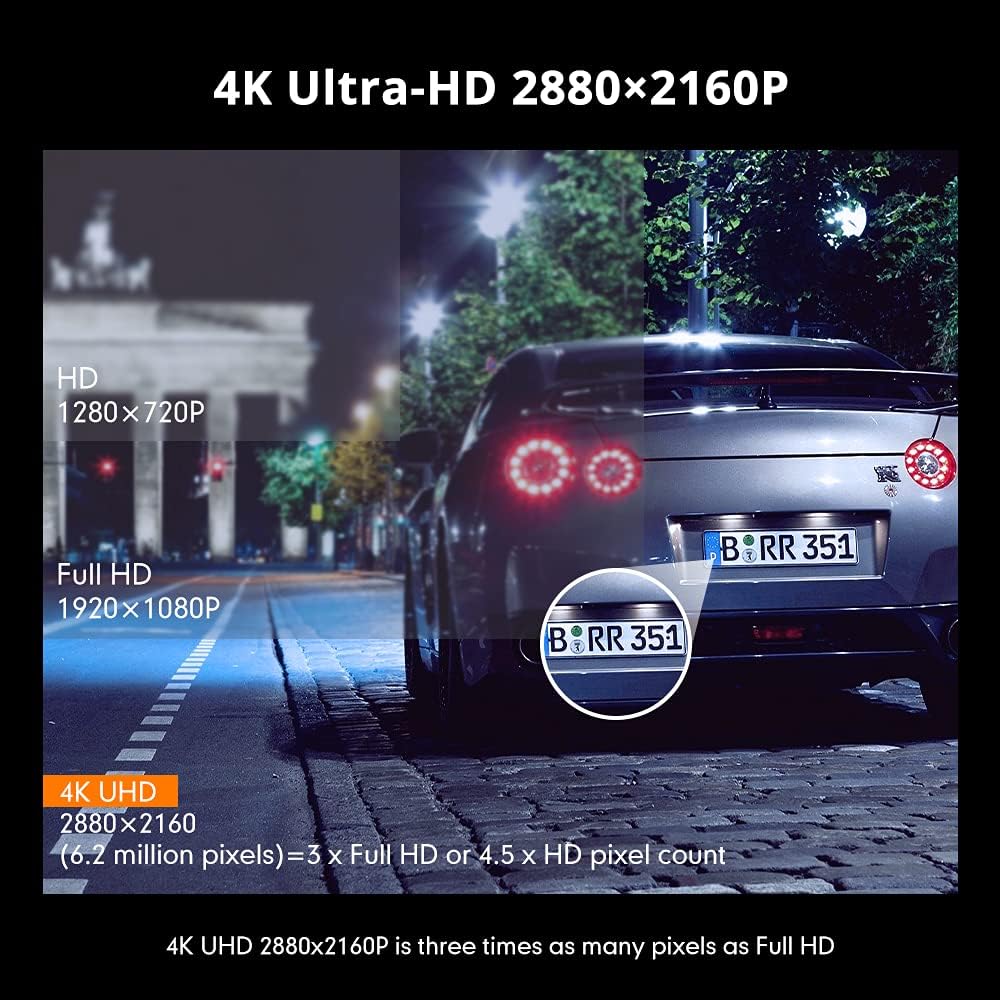
Image 3.2: Comparison illustrating the higher detail of 4K Ultra-HD (2880x2160P) resolution compared to Full HD (1920x1080P) and HD (1280x720P).
4. Орнотуу
4.1. Камераны орнотуу
- Камераны орното турган алдыңкы айнекти тазалаңыз.
- Attach the suction bracket to the dash cam.
- Сорулгону алдынкы айнекке бекем басып, аны бекитүү үчүн рычагды которуңуз.
- Тунук болушу үчүн камеранын бурчун тууралаңыз view жолдун.
4.2. SD картаны салуу
- Камера өчүрүлгөнүн текшериңиз.
- SD карта уячасын камеранын капталынан табыңыз.
- Insert the 128GB SD card with the gold contacts facing the back of the camera until it clicks into place.
- Чыгаруу үчүн картаны сыртка чыкканга чейин акырын түртүңүз.
4.3. Кубатты туташтыруу
- Унаа кубаттагычты камеранын электр киргизүү портуна туташтырыңыз.
- Унаа кубаттагычтын экинчи учун унааңыздын 12V электр розеткасына (тамеки от алгычтын розеткасына) сайыңыз.
- Камера автоматтык түрдө күйөт жана унаанын от алдыруу күйгүзүлгөндө жаздыра баштайт.
5. Иштөө нускамалары
5.1. Негизги жаздыруу
Once powered on, the dash cam will automatically start recording. The recording indicator light will flash. Videos are saved in segments (loop recording) to the SD card.
5.2. Меню навигациясы
Use the physical buttons on the dash cam to navigate through the menu options. Refer to the on-screen icons for specific functions such as video playback, settings, and mode switching.
5.3. WiFi Connection and AZDOME App
The built-in WiFi allows you to connect your smartphone to the dash cam for live view, video playback, download, and settings adjustment.
- Download the 'AZDOME' app from the Apple App Store or Google Play Store.
- On the dash cam, enable WiFi mode (refer to the dash cam's display for the WiFi icon).
- Смартфонуңузда WiFi жөндөөлөрүнө өтүп, AZDOME видеорегистраторунун WiFi тармагына туташыңыз (SSID жана сырсөз видеорегистратор экранында көрсөтүлөт).
- Open the AZDOME app to access the dash cam's functions.

Image 5.1: Illustration of the built-in WiFi functionality, showing the AZDOME app on a smartphone connected to the dash cam for video management.
5.4. GPS көзөмөлдөө
The integrated GPS module records your driving route, speed, and coordinates. This data can be viewed using the dedicated AZDOME GPS Player software on a computer.
- Download the AZDOME GPS Player from the official AZDOME webсайт.
- Transfer recorded video fileс SD картадан компьютериңизге.
- Видеону ачыңыз files using the AZDOME GPS Player to view synchronized video and GPS data (route map, speed, etc.).

Image 5.2: A laptop screen displaying the AZDOME GPS Player interface, showing a recorded video alongside a map with the tracked driving route and speed information.
5.5. Өркүндөтүлгөн жаздыруу режимдери
- G-сенсор: When a sudden impact or collision is detected, the G-Sensor automatically locks the current video file, анын циклдик жаздыруу менен кайра жазылышына жол бербейт.
- Унаа токтотуучу жай: If connected to a hard-wire kit (sold separately), the dash cam can detect motion or impact while the vehicle is parked and automatically start recording for a short duration.
- Кыймылды аныктоо: When enabled, the camera will start recording if it detects movement in its field of view while stationary.
- WDR (Кең динамикалык диапазон): This feature enhances video quality in challenging lighting conditions by balancing bright and dark areas of the image.

Image 5.3: Visual explanation of the dash cam's multifunctional capabilities, including Motion Detection, WDR for balanced exposure, G-Sensor for impact detection, and Parking Monitor.
6. Техникалык тейлөө
6.1. SD картаны форматтоо
It is recommended to format the SD card regularly (e.g., once a month) to ensure optimal performance and prevent data corruption. Formatting can be done through the dash cam's menu settings.
6.2. Аспапты тазалоо
Use a soft, dry cloth to clean the dash cam's lens and body. Avoid using abrasive cleaners or solvents that could damage the device.
7. Кыйынчылыктарды
- Камера күйгүзбөйт: Кубат кабели камера камерасына жана унаанын 12V электр розеткасына бекем туташтырылганын текшериңиз. Унаанын электр розеткасынын иштеп жатканын текшериңиз.
- Жаздыруу күтүлбөгөн жерден токтойт: Format the SD card. Ensure the SD card is a high-speed card (Class 10 or higher).
- Видеонун сапаты начар: Clean the camera lens. Ensure the protective film has been removed from the lens. Check video resolution settings.
- WiFi туташуу көйгөйлөрү: Ensure the dash cam's WiFi is enabled. Keep the smartphone within 9 feet (3 meters) of the dash cam.
- GPS маалыматтары жазылбай жатат: Камерада так бар экенин текшериңиз view of the sky for GPS signal reception.
8. Техникалык шарттар
| Өзгөчөлүк | Спецификация |
|---|---|
| Бренд | AZDOME |
| Модель аты | GS63H |
| Видео тартуунун резолюциясы | 2160p (4K UHD) |
| Байланыш технологиясы | Wi-Fi |
| Flash эс тутум түрү | SD (Supports up to 128GB) |
| Монтаж түрү | Соруу Тоосу |
| Башкаруу ыкмасы | Колдонмо |
| Унаа кызматынын түрү | Машина |
| Камтылган компоненттер | Memory Card, Suction Bracket |
9. Кепилдик жана колдоо
For warranty information and technical support, please refer to the official AZDOME website or contact AZDOME customer service directly. Keep your purchase receipt as proof of purchase.


