Introduction
This manual provides comprehensive instructions for the setup, operation, maintenance, and troubleshooting of your AOC C27G4ZXE 27-inch Full HD LED Computer Monitor. Please read this manual thoroughly before using the product to ensure proper and safe operation.
Коопсуздук маалыматы
Монитордун бузулушун алдын алуу жана жеке коопсуздугуңузду камсыз кылуу үчүн ар дайым төмөнкү коопсуздук чараларын сактаңыз:
- Мониторду туруксуз арабага, стендге же столго койбоңуз.
- Желдетүүчү тешиктерди жаппаңыз.
- Суунун жанында колдонбоңуз.
- Use only the power cord and adapter provided by the manufacturer.
- Бардык тейлөөлөрдү квалификациялуу тейлөө кызматкерлерине тапшырыңыз.
Пакеттин мазмуну
Пакетте бардык буюмдар бар экенин текшериңиз:
- AOC C27G4ZXE Monitor
- Электр кабели
- HDMI кабели (аймакка жараша өзгөрүшү мүмкүн)
- DisplayPort кабели (аймакка жараша өзгөрүшү мүмкүн)
- Монитордун негизи
- Монитор Stand Neck
- Колдонуучунун Колдонмосу (бул документ)

Сүрөт 1: Алдыңкы view of the AOC C27G4ZXE Monitor.
Жайгашуу
1. Стендди чогултуу
- Чийилбеш үчүн мониторду кылдаттык менен жумшак, таза бетке ылдый каратып коюңуз.
- Attach the stand neck to the monitor panel. Ensure it clicks into place or is secured with screws as per the included quick setup guide.
- Attach the stand base to the stand neck. Tighten the thumb screw or screws from the bottom of the base.
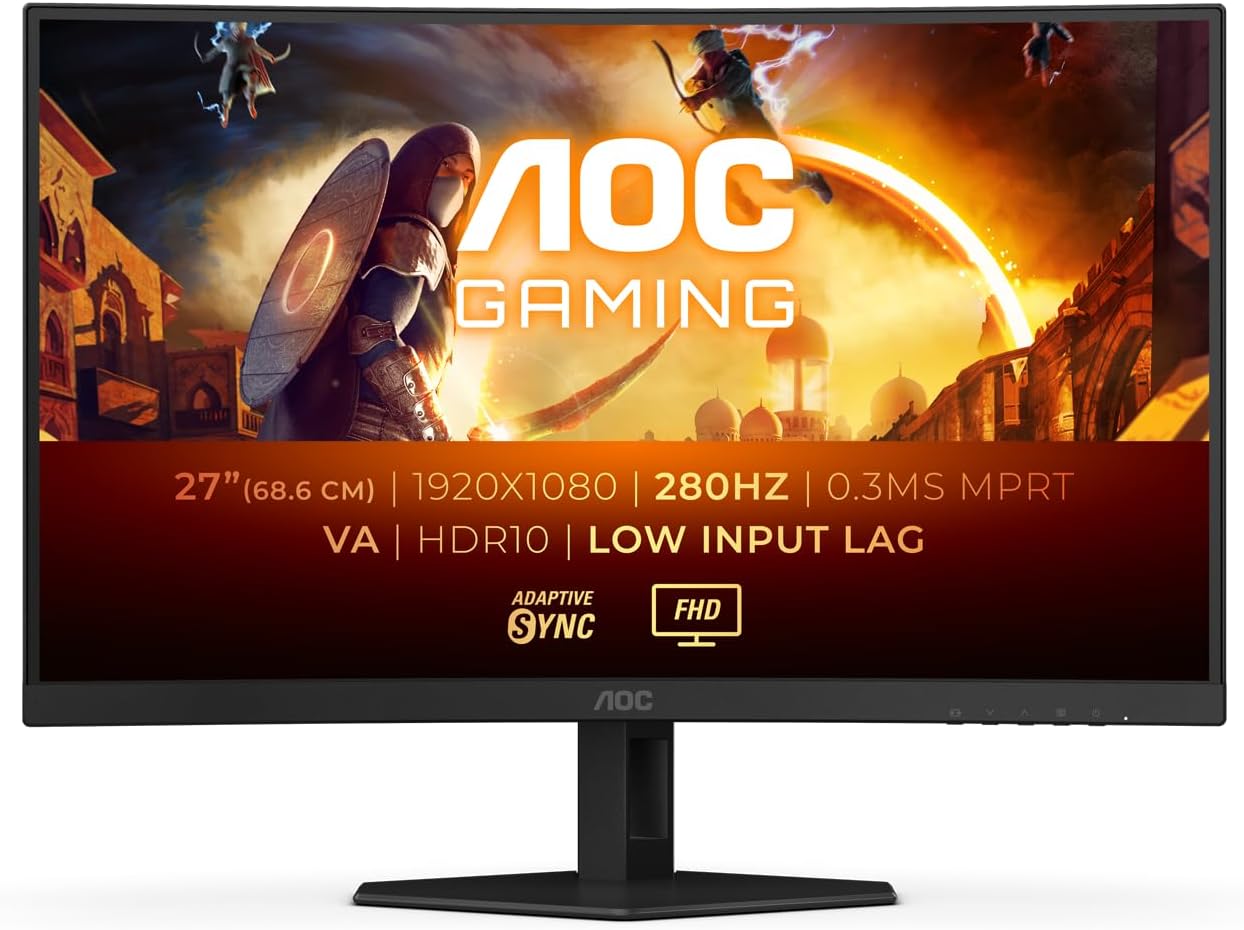
Figure 2: The AOC C27G4ZXE Monitor assembled with its stand.
2. Мониторду туташтыруу
The AOC C27G4ZXE monitor supports HDMI and DisplayPort connections.
- Кубат туташуу: Кубат кабелин монитордун кубат киресине, андан кийин розеткага туташтырыңыз.
- Видео туташуу:
- For HDMI: Connect one end of the HDMI cable to the monitor's HDMI port and the other end to your computer's HDMI port.
- For DisplayPort: Connect one end of the DisplayPort cable to the monitor's DisplayPort and the other end to your computer's DisplayPort.
- Аудио чыгаруу: If you wish to connect external speakers or headphones, use the 3.5mm audio out jack on the monitor.

3-сүрөт: Арткы view of the monitor highlighting HDMI, DisplayPort, and Audio Out connections.
Мониторду иштетүү
Күйгүзүү/өчүрүү
Мониторду күйгүзүү же өчүрүү үчүн анын төмөнкү оң жагында жайгашкан кубат баскычын басыңыз.
Экрандагы дисплей (OSD) менюсу
The OSD menu allows you to adjust various settings of the monitor. Use the navigation buttons (usually located on the bottom right or rear of the monitor) to navigate the menu.
- Жарыктык/Контраст: Дисплейдин жалпы жарыктыгын жана контрастын тууралаңыз.
- Түс жөндөөлөрү: Түс температурасын, гамма жана жеке RGB деңгээлин өзгөртүү.
- Сүрөт режими: Select from preset picture modes (e.g., Standard, Game, Movie, Text).
- Киргизүүнү тандоо: HDMI жана DisplayPort киргизүүлөрүнүн ортосунда кол менен которулуңуз.
- OSD Орнотуулары: OSD тилин, тунуктугун жана тайм-аутту тууралаңыз.
- Кайтаруу: Бардык орнотууларды баштапкы абалга келтириңиз.
Figure 4: The monitor displaying a high-quality image, demonstrating its visual capabilities.
Техникалык тейлөө
Мониторду тазалоо
- Тазалоодон мурун мониторду дайыма электр розеткасынан сууруп алыңыз.
- Жумшак, түксүз кездемени жеңил колдонуңуз dampсуу же абразивдүү эмес экран тазалагыч менен иштетиңиз.
- Тазалоочу каражатты түз экранга чачпаңыз.
- Avoid using benzene, thinner, ammonia, or abrasive cleaners.
Сактагыч
When storing the monitor for an extended period, place it in its original packaging or a suitable protective container to prevent dust and damage. Store in a cool, dry place.
Проблемаларды чечүү
| Көйгөй | Мүмкүн себеп | Чечим |
|---|---|---|
| Экранда сүрөт жок | Электр кабели ажыратылган; Видео кабели ажыратылган; Туура эмес киргизүү тандалды. | Кубат жана видео кабелдердин туташууларын текшериңиз; OSD менюсу аркылуу туура киргизүүнү тандаңыз. |
| Сүрөт өтө караңгы/жарык | Жарыктык/Контраст жөндөөлөрү туура эмес. | Adjust Brightness and Contrast in the OSD menu. |
| Жаркылдаган сүрөт | Loose video cable; Graphics card issue; Refresh rate mismatch. | Secure video cable; Update graphics drivers; Adjust refresh rate in computer display settings. |
| No audio from monitor (if applicable) | Үн өтө төмөн; Компьютерде туура эмес аудио чыгаруу тандалган. | Increase monitor volume; Set monitor as default audio output on your computer. |
Техникалык шарттар
| Өзгөчөлүк | Деталь |
|---|---|
| Модель номери | C27G4ZXE |
| Screen Size | 27 дюйм (68.6 см) |
| Резолюция | 1920 x 1080 (Full HD 1080p) |
| Аспект катышы | 16:9 |
| Панел түрү | LED-LCD |
| Screen Surface | Мт |
| Продукциянын өлчөмдөрү (L x W x Y) | 6.97 x 24.07 x 17.99 дюйм |
| Элемент Салмагы | 10.93 фунт |
| Өндүрүүчү | AOC |
| Энергия эффективдүүлүгү классы (SDR) | E |
| Иштөө режиминдеги кубаттуулукка болгон муктаждык (SDR) | 21.0 Вт |
| Энергия эффективдүүлүгү классы (HDR) | G |
| Иштөө режиминдеги кубаттуулукту талап кылуу (HDR) | 31.0 Вт |
| Networked standby power demand | 0.5 Вт |
| Minimum guaranteed availability of software and firmware updates | 8 жыл |
| Запастык бөлүктөрдүн минималдуу гарантияланган болушу | 7 жыл |
| Минималдуу кепилдик продукт колдоо | 8 жыл |
| Жеткирип берүүчү сунуштаган жалпы кепилдиктин минималдуу мөөнөтү | 3 жыл |
For more detailed product information, refer to the official EU EPREL database: https://eprel.ec.europa.eu/qr/2008320

Figure 5: Product Information Sheet (English version) with detailed specifications.

Figure 6: EU Energy Label indicating energy efficiency ratings.
Кепилдик жана колдоо
AOC provides a general guarantee for this product. For specific warranty terms and conditions, please refer to the warranty card included with your product or visit the official AOC website. For technical support, driver downloads, and service inquiries, please contact AOC customer support.
Өндүрүүчү: AOC
Кардарларды тейлөө электрондук почтасы: kevin.yang@tpv-tech.com
Официалдуу Webсайт: https://eu.aoc.com


