1. Киришүү
Thank you for choosing the KLIM Blaze Y RGB Rechargeable Wireless Gaming Mouse. This manual provides detailed instructions for setting up, operating, and maintaining your new gaming mouse. The KLIM Blaze Y offers versatile connectivity options (wireless 2.4GHz, Bluetooth, wired), customizable RGB lighting, and a high-precision sensor for an optimal gaming experience.

Image 1.1: The KLIM Blaze Y RGB Rechargeable Wireless Gaming Mouse shown with its charging dock and USB receiver.

Image 1.2: The KLIM Blaze Y gaming mouse available in both black and white color options.
2. Пакеттин мазмуну
Сураныч, пакетте төмөнкү нерселерди текшериңиз:
- KLIM Blaze Y RGB Wireless Gaming Mouse
- Заряддоо док
- USB зымсыз кабыл алгыч (2.4 ГГц жабдык)
- USB-C заряддоо кабели
- Колдонуучунун Колдонмосу (бул документ)
3. Орнотуу
3.1. Чычканды заряддоо
Before first use, it is recommended to fully charge the mouse. The KLIM Blaze Y features a built-in rechargeable battery.
- Connect the USB-C charging cable to the charging dock and a power source (e.g., computer USB port, USB wall adapter).
- Place the KLIM Blaze Y mouse onto the charging dock. Ensure the charging contacts on the mouse align with those on the dock.
- The mouse's RGB lighting or an indicator light will show charging status.
Alternatively, you can connect the USB-C cable directly to the mouse for charging and wired operation.
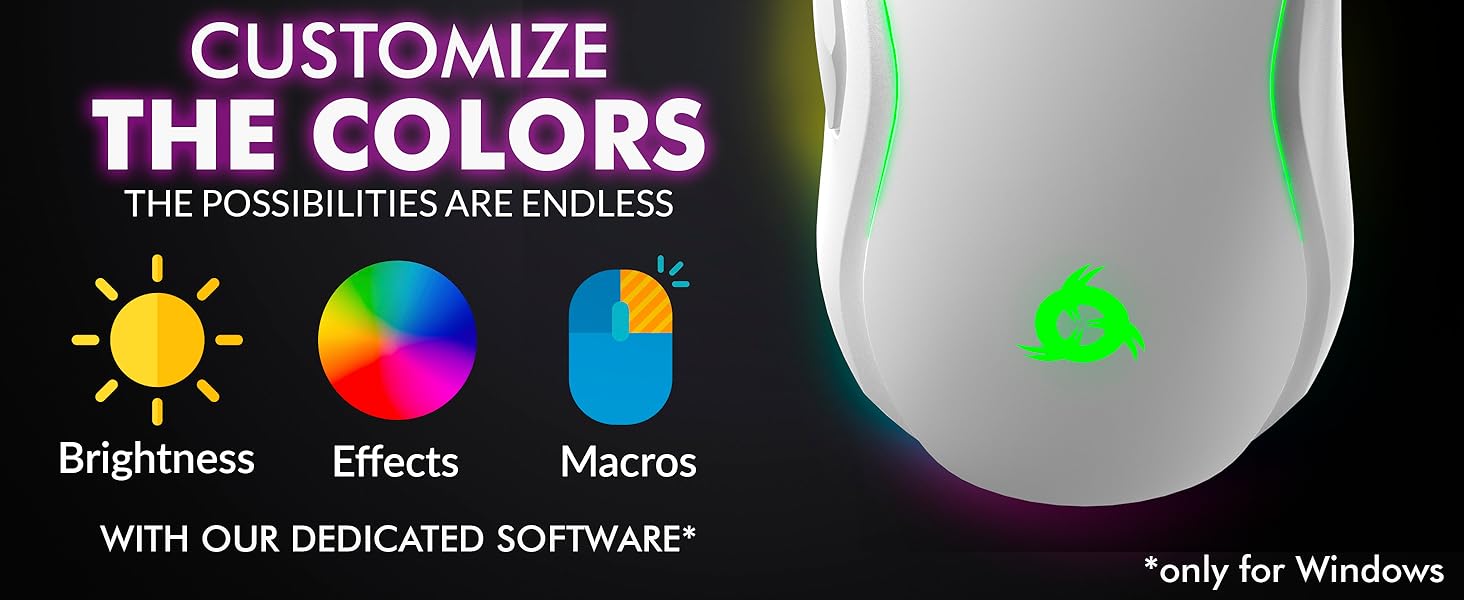
Image 3.1: The KLIM Blaze Y mouse positioned on its charging dock, highlighting its extended battery life.
3.2. Туташуу режимдери
The KLIM Blaze Y supports three connection modes: 2.4GHz Wireless, Bluetooth, and Wired.
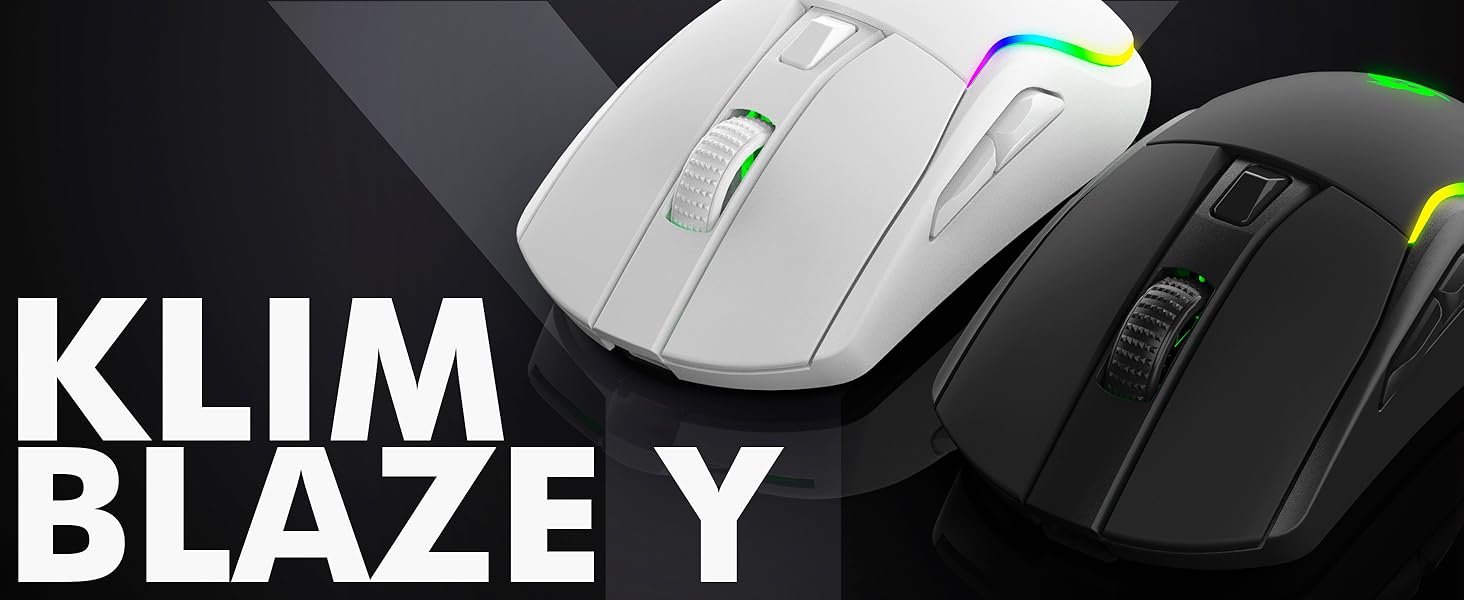
Image 3.2: Visual representation of the three available connection modes: 2.4GHz Wireless, Bluetooth, and Wired.

Image 3.3: The mouse offers flexible connectivity, allowing users to choose between wireless, Bluetooth, or wired connections.
3.2.1. 2.4 ГГц зымсыз туташуу
- Пакеттен USB зымсыз кабыл алгычты (кошумча) табыңыз.
- Plug the USB receiver into an available USB port on your computer or gaming console.
- Turn on the mouse using the switch on its underside. The mouse should automatically connect to the receiver.
- Чычкан колдонууга даяр.
3.2.2. Bluetooth туташуусу
- Түзмөгүңүздө Bluetooth иштетилгенин текшериңиз.
- Switch the mouse to Bluetooth mode using the selector switch on its underside (if available, or follow pairing instructions).
- Түзмөгүңүздө Bluetooth жөндөөлөрүнө өтүп, жаңы түзмөктөрдү издеңиз.
- Select "KLIM Blaze Y" from the list of available devices to pair.
- Once paired, the mouse is ready for use.
3.2.3. Зымдуу туташуу
- Connect the USB-C charging cable directly from the mouse to a USB port on your computer.
- Чычкан зымдуу чычкандын милдетин аткарып, ички батарейкасын да заряддайт.
4. Иштөө нускамалары
4.1. DPI тууралоо
The KLIM Blaze Y features a high-precision sensor with adjustable DPI (Dots Per Inch) settings, allowing you to change cursor sensitivity on the fly. The mouse supports up to 6000 DPI.
- Use the dedicated DPI button(s) on the mouse to cycle through preset DPI levels.
- The RGB lighting on the mouse may change color to indicate the current DPI level.
- For advanced DPI customization and additional stages, refer to the dedicated software section.
4.2. RGB жарыктандырууну ыңгайлаштыруу
The mouse features customizable RGB lighting effects around its base and on the logo. You can personalize the effects, color, and brightness.
- Out of the box, the mouse will display default RGB lighting patterns.
- To fully customize the RGB effects, including specific colors for DPI levels, download and install the dedicated KLIM software (Windows only).
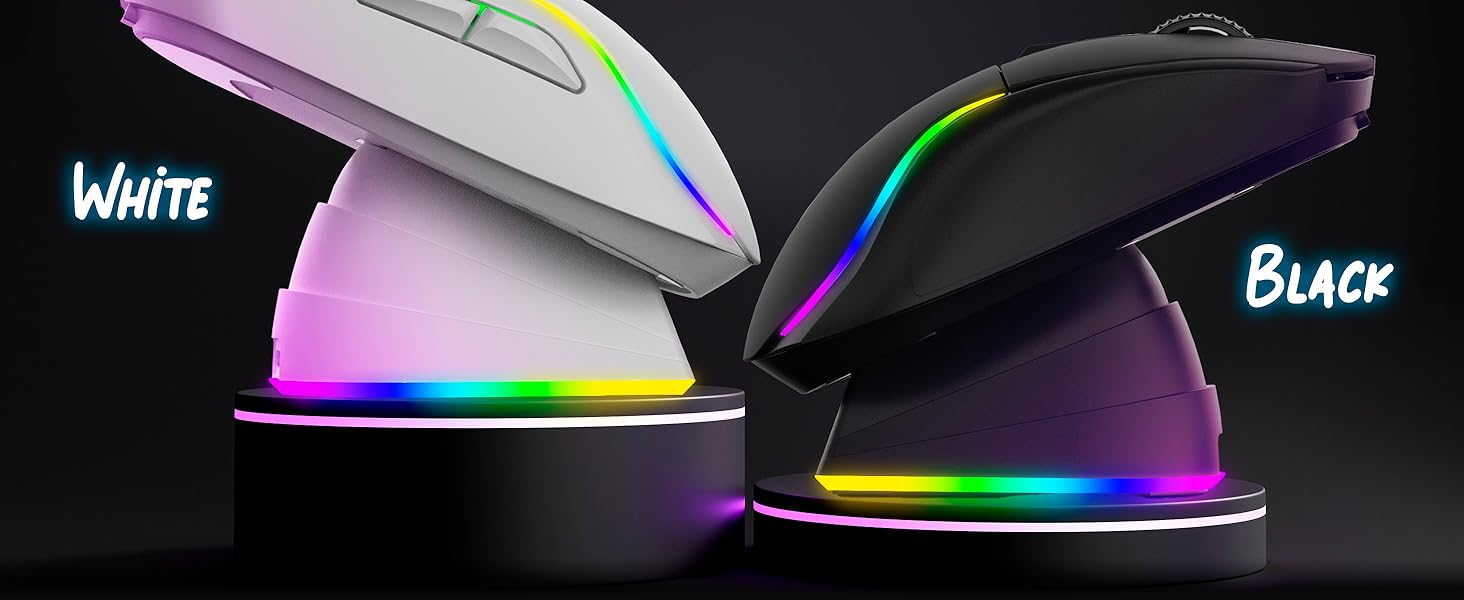
Image 4.1: The KLIM Blaze Y mouse features vibrant RGB lighting and an ergonomic design.
4.3. Dedicated Software (Windows Only)
For advanced customization, including DPI settings, polling rate, macros, and RGB effects, download the KLIM dedicated software from the official KLIM webсайт.
- The software allows you to fine-tune sensor parameters and assign custom functions to buttons.
- Create and save profileар кандай оюндар же тиркемелер үчүн.
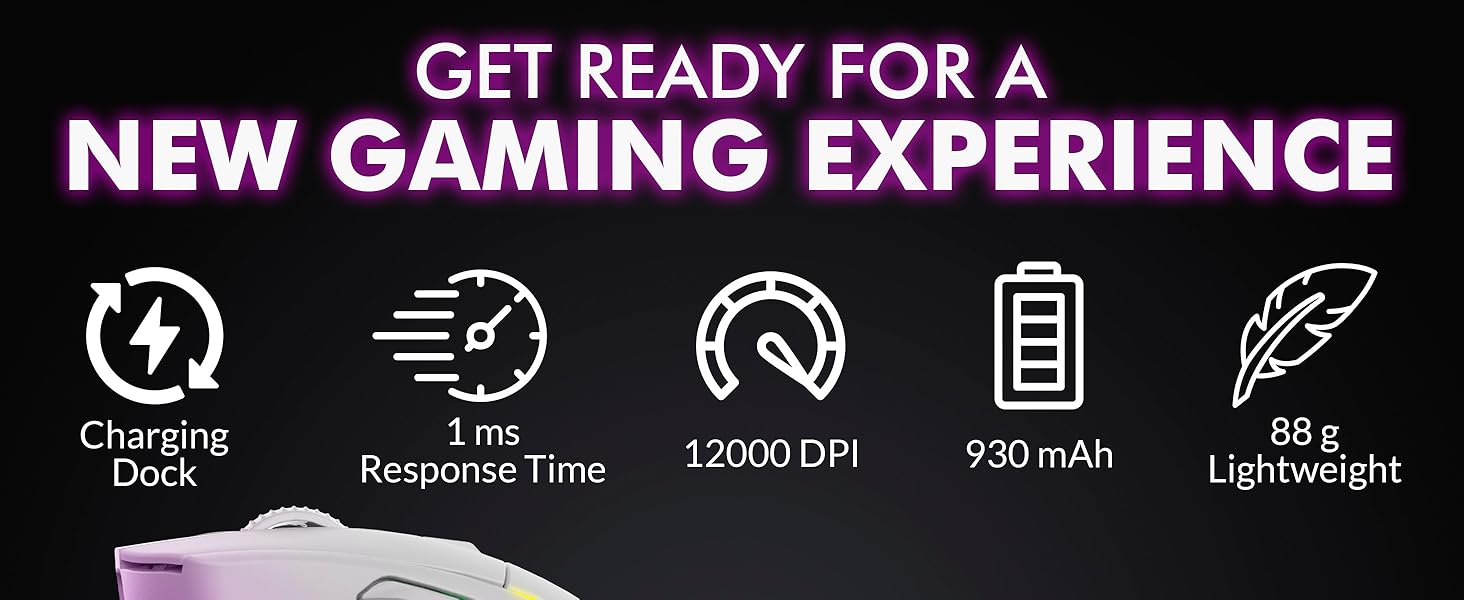
Image 4.2: Screenshot of the KLIM dedicated software interface for customizing mouse settings.
4.4. Эргономика жана Grip
The KLIM Blaze Y is designed for comfort and control, featuring anti-slip flanks and a shape suitable for various grip styles (palm, claw, fingertip).

Image 4.3: The ergonomic design of the KLIM Blaze Y mouse, emphasizing its anti-slip grip for enhanced control.
5. Техникалык тейлөө
5.1. Тазалоо
To maintain optimal performance and appearance, clean your mouse regularly.
- Чычкандын бетин сүртүү үчүн жумшак, кургак, түксүз чүпүрөктү колдонуңуз.
- өжөр кир үчүн, бир аз гampчүпүрөктү суу же жумшак тазалоо эритмеси менен жууп салыңыз. Катуу химиялык заттардан алыс болуңуз.
- Use a cotton swab or compressed air to clean around buttons, scroll wheel, and the optical sensor.
- Тазалоодон мурун, чычкандын өчүрүлгөнүн жана башка кубат булагынан ажыратылганын текшериңиз.
5.2. Батареяга кам көрүү
The KLIM Blaze Y features a long-lasting built-in Lithium Ion battery.
- Батареянын иштөө мөөнөтүн узартуу үчүн бат-баттан толук зарядсыздануудан качыңыз.
- Чычканды узак убакытка колдонбогондо салкын, кургак жерде сактаңыз.
- Эгер чычкан көпкө колдонулбаса, сактоо алдында аны болжол менен 50% чейин заряддаңыз.
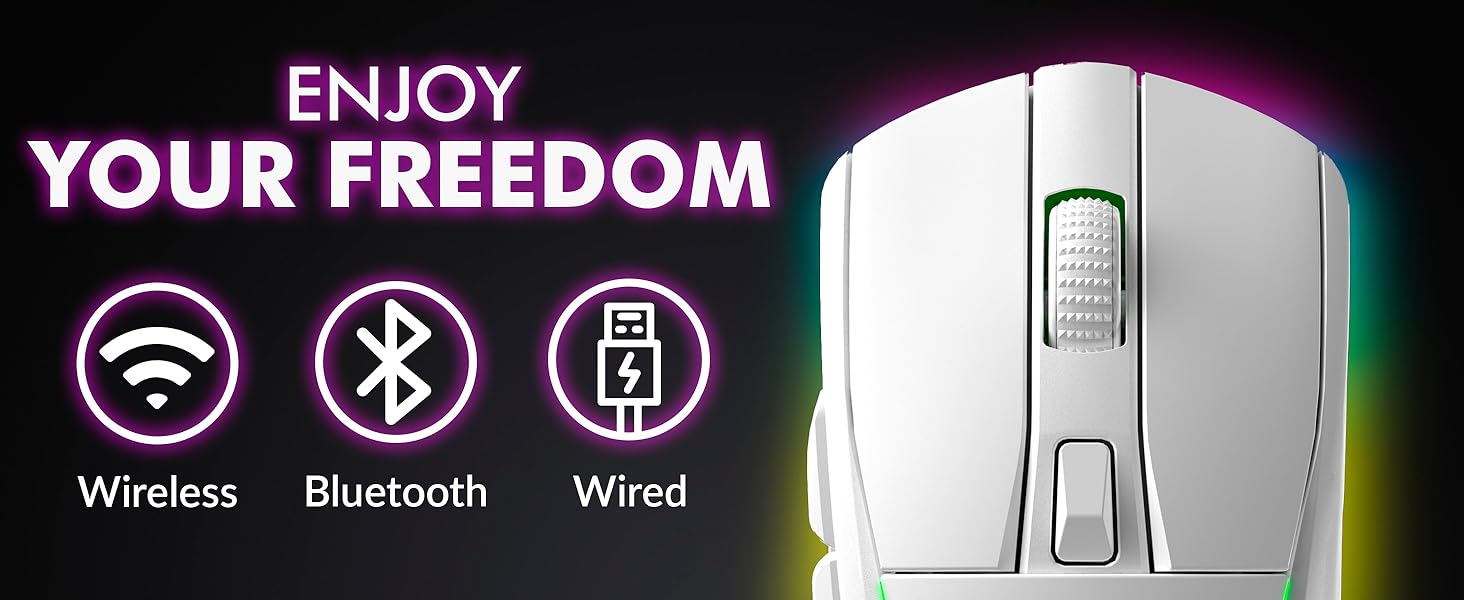
Image 5.1: The KLIM Blaze Y is built with durable switches and an improved coating for longevity.
6. Кыйынчылыктарды
| Көйгөй | Мүмкүн себеп | Чечим |
|---|---|---|
| Mouse not responding (Wireless 2.4GHz) | Low battery, receiver not plugged in, incorrect mode, interference. | Charge the mouse. Ensure USB receiver is securely plugged in. Check mouse is in 2.4GHz mode. Try a different USB port. |
| Чычкан жооп бербей жатат (Bluetooth) | Low battery, Bluetooth off, not paired, incorrect mode. | Charge the mouse. Ensure Bluetooth is enabled on your device. Re-pair the mouse. Check mouse is in Bluetooth mode. |
| Чычкан кубатталбай жатат | Cable/dock not connected, faulty cable/dock/port. | Ensure cable is securely connected to mouse/dock and power source. Try a different USB port or cable. Verify charging contacts are clean. |
| DPI өзгөрбөйт | DPI button malfunction, software conflict. | Press the DPI button firmly. If using software, ensure settings are applied correctly. Restart the mouse. |
| RGB жарыктандыруу иштебей жатат/ыңгайлаштырылбай жатат | Software not installed/configured, mouse setting. | Ensure KLIM software is installed and running. Check RGB settings within the software. Restart the mouse. |
7. Техникалык шарттар
- Продукциянын өлчөмдөрү:
- 4.84 x 2.52 x 1.54 дюйм
- Элемент Салмагы:
- 11.3 унция
- Модель номери:
- KLIM Blaze
- Батареялар:
- 1 литий-иондук батарейка (кошулган)
- Бренд:
- KLIM
- Түсү:
- Кара
- Байланыш технологиясы:
- Bluetooth, 2.4GHz Wireless, Wired (USB-C)
- Өзгөчө өзгөчөлүгү:
- Rechargeable, RGB Lighting, Charging Dock
- Кыймылды аныктоо технологиясы:
- Оптикалык сенсор
- Макс DPI:
- Up to 6000 DPI (customizable via software)

Сүрөт 7.1: Бүттүview of key performance specifications and features of the KLIM Blaze Y mouse.
8. Кепилдик жана колдоо
8.1. Кепилдик маалыматы
The KLIM Blaze Y RGB Rechargeable Wireless Gaming Mouse is covered by an ironclad 5 жылдык кепилдик. This warranty covers manufacturing defects and ensures the product's quality and durability.
8.2. Кардарларды колдоо кызматы
Should you encounter any issues or have questions regarding your KLIM Blaze Y mouse, please do not hesitate to contact our customer service team.
- Our native English customer service team aims to respond within 24 hours, even on weekends.
- Колдоо алуу үчүн, расмий KLIM сайтына кириңиз webсайтка же сатып алууда берилген байланыш маалыматына кайрылыңыз.


