1. Киришүү
The COLORROOM K11 Kids Tablet is designed to provide a safe and engaging digital experience for children. Running on Android 13 with an octa-core processor, it offers stable performance for educational content and entertainment. Its durable design, including a protective case, ensures resilience for everyday use by children.
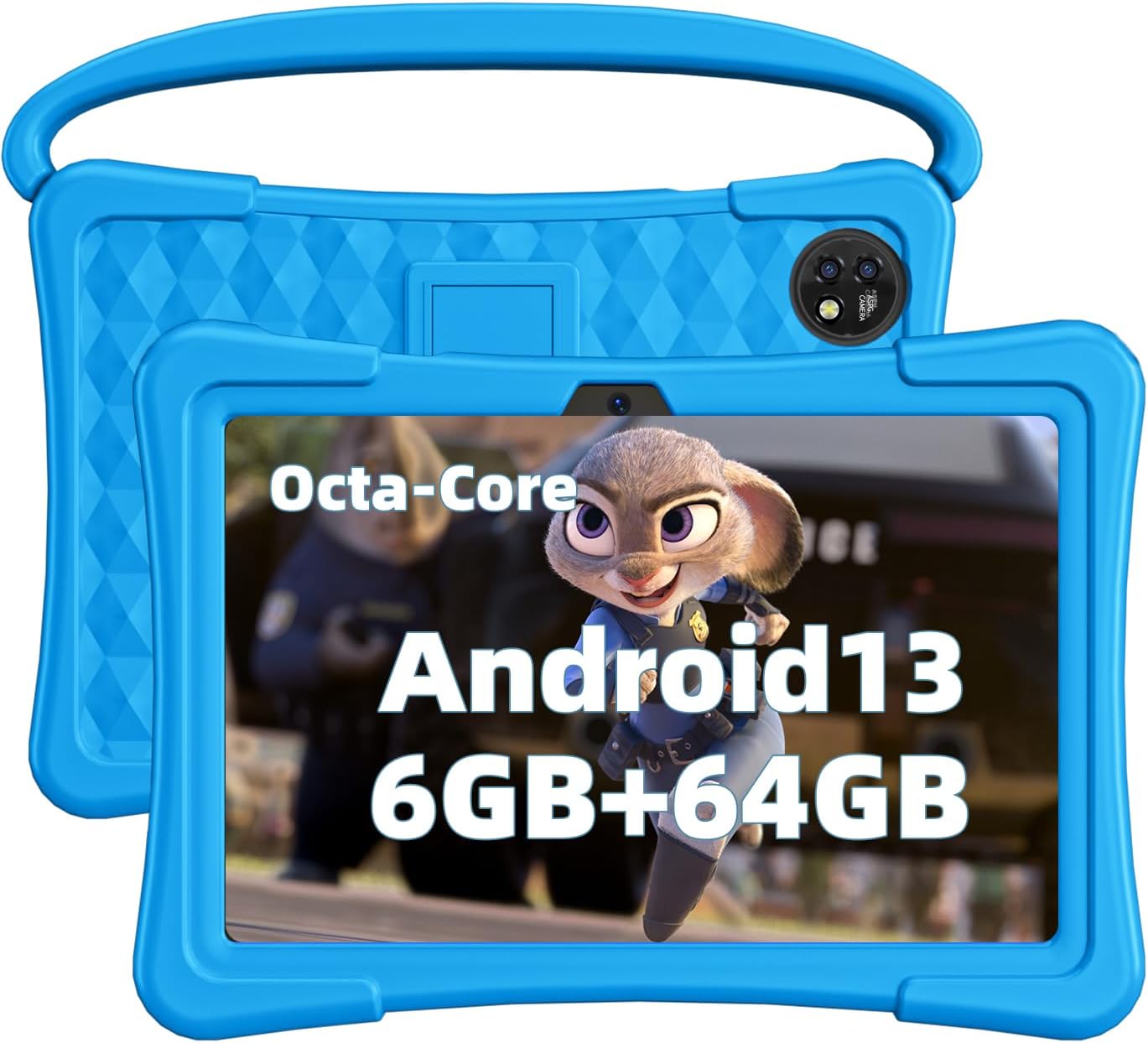
Сүрөт 1: Алдыңкы жана арткы view of the COLORROOM K11 Kids Tablet in its protective case.
2. Кутуда эмне бар
- 1 x Octa-Core Android 13 Tablet
- 1 x коргоочу куту
3. Негизги өзгөчөлүктөрү
- Өркүндөтүлгөн аткаруу: Equipped with Android 13 OS, an octa-core processor, 6GB RAM (2+4), and 64GB internal storage, expandable up to 512GB via Micro SD card.
- Ата-энелик көзөмөл: Preloaded with iWawa apps offering music, drawing, stories, and learning games without subscriptions. Features include individual profiles, app blocking, screen time limits, and tablet locking for safe use.
- Vibrant Display & Battery: 10.1-inch IPS HD touchscreen (1280x800 pixels) with high contrast and wide viewing angles. A 6000mAh battery provides up to 6 hours of continuous use.
- Expanded App Access: GMS certified, allowing full access to Google Play for downloading popular educational and entertainment apps like YouTube, Netflix, Disney+, and ABCmouse.
- Туруктуу дизайн: Comes with an exclusive kid-proof case for full-body shock absorption, protecting against bumps and drops.

Figure 2: The tablet's 6000mAh battery supports extended usage for various activities.

Figure 3: ашыкview of the tablet's operating system and connectivity features.

Figure 4: The included kid-proof case provides robust protection against accidental drops.
4. Орнотуу
Follow these steps for initial setup of your COLORROOM K11 Kids Tablet:
- Коргоочу пленканы алып салуу: Carefully peel away the protective film from the screen, starting at a marked corner.
- Күйгүзүү: Экран күйгүчө кубат баскычын басып, кармап туруңуз.
- Баштапкы төлөм: If the tablet does not power on, charge it for at least 2 hours and then try again.
- Тил тандоо: Wait for 1-3 minutes during initial startup until the language selection screen appears.
- Толук орнотуу: Follow the on-screen instructions to complete the setup process. Your device will then be ready for use.

Figure 5: Key physical features and ports of the tablet.
Video 1: Unboxing, case features, and initial setup guide for the 10-inch Kids Tablet.
5. Иштөө нускамалары
5.1 Parental Control Features
The tablet comes with robust parental control features to ensure a safe environment for your child. Access these features through the 'Parental Control' section on the tablet's home screen.
- Parent Password: A default password (0000) is provided for initial access to parental settings. It is recommended to change this immediately.
- Kids Store: Manage access to pre-approved apps and content suitable for children.
- Тиркемелер: Select which applications your child can access.
- Webсайттар: Filter and manage accessible websites to ensure safe browsing.
- Media Content: Control access to videos, music, and other media files.
- Убакыт чеги: Set daily or weekly time limits for tablet usage. You can specify start and end times, session length, and rest intervals.
- Статистика: Monitor your child's usage patterns and activity.
- Коопсуздук: Further customize security settings for the tablet.

Figure 6: Parental control interface for managing tablet usage.

Figure 7: The tablet provides access to a variety of educational content.
6. Техникалык тейлөө
- Тазалоо: Экранды жана планшеттин корпусун тазалоо үчүн жумшак, мамыксыз чүпүрөктү колдонуңуз. Абразивдүү тазалоочу каражаттарды же эриткичтерди колдонбоңуз.
- Батареяга кам көрүү: To prolong battery life, avoid fully discharging the tablet frequently. Charge it regularly, and if storing for an extended period, ensure it has at least a 50% charge.
- Программалык камсыздоо жаңыртуулары: Оптималдуу иштөөнү жана коопсуздукту камсыз кылуу үчүн системанын жаңыртууларын мезгил-мезгили менен текшерип туруңуз.
- Сактагычты башкаруу: Дайыма тазалануу керексиз fileжана колдонмолор жетиштүү сактагыч мейкиндигин жана планшеттин ылдамдыгын сактоо үчүн.
7. Кыйынчылыктарды
- Планшет күйбөйт: Планшеттин заряддалганын текшериңиз. Аны кубаттагычка туташтырып, кайра күйгүзүүгө аракет кылуудан мурун бир нече мүнөт күтө туруңуз.
- Экран жооп бербейт: Perform a soft reset by holding down the power button for 10-15 seconds until the tablet restarts.
- Колдонмолор бузулуп/тоңуп жатат: Close background applications. If the issue persists, clear the app's cache or reinstall the app.
- Wi-Fi туташуу маселелери: Restart the tablet and your Wi-Fi router. Ensure the Wi-Fi password is entered correctly.
- Жай аткаруу: Close unused apps, clear cache, and ensure sufficient storage space. Consider a factory reset as a last resort (this will erase all data).
8. Техникалык шарттар
| Өзгөчөлүк | Спецификация |
|---|---|
| Screen Size | 10.1 дюйм |
| Screen Resolution | 1280 x 800 пиксел (IPS HD) |
| Операция системасы | Android 13 |
| RAM | 6 ГБ |
| ROM (ички сактагыч) | 64 ГБ |
| Кеңейтүүчү сактагыч | Up to 512GB via Micro SD |
| Батарея сыйымдуулугу | 6000mAh |
| Батареянын орточо иштөө мөөнөтү | 6 саат |
| Алдыңкы камера | 2MP |
| Арткы камера | 5MP |
| Зымсыз түрү | 802.11g (2.4G WiFi) |
| Bluetooth | 4.2 |
| Элемент Салмагы | 2.55 фунт (болжол менен 1.16 кг) |
| Продукциянын өлчөмдөрү | 10.1 x 6 x 0.1 дюйм |
| Түс | Ачык көк |
9. Кепилдик жана колдоо
The COLORROOM K11 Kids Tablet comes with a бир жылдык кепилдик from the date of purchase. This warranty covers manufacturing defects and issues arising from normal use. For technical support, troubleshooting assistance, or warranty claims, please contact COLORROOM customer service through the retailer's platform or the official COLORROOM webсайт.
Кепилдикти текшерүү үчүн сатып алганыңыздын далилин сактап коюңуз.


