1. Introduction and Overview
The ThinkCar BD6 is a compact and powerful Bluetooth OBD2 adapter designed for comprehensive vehicle diagnostics. It connects wirelessly to your smartphone or tablet via the exclusive ThinkDiag app, providing users with professional-grade diagnostic capabilities directly from their mobile device. This manual will guide you through the setup, operation, and maintenance of your ThinkCar BD6 adapter.

Figure 1: ThinkCar BD6 adapter connected to a smartphone displaying the ThinkDiag app interface.
Негизги өзгөчөлүктөрү:
- Толук системалык диагностика: Perform intelligent scans of all vehicle systems, read vehicle information, read/clear diagnostic trouble codes (DTCs), and turn off warning lights.
- Live Data Stream: Analyze performance changes in real-time, presented in both text and graphical formats.
- 5 Service Reset Functions: Май L камтыйтamp Reset, Bleed Reset, Brake Reset, IMMO (Immobilizer) Reset, and Electronic Throttle (ETS) Reset.
- Plug and Play туташуусу: Lightweight and portable, connecting instantly to the vehicle's OBD2 interface via Bluetooth.
- Унаанын кеңири шайкештиги: Supports over 126 different vehicle brands and more than 200,000 vehicles worldwide, including 12V cars, SUVs, vans, pickups, and MPVs from the USA (since 1996), Europe (since 2000), and Asia (since 2008).
- Көп тилдүү колдоо: Designed with 15 language options.
- Exclusive ThinkDiag App: Provides access to all functions and receives annual updates with the latest vehicle data.
2. Орнотуу жана орнотуу
Follow these steps to set up your ThinkCar BD6 adapter and begin diagnostics:
- Download the ThinkDiag App: Издөө "ThinkDiag" in your device's app store (available for iOS and Android).
- Адаптерди туташтыруу: Locate your vehicle's OBD2 port (usually under the dashboard on the driver's side) and plug in the ThinkCar BD6 adapter.
- Turn On Vehicle Ignition: Ensure your vehicle's ignition is in the ON position (engine can be off).
- Bluetooth аркылуу жупташуу: Open the ThinkDiag app on your smartphone or tablet. The app will automatically detect and connect to the BD6 adapter via Bluetooth.
- Түзмөктү иштетүү: Follow the in-app instructions to activate your ThinkCar BD6 device. You may need to enter a serial number found on the device or packaging.
- Унаа программасын жүктөп алыңыз: Once activated, the app will prompt you to download the necessary vehicle diagnostic software for your specific car model.

Figure 2: Step-by-step guide for connecting the ThinkCar BD6 adapter to the app and initiating diagnostics.
3. Иштөө нускамалары
3.1. Толук системаны диагностикалоо
The ThinkCar BD6 allows for a comprehensive scan of all electronic control units (ECUs) in your vehicle. This includes systems such as Engine, Transmission, ABS, SRS (Airbag), BMS, TPMS, AC, IC, IMMO, and more.
- From the main menu of the ThinkDiag app, select "All Systems Diagnostic".
- The tool will automatically identify your vehicle and scan all available systems.
- View detailed diagnostic reports, including DTCs, live data, and vehicle information.

Figure 3: Illustration of the comprehensive OE-level system diagnostics capabilities.
3.2. 5 Service Reset Functions
The BD6 offers five commonly used maintenance reset functions to help keep your vehicle's system in good condition:
- Нефть Лamp Кайтаруу: Май алмаштырылгандан кийин майдын тейлөө жарыгын баштапкы абалга келтирет.
- Bleed Reset: Performs ABS bleeding procedures.
- Тормозду баштапкы абалга келтирүү: Resets the electronic parking brake (EPB) after brake pad replacement.
- IMMO Reset: Performs immobilizer matching (for basic key programming or replacement).
- ETS (Electronic Throttle) Reset: Clears adaptive values and resets the throttle body to its default state.
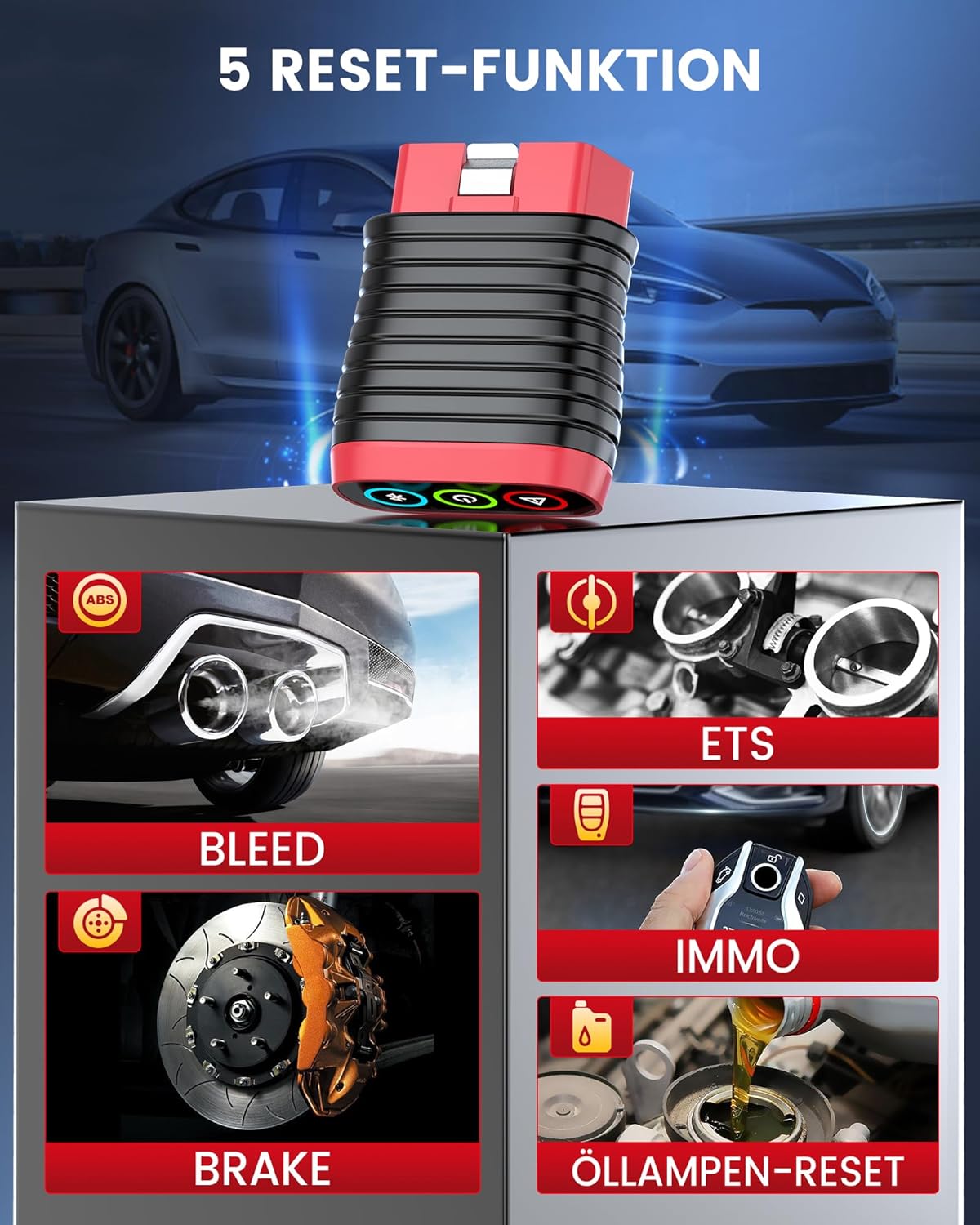
Figure 4: ашыкview of the five available service reset functions.
3.3. Full OBDII Functionality
The BD6 supports all 10 modes of OBDII testing, allowing for quick analysis and resolution of engine-related issues:
- Окуу коддору: Диагностикалык көйгөй коддорун (DTC) жана алардын сүрөттөмөлөрүн көрсөтөт.
- Коддорду тазалоо: Clears DTCs from the vehicle's computer and turns off the Malfunction Indicator Light (MIL).
- Live Data Stream: Shows real-time data from various sensors in text or graph format.
- DTC издөө: Provides detailed explanations for generic and manufacturer-specific codes.
- Кадр дайындарын тоңдуруп коюу: Records a snapshot of operating conditions at the time a fault code was set.
- I/M даярдыгы: Чыгарылыштарга байланыштуу мониторлордун даярдыгын текшерет.
- O2 сенсор тести: O2 сенсор монитордун тестинин жыйынтыктарын чыгарат.
- Борттогу монитор тести: Чыгындыларга байланыштуу кубаттуулук компоненттери жана системалары үчүн сыноо натыйжаларын чыгарат.
- EVAP системасы сыноо: Буулануучу эмиссияны көзөмөлдөө системасын сыноодон өткөрөт.
- Унаа жөнүндө маалымат: Унаанын идентификациялык номерин (VIN), калибрлөө IDсин (CALID) жана калибрлөөнү текшерүү номерин (CVN) алат.

Figure 5: ашыкview of the comprehensive OBDII functionalities.
4. Техникалык тейлөө
To ensure the longevity and optimal performance of your ThinkCar BD6 adapter:
- Аппаратты чаңдан жана нымдан таза, таза кармаңыз. Тазалоо үчүн жумшак, кургак чүпүрөктү колдонуңуз.
- Адаптерди колдонбогондо салкын, кургак жерде сактаңыз.
- Regularly update the ThinkDiag app and vehicle software to ensure compatibility with the latest vehicle models and diagnostic protocols. Updates are provided annually.
- Аппаратты экстремалдык температурага же түз күн нуруна узак убакытка калтыруудан сактаңыз.
5. Кыйынчылыктарды
Жалпы маселелер жана чечимдер:
| Көйгөй | Мүмкүн себеп | Чечим |
|---|---|---|
| Түзмөк Bluetooth аркылуу туташпай жатат. | Bluetooth is off on the mobile device; adapter not properly plugged in; vehicle ignition is off. | Ensure Bluetooth is enabled on your phone/tablet. Check that the adapter is securely plugged into the OBD2 port. Turn the vehicle ignition to the ON position. Restart the ThinkDiag app. |
| Ката коддорун тазалоо мүмкүн эмес. | The fault is due to a hardware defect in the vehicle; the underlying issue has not been resolved. | Эскертүү: If a fault code cannot be cleared, it indicates a persistent hardware defect in the car. The OBD2 scanner will not remove the error code until the corresponding hardware defect in the vehicle is repaired. Address the physical issue first. |
| Колдонмо бузулат же катып калат. | Outdated app version; insufficient device memory; software conflict. | Ensure the ThinkDiag app is updated to the latest version. Close other background applications on your mobile device. Restart your mobile device. |
| Inaccurate readings or incomplete scans. | Incorrect vehicle profile selected; outdated vehicle software. | Verify that the correct vehicle make, model, and year are selected in the app. Download and install the latest vehicle-specific software updates. |
6. Техникалык шарттар
| Өзгөчөлүк | Деталь |
|---|---|
| Өндүрүүчү | ThinkCAR |
| Бренд | ойлонуучу машина |
| Модел | ThinkCar BD6 (TCDE-BD6) |
| Элемент Салмагы | 90 г |
| Пакеттин өлчөмдөрү | 11.9 x 7.7 x 3.7 см |
| Байланыш | Bluetooth |
| Колдоого алынган OS | iOS, Android |
| Колдоого алынган протоколдор | KWP2000, CAN, ISO9141-2, USD, VPW&PWM (SAEJ1850) |
| Тилдер | 15+ тил колдоого алынат |

Figure 6: Comprehensive vehicle coverage and multi-language support details.
7. Кепилдик жана колдоо
ThinkCar is committed to providing excellent customer support and ensuring user satisfaction. For any technical assistance, warranty inquiries, or operational questions, please refer to the following:
- Официалдуу Webсайт: Visit the official ThinkCar website for FAQs, software downloads, and additional resources.
- Колдонмодогу колдоо: The ThinkDiag app often includes a support section or direct contact options.
- Электрондук почта колдоо: Contact ThinkCar customer service via email for detailed inquiries.

Figure 7: ThinkCar provides professional technical support for its products.


