1. Киришүү
This manual provides detailed instructions for the installation, operation, and maintenance of your ieGeek 5MP Indoor Camera. Please read this manual thoroughly before using the product to ensure proper functionality and safety. This camera is designed for indoor security, pet monitoring, and baby monitoring, offering advanced features such as 5MP Super HD resolution, dual-band Wi-Fi connectivity, pan/tilt functionality, motion detection with auto-tracking, two-way audio, and night vision.

Image: The ieGeek 5MP Indoor Camera, a white and gray dome-shaped camera, shown next to a smartphone displaying a live feed of a child holding a puppy, illustrating its use for home monitoring.
2. Кутуда эмне бар
Пакетте бардык компоненттер бар экенин текшериңиз:
- 5MP 5Ghz WiFi Indoor Security Camera x1
- 5V/1A Charger x1
- USB-C кабели x1
- Камера базасы x1
- Колдонуучунун колдонмосу x1

Image: A flat lay of the ieGeek 5MP Indoor Camera, its packaging box, a power adapter, a USB-C cable, and the user manual, laid out on a white and wooden tiered display.
3. Продукт бүтүп калдыview
The ieGeek 5MP Indoor Camera features a compact design with advanced functionalities. Key components include:
- Камера линзасы: 5MP Super HD resolution for clear video.
- Инфракызыл диоддор: For automatic night vision up to 50 feet.
- Микрофон: Аудио киргизүү жана эки тараптуу байланыш үчүн.
- Баяндамачы: Аудио чыгаруу жана эки тараптуу байланыш үчүн.
- Статус индикаторунун жарыгы: Indicates camera status (e.g., connected, recording).
- Power Port (USB-C): Кубат адаптерин туташтыруу үчүн.
- Микро SD карта слоту: For local video storage (up to 256GB, not included).
- Калыбына келтирүү баскычы: For factory reset (usually a small pinhole).

Сүрөт: жарылган view diagram illustrating the internal lens components of the ieGeek 5MP camera, highlighting its 5-megapixel resolution capability for ultra-clear images.
4. Орнотуу колдонмосу
4.1 Колдонмону орнотуу
жүктөп алып, орнотуңуз ieGeek Cam application on your smartphone. The app is available for both iOS and Android devices.
- Издөө "ieGeek Cam" in the Apple App Store (for iOS) or Google Play Store (for Android).
- Колдонмону орнотуп, жаңы колдонуучу болсоңуз, каттоо эсебин түзүңүз.

Image: A smartphone displaying the ieGeek Cam application icon, indicating where to download the app.
4.2 Күйгүзүү
- Connect the provided USB-C cable to the camera's power port.
- Plug the other end of the USB-C cable into the 5V/1A charger.
- Plug the charger into a power outlet. The camera will power on, and the status indicator light will illuminate.
4.3 Тармактык туташуу
The ieGeek camera supports both 2.4GHz and 5GHz Wi-Fi networks for flexible and stable connectivity.
- Open the ieGeek Cam app and tap on "Add Device" or the "+" icon.
- Follow the on-screen instructions to select your Wi-Fi network (2.4GHz or 5GHz) and enter the password.
- The app will generate a QR code. Position your camera to scan this QR code from your phone screen. Ensure the camera lens is clean and the screen brightness is sufficient.
- Once the camera successfully scans the QR code, it will connect to your Wi-Fi network. A voice prompt will confirm successful connection.

Image: Two smartphone screens illustrating the WiFi connection process: one showing the connection progress and the other displaying a QR code for the camera to scan.

Image: The ieGeek camera with visual representations of 5GHz and 2.4GHz WiFi signals, emphasizing its dual-band capability for stronger network signal and longer transmission distance.
4.4 Монтаждоо параметрлери
The camera can be placed on a flat surface or mounted to a ceiling using the included camera base.
- Столдун үстүнө жайгаштыруу: Simply place the camera on a stable, flat surface.
- Шыпка орнотуу: Attach the camera base to the ceiling using screws (not included). Then, secure the camera to the base. Ensure the camera is oriented correctly in the app settings after mounting upside down.

Image: The ieGeek camera shown in various mounting positions: on a tabletop, mounted on a wall, and inverted on a ceiling, demonstrating its versatile placement options.
5. Иштөө нускамалары
5.1 Live View жана панорамалоо/кыйшайтуу башкаруусу
Access the live video feed from your camera through the ieGeek Cam app. You can remotely control the camera's viewбурч.
- Open the ieGeek Cam app and select your camera from the device list.
- The live video feed will appear. Use the on-screen controls to pan (rotate horizontally 360°) and tilt (adjust vertically 55°) the camera lens.

Image: The ieGeek camera positioned on a table in a room, with a circular graphic indicating its 360-degree rotation capability, allowing users to 'tour rooms with one click'.
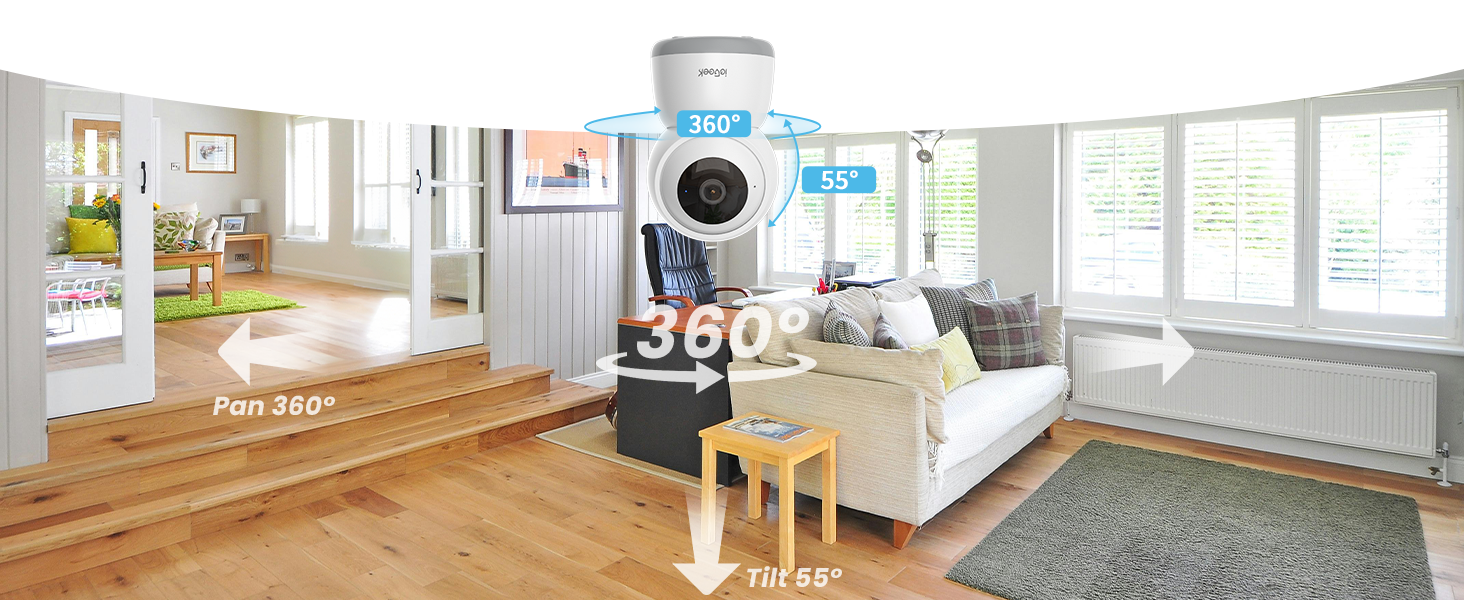
Image: A wide-angle view of a living room with the ieGeek camera centrally placed, illustrating its 360-degree pan and 55-degree tilt capabilities to cover a broad area.
5.2 Кыймылды аныктоо жана автоматтык түрдө көзөмөлдөө
The camera can detect movement and automatically track subjects within its field of view, sending real-time alerts to your phone.
- Колдонмонун жөндөөлөрүнөн кыймылды аныктоону иштетиңиз.
- Activate the auto-tracking feature to allow the camera to follow detected movement horizontally (360°) and vertically (55°).
- Customize motion detection zones to focus on specific areas and reduce false alerts.
- Кыймыл аныкталганда телефонуңузга заматта push эскертмелерин алыңыз.

Image: The ieGeek camera positioned above a cat, with arrows indicating its 360-degree panoramic view and automatic tracking capability, ensuring no corner is missed.
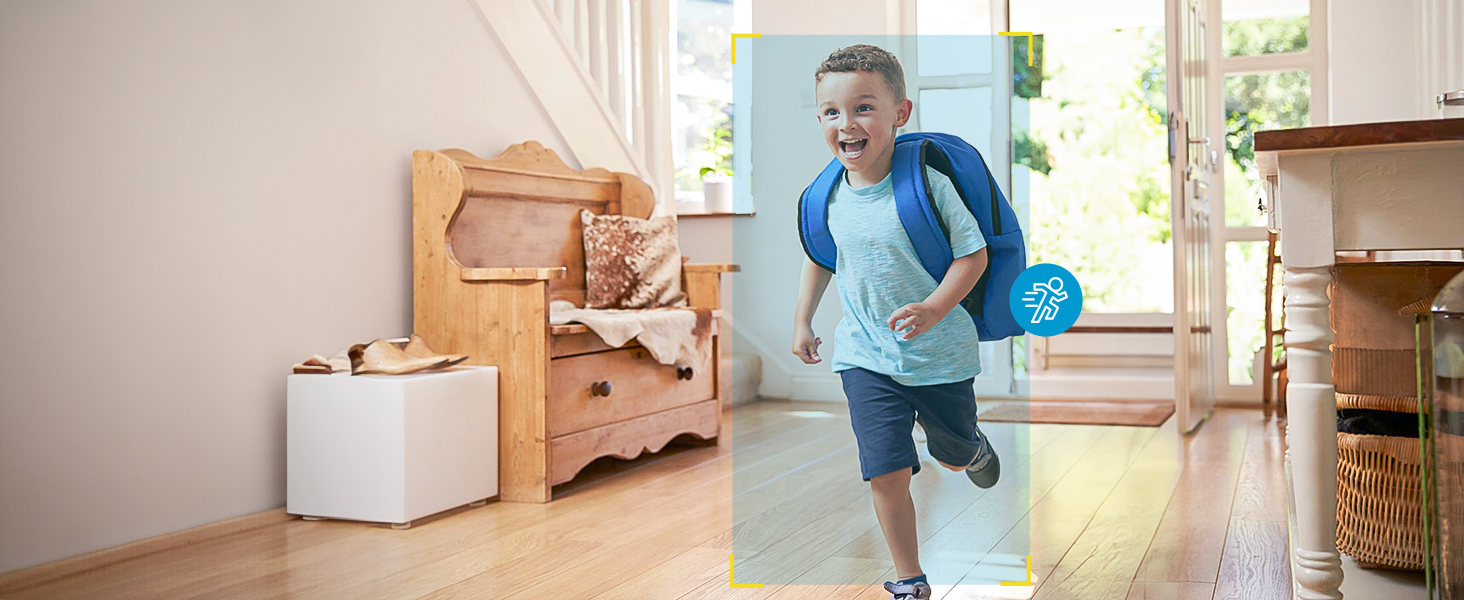
Image: A child running through a hallway, with a motion detection icon and highlight box indicating the camera's ability to detect and track movement.
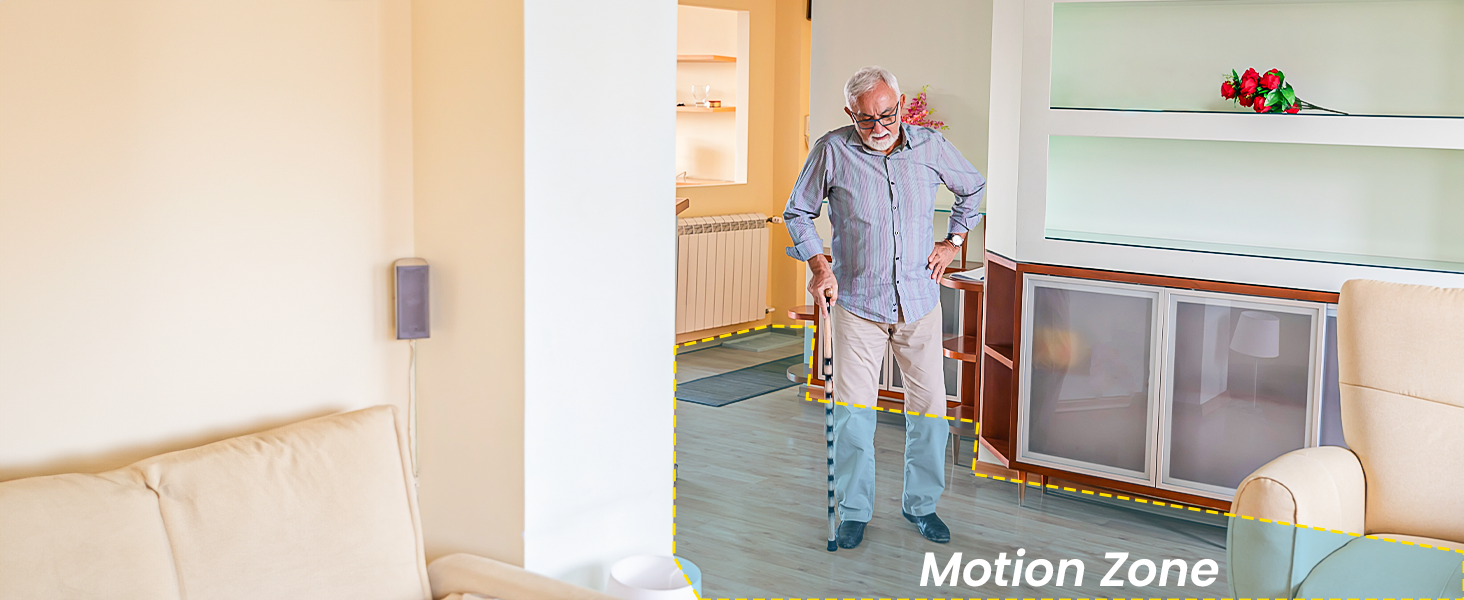
Image: An elderly person walking in a living room, with a highlighted 'Motion Zone' indicating how users can define specific areas for motion detection alerts.
5.3 Two-Way Audio and Noise Detection
Communicate through the camera and receive alerts for significant sounds.
- Эки тараптуу аудио: Use the microphone icon in the app to speak through the camera's speaker. This allows you to communicate with pets, children, or visitors.
- Ызы-чуу аныктоо: Enable noise detection in the app to receive alerts when the camera detects sounds like a baby crying or a dog barking.

Image: A smartphone held by hands, displaying a baby monitor interface with icons for two-way talk, infrared night vision, and noise detection, along with speech bubbles indicating communication.
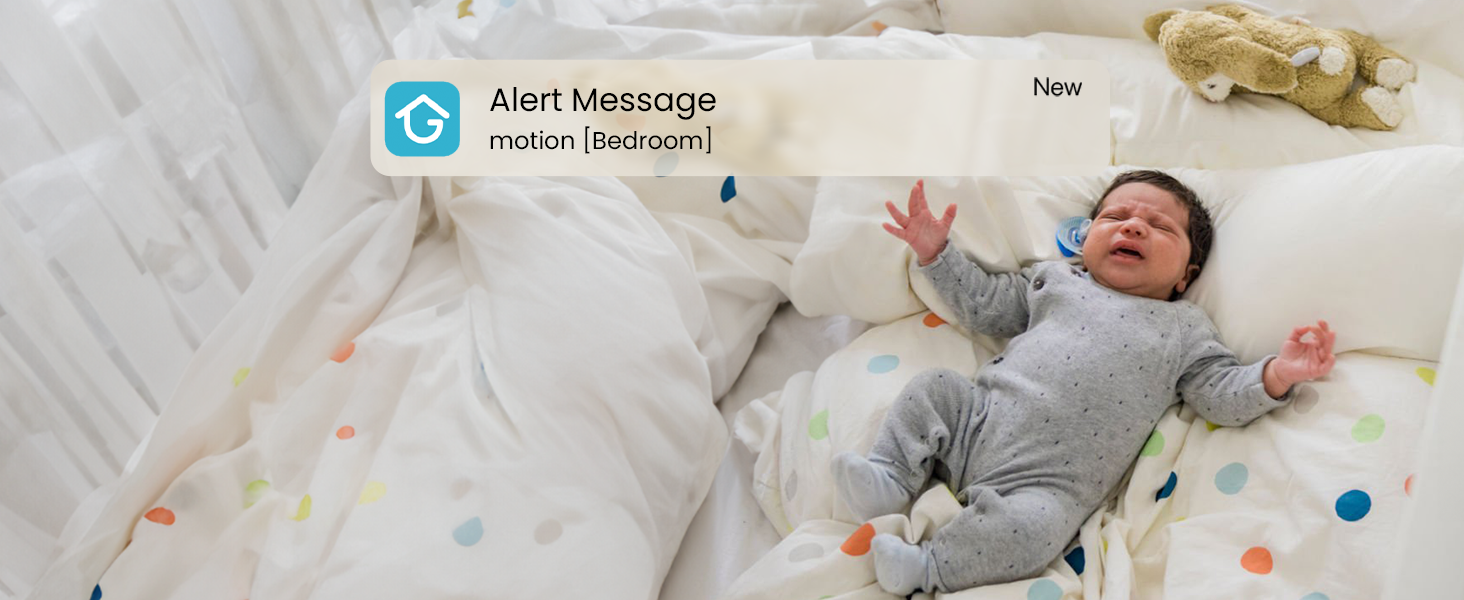
Image: A baby crying in a crib, with an 'Alert Message motion [Bedroom]' notification overlay, demonstrating the camera's noise detection and alert capabilities.
5.4 Түнкү көрүнүш
Камера автоматтык түрдө жарык аз болгон шарттарда инфракызыл түнкү көрүнүшкө которулуп, ак-кара түстөгү видеону камсыз кылат.
- The built-in infrared LEDs enable night vision up to 50 feet.
- This feature activates automatically when ambient light is insufficient.
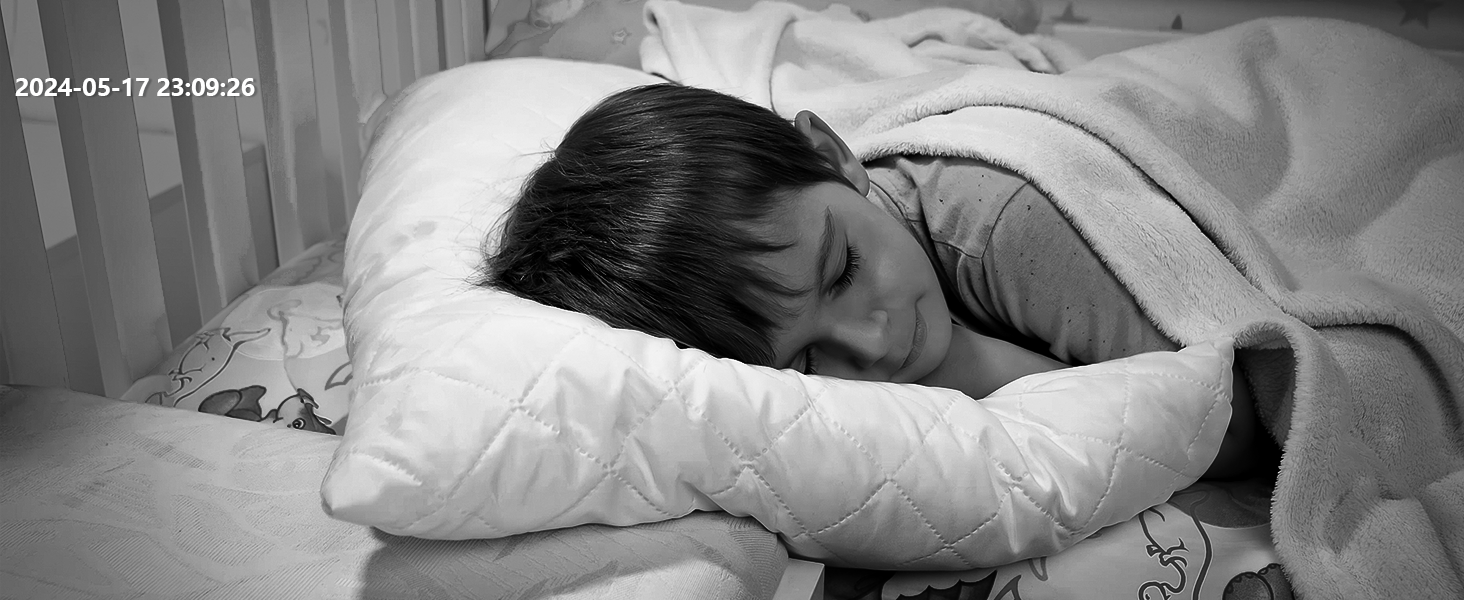
Image: A child sleeping peacefully in bed, captured in black and white, demonstrating the camera's clear night vision capabilities.
5.5 Сактоо параметрлери
The camera offers flexible storage solutions for your video recordings.
- Micro SD картасы: Insert a Micro SD card (up to 256GB, not included) into the camera's designated slot for continuous 24/7 local recording.
- Булуттагы сактагыч: The camera includes a free lifetime cloud storage base service, providing 6 seconds of recording and 7-day loop coverage. Paid cloud plans may offer extended storage.
- Access and playback recorded videos through the ieGeek Cam app.

Image: A smartphone displaying a video playback interface with a timeline, showing multiple video clips of a child and a dog, alongside icons for 6s free cloud storage and 256GB Micro SD card storage, indicating multiple storage options.
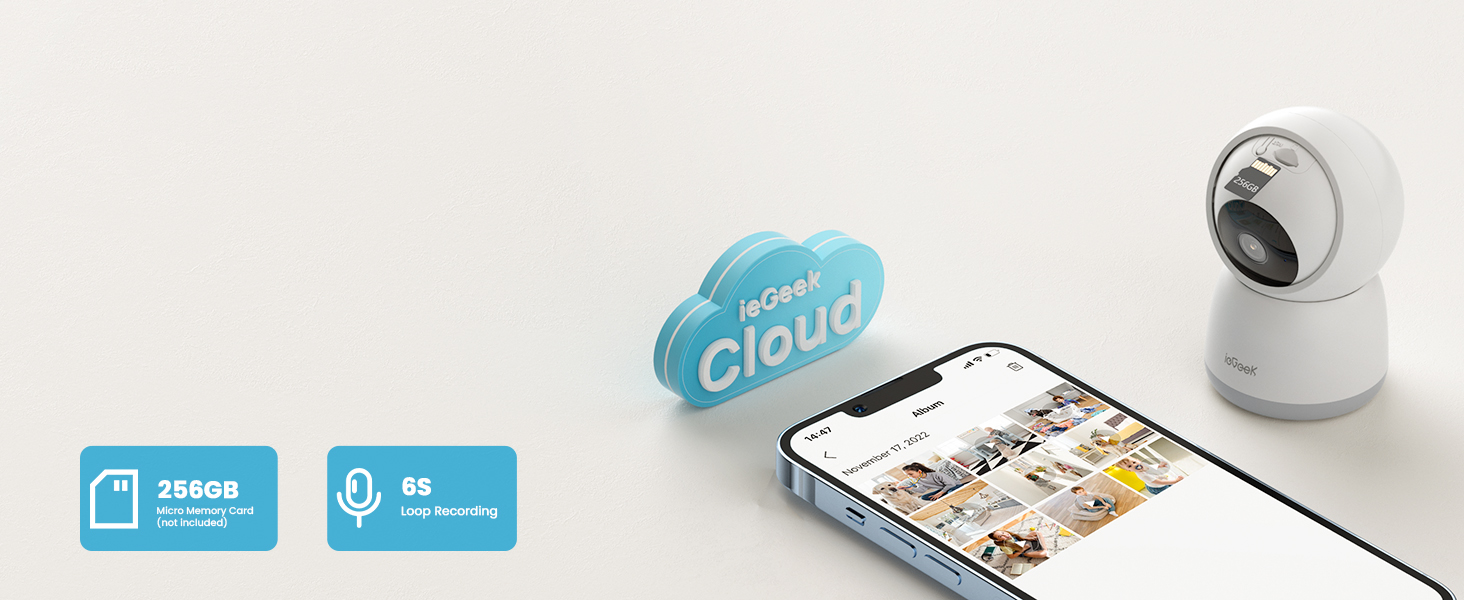
Image: The ieGeek camera next to a cloud icon labeled 'ieGeek Cloud' and icons for a 256GB Micro Memory Card and 6s Loop Recording, illustrating the available storage solutions.
5.6 Купуялык режими
Protect your privacy by activating the sleep privacy mode, which can disable the camera lens.
- Turn the camera on/off with one click in the ieGeek Cam app.
- Customize scheduled times for the camera to be active or inactive.
- The camera employs multiple authentication steps and ABS 128-bit encryption for enhanced privacy protection.

Image: A smartphone screen showing a 'lens is disabled' message, with a person sleeping in the background, illustrating the camera's sleep privacy mode feature.
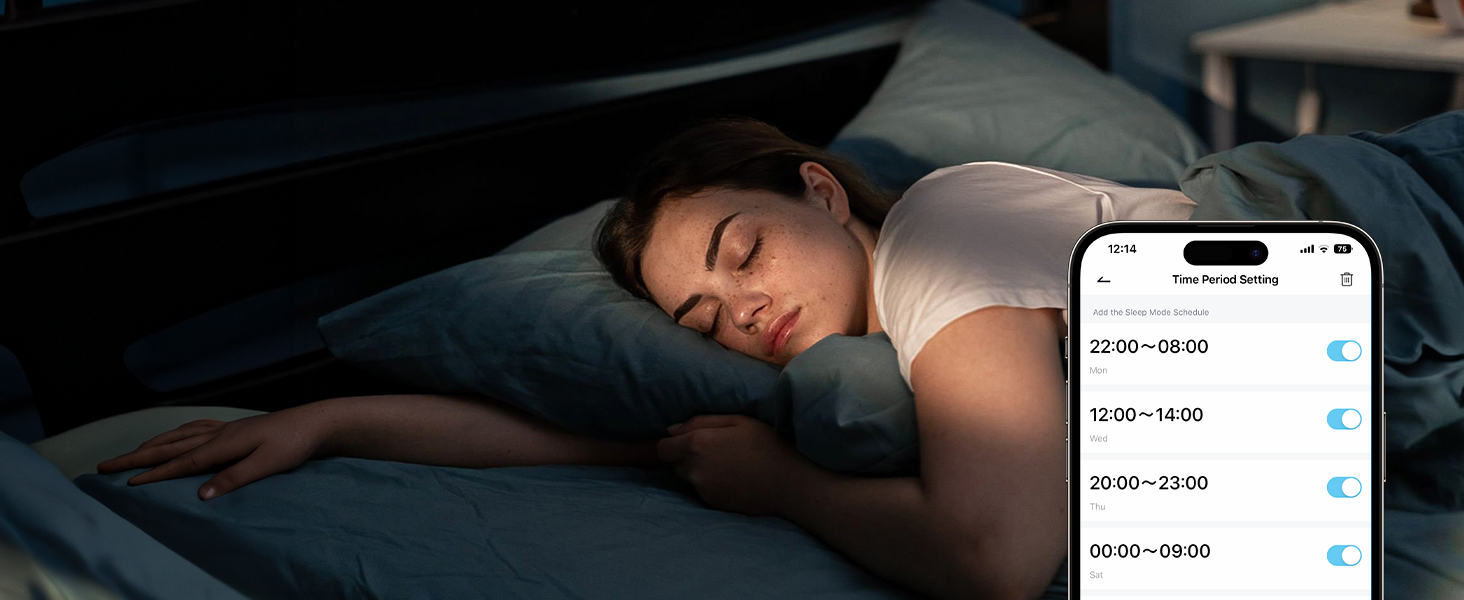
Image: A smartphone screen displaying 'Time Period Setting' for sleep mode, with toggle switches for different time slots, allowing users to schedule camera activity for privacy.
5.7 Түзмөктү бөлүшүү
Share access to your camera's live feed with family members.
- The ieGeek Cam app allows multiple users to watch the camera feed simultaneously on different devices (iPhone or Android).
- Invite family members through the app to share access.
5.8 Alexa интеграциясы
Integrate your ieGeek camera with Amazon Alexa for voice control and viewшайкеш келген акылдуу дисплейлерде иштеп жатат.
- Enable the ieGeek Cam skill in the Alexa app.
- Link your ieGeek Cam account with your Alexa account.
- Бул үчүн үн буйруктарын колдонуңуз view the camera feed on an Echo Show or other compatible Alexa-enabled smart display.
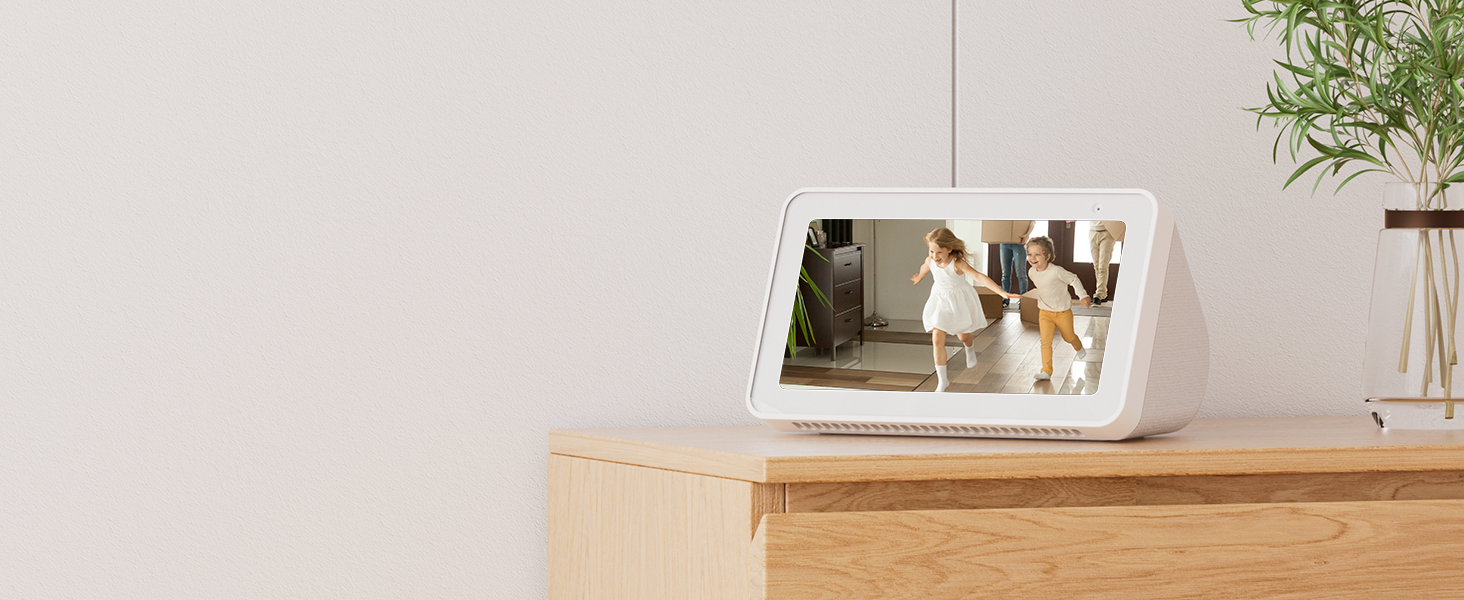
Image: An Amazon Echo Show displaying the live feed from an ieGeek camera, showing two children playing, demonstrating its compatibility with Alexa for smart home integration.
6. Техникалык тейлөө
- Тазалоо: Камера линзасын жана корпусун тазалоо үчүн жумшак, кургак чүпүрөктү колдонуңуз. Катуу химиялык заттарды же абразивдүү материалдарды колдонуудан алыс болуңуз.
- Программалык камсыздоонун жаңыртуулары: Regularly check the ieGeek Cam app for available firmware updates. Keeping your camera's firmware up-to-date ensures optimal performance and security.
- Электр камсыздоо: Ensure the camera is always connected to the original 5V/1A charger and USB-C cable for stable operation.
7. Кыйынчылыктарды
| Көйгөй | Мүмкүн себеп | Чечим |
|---|---|---|
| Камера Wi-Fi'га туташа албай жатат. | Incorrect Wi-Fi password, weak signal, wrong frequency band (e.g., trying to connect to 5GHz on a 2.4GHz-only router, or vice-versa if not dual-band compatible). |
|
| Түз эфирдеги видео агым жок. | Camera offline, network issue, app malfunction. |
|
| Кыймылды аныктоо эскертмелери алынган жок. | Кыймылды аныктоо өчүрүлгөн, колдонмо эскертмелери өчүрүлгөн, сезгичтик жөндөөлөрү туура эмес. |
|
| SD карта жазылбай жатат же таанылбай жатат. | SD card full, corrupted, or incompatible format. |
|
8. Техникалык шарттар
| Өзгөчөлүк | Деталь |
|---|---|
| Модель аты | SC1 Pro |
| Видео тартуунун резолюциясы | 1920p (5MP Super HD) |
| Ички/тышкы колдонуу | Indoor |
| Байланыш технологиясы | Зымдуу (кубат), Wi-Fi (маалымат) |
| Connectivity Protocol | Bluetooth, Wi-Fi (2.4 ГГц жана 5 ГГц) |
| Power Source | Corded Electric (5V/1A) |
| Controller Type | ieGeek Cam App |
| Монтаж түрү | Tabletop Mount (with included Camera Base for ceiling mounting) |
| Pan/Tilt диапазону | Пан 360°, Тилт 55° |
| Түнкү көрүнүш | Infrared LEDs, up to 50 feet |
| Сактагыч параметрлери | Micro SD Card (up to 256GB, not included), Cloud Storage (6s recording, 7-day loop free base service) |
| Эки тараптуу аудио | Колдоого алынган |
| Motion Detection | Supported, with Auto Tracking and customizable zones |
| Noise Detection | Колдоого алынган |
| Шайкеш түзмөктөр | Смартфон (iOS, Android), Amazon Alexa |
| Продукциянын өлчөмдөрү | 4.33 x 2.75 x 2.75 дюйм |
| Элемент Салмагы | 12.6 унция |
| UPC | 734931731527 |
9. Кепилдик жана колдоо
ieGeek provides a comprehensive warranty and customer support for your product.
- Кепилдик: This ieGeek 5MP Indoor Camera comes with a 2-year (730 days) warranty сатып алынган күндөн тартып. Кепилдик дооматтары үчүн сатып алганыңыздын далилин сактап коюңуз.
- Кардарларды колдоо: If you encounter any problems or have questions regarding your ieGeek camera, please contact ieGeek customer support. You can typically find contact information within the ieGeek Cam app or on the official ieGeek webсайт.
- ieGeek Cam App: The customized "ieGeek Cam" APP offers a simpler, more intuitive interface and works with Alexa.


