Introduction
This manual provides detailed instructions for the Keychron K10 Max Wireless Custom Mechanical Keyboard. It covers initial setup, operational procedures, maintenance guidelines, troubleshooting tips, and product specifications. Please read this manual thoroughly to ensure proper use and optimal performance of your keyboard.
Пакеттин мазмуну
Пакетиңизде бардык буюмдар бар экенин текшериңиз:
- Keychron K10 Max зымсыз колдонуучунун механикалык клавиатурасы
- Type-A - Type-C кабели
- Тип-A 2.4 ГГц кабылдагыч
- Баскыч капкагын тарткыч
- Hex Key & Screwdriver
- Additional Windows Keycaps

Image: The Keychron K10 Max keyboard displayed with its accessories, including the USB-C cable, 2.4GHz receiver, keycap puller, hex key, screwdriver, and extra keycaps.
Жайгашуу
1. Баштапкы орнотуу
Before first use, it is recommended to fully charge the keyboard using the provided Type-A to Type-C cable. Connect the USB-C end to the keyboard and the USB-A end to a power source (e.g., computer USB port, USB wall adapter).
2. Байланыш режимдери
The K10 Max supports three connectivity options: 2.4 GHz wireless, Bluetooth 5.1, and wired USB-C.

Image: The Keychron K10 Max keyboard on a desk, illustrating its three connectivity options: USB Wired, 2.4GHz, and Bluetooth 5.1, connecting to a monitor, tablet, and smartphone.
2.1. 2.4 ГГц зымсыз байланыш
- Locate the 2.4 GHz receiver (USB-A dongle) included in the package.
- Plug the 2.4 GHz receiver into an available USB-A port on your computer.
- On the keyboard, slide the mode switch (located on the back or side) to the "2.4G" position.
- The keyboard should automatically connect. The 2.4 GHz connection provides a 1000 Hz polling rate for responsive performance.
2.2. Bluetooth 5.1 туташуу
- On the keyboard, slide the mode switch to the "BT" (Bluetooth) position.
- басып, кармап туруңуз fn+1 (же fn+2 / fn+3) key combination for 4 seconds until the backlight flashes rapidly. This indicates the keyboard is in pairing mode.
- Түзмөгүңүздө (компьютер, планшет, смартфон) Bluetooth'ду иштетиңиз жана жаңы түзмөктөрдү издеңиз.
- Select "Keychron K10 Max" from the list of available devices to pair.
- The keyboard can store up to three Bluetooth devices. Switch between them by pressing fn+1, fn+2, же fn+3.
2.3. Зымдуу USB-C туташуусу
- Connect the provided Type-A to Type-C cable to the keyboard's USB-C port and to a USB-A port on your computer.
- Slide the mode switch on the keyboard to the "Cable" position.
- The keyboard will function as a wired device. This mode also supports a 1000 Hz polling rate.
3. Operating System Toggle
The K10 Max is compatible with both macOS and Windows/Linux operating systems. Use the OS toggle switch located on the back or side of the keyboard to select the appropriate layout.

Image: A close-up of the Keychron K10 Max keyboard's side, showing the physical toggle switch to select between Windows/Android and macOS modes, along with the connectivity switch for Cable or Bluetooth.
- Mac/iOS: Use this setting for Apple devices. The keyboard includes Mac multimedia keys and specific keycaps.
- Win/Android: Use this setting for Windows and Android devices. Additional Windows keycaps are provided for customization.
Иштөө нускамалары
1. Key Remapping and Customization (QMK Firmware & Keychron Launcher)
The K10 Max is powered by QMK open-source firmware, allowing for extensive customization of key functions, macros, and lighting effects. The Keychron Launcher web application provides an intuitive interface for these customizations.
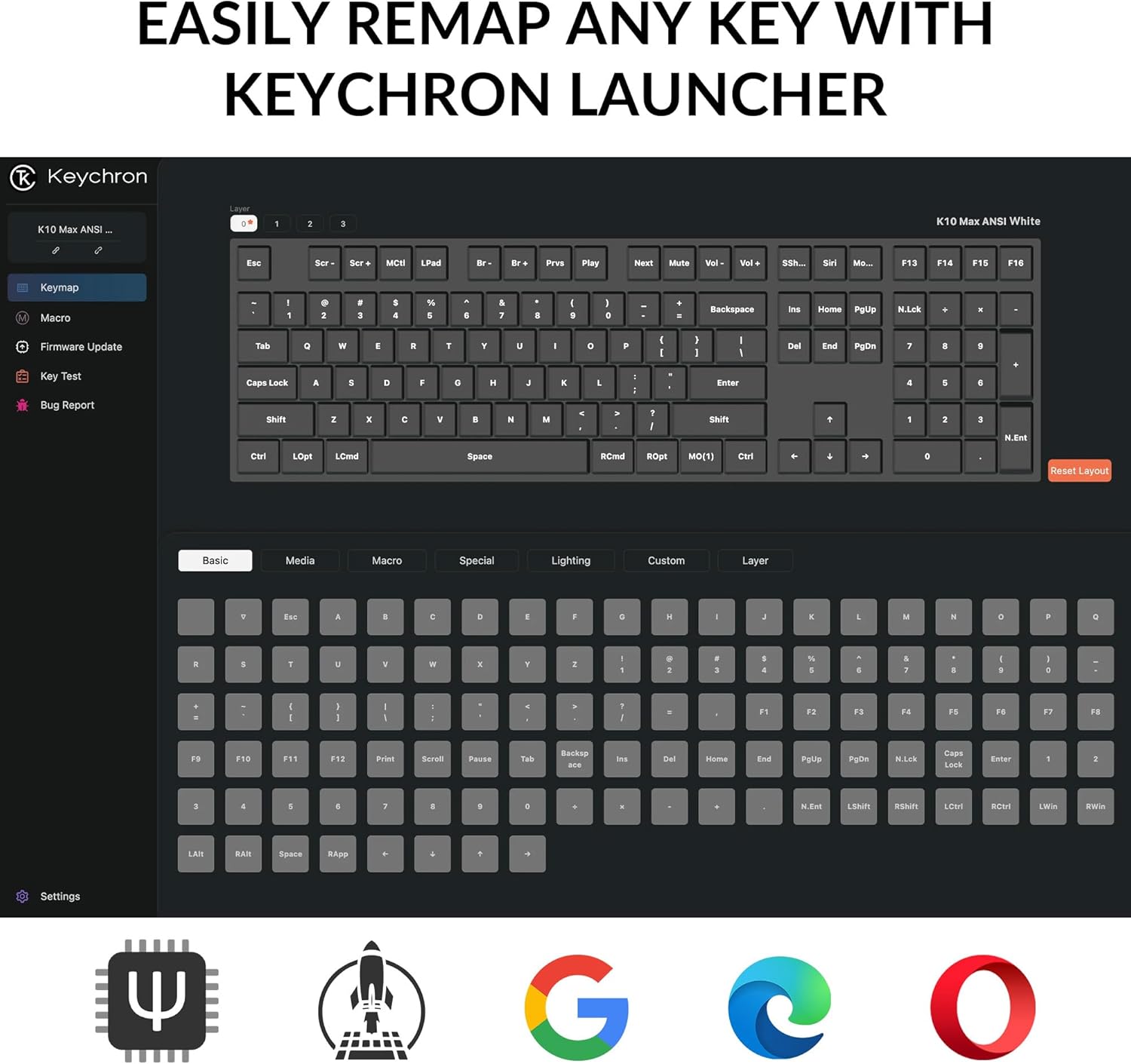
Image: A screenshot of the Keychron Launcher web application, showing the graphical interface for remapping keys and configuring keyboard settings.
- Keychron ишке киргизгичине кирүү web колдонмо аркылуу web браузер.
- Баскычтопту компьютериңизге USB-C кабели аркылуу туташтырыңыз.
- Follow the on-screen instructions in the Launcher to remap keys, create macros, and adjust lighting.
- Save your changes to the keyboard's firmware.
2. Арткы жарыкты башкаруу
The keyboard features a south-facing white LED backlight. Use the following key combinations to control the backlight:
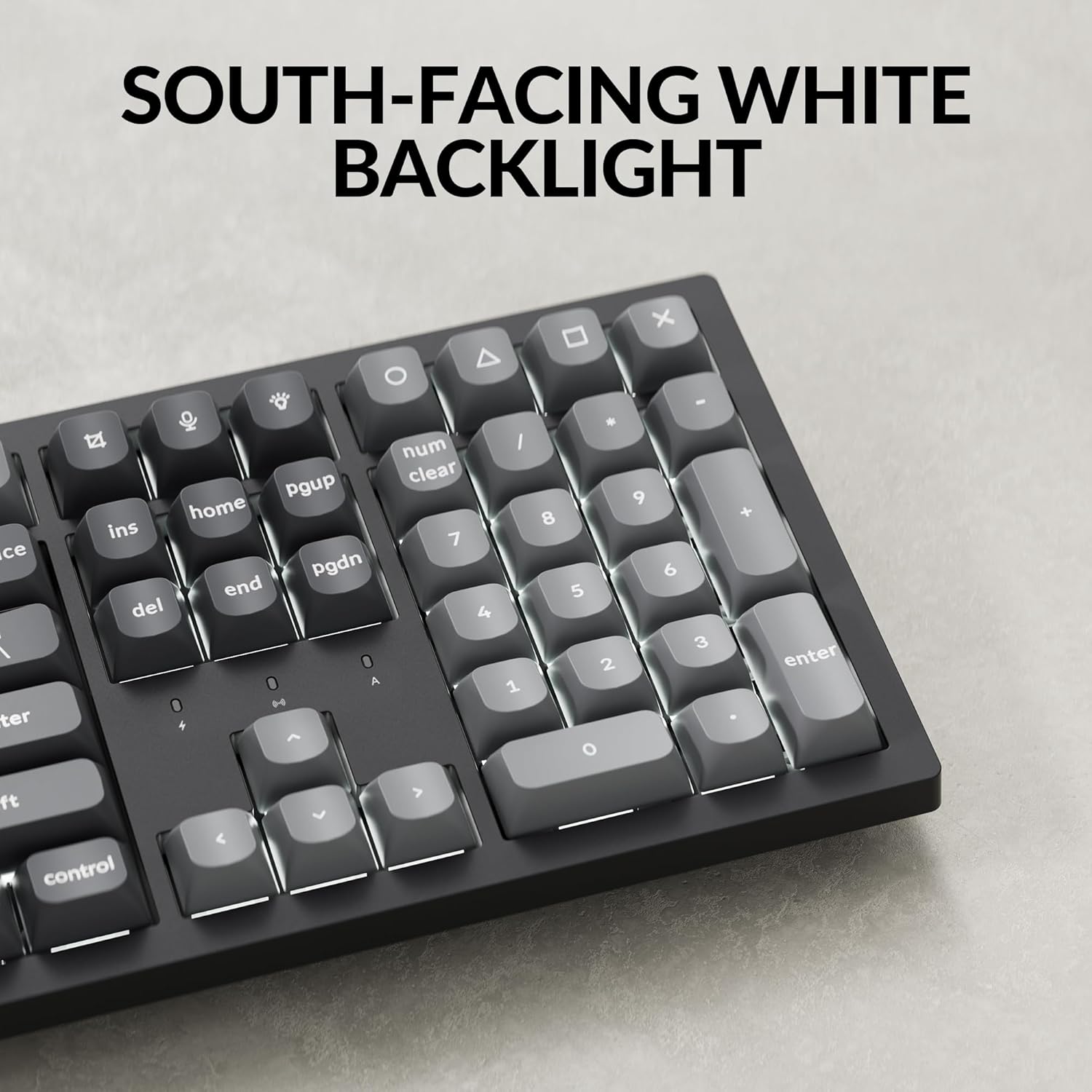
Сүрөт: жакын план view of the Keychron K10 Max keyboard's number pad and arrow keys, showcasing the south-facing white LED backlight illuminating the key legends.
- Fn + Light Key (usually F5 or a dedicated key): Арткы жарыктын эффекттери аркылуу айлануу.
- Fn + Өйдө/Төмөн жебе: Арткы жарыктын жарыктыгын тууралаңыз.
- Fn + Солго/Оңго жебе: Adjust backlight effect speed (if applicable).
3. Батареяны башкаруу
The K10 Max is equipped with a 4000 mAh rechargeable battery. To maximize battery life:
- Turn off the backlight when not needed.
- Use the wired connection when possible to conserve battery.
- The keyboard can last up to 190 hours with the backlight off and approximately 100 hours at the lowest brightness setting.
- A low battery indicator (usually a flashing LED) will notify you when charging is required.
Техникалык тейлөө
1. Тазалоо
Үзгүлтүксүз тазалоо клавиатуранын көрүнүшүн жана функционалдуулугун сактоого жардам берет.
- Тазалоодон мурун клавиатураны бардык кубат булактарынан жана түзмөктөрдөн ажыратыңыз.
- Бир аз жумшак, түксүз кездемени колдонуңуз dampened with water or a mild cleaning solution to wipe the keycaps and frame. Avoid excessive moisture.
- Баскыч капкактарынын ортосундагы чаң жана таштанды үчүн кысылган абаны же кичинекей щетканы колдонуңуз.
- The PBT keycaps are durable and oil-resistant, making them easy to clean.
2. Keycap Removal
To remove keycaps for cleaning or replacement:

Image: A close-up of the Keychron K10 Max keyboard, showing several double-shot PBT keycaps removed, revealing their construction and the underlying switches.
- Use the provided keycap puller.
- Gently hook the puller onto the sides of the keycap.
- Pull straight up with even pressure to remove the keycap. Avoid twisting or excessive force to prevent damage to the switch.
- Кайра тагып жатканда, клавиатураны которгучтун сабы менен тегиздеп, ордуна чыккыча катуу басыңыз.
Проблемаларды чечүү
- Баскычтоп жооп бербей жатат:
- Баскычтоп кубатталганын текшериңиз.
- Check the connectivity mode switch (2.4G, BT, Cable) is set correctly.
- For 2.4 GHz, ensure the receiver is securely plugged in.
- For Bluetooth, re-pair the device or try a different Bluetooth slot (Fn+1/2/3).
- For wired, ensure the USB-C cable is properly connected to both the keyboard and the computer.
- Компьютериңиздеги башка USB портуна туташып көрүңүз.
- Катталбаган ачкычтар же эки жолу терүү:
- Бардык калдыктарды тазалоо үчүн жабыркаган клавиатуранын тегерегин тазалаңыз.
- Баскыч капкагын которгучка туура орнотулганын текшериңиз.
- If using wireless, ensure there is no interference and the keyboard is within range.
- Consider updating the keyboard firmware via the Keychron Launcher.
- Арткы жарык иштебейт:
- Баскычтоптун батарейканын заряды жетиштүү экенине ынаныңыз.
- жардамы менен жарыктыгын тууралаңыз Fn + Жогору жебе.
- Арткы жарыктын эффекттерин колдонуп, айланып өтүңүз Fn + Light Key.
- OS layout issues (e.g., Alt/Cmd keys swapped):
- Verify the OS toggle switch on the keyboard is set to the correct operating system (Mac/iOS or Win/Android).
Техникалык шарттар
| Модель аты | K10 Макс |
| Модель номери | K10M-A3 |
| Макет | 100% Full-sized, 108 Keys |
| Байланыш | 2.4 ГГц зымсыз, Bluetooth 5.1, USB-C зымдуу |
| Добуш берүү көрсөткүчү | 1000 Hz (2.4 GHz & Wired), 90 Hz (Bluetooth) |
| Баскыч капкактары | Double-shot PBT (non-shine-through) |
| Арткы жарык | South-facing White LED |
| Которгучтар | Keychron Super Mechanical Switch (Super Red Switch) |
| Стабилизаторлор | Screw-in PCB Stabilizers |
| Микропрограмма | QMK (Open-source), Keychron Launcher compatible |
| Батарея сыйымдуулугу | 4000 мАч |
| Батареянын иштөө мөөнөтү | Up to 190 hours (backlight off), approx. 100 hours (lowest brightness) |
| Шайкеш OS | macOS, Windows, Linux |
| Frame Material | ABS |
| Продукциянын өлчөмдөрү | 13.94 x 4.89 x 0.64 дюйм (447.37 x 139.82 мм) |
| Элемент Салмагы | 1.1 pounds (1530 g ± 10 g) |
| N-Key Rollover (NKRO) | Ооба |
Кепилдик жана колдоо
Кепилдик жөнүндө маалымат жана техникалык колдоо алуу үчүн, расмий Keychron сайтына кайрылыңыз website or contact Keychron customer service. Details regarding warranty periods and service procedures are available through these channels.
Расмий Keychron Webсайт: www.keychron.com