1. Киришүү
This user manual provides detailed instructions for the Baseus 17-in-1 Docking Station (Model: B0D78WFLST). This versatile docking station is designed to expand the connectivity of your laptop or compatible device, offering multiple ports for display, data transfer, networking, and power delivery. Please read this manual thoroughly before using the product to ensure proper operation and to maximize its capabilities.
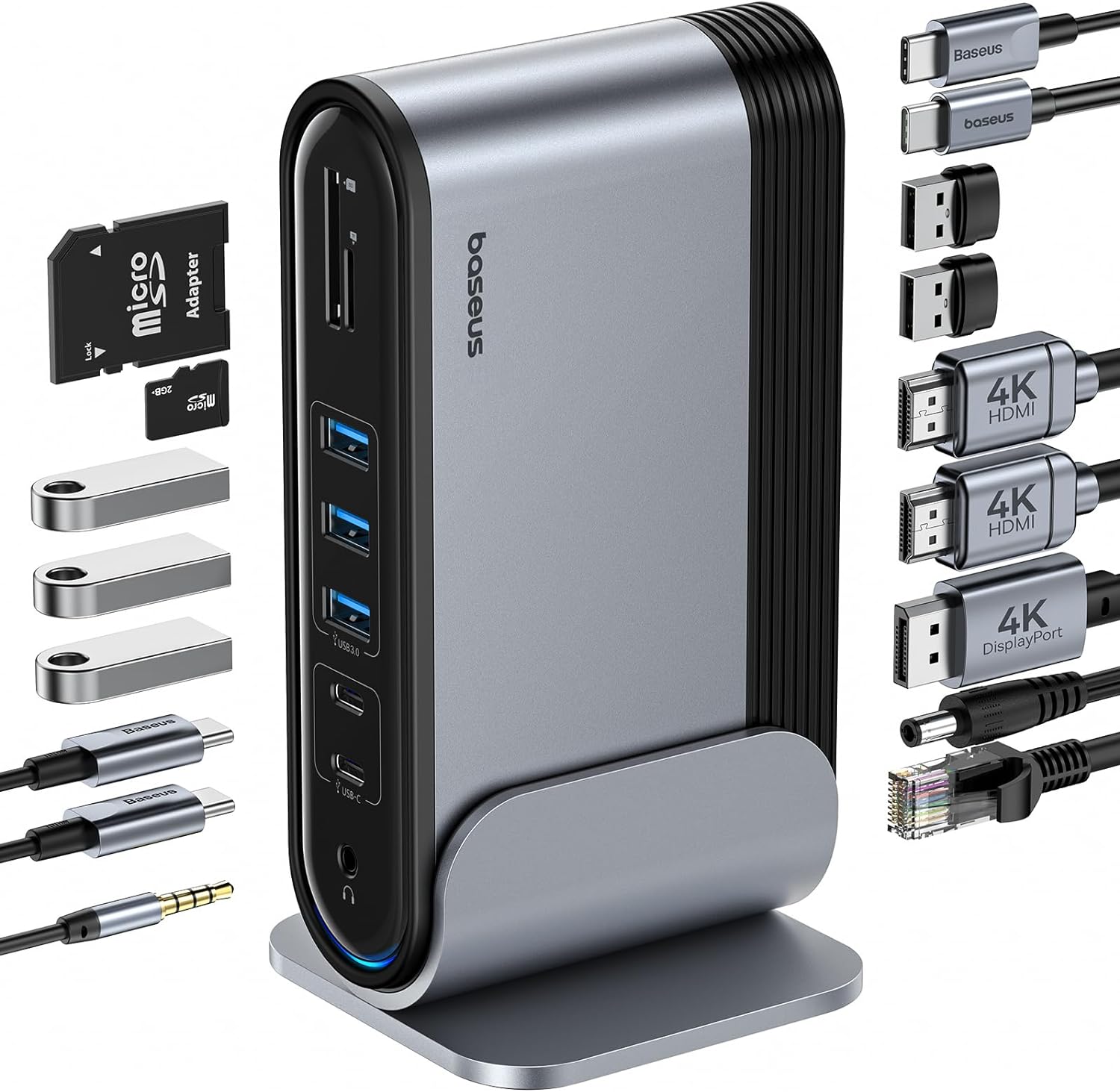
Figure 1: Baseus 17-in-1 Docking Station and included accessories.
2. Негизги өзгөчөлүктөрү
The Baseus 17-in-1 Docking Station offers comprehensive connectivity solutions:
- 17-in-1 Port Expansion: Integrates a wide array of ports for diverse connectivity needs.
- Triple Monitor Support: Connect up to three external monitors for enhanced productivity.
- Жогорку чечим дисплей: Supports 4K@60Hz resolution for single and dual displays, and 1080P@60Hz for triple displays on Windows systems.
- Ыкчам маалымат өткөрүп берүү: Features USB 3.0 ports with 5Gbps transfer speeds and USB 2.0 ports for peripherals.
- 100W кубаттуулугу: Provides up to 85W power output to charge your laptop (100W input required).
- Гигабит Ethernet: Ensures stable and high-speed wired network connection up to 1Gbps.
- SD/TF картасын окуу: Convenient access to memory cards with speeds up to 104 MB/s.
- Аудио туташуу: Integrated 3.5mm audio jack for headphones or speakers.
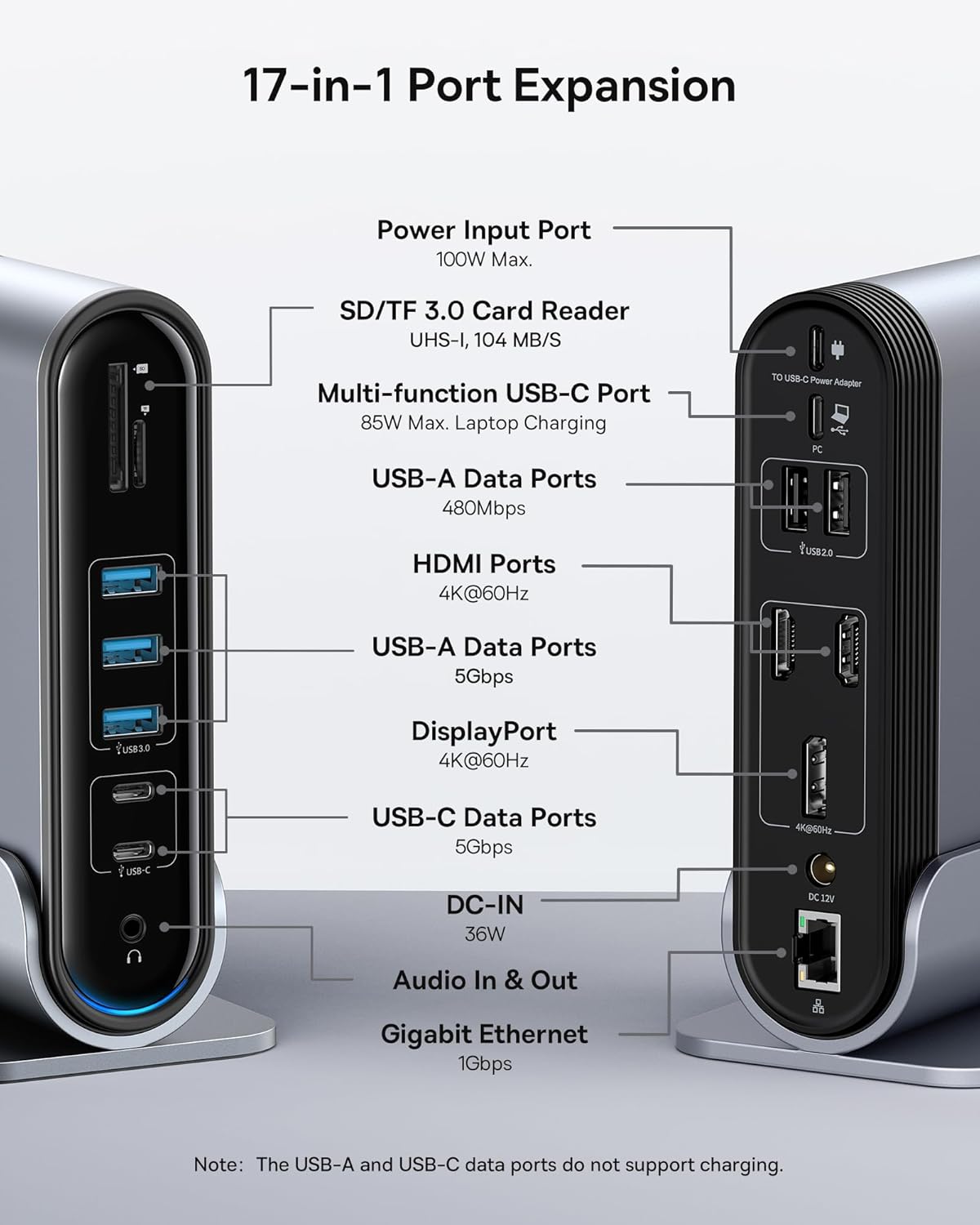
Figure 2: Detailed port layout and specifications of the docking station.
3. Пакеттин мазмуну
Пакетте бардык буюмдар бар экенин текшериңиз:
- Baseus UnionJoy 17-Порт үч дисплей орнотулган станциясы
- Dock Stand
- Кубаттуу адаптер
- USB-C - USB-C кабели
- US Adapter Plug
- ЕС адаптер сайгычы
- UK Adapter Plug
- User Manual

3-сүрөт: Кутучада эмнелер камтылган.
4. Орнотуу нускамалары
Follow these steps to set up your Baseus 17-in-1 Docking Station:
- Туташуу кубаты:
Connect the provided power adapter to the DC-IN port (36W) on the docking station. Use the appropriate regional adapter plug (US, EU, or UK) for your power outlet. For laptop charging, ensure a 100W PD charger (not included) is connected to the Power Input Port (100W Max.) on the docking station.

Figure 4: Power connection for the docking station and laptop charging.
- Хост түзмөккө туташуу:
Use the included USB-C to USB-C cable to connect the docking station's Multi-function USB-C Port (85W Max. Laptop Charging) to your laptop or compatible host device.
- Мониторлорду туташтыруу:
Connect your external monitors to the HDMI Ports (4K@60Hz) and/or DisplayPort (4K@60Hz) on the docking station using appropriate cables. Refer to the "Operating Instructions" section for display mode configurations.
- Перифериялык түзүлүштөрдү туташтыруу:
Connect your USB devices (keyboard, mouse, external drives, etc.) to the available USB-A Data Ports (5Gbps or 480Mbps) and USB-C Data Ports (5Gbps). Insert SD or TF cards into the respective card reader slots.
- Тармакка туташуу (милдеттүү эмес):
For a wired network connection, connect an Ethernet cable from your router/modem to the Gigabit Ethernet port (1Gbps) on the docking station.
- Аудио туташтыруу (кошумча):
Connect headphones or speakers to the 3.5mm Audio In & Out jack.
5. Иштөө нускамалары
5.1 Көрсөтүү режимдери
The docking station supports various display configurations depending on your operating system and the number of connected monitors.
Windows системалары үчүн:
- Mirror Mode (A+A+A): Displays the same content on all connected monitors and the laptop screen. Supports 1080P@60Hz.
- Extend Mode (A+B+C): Extends your desktop across multiple monitors, allowing different content on each screen. Supports 1080P@60Hz for triple display.
macOS системалары үчүн:
- Mirror Mode (A+A+A): Displays the same content on all connected monitors and the laptop screen. Supports 4K@60Hz.
- Extend Mode (A+B+B): Extends your desktop across external monitors, but macOS typically mirrors content across multiple external displays when using a single MST hub. Supports 4K@60Hz.
- Note: macOS does not support triple extended display (A+B+C) through a single MST hub.

Figure 5: Display mode configurations for Windows and macOS.

Figure 6: Detailed resolution capabilities for various display configurations and DP versions.
5.2 Маалыматтарды өткөрүү
Док-станция маалыматтарды жогорку ылдамдыкта берүү мүмкүнчүлүктөрүн камсыз кылат:
- USB 3.0 (5Gbps): Ideal for external hard drives, SSDs, and other high-bandwidth devices.
- USB 2.0 (480Mbps): Suitable for keyboards, mice, printers, and other standard peripherals.
- SD/TF картасын окуу: Quickly transfer photos and videos from memory cards.

Figure 7: Illustrating super-fast data transfer via the docking station.
5.3 Электр энергиясын жеткирүү
The docking station supports Power Delivery (PD) to charge your laptop:
- Connect a 100W PD charger (not included) to the dedicated Power Input Port on the docking station.
- The docking station will then provide up to 85W of power to your connected laptop via the USB-C host connection.
Note: The USB-A and USB-C data ports on the front of the docking station do not support charging.
6. Техникалык тейлөө жана кам көрүү
To ensure the longevity and optimal performance of your docking station, follow these guidelines:
- Аппаратты жумшак, кургак чүпүрөк менен сүртүп, таза кармаңыз. Абразивдүү тазалагычтарды же эриткичтерди колдонуудан алыс болуңуз.
- Do not expose the docking station to water, moisture, or extreme temperatures.
- Аппаратты түшүрүүдөн же катуу таасирлерден сактаныңыз.
- Ашыкча ысып кетүүнүн алдын алуу үчүн док станциясынын айланасында жакшы желдетүүнү камсыз кылыңыз.
- Disconnect all cables when the device is not in use for extended periods.
7. Кыйынчылыктарды
If you encounter issues with your Baseus 17-in-1 Docking Station, refer to the following common problems and solutions:
7.1 No Display Output / Flickering Screen
- Кабель туташууларын текшерүү: Ensure all HDMI/DisplayPort cables are securely connected to both the docking station and the monitors.
- Verify Host Connection: Confirm the USB-C cable connecting the docking station to your laptop is firmly plugged in.
- Электр камсыздоо: Make sure the docking station is receiving adequate power from its power adapter.
- Дисплейдин жөндөөлөрү: Check your computer's display settings (e.g., Windows Display Settings, macOS System Preferences > Displays) to ensure the external monitors are detected and configured correctly (Extend, Mirror).
- Драйвер жаңыртуулары: Ноутбугуңуздун графикалык жана USB-C драйверлери жаңыртылганын текшериңиз.
- Чечилишинин шайкештиги: Verify that the selected resolution and refresh rate are supported by your monitors and the docking station. Refer to the "Multiple Display Modes" table in Section 5.1.
- macOS Triple Display: Remember that macOS does not support triple extended display (A+B+C) through a single MST hub.
7.2 USB Devices Not Working
- Түзмөктү кайра туташтырыңыз: Unplug and re-plug the USB device from the docking station.
- Башка портту колдонуп көрүңүз: Test the USB device in another USB port on the docking station or directly on your laptop to isolate the issue.
- Электр камсыздоо: Ensure the docking station has sufficient power, especially for power-hungry USB devices.
- Айдоочу маселелери: Check if the USB device requires specific drivers and ensure they are installed on your computer.
7.3 Ноутбук кубатталбай жатат
- 100W PD Charger: Confirm you are using a 100W Power Delivery charger connected to the dedicated Power Input Port on the docking station. The docking station itself does not generate power for your laptop.
- USB-C кабели: Ensure the USB-C cable connecting the docking station to your laptop supports power delivery.
- Ноутбуктун шайкештиги: Verify your laptop supports charging via its USB-C port.
7.4 Ethernet Connection Issues
- Кабель текшерүү: Ethernet кабелинин док станциясына да, роутериңизге/модемиңизге да бекем туташтырылганын текшериңиз.
- Тармак орнотуулары: Ethernet адаптери туура иштетилгенин жана конфигурацияланганын текшерүү үчүн компьютериңиздин тармак жөндөөлөрүн текшериңиз.
- Маршрутизатор/модем: Verify your router/modem is functioning properly.
8. Техникалык шарттар
| Өзгөчөлүк | Спецификация |
|---|---|
| Модел | B0D78WFLST |
| Бренд | Baseus |
| Жалпы порттор | 17 |
| HDMI порттору | 2 (4K@60Гц) |
| DisplayPort | 1 (4K@60Гц) |
| USB-A маалымат порттору | 7 (3x 5Gbps, 4x 480Mbps) |
| USB-C маалымат порттору | 2 (5 Гбит/сек) |
| Power Delivery (Input) | 100W Max (via dedicated PD port) |
| Power Output (to Laptop) | 85W Max (via Multi-function USB-C Port) |
| Ethernet порту | 1 (1Gbps Gigabit Ethernet) |
| Card Reader | SD/TF (UHS-I, 104 MB/s) |
| Аудио Jack | 3.5mm Audio In & Out |
| Шайкеш түзмөктөр | Dell, HP, Mac, Lenovo, Steam Deck, etc. |
| Өлчөмдөр | 9.29 x 8.27 x 2.28 дюйм |
| Элемент Салмагы | 1.9 фунт |
9. Кепилдик жана колдоо
Кепилдик жөнүндө маалымат жана техникалык колдоо алуу үчүн, расмий Baseus компаниясына кайрылыңыз website or contact Baseus customer service directly. Keep your purchase receipt as proof of purchase for warranty claims.
Baseus расмий сайты Webсайт: www.baseus.com
Көбүрөөк жардам алуу үчүн, сиз продуктуну сатып алган платформа аркылуу сатуучуга кайрылсаңыз болот.


