Introduction
This manual provides essential information for the HP Victus Gaming Laptop, model 15-fa. It covers initial setup, operational guidelines, maintenance procedures, troubleshooting tips, and detailed product specifications. Please read this manual thoroughly to ensure proper use and longevity of your device.
The HP Victus Gaming Laptop is designed for performance, featuring a 12th Gen Intel Core i5-12450H processor, NVIDIA GeForce RTX 3050 graphics, 16GB RAM, and a 2TB PCIe 4.0 SSD, all housed within a 15.6-inch FHD 144Hz display. It operates on Windows 11 Pro.

Image: The HP Victus Gaming Laptop with its lid open, showcasing the 15.6-inch display with the Windows 11 Pro operating system interface.
Видео: Бүттүview of the HP Victus Gaming Laptop, highlighting its design and key features. This video provides a visual introduction to the product.
Жайгашуу
1. Кутудан чыгаруу жана алгачкы текшерүү
Таңгактан бардык компоненттерди этияттык менен алып салыңыз. Кутуда төмөнкү нерселер болушу керек:
- HP Victus оюн ноутбуку
- AC адаптер
- Battery (may be integrated)
- Документация
- HDMI кабели
Inspect the laptop and accessories for any signs of damage. If any components are missing or damaged, contact your retailer or HP support immediately.
2. Күйгүзүү жана заряддоо
- AC адаптерин ноутбуктун кубат портуна, андан кийин розеткага туташтырыңыз.
- Ноутбукту иштетүү үчүн кубат баскычын басыңыз.
- Allow the battery to fully charge before initial use, or continue using it while charging.
3. Операциялык системаны орнотуу (Windows 11 Pro)
Follow the on-screen instructions to complete the Windows 11 Pro setup. This typically involves:
- Аймагыңызды жана клавиатураңызды тандоо.
- Wi-Fi тармагына туташууда.
- Microsoft аккаунту менен кирүү же түзүү.
- Купуялык жөндөөлөрүн орнотуу.
4. Перифериялык түзүлүштөрдү туташтыруу
Your HP Victus laptop offers various ports for connecting external devices. Refer to the port diagram below for identification.

Image: A detailed diagram illustrating the various ports available on the HP Victus Gaming Laptop, including USB-C, USB-A, HDMI, RJ45, SD Card Reader, and headphone/microphone combo jack.
- USB-C (5Gbps signaling rate, DisplayPort 1.4, HP Sleep and Charge): Маалыматтарды өткөрүү, видео чыгаруу жана шайкеш келген түзмөктөрдү кубаттоо үчүн.
- USB Type-A (5Gbps signaling rate, HP Sleep and Charge): For connecting USB devices like mice, keyboards, or external drives.
- HDMI2.1: Тышкы дисплейлерге же телевизорлорго туташтыруу үчүн.
- RJ-45: Зымдуу Ethernet тармак туташуусу үчүн.
- Көп форматтуу SD медиа карта окугуч: SD эстутум карталарын окуу үчүн.
- Кулакчын/микрофондун айкалышы: Наушниктерди же гарнитураны туташтыруу үчүн.
Ноутбугуңузду иштетүү
1. Basic Interaction
The laptop features a full-size backlit keyboard and a precision touchpad for navigation. Familiarize yourself with common Windows gestures for efficient use.
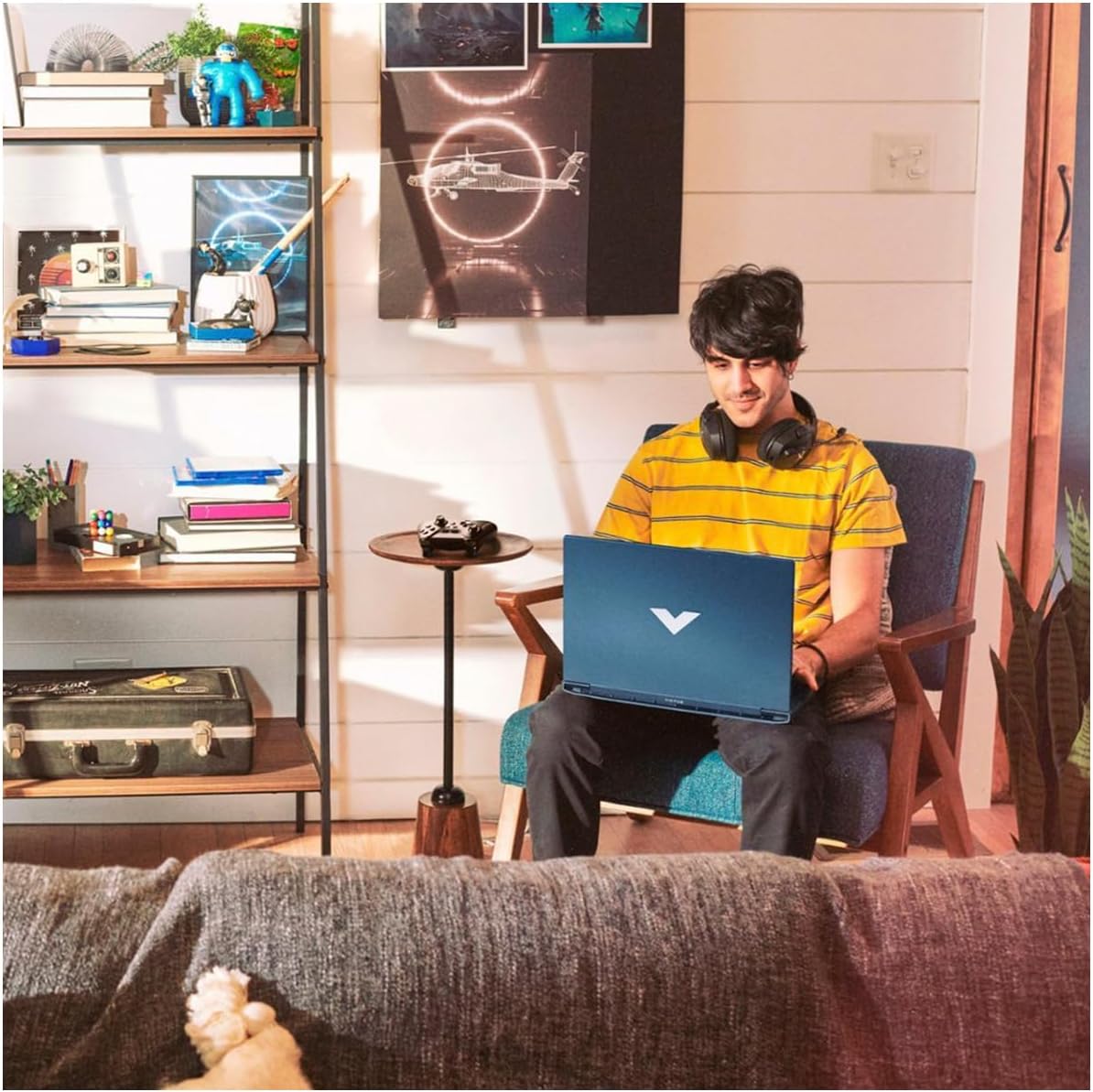
Image: A user comfortably operating the HP Victus Gaming Laptop in a home environment, demonstrating typical usage.

Сүрөт: жакын план view of hands interacting with an external gaming keyboard and mouse, with the HP Victus laptop visible nearby, illustrating its use with peripherals.
2. Дисплей жана графика
Your laptop is equipped with a 15.6-inch FHD (1920 x 1080) 144Hz IPS anti-glare display, powered by an NVIDIA GeForce RTX 3050. This combination provides smooth visuals and high frame rates for gaming and multimedia. Adjust display settings via Windows Display Settings or NVIDIA Control Panel for optimal performance.
3. Аудио өзгөчөлүктөрү
Experience clear audio through HP Dual Speakers with HP Audio Boost, custom-tuned by B&O. Adjust volume and audio profiles through the Windows sound settings or dedicated HP audio software.
4. Тармак жана байланыш
- Wi-Fi 6: Connect to wireless networks for internet access. Manage connections through the Windows network settings.
- Bluetooth: Кулакчындар, динамиктер же оюн контроллери сыяктуу Bluetooth иштетилген түзмөктөр менен жупташтырыңыз.
- RJ-45 (Ethernet): For a stable, high-speed wired internet connection.
Техникалык тейлөө
1. Ноутбугуңузду тазалоо
- Бир аз жумшак, түксүз кездемени колдонуңуз dampдисплей үчүн суу же экран тазалоочу менен жабылган.
- Баскычтоп жана шасси үчүн жумшак кездеме колдонуңуз. Катуу химиялык заттардан алыс болуңуз.
- Оптималдуу муздатууну сактоо үчүн желдеткич тешиктерден чаңды тазалоо үчүн мезгил-мезгили менен кысылган абаны колдонуңуз.
2. Батареяга кам көрүү
- Ашыкча температурадан сактаныңыз.
- Батареяны бат-баттан толук зарядсыздандырбаңыз.
- Эгерде сиз ноутбукту көпкө сактасаңыз, анын батарейкасы 50-70% га чейин заряддалганын текшериңиз.
3. Программалык камсыздоону жаңыртуу
Regularly update Windows 11 Pro and device drivers (especially graphics drivers) to ensure security, performance, and compatibility. You can check for updates via Windows Update and the HP Support Assistant application.
4. Сактагычты башкаруу
Your laptop comes with a 2TB PCIe 4.0 SSD. Regularly manage your storage by deleting unnecessary files, uninstalling unused applications, and utilizing cloud storage if needed, to maintain optimal system performance.
Проблемаларды чечүү
This section addresses common issues you might encounter. For more complex problems, refer to the HP support webсайтка же техникалык колдоо менен байланышыңыз.
1. Ноутбук күйбөй жатат
- AC адаптери ноутбукка да, иштеген электр розеткасына да бекем туташып турганын текшериңиз.
- Башка аспапка сайып, розетка иштеп жатканын текшериңиз.
- Эгер батарейка толугу менен түгөнүп калса, аны кайра күйгүзүүдөн мурун кеминде 30 мүнөт кубаттоого уруксат бериңиз.
2. Маселелерди көрсөтүү
- Экранда сүрөт жок: Ensure the laptop is powered on. Try connecting an external monitor via HDMI to check if the issue is with the laptop's display or graphics output.
- Жаркылдаган же бурмаланган сүрөт: Графикалык драйверлериңизди жаңыртыңыз. Windows жөндөөлөрүнөн дисплейдин чечилишин жана жаңыртуу ылдамдыгын тууралаңыз.
3. Туташуу көйгөйлөрү (Wi-Fi/Bluetooth)
- Wi-Fi туташпай жатат: Check if Wi-Fi is enabled in Windows settings. Restart your router and modem. Ensure you are entering the correct Wi-Fi password.
- Bluetooth түзмөгү жупташкан жок: Ensure Bluetooth is enabled on both the laptop and the device. Place devices close to each other. Try removing and re-pairing the device.
4. Ишти аткаруу маселелери
- Жай аткаруу: Close unnecessary applications. Check Task Manager for processes consuming high CPU or RAM. Ensure sufficient free space on the SSD.
- Ашыкча ысып кетүү: Ensure vents are clear of obstructions. Use the laptop on a hard, flat surface. Consider using a cooling pad if persistent.
Техникалык шарттар
Below are the key technical specifications for the HP Victus Gaming Laptop 15-fa:
| Өзгөчөлүк | Деталь |
|---|---|
| Модель аты | Victus 15-fa |
| Процессор | 12-муундагы Intel Core i5-12450H (8 өзөк, 4.40 ГГц чейин) |
| Графика | NVIDIA GeForce RTX 3050 (арналган) |
| Дисплей | 15.6-inch FHD (1920 x 1080), 144 Hz, IPS, micro-edge, anti-glare, 250 nits, 45% NTSC |
| RAM | 16 GB SO-DIMM |
| Сактагыч | 2 TB PCIe 4.0 SSD |
| Операция системасы | Windows 11 Pro |
| Порттар | 1x USB-C (5Gbps, DisplayPort 1.4, HP Sleep and Charge), 2x USB-A (5Gbps, HP Sleep and Charge), 1x HDMI 2.1, 1x RJ45, 1x SD Card Reader, 1x Headphone/Microphone combo |
| Зымсыз байланыш | Wi-Fi 6, Bluetooth |
| Аудио | HP Dual Speakers, HP Audio Boost, B&O Tuning |
| Баскычтоп | Backlit Keyboard with Numeric Keypad |
| Өлчөмдөрү (LxWxH) | 14.09 x 10.04 x 0.93 дюйм |
| Салмагы | 5.06 фунт |
| Түс | Performance Blue |

Image: A diagram illustrating the physical dimensions (width, depth, height) of the HP Victus Gaming Laptop.
Кепилдик жана колдоо
1. Продукцияга кепилдик
Your HP Victus Gaming Laptop comes with a 12 айлык кепилдик. This warranty covers manufacturing defects and hardware malfunctions under normal use. Please retain your proof of purchase for warranty claims. For detailed terms and conditions, refer to the warranty documentation included with your product or visit the official HP webсайт.
2. Техникалык колдоо
For technical assistance, troubleshooting beyond this manual, or warranty service, please contact HP Support. You can find support resources, drivers, and contact information on the official HP webсайт:
When contacting support, have your laptop's serial number and model number (15-fa) ready. These can usually be found on a sticker on the bottom of the laptop or within the system information in Windows.