1. Киришүү
This manual provides comprehensive instructions for the ShanWan Bluetooth Gamepad Keychain Sized Mini Controller. Please read this manual carefully before use to ensure proper operation and to maximize your gaming experience. This device is designed for use with Android phones and tablets, PS4/Slim/Pro, iPhone, iPad, Nintendo Switch, and Windows PCs.
2. Продукт бүтүп калдыview
The ShanWan Mini Controller is a compact and versatile gamepad designed for portability and multi-platform compatibility. It features 17 buttons and a D-Pad, all within a keychain-sized form factor.
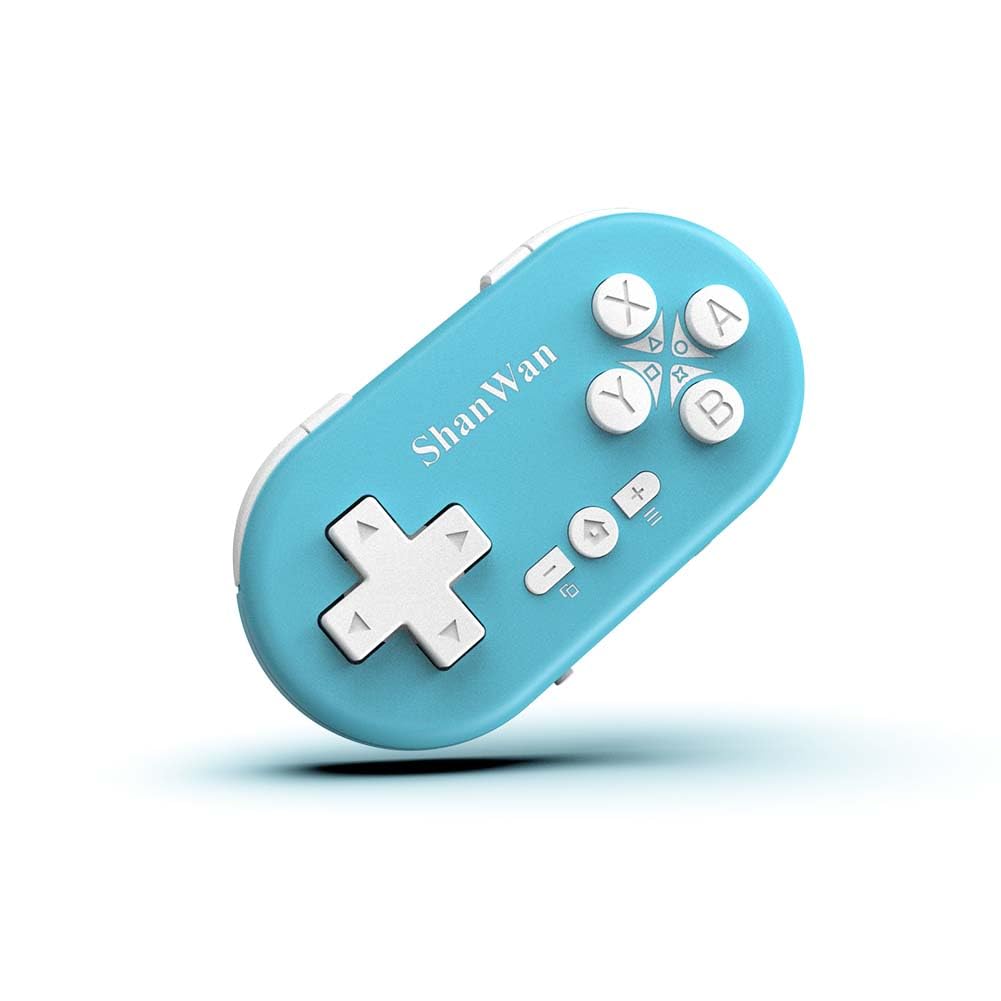
Figure 2.1: ShanWan Mini Bluetooth Gamepad, showcasing анын компакттуу дизайны жана баскычтардын жайгашуусу.

Figure 2.2: Dimensions of the ShanWan Mini Bluetooth Gamepad, measuring 2.83 inches in length, 1.57 inches in width, and 0.55 inches in thickness.
2.1 Пакеттин мазмуну
- ShanWan Bluetooth Gamepad Keychain Sized Mini Controller
- USB заряддоо кабели
- Колдонуучунун Колдонмосу (бул документ)
3. Техникалык шарттар
| Өзгөчөлүк | Деталь |
|---|---|
| Модель номери | Q36-XPS-KABRILAN |
| Байланыш | Bluetooth зымсыз |
| Шайкештик | Android, iOS, Windows, Nintendo Switch, PlayStation 4 |
| Батарея сыйымдуулугу | 180mAh Литий Полимер (кошулган) |
| Заряддоо убактысы | Болжол менен 1 саат |
| Иштөө убактысы | 5-6 саатка чейин |
| Зымсыз диапазон | 10 метрге чейин (33 фут) |
| Продукциянын өлчөмдөрү | 2.83 x 1.57 x 0.55 дюйм |
| Элемент Салмагы | 1.44 унция (болжол менен 41 грамм) |
| Өзгөчөлүктөр | Gyroscope motion sensing, One-button wake-up function |
4. Орнотуу жана жупташтыруу
4.1 Контроллерди заряддоо
Before first use, fully charge the controller. Connect the provided USB charging cable to the controller's charging port and the other end to a USB power source (e.g., computer, USB wall adapter). The charging indicator light will show the charging status and turn off when fully charged. A full charge typically takes about 1 hour.
4.2 Күйгүзүү/өчүрүү
- Күйгүзүү: Press and hold the Home button (usually the button with a house icon) for a few seconds until the indicator lights turn on.
- Өчүрүү: Press and hold the Home button for approximately 5 seconds until the indicator lights turn off. The controller will also automatically power off after a period of inactivity to conserve battery.
4.3 Bluetooth жупташуу нускамалары
The controller supports multiple platforms. Ensure the mode switch on the controller is set to the correct platform before pairing.
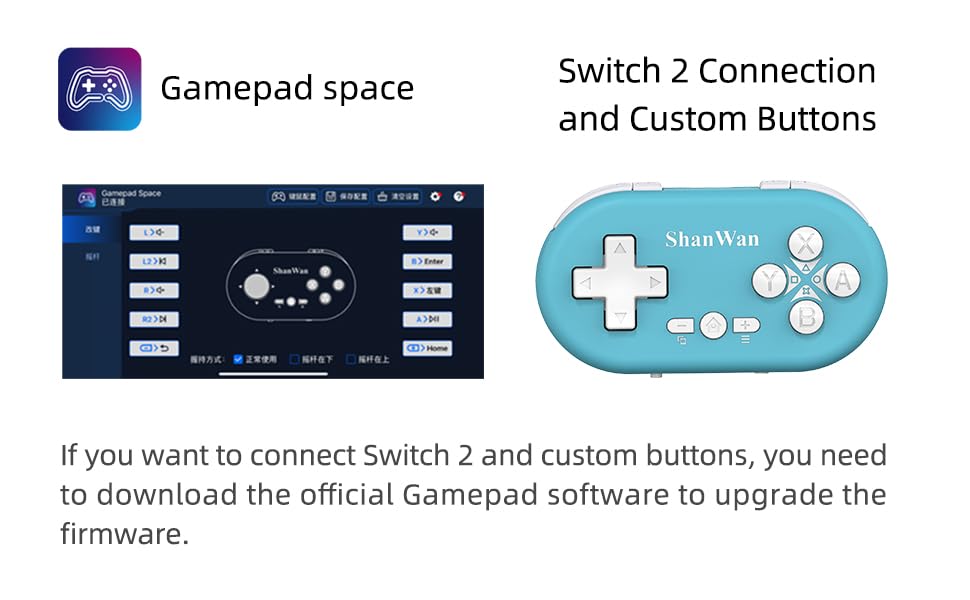
Figure 4.1: The mode switch on the controller, allowing selection between X (Xbox/PC), S (Switch), and P (PlayStation) modes for multi-device compatibility.
4.3.1 Nintendo Switch менен жупташтыруу
- Nintendo Switch'иңизде HOME менюсуна өтүңүз.
- "Контролляторлорду" тандаңыз, андан кийин "Кармапты/Тартипти өзгөртүү".
- Set the controller's mode switch to "S" (Switch mode).
- Press and hold the "Pair" button on the controller until the indicator lights begin to blink rapidly.
- The Switch will detect the controller. Once paired, the LED indicator on the controller will remain solid, and the controller will be displayed on the Switch host screen.

Figure 4.2: Visual guide for connecting the controller to a Nintendo Switch, showing menu navigation and the pairing button location.
4.3.2 Pairing with Android/iOS Devices
- Set the controller's mode switch to the appropriate mode (e.g., "X" for Android, or a specific iOS mode if available, refer to device-specific instructions).
- On your Android or iOS device, go to Bluetooth settings.
- Bluetooth иштетилгенин текшериңиз.
- Press and hold the "Pair" button on the controller until the indicator lights blink rapidly.
- Select "ShanWan Controller" or a similar name from the list of available devices on your phone/tablet.
- Туташкандан кийин контроллердогу индикатор жарыгы катуу болуп калат.
4.3.3 Pairing with PS4
- Set the controller's mode switch to "P" (PlayStation mode).
- On your PS4, go to "Settings" > "Devices" > "Bluetooth Devices".
- Press and hold the "Pair" button on the controller until the indicator lights blink rapidly.
- Select "ShanWan Controller" or a similar name from the list of available devices on your PS4.
- Туташкандан кийин контроллердогу индикатор жарыгы катуу болуп калат.
4.3.4 Pairing with Windows PC
- Set the controller's mode switch to "X" (Xbox/PC mode).
- On your Windows PC, go to "Settings" > "Devices" > "Bluetooth & other devices".
- Ensure Bluetooth is enabled and click "Add Bluetooth or other device".
- "Bluetooth" тандаңыз.
- Press and hold the "Pair" button on the controller until the indicator lights blink rapidly.
- Select "ShanWan Controller" or a similar name from the list of available devices.
- Туташкандан кийин контроллердогу индикатор жарыгы катуу болуп калат.
5. Иштөө нускамалары
5.1 Баскыч функциялары
The controller features standard gamepad buttons. Their specific function may vary slightly depending on the platform and game.
- D-Pad: Багыттуу киргизүү.
- A, B, X, Y баскычтары: Аракет баскычтары.
- L1, L2, R1, R2 баскычтары: Ийин жана триггер баскычтары.
- Үй баскычы: Power on/off, return to home screen (platform dependent).
- Плюс (+) / Минус (-) баскычтары: Start/Select or menu functions.
- Жуп баскычы: Bluetooth жупташтырууну баштайт.
5.2 Өзгөчөлүктөр
5.2.1 One-Button Wake-Up Function
After initial pairing, you can wake up the controller and reconnect it to the last paired device by simply pressing the Home button. This feature allows for quick resumption of gameplay.
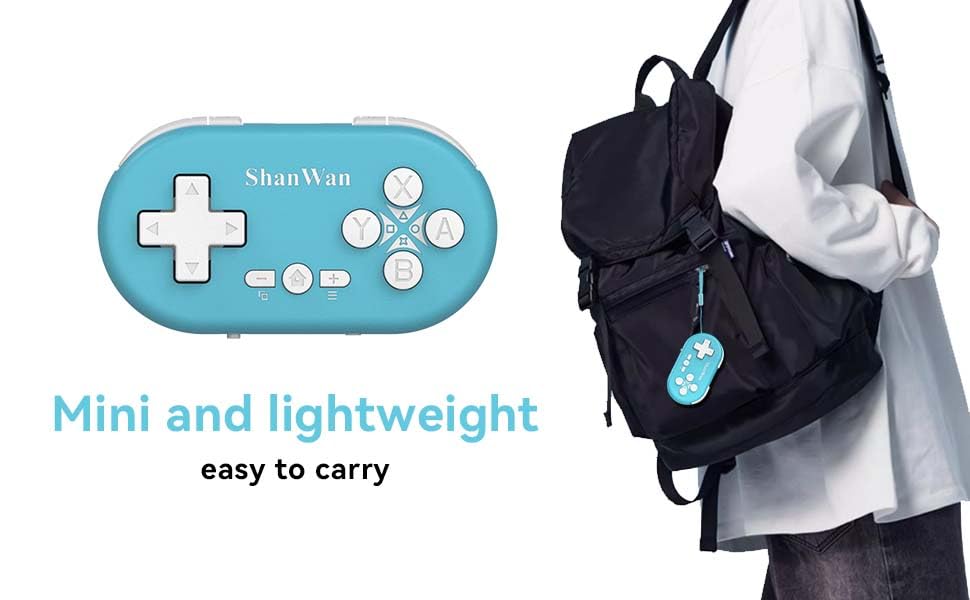
Figure 5.1: Illustration of the one-button wake-up function, highlighting the Home button used to quickly reactivate the controller.
5.2.2 Gyroscope Motion Sensing
The controller is equipped with a gyroscope for motion sensing effects, providing an immersive gaming experience in supported games, particularly on platforms like Nintendo Switch.
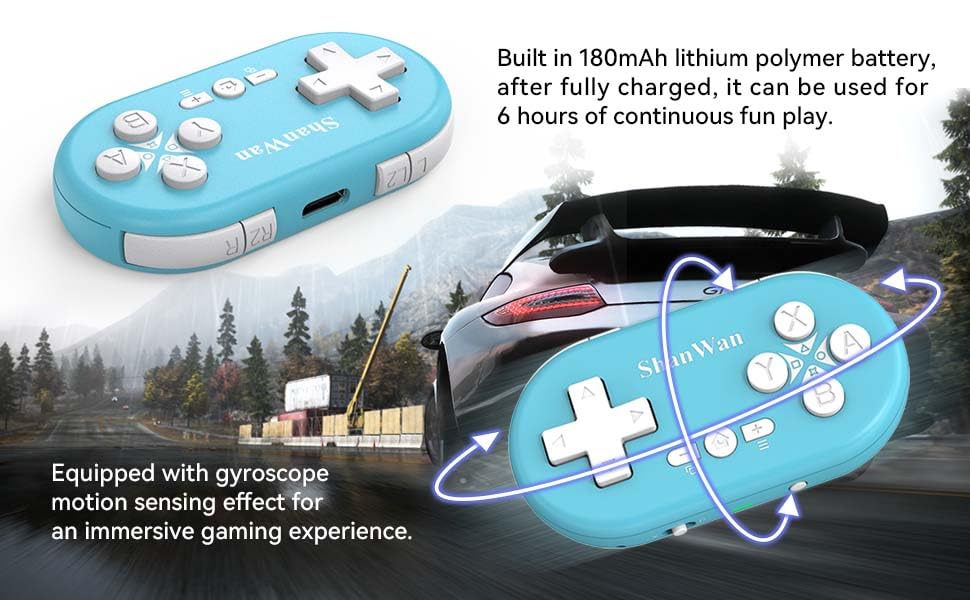
Figure 5.2: Visual representation of the gyroscope motion sensing effect, showing the controller being tilted to influence in-game actions.
5.2.3 Firmware Upgrade for Switch 2 and Custom Buttons
For compatibility with Switch 2 and to customize button mappings, it may be necessary to download the official Gamepad software and upgrade the controller's firmware. Refer to the manufacturer's official webакыркы программалык камсыздоо жана нускамалар үчүн сайт.

Figure 5.3: Screenshot illustrating the "Gamepad Space" software interface, used for firmware upgrades and custom button configurations, particularly for Switch 2 compatibility.
6. Техникалык тейлөө
- Тазалоо: Контроллерди тазалоо үчүн жумшак, кургак чүпүрөктү колдонуңуз. Катуу химиялык заттарды же абразивдүү материалдарды колдонуудан алыс болуңуз.
- Сактагыч: Контроллерди түз күн нурунан жана экстремалдык температурадан алыс салкын, кургак жерде сактаңыз.
- Батареяга кам көрүү: Батареянын иштөө мөөнөтүн узартуу үчүн, батареяны тез-тез толук зарядсыздандырбаңыз. Көпкө чейин колдонулбаса дагы, контроллерди үзгүлтүксүз кубаттап туруңуз.
- Таасирден качуу: Башкаргычты түшүрүп албаңыз же катуу соккуга дуушар кылбаңыз, анткени бул ички компоненттерге зыян келтириши мүмкүн.
7. Кыйынчылыктарды
7.1 Controller Does Not Power On
- Ensure the controller is fully charged. Connect it to a power source and allow it to charge for at least 15 minutes before attempting to power on again.
- Кубаттоочу кабель жана кубат булагы туура иштеп жатканын текшериңиз.
7.2 Контроллерди жупташтыруу мүмкүн эмес
- Ensure the controller is in pairing mode (indicator lights blinking rapidly).
- Check that the mode switch on the controller is set to the correct platform (S for Switch, X for Android/Windows, P for PS4).
- Make sure Bluetooth is enabled on your device (Switch, phone, PC, PS4).
- Move the controller closer to the device you are trying to pair with.
- Түзмөгүңүздүн Bluetooth жөндөөлөрүнөн контроллердин мурунку жупташууларын алып салып, кайра жупташтырып көрүңүз.
- Контроллерди да, түзмөгүңүздү да өчүрүп күйгүзүңүз.
7.3 Киргизүү артта калуу же ажыратуулар
- Ensure the controller is within the 10-meter wireless range of your device.
- Башка зымсыз түзмөктөрдөн (Wi-Fi роутерлери, башка Bluetooth түзмөктөрү) тоскоолдуктарды азайтыңыз.
- Контроллердин толук заряддалганын текшериңиз. Батареянын аздыгы туташуунун туруктуулугуна таасир этиши мүмкүн.
- Контроллерди түзмөгүңүз менен кайра жупташтырып көрүңүз.
- Update the controller's firmware if available (refer to Section 5.2.3).
7.4 Buttons Not Responding Correctly
- Test the controller on a different game or application to determine if the issue is game-specific.
- Контроллердин микропрограммасы жаңыртылганын текшериңиз.
- Perform a factory reset if possible (refer to manufacturer's support for specific instructions, as this model may not have a dedicated reset button).
8. Кепилдик жана колдоо
ShanWan products are designed for reliability and performance. For warranty information, technical support, or further assistance, please visit the official ShanWan webсайтка же кардарларды тейлөөгө кайрылыңыз. Сатып алуу квитанциясын кепилдик дооматтары үчүн сатып алуунун далили катары сактаңыз.
Official ShanWan Store: ShanWan Store on Amazon
9. Кошумча маалымат
The ShanWan Mini Controller's compact and lightweight design makes it highly portable, allowing users to carry it easily and enjoy gaming on the go.

Figure 9.1: The ShanWan Mini Bluetooth Gamepad attached to a backpack, illustrating its keychain-sized portability and ease of transport.

Figure 9.2: The ShanWan Mini Bluetooth Gamepad being used outdoors with a portable screen, demonstrating its ease of transport and use anywhere.


