1. Киришүү
This manual provides comprehensive instructions for the setup, operation, maintenance, and troubleshooting of your vretti D467B Bluetooth Thermal Shipping Label Printer. This high-performance thermal printer is designed for efficient label printing for various applications, including shipping, address, and barcode labels, supporting both USB and Bluetooth connectivity.

Figure 1: vretti D467B Printer and accessories. A sample label with barcode 4206047823456789012345678901 көрсөтүлөт.
2. Орнотуу
2.1 Пакеттен чыгаруу жана мазмуну
Бардык компоненттерди таңгактан кылдаттык менен алып салыңыз. Төмөнкү нерселердин бар экенин текшериңиз:
- vretti D467B Thermal Label Printer
- Кубаттуу адаптер
- USB кабели
- USB Flash Drive (containing drivers and software)
- Label Spindle and Holders
- Quick Start Guide
2.2 Принтерди туташтыруу
- Connect the power adapter to the printer's power port and then to an electrical outlet.
- USB туташуусу үчүн: Принтерден чыккан USB кабелин компьютериңизге туташтырыңыз.
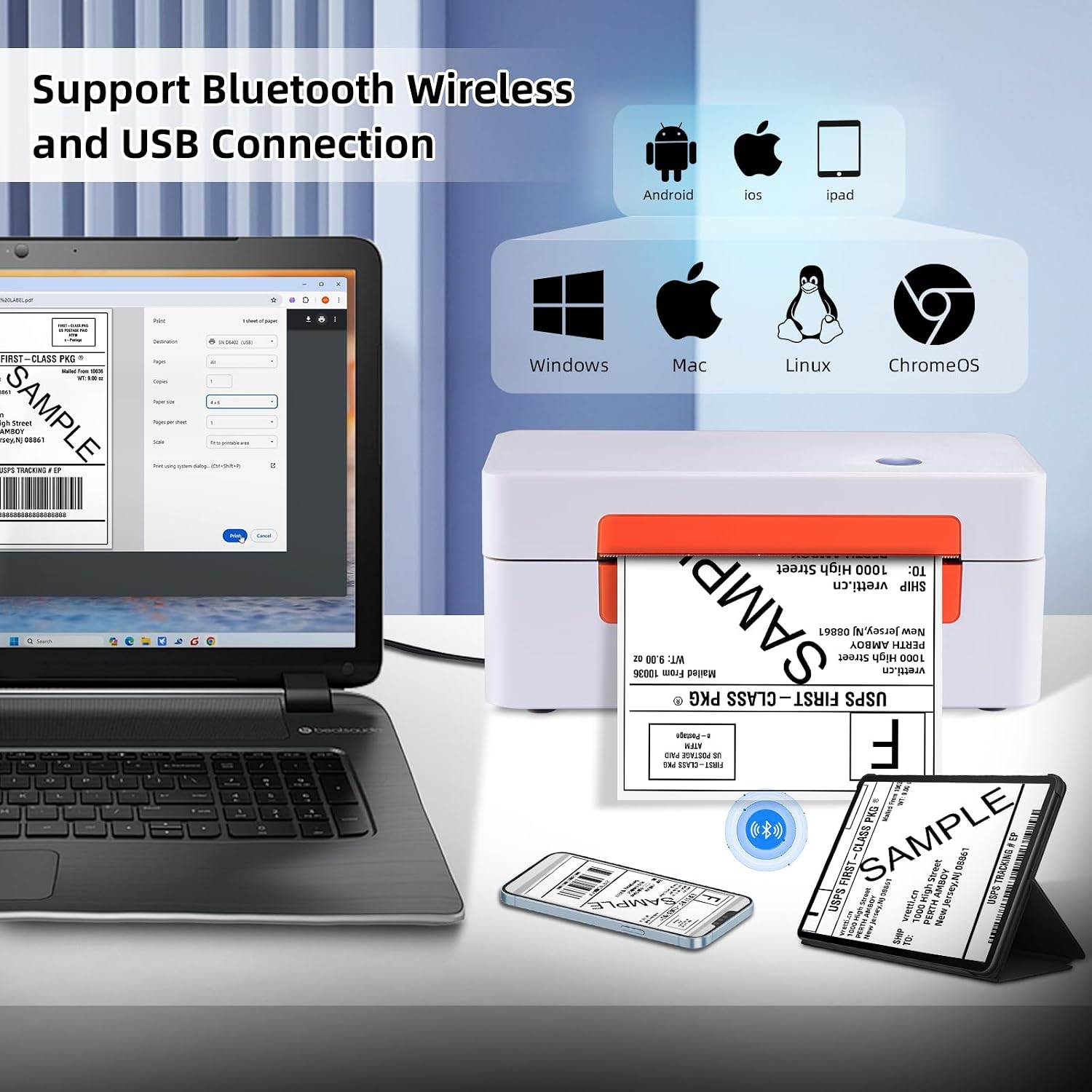
Figure 2: Printer connectivity options (USB and Bluetooth).
2.3 этикеткаларды жүктөө
- Принтердин капкагын ачыңыз.
- Place the label roll onto the label spindle and secure it with the holders.
- Feed the labels through the guide until the leading edge is slightly past the print head.
- Принтердин капкагын жабыңыз.
- Press the feed button once to allow the printer to automatically detect and calibrate the label size.

Figure 3: Label loading and supported label sizes. A nutrition facts label with barcode 0403685400125 көрсөтүлөт.
2.4 Драйверди орнотуу жана программалык камсыздоо
The printer supports Windows, macOS, Chrome OS, and Linux systems via USB, and Android/iOS via Bluetooth using the "Ezlabel" app.
- USB туташуу үчүн: Insert the provided USB flash drive into your computer. Follow the instructions to install the appropriate drivers for your operating system. For Chrome OS users, an extension may need to be installed from the USB flash drive.
- Bluetooth туташуу үчүн: Download the "Ezlabel" app from your device's app store (available for Android and iOS).
3. Операция
3.1 Basic Printing Steps
- Ensure the printer is powered on and labels are loaded correctly.
- For USB Printing:
- Документти же этикетканы ачыңыз file компьютериңизде.
- Select the vretti D467B printer from your print options.
- Adjust print settings (e.g., label size, orientation) as needed.
- Initiate printing.
- For Bluetooth Printing (via Ezlabel App):
- Open the "Ezlabel" app on your Android or iOS device.
- Pair your device with the printer via Bluetooth.
- Import or create your label design within the app.
- Customize and preview этикетка.
- Басып чыгаруу тапшырмасын принтерге жөнөтүңүз.

Figure 4: High-speed and high-resolution printing capabilities.
3.2 Платформанын шайкештиги
The vretti D467B printer is compatible with various e-commerce and shipping platforms, including but not limited to:
- Amazon
- eBay
- Shopify
- Etsy
- USPS
- UPS
- FedEx
- DHL
- Walmart
- Stamps.com
- ShipStation
- ShipWorks
- Shippo
- EasyPost
- Endicia
- Wish
- AliExpress
- XPS кемеси

Figure 5: Compatible e-commerce and shipping platforms.
3.3 Supported Label Types
The printer supports a wide range of thermal label types, including:
- Shipping Labels (e.g., 4x6 inches)
- Address Labels
- Barcode Labels
- Продукт этикеткалары
- DIY этикеткалар
- Business Logos

6-сүрөт: Мисamples of supported label applications.
4. Техникалык тейлөө
4.1 Басып чыгаруу башын тазалоо
To ensure optimal print quality, regularly clean the print head. Use an alcohol swab or a specialized print head cleaning pen. Power off the printer and allow the print head to cool before cleaning. Gently wipe the print head surface to remove any dust or adhesive residue.
4.2 Жалпы кам көрүү
- Принтерди таза, чаңсыз чөйрөдө сактаңыз.
- Принтерди түз күн нуруна же өтө жогорку температурага дуушар кылбаңыз.
- Use only high-quality thermal labels to prevent damage to the print head.
- Принтердин сыртына абразивдүү тазалоочу каражаттарды же эриткичтерди колдонбоңуз.
5. Кыйынчылыктарды
This section addresses common issues you might encounter with your vretti D467B printer.
5.1 Принтер жооп бербей жатат
- Кубат кабелинин бекем туташтырылганын жана принтердин күйүк экенин текшериңиз.
- USB кабелинин принтерге да, компьютерге да туура туташканын текшериңиз.
- For Bluetooth, ensure the printer is paired with your device and the "Ezlabel" app is open.
- Принтерди жана компьютериңизди/мобилдик түзмөгүңүздү өчүрүп күйгүзүңүз.
5.2 Басып чыгаруу сапатынын начардыгы
- Check if the thermal labels are loaded correctly and are facing the right direction.
- Басып чыгаруучу башты "Техникалык тейлөө" бөлүмүндө сүрөттөлгөндөй тазалаңыз.
- Жогорку сапаттагы термо этикеткаларды колдонуп жатканыңызды текшериңиз.
- Adjust print density settings in your printer preferences or the "Ezlabel" app.
5.3 Labels Not Feeding Correctly
- Ensure labels are properly aligned within the guides.
- Perform a label calibration by pressing the feed button.
- Белги жолундагы тоскоолдуктарды текшериңиз.
5.4 Байланыш маселелери
- USB: Reinstall the printer drivers from the provided USB flash drive. Try a different USB port or cable.
- Bluetooth: Ensure Bluetooth is enabled on your device. Forget the printer from your device's Bluetooth settings and re-pair it through the "Ezlabel" app. Ensure the printer is within range.
6. Техникалык шарттар
| Өзгөчөлүк | Деталь |
|---|---|
| Модел | D467B |
| Басма технологиясы | Термикалык |
| Байланыш | Bluetooth, USB |
| Print Resolution | 203 DPI |
| Макс басып чыгаруу ылдамдыгы | 152 мм/с (4x6 үчүн мүнөтүнө 72 этикетка) |
| Колдоого алынган энбелгилердин туурасы | 1 inch to 4.5 inches (25.4mm to 115mm) |
| Колдоого алынган медиа өлчөмдөрү | 4x6 inches (standard shipping labels) and other custom sizes |
| Принтердин чыгышы | Монохромдуу |
| Продукциянын өлчөмдөрү | 7.6 x 3.9 x 3.9 дюйм |
| Элемент Салмагы | 2.89 фунт |
| Башкаруу ыкмасы | App, USB |
| UPC | 692878863544 |
7. Колдоо жана кепилдик
7.1 Техникалык колдоо
For any technical assistance or inquiries, vretti offers comprehensive support through various channels:
- Алыстан техникалык колдоо: Available for complex issues.
- Электрондук почта колдоо: Contact via email for detailed queries.
- Тез кабарлашуу: Support available via WhatsApp.
- Online Q&A: Check the product's Q&A section for common questions and answers.
Please refer to the contact information provided with your product packaging or on the official vretti webакыркы колдоо маалымат үчүн сайт.
7.2 Продукциянын кепилдиги
Information regarding the product warranty is typically provided with your purchase documentation or can be obtained from the retailer where the printer was purchased. Please retain your proof of purchase for warranty claims.


